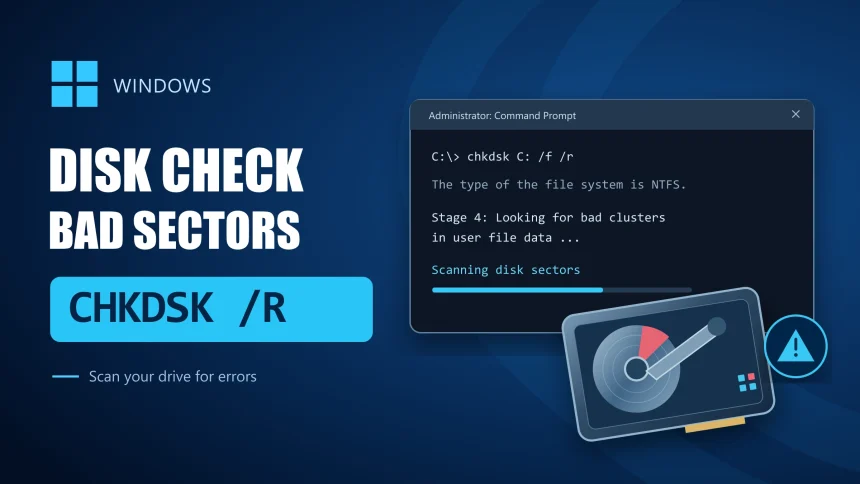
A CHKDSK bad sector scan can locate unreadable areas on a hard drive, attempt to recover readable information, and repair associated file-system errors. Use the /r option for this check—but back up your files before running it.
There is an important limit: CHKDSK cannot physically repair a scratched platter, worn recording surface, or damaged drive mechanism. Marking unusable clusters helps Windows avoid them; it does not make a failing hard drive healthy again. Drive firmware handles its own spare-sector reallocation.
This guide covers local drives in Windows 11 and Windows 10. It explains how to choose the right volume, run a check on a data drive, schedule one for the Windows drive, and review the results without treating a successful scan as a hardware guarantee.
1. Back up your files and confirm the drive letter
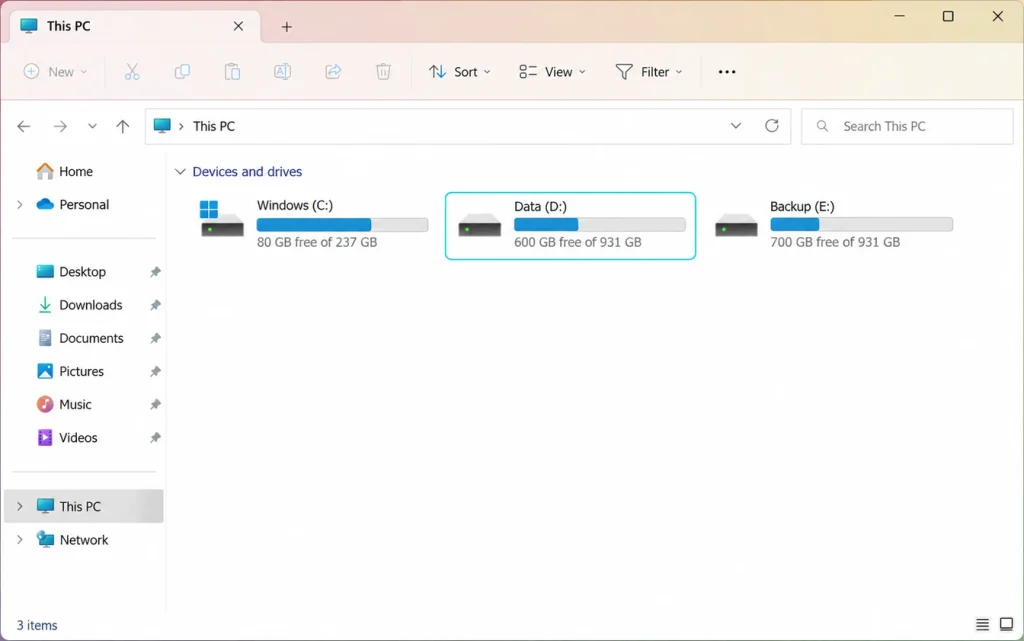
Copy important files to a different physical drive before making repairs. Another partition on the same hard drive is not protection against that drive failing.
If the disk clicks, repeatedly disconnects, or struggles to read irreplaceable files, prioritize recovery advice over a full scan. A repair can change file-system records, and unreadable data may remain unrecoverable. For valuable data that is not backed up, consider a recovery specialist before proceeding.
- Press Windows + E and open This PC.
- Identify the drive by its label, capacity, and letter.
- Confirm which device holds your backup and which one you intend to check.
- Close applications and files using the target drive.
The examples below use D: for a data drive and C: for the Windows drive. Substitute your own verified letter. The current folder shown in Command Prompt does not choose the target when you explicitly specify a volume such as D:.
If the drive is missing, investigate that first using our external-drive detection guide. Do not initialize or format a disk containing files you need just to make CHKDSK recognize it. A RAW or inaccessible volume may need recovery rather than a routine repair command.
2. Choose the right CHKDSK bad sector scan command
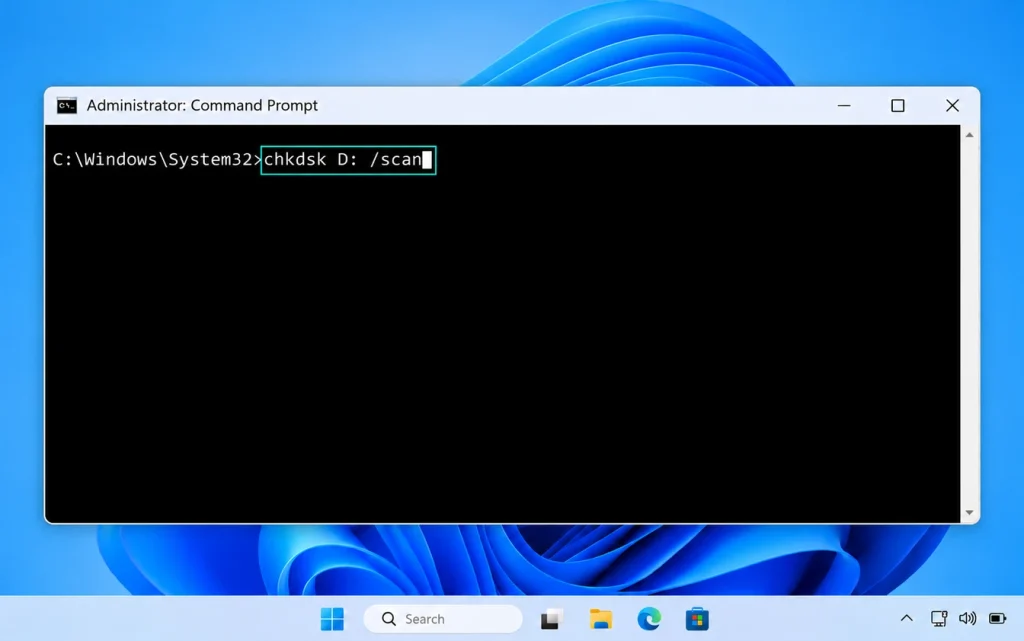
Not every CHKDSK command performs a bad-sector scan. Choose the option that matches the problem:
| Command example | Purpose |
|---|---|
chkdsk D: |
Reports file-system status without requesting repairs |
chkdsk D: /scan |
Runs an online NTFS file-system scan; not a full bad-sector check |
chkdsk D: /f |
Fixes file-system errors; requires access to lock the volume |
chkdsk D: /r |
Locates bad sectors and attempts to recover readable information; includes /f |
For an initial NTFS check on a backed-up, otherwise responsive drive, you can use /scan. If the concern is unreadable sectors, /r is the relevant option. You do not need to add /f separately because its functionality is already included.
Open an administrator prompt by searching for Command Prompt, right-clicking it, and selecting Run as administrator. Confirm the permission prompt. The images show commands or navigation examples, not repairs completed on a tested drive.
3. Run a CHKDSK bad sector scan on a data drive
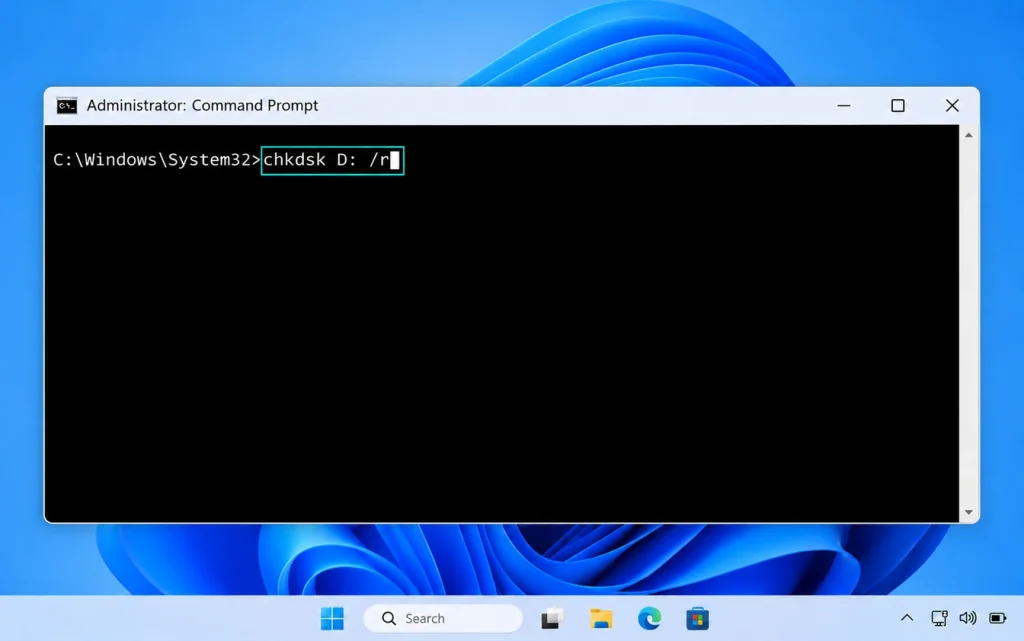
After confirming the backup and drive letter, enter the following in the administrator command prompt:
chkdsk D: /rPress Enter. CHKDSK needs exclusive access for the repair. If another program is using the drive, close it and retry. If a dismount question appears, read it carefully: dismounting invalidates open access to that volume. Do not accept it while work or transfers are active.
A full check can take hours on a large hard drive. Size, speed, file count, and read errors affect the runtime. Keep power stable and an external drive securely connected. Avoid using the target drive during the check.
A progress percentage that stays still for a while does not prove the scan has frozen. Allow time for difficult reads rather than repeatedly restarting the PC. If the drive begins making abnormal mechanical noises or disconnecting, seek help instead of starting another full pass.
When the scan finishes, save its summary and verify important files against your backup. A recovered file can still contain missing or damaged content. Open the files you rely on rather than assuming that a repair message guarantees their integrity.
4. Schedule CHKDSK for the Windows drive
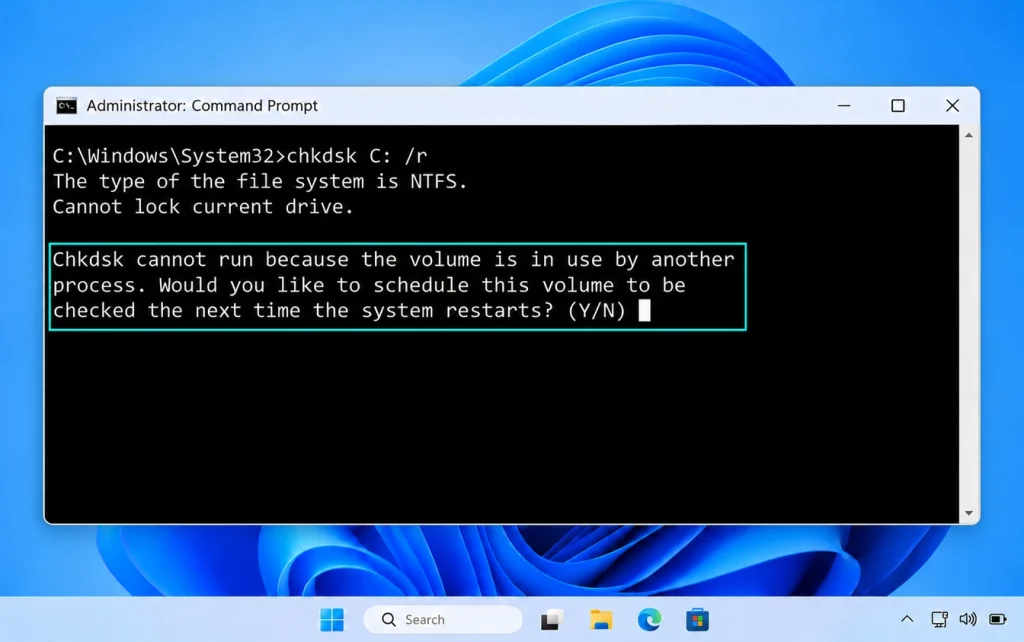
The running Windows system normally prevents CHKDSK from locking its own volume. Schedule the check for startup instead.
- Save your work, close applications, and keep the PC connected to power.
- In an administrator command prompt, enter:
chkdsk C: /r- If prompted to schedule the check for the next restart, type Y and press Enter.
- Restart the PC when you can leave it unavailable for the check.
- Allow the scheduled scan to finish before resuming work.
Use the prompt’s displayed answer choices if Windows runs in another language. Scheduling the check does not mean it has already run; confirm the result after the restart.
If Windows cannot start and you use recovery media, verify the volume letters again. They can differ from those used on the desktop, and an encrypted volume may need unlocking. Do not assume that C: in recovery is automatically your Windows partition.
5. Review CHKDSK bad sector results and drive health
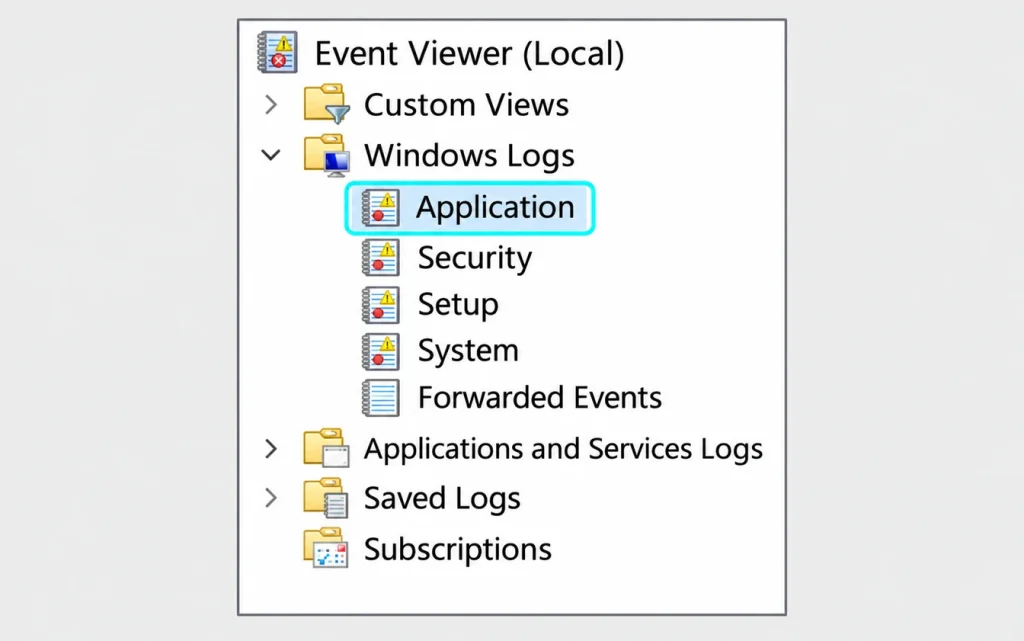
After a startup check, review the saved report in Event Viewer:
- Press Windows + R, enter
eventvwr.msc, and press Enter. - Expand Windows Logs and select Application.
- Choose Filter Current Log and select Chkdsk and Wininit under Event sources.
- Open the entry matching your scan time and review its message.
Record whether the check completed, what errors it corrected, and whether it reported bad clusters. Keep the report for comparison if symptoms return. Do not clear logs before saving the information you need.
A completed CHKDSK bad sector scan does not certify the whole drive as reliable. If unreadable areas recur, files keep becoming corrupt, or the drive reports a health warning, protect your data and arrange a manufacturer-supported diagnostic or replacement. Some vendor tests include erase or repair options, so read their descriptions before starting them.
SSDs also support file-system checks, but CHKDSK does not repair worn flash cells. Avoid treating repeated full scans as maintenance or as a substitute for investigating persistent errors.
Finally, distinguish disk-file-system problems from damaged Windows system files. If the drive is stable but Windows components still need attention, our system-file repair guide covers that separate task. For high disk activity without unreadable files, see our 100% disk-usage guide.