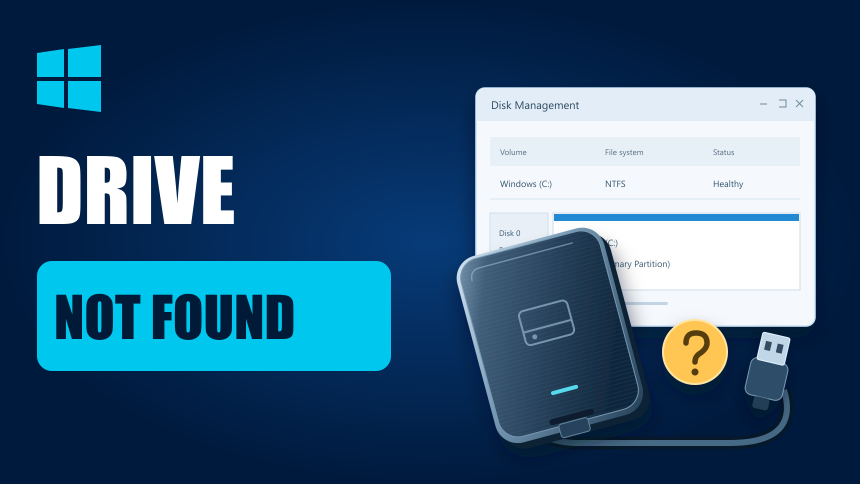
An external drive not showing in File Explorer does not always mean the drive has failed. Windows may detect the hardware but lack a drive letter, a usable file system, or a working connection. The important first step is to find out where detection stops.
This guide applies to external hard drives and USB storage on Windows 11 and Windows 10. If the drive contains files you need, cancel any prompt to format or initialize it until you understand its condition. A drive that used to work should not be treated as a new, empty disk just because Windows cannot open it.
| What Windows shows | Likely troubleshooting direction |
|---|---|
| Missing from File Explorer but present in Disk Management | Inspect its volume, file system, status, and drive letter. |
| Healthy NTFS or exFAT volume without a letter | Assign an unused letter to the existing data volume. |
| RAW, Unallocated, or Not Initialized on a previously used drive | Protect the data before attempting changes. |
| Missing from Disk Management and Device Manager | Check the cable, port, power, enclosure, and another computer. |
| Wrong capacity, repeated disconnects, or unusual mechanical noise | Investigate hardware and avoid repeated repair attempts. |
1. Check the USB cable, port, and power
Start with the connection. A power light or spinning motor does not confirm that a USB data connection is working. A damaged cable, an unreliable hub, or insufficient power can leave the drive absent from Windows.
- If the drive is actively transferring files, stop the transfer and eject it before disconnecting.
- Connect it directly to the computer instead of through a dock or USB hub.
- Try another USB port and a known-good, compatible data cable.
- For a desktop external drive, check its original power adapter and outlet. Do not substitute an adapter with an unknown voltage or polarity.
- If possible, test the drive on another computer. Cancel any unexpected formatting prompt there too.
A portable drive may rely entirely on USB power, while a desktop enclosure usually needs its own supply. Follow the device’s requirements rather than assuming every USB-C cable or power source is suitable.
If it works on another PC, copy important files while you have access, then investigate the original computer’s connection. If the drive clicks repeatedly, grinds, disconnects constantly, or contains irreplaceable files after a drop, stop experimenting and consider professional recovery. Unusual noise is a reason to investigate, not proof of one specific failure.
2. Find an external drive not showing in File Explorer
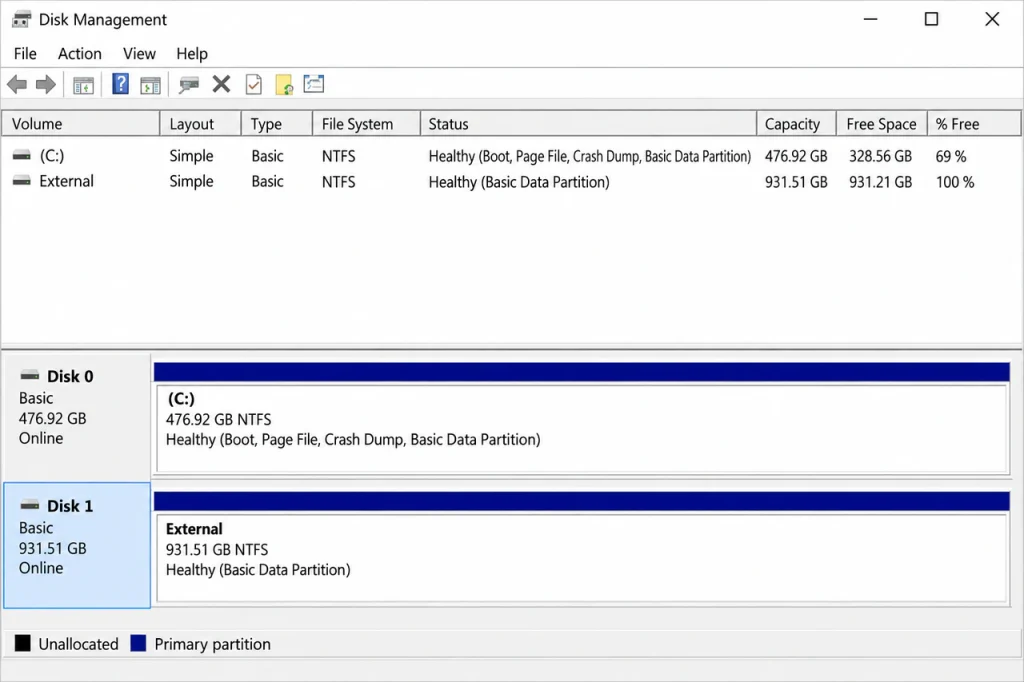
For an external drive not showing in File Explorer, Disk Management is the next useful check. It shows disks and partitions even when Windows has not assigned them a usable Explorer path.
- Right-click Start and select Disk Management. Alternatively, press Windows + R, enter
diskmgmt.msc, and press Enter. - Allow the disk list to load. Cancel an unexpected initialization dialog for a drive with existing data.
- Identify the external disk by its capacity, volume label, and connection history. Do not assume it is always Disk 1.
- Read the lower graphical pane as well as the upper volume list.
- Record the disk status, partition size, file system, and drive letter before making changes.
A drive sold as 1 TB commonly appears at roughly 931 GB in this view because of unit conventions. A small difference like that is normal; a drive appearing as 0 bytes or a radically different capacity needs further investigation.
If a known ordinary external data disk is marked Offline, right-click its left-hand disk label and review the option to bring it Online. Do not force changes on shared storage, RAID members, or an unfamiliar disk with a signature conflict. Get help interpreting those cases first.
Healthy describes the volume status Windows reports. It does not prove that the physical hardware is fault-free. Likewise, a disk appearing here means Windows sees something; it does not guarantee that the files are readable.
3. Assign a drive letter to a healthy volume
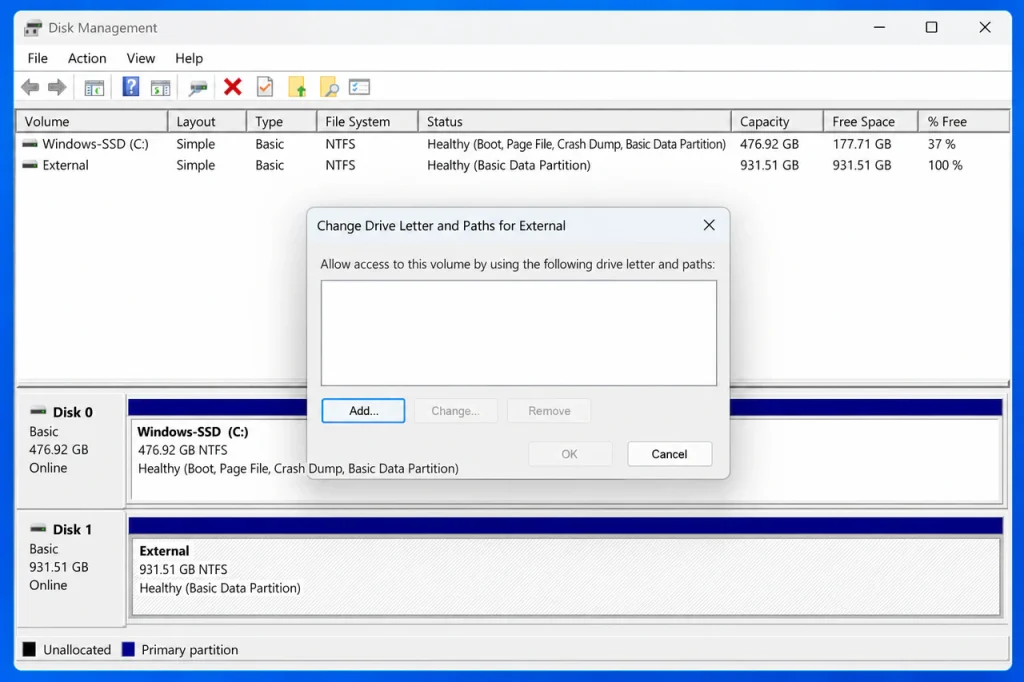
If the correct external disk has an existing, recognizable NTFS or exFAT data volume but no letter, assigning an unused letter may make it appear in File Explorer. This step does not require formatting the volume.
- In Disk Management, right-click the external drive’s data volume in the graphical pane.
- Select Change Drive Letter and Paths.
- If no letter is listed, select Add.
- Choose Assign the following drive letter, select an unused letter, and confirm.
- Open File Explorer > This PC and check whether the drive appears and opens.
Use this procedure on the external data volume, not an EFI, recovery, or Windows system partition. If the command is unavailable, do not force a letter assignment using random DiskPart commands. The volume may not be in a suitable state or may use a file system Windows cannot mount.
If it already has a letter, try opening that path directly. Changing an existing letter can break backup jobs, shortcuts, or installed applications that depend on it. Avoid changing it unless you have identified a conflict and understand which paths need updating.
Once access returns, open a few known files and copy important data to another physical device. Seeing the icon again is useful, but it is not the same as verifying a backup.
4. Check Device Manager and the USB connection
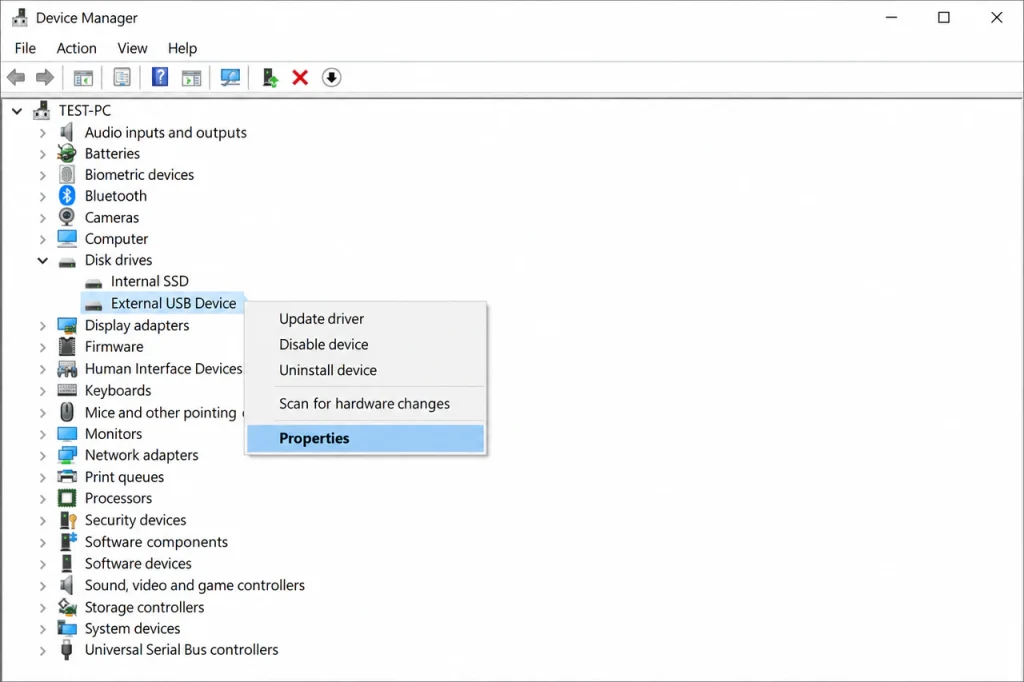
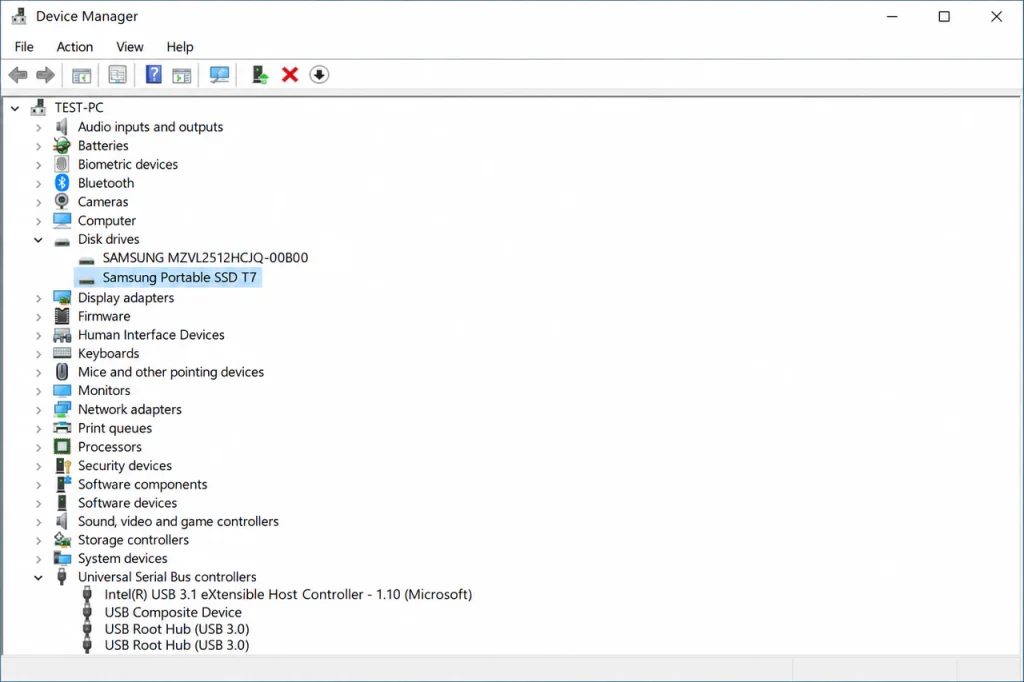
If the external drive is still absent from Disk Management, open Device Manager and expand Disk drives and Universal Serial Bus controllers. Look for the drive, an unknown device, or a warning symbol associated with its connection.
- Right-click the relevant device and open Properties.
- Read Device status and record any error code.
- If needed, disconnect the idle external drive, note which entry disappears, and reconnect it to identify the correct device.
- Restart Windows after saving your work and test the same connection again.
- If the issue affects multiple USB devices on this PC, check Windows Update and the PC maker’s supported chipset or USB controller drivers.
Most ordinary USB external hard drives use drivers already included with Windows. A bundled backup application is usually not required for basic drive detection. Installing a third-party “external drive driver” will not repair a damaged cable or unreadable file system.
Do not uninstall every USB controller or select a storage device just because its name looks similar. For an unknown USB device or descriptor error, follow our USB device not recognized guide using the specific affected entry.
If the drive is absent on multiple computers with a known-good cable and correct power, the enclosure, USB bridge, or drive itself may need service. Avoid opening an enclosure casually: some models use integrated USB electronics or hardware encryption, so moving the disk may not restore access.
5. Protect your files if the drive is RAW or unallocated
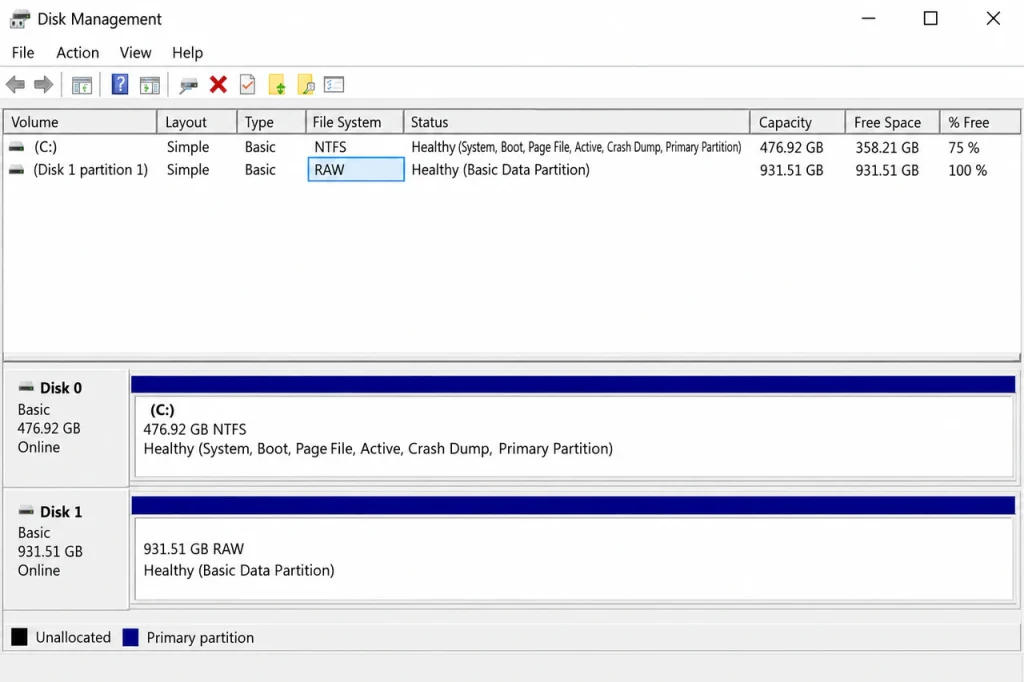
An external drive not showing normally may appear as RAW, Unallocated, or Not Initialized. These labels mean different things, and none is permission to erase a previously used disk.
| Status | What it tells you | If files are needed |
|---|---|---|
| RAW | Windows does not recognize a usable file system on that volume. | Do not format it. Investigate corruption, compatibility, or recovery needs. |
| Unallocated | Windows does not show an allocated volume in that space. | Do not create a new volume over the missing data. |
| Not Initialized | Windows cannot use the disk’s current initialization information. | Cancel initialization and assess the drive first. |
A drive used on another platform may have a file system Windows cannot read natively. An encrypted drive may require the original unlock software or recovery key. Return it to a compatible system or use its supported unlock method before assuming the data is gone.
If files are valuable, prioritize copying accessible data or obtaining a recovery assessment. Do not run chkdsk /f, chkdsk /r, partition repair, or formatting as a first response to an unreadable or potentially failing drive. Repair operations can write changes, and a long scan can stress unstable hardware.
Only for a confirmed new, empty drive: initial setup may require bringing it online, initializing it, creating a simple volume, assigning a letter, and formatting. Verify the disk identity and that no files need recovering before starting. Follow the manufacturer’s setup instructions; do not apply that process to a drive that previously held your data.
The best next step comes from the evidence: a missing letter can be corrected in Windows, while an unstable connection or unreadable disk needs a different approach. Keep the disk’s reported status, capacity, device error, and results from another computer together when requesting support.