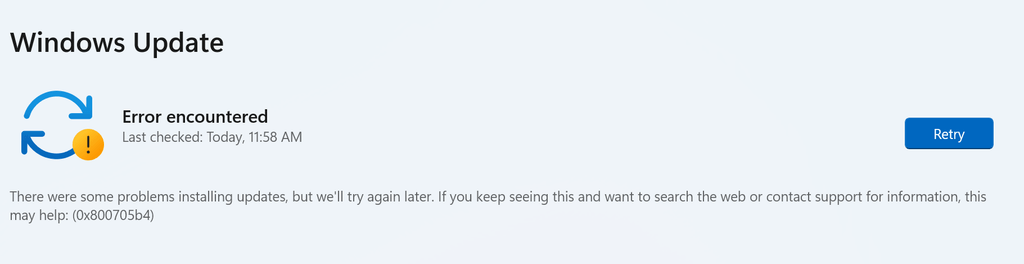
Windows Update error 0x800705b4 indicates that an update operation timed out. It can appear when Windows takes too long to complete a task or the update process is interrupted. The code identifies the timeout, but it does not tell you exactly what caused it.
Start with a restart, check your connection, and run the Windows Update troubleshooter. If the same update keeps failing, move on to system-file repairs and background-software checks.
1. Check the connection and restart your PC
Before changing update settings, make sure the computer has a stable internet connection. Open a few websites and check whether they load normally. If the connection keeps dropping, address that problem before downloading the update again.
Then follow these steps:
- Save your work and close open applications.
- Connect your laptop to its charger.
- Select Start > Power > Restart.
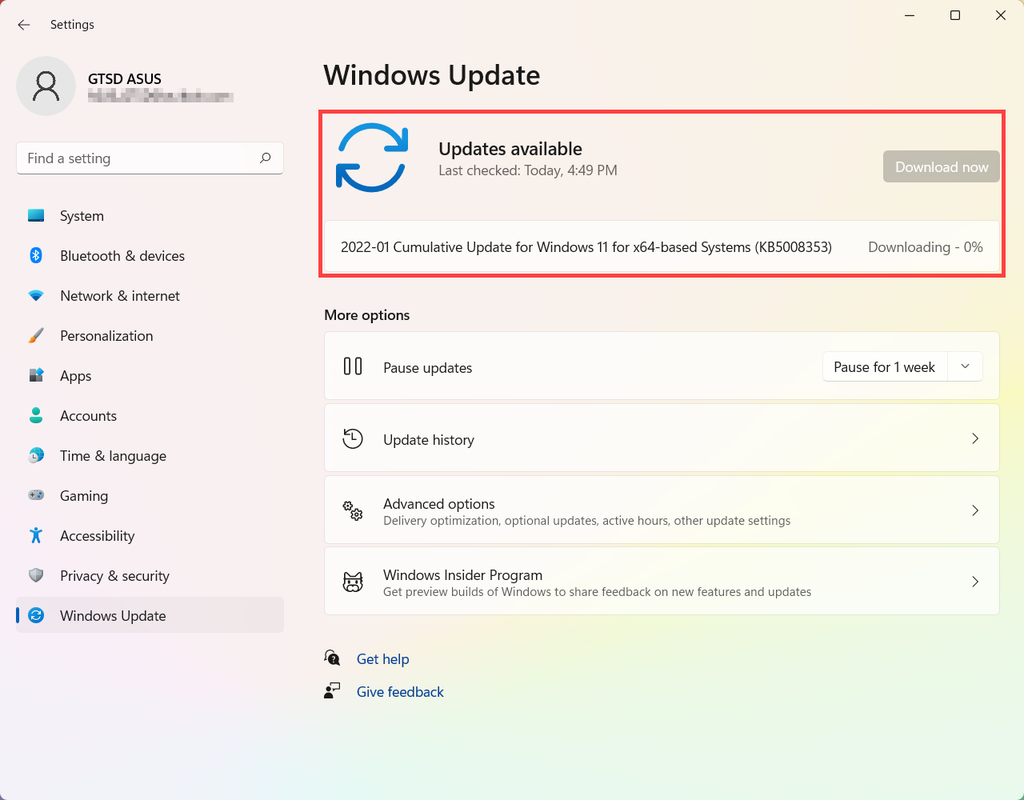
- After signing in, open Windows Update.
- Select Check for updates and retry.
In Windows 11, Windows Update is directly inside Settings. In Windows 10, open Settings > Update & Security > Windows Update.
Do not force a shutdown while Windows is actively installing an update. A percentage that stays unchanged for a while does not, by itself, prove the installation has stopped.
If the attempt fails, record the update’s KB number, the full error message, and whether it failed during downloading or installation. This gives you something specific to compare after each fix.
2. Run the troubleshooter for Windows Update error 0x800705b4
The built-in troubleshooter can check common update problems and attempt repairs without requiring you to change services manually.
On Windows 11:
- Open Start and search for Get Help.
- Open the app.
- Search for Windows Update troubleshooter.
- Follow the diagnostic questions and suggested actions.
- Restart if requested, then retry the update.
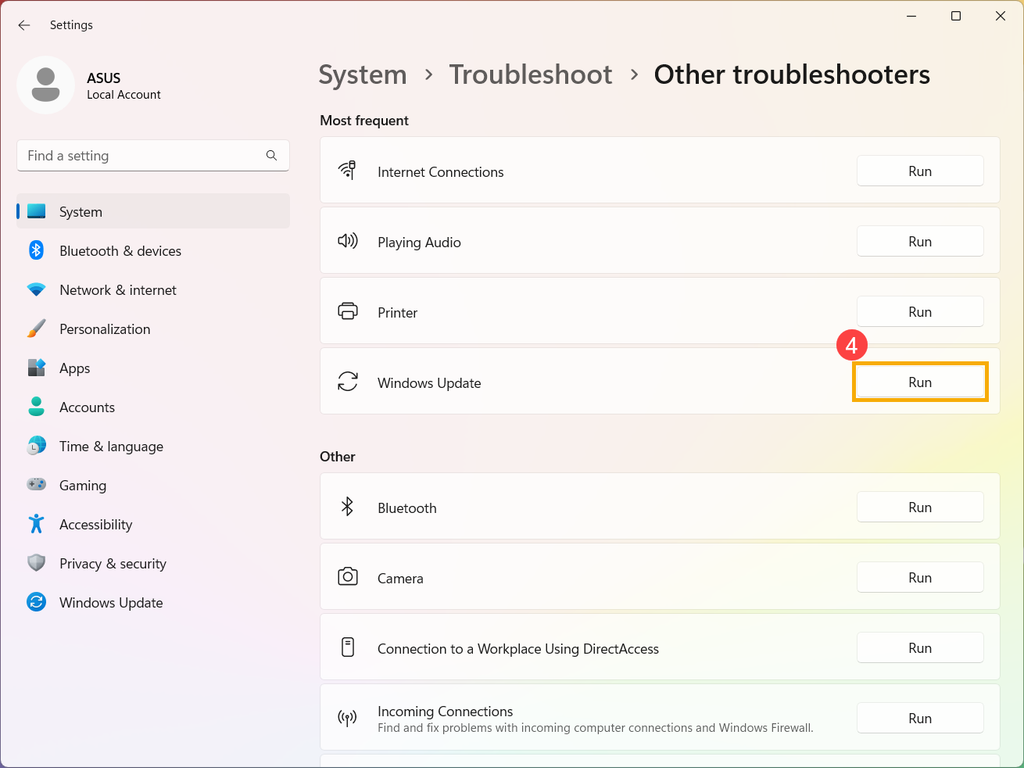
Where available, you can also use Settings > System > Troubleshoot > Other troubleshooters and select Run beside Windows Update.
On Windows 10, the older Settings route is Update & Security > Troubleshoot > Additional troubleshooters > Windows Update.
Check the result carefully. If the troubleshooter reports a repair, return to Windows Update to confirm whether the installation now succeeds. Completing the diagnostic process is different from completing the update.
3. Repair Windows components with DISM and SFC
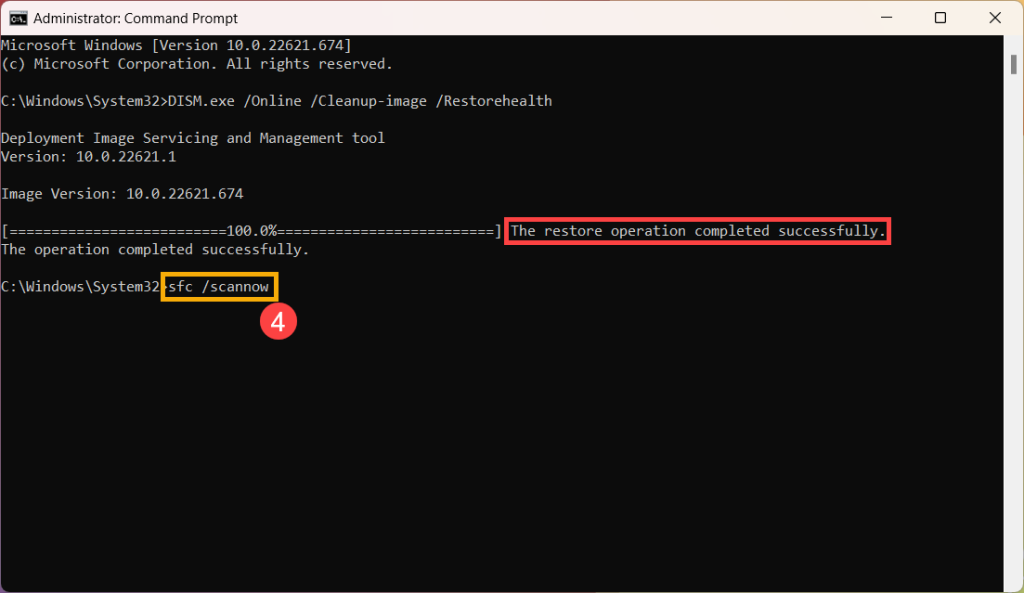
If Windows Update error 0x800705b4 continues, damaged system files or components are worth checking. Windows includes two repair tools for this purpose.
Open Start, search for Command Prompt, and select Run as administrator. Run this command first:
DISM.exe /Online /Cleanup-Image /RestoreHealth
DISM checks and repairs the Windows image used for servicing. Let the command finish before starting another repair.
After it reports successful completion, run:
sfc /scannow
System File Checker examines protected system files and attempts to replace damaged copies.
When verification finishes, restart the PC and retry Windows Update. If either tool fails, record its exact message instead of assuming the repair worked.
These commands check for corruption; they do not prove corruption caused the timeout. Their results help you decide whether to continue investigating Windows components or another source of interference.
4. Test for background-software interference
A timeout can be difficult to diagnose when several applications are updating, scanning, or running background tasks at once.
Close optional applications through their normal menus before your next update attempt. Avoid starting another software installation at the same time.
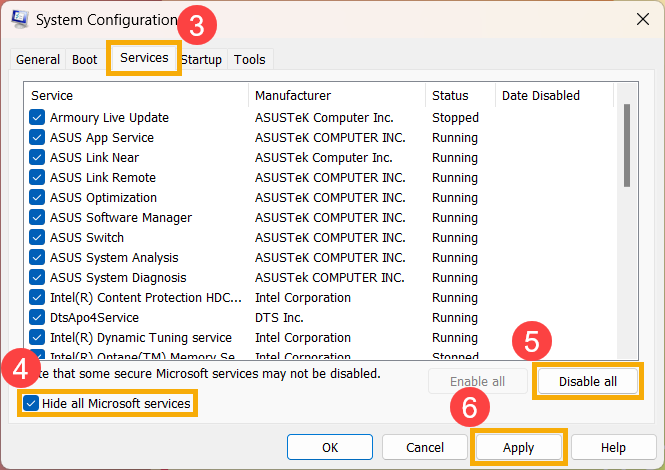
If the problem continues, a clean boot can help test for third-party software conflicts. Before making changes, record the original service and startup-app settings.
The process uses System Configuration, opened by pressing Windows + R and entering msconfig. On its Services tab, Hide all Microsoft services must be selected before disabling third-party services. Startup applications are managed separately through Task Manager.
Do not change the Boot tab or advanced boot settings. If the list includes required security, encryption, or workplace software, ask the software provider or IT team to handle the test.
After testing, restore the original settings and restart. If updates work only with background items disabled, investigate those items rather than leaving the computer in a reduced-startup configuration.
5. Use the Windows 11 repair reinstall option
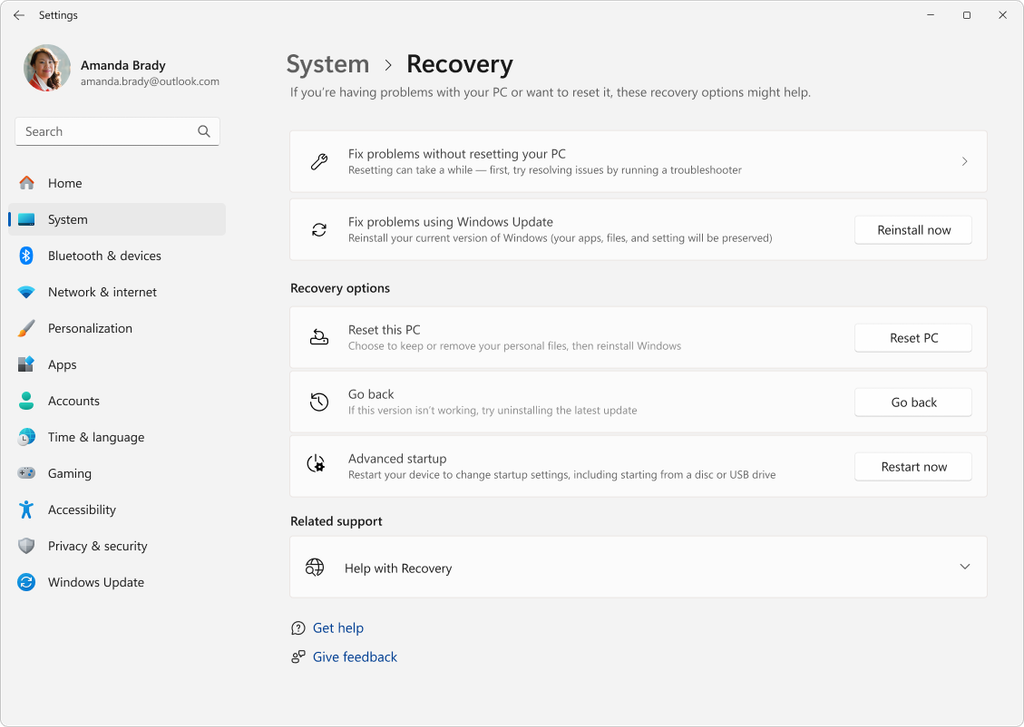
If the earlier checks do not resolve the failure, Windows 11 may offer a repair reinstall through Windows Update.
This option reinstalls the current Windows version while preserving apps, personal files, and settings. Back up important files before beginning.
- Open Settings > System > Recovery.
- Find Fix problems using Windows Update.
- Select Reinstall now.
- Review the restart option and follow the prompts.
- Keep the PC connected to power and the internet throughout the process.
This is separate from Reset this PC. Make sure you select the repair option described above.
The option may be unavailable on older Windows 11 installations or computers whose updates are managed by an organization. If it is missing on a work device, contact IT rather than changing update policies.
What if error 0x800705b4 still appears?
If Windows Update error 0x800705b4 returns after these checks, prepare a short troubleshooting record. Include the failed update, Windows version, error message, troubleshooter findings, and DISM or SFC results.
Also note whether a clean boot changed the outcome. That detail helps support distinguish a background-software conflict from a problem that persists with fewer applications running.
Avoid repeating every fix without checking the result. A successful download, a different error code, or a failure at a later installation stage can each change what needs investigating next.