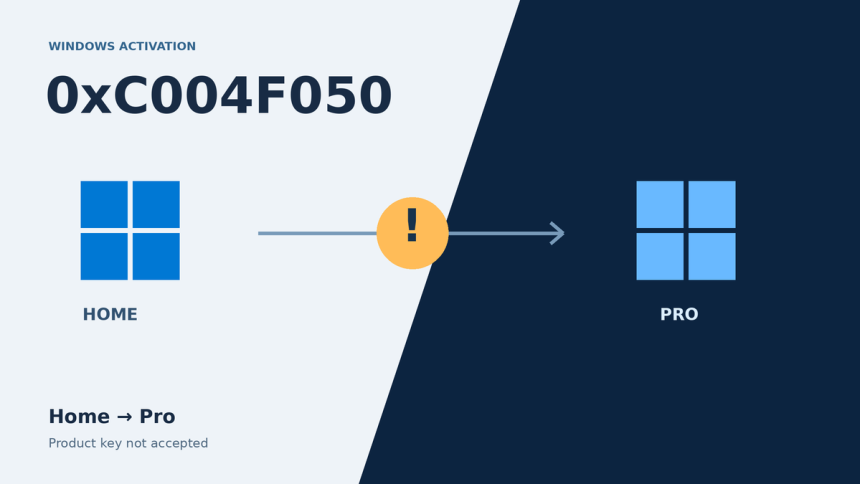
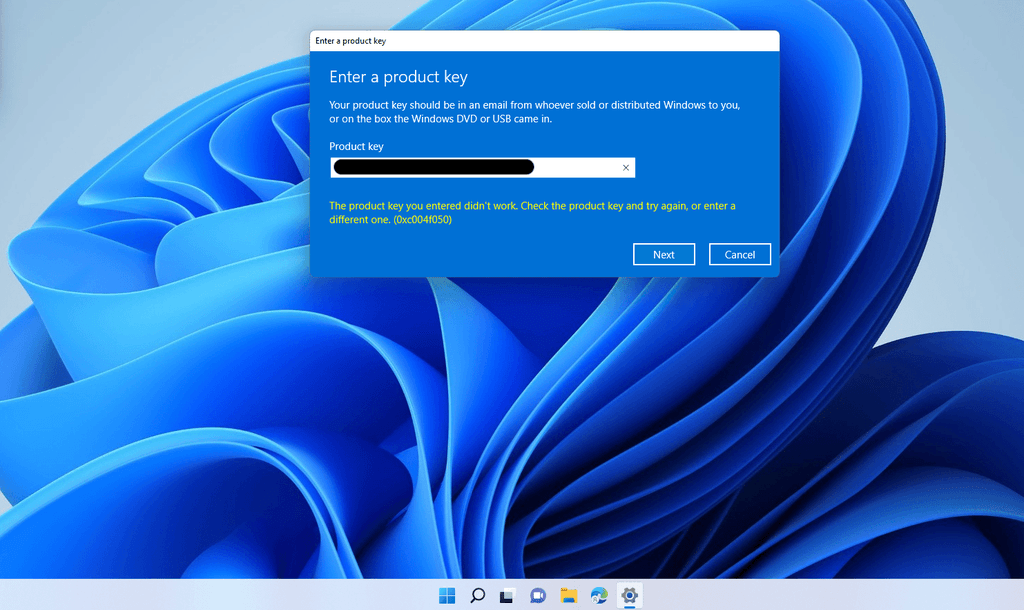
To fix error 0xc004f050 when upgrading Windows Home to Pro, start by checking your installed edition and activation state. Windows displays this code when a product key is rejected. The next step depends on whether your PC still runs Home or has already switched to Pro.
This guide focuses on Windows 11. Check whether the failure occurred while changing editions or activating Pro, then confirm that your purchased license matches the installed edition.
1. Check your Windows edition to fix error 0xc004f050
Open Settings > System > Activation. Record the installed edition, activation state, and full error message. Keep this information alongside your purchase receipt, with the complete product key hidden.
| What Activation shows | Next step |
|---|---|
| Home, Active | Follow the supported Pro upgrade procedure below. |
| Home, not activated | Resolve Home activation before a manual edition upgrade. |
| Pro, not activated | Skip the Home-to-Pro upgrade and check the Pro entitlement. |
| Pro, Active | The current edition and activation are complete; check whether the message came from an earlier attempt. |
Write down which action triggered the error: entering a purchased key, changing editions, or activating after a reinstall. This prevents repeating an edition upgrade when the remaining problem is activation.
2. Use the supported Home-to-Pro upgrade
For an activated Home installation, use a valid Pro product key or the Microsoft Store upgrade route. Microsoft’s Home-to-Pro instructions explain both options.
- Save your work and back up important files.
- In Activation settings, expand Upgrade your edition of Windows if present.
- Select Change beside Change product key, enter your purchased Pro key, and follow the prompts.
- If you need to purchase an upgrade, use the Store option shown in Activation settings instead.
- After any requested restart, recheck the installed edition and activation state.
If these steps do not fix error 0xc004f050, pause here. Compare the exact product named on the receipt with the edition you are trying to install. Buying a key, completing an edition change, and successfully activating Windows are separate events; record which one failed.
3. If Pro is installed but not activated
Check that your license covers the installed edition. If you have a purchased Pro key, enter it through Change product key while online. If you purchased the upgrade through Microsoft Store, check the account and order associated with that purchase before buying again.
Use the Activation troubleshooter if Windows offers it while inactive. Follow its findings and record any new error code. On a company-managed PC, ask the administrator to check its licensing arrangement.
Should you use a generic Pro key?
A generic installation key is not proof of a purchased Pro entitlement and does not supply an activation license. This guide does not use a generic key as its repair procedure. If someone suggests one, ask which exact installation state it addresses and how the resulting Pro installation will be licensed before proceeding.
4. Get support to fix error 0xc004f050
Prepare a short support record: installed edition, activation state, Windows version from winver, purchase source, exact error, and the step that failed. Contact the seller about a rejected newly purchased key, or use Microsoft’s activation support. Share receipts through the support channel and redact keys from screenshots.
Avoid reinstalling Windows solely because this code appeared. Establish the edition and license mismatch, if any, before planning an installation change.
Success check: return to Activation settings and confirm both Windows 11 Pro and Active. An edition change by itself is not the same as successful activation.