Seeing 100% disk usage in Windows 11 Task Manager can explain why apps take ages to open, the desktop freezes, or simple tasks feel unusually slow. The percentage describes disk activity, not how much storage space your files occupy. A drive can be almost empty and still spend all its time handling read and write requests.
A short spike during startup, an update, or a large file transfer is usually expected. The problem is sustained activity that keeps the PC unresponsive after the task should have finished. Start by identifying the workload rather than disabling Windows services at random.
| What you notice | Possible cause | Best starting point |
|---|---|---|
| Disk activity rises during a download or installation | Updates, file extraction, or a game patch | Let the task finish and restart when requested |
| The PC is slow immediately after sign-in | Several startup apps, syncing, or background maintenance | Reduce optional startup activity |
| Memory is also nearly full | Apps are pushing more work onto the paging file | Close unused apps and browser tabs |
| The system drive has little free space | Limited room for temporary files and updates | Review Storage settings |
| Freezes accompany read errors or drive warnings | A storage, connection, or hardware problem | Back up important files and check drive health |
1. Find the cause of 100% disk usage
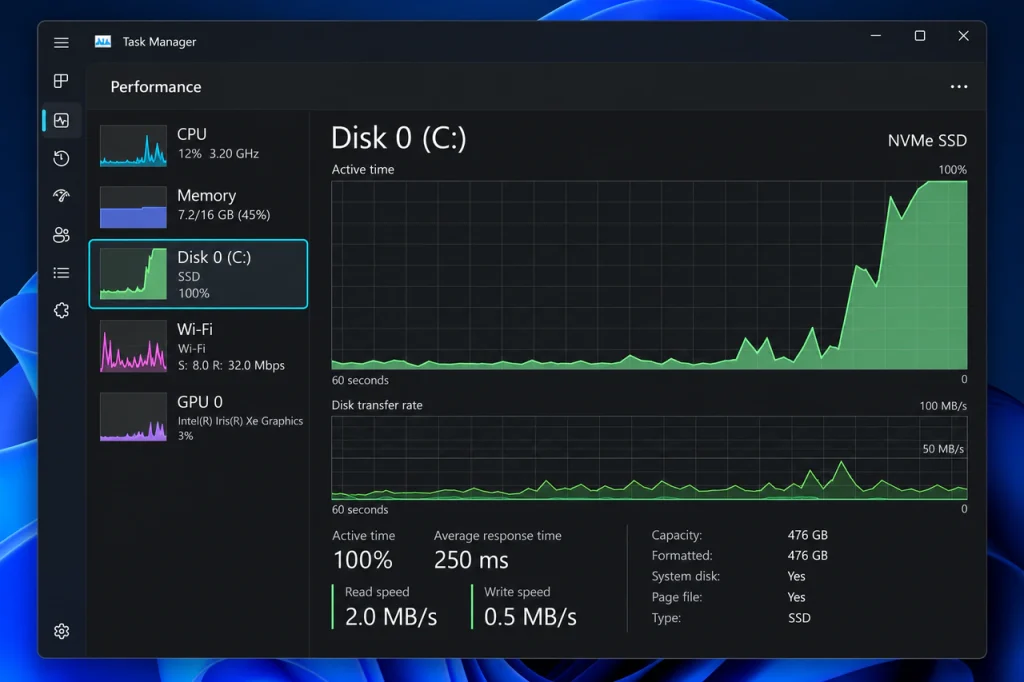
Open Task Manager while the slowdown is happening. The process using the disk and the physical drive’s activity tell you more than the percentage alone.
- Press Ctrl + Shift + Esc to open Task Manager.
- Select Processes, then click the Disk column heading to bring the busiest processes to the top. Click again if the order is reversed.
- Note the leading process and what you were doing when the slowdown began.
- Open Performance and select the affected disk. Compare Active time, Average response time, and the read and write speeds.
- Repeat the observation after the active task finishes. A brief peak and a drive pinned at 100% while the PC is otherwise idle need different responses.
High active time with modest MB/s can happen when a drive handles many small requests or takes a long time to respond. It does not automatically prove malware or a failing SSD. For a closer view, open Start, search for Resource Monitor, and inspect its Disk tab. File activity can help distinguish a download, sync job, or installer from a different workload.
If an ordinary app is responsible, save your work and close it normally. Do not end System, unfamiliar service processes, or an installer halfway through an update just to make the number drop. If Memory is also nearly full, reduce open apps; leave the paging file system-managed unless you have a specific reason to change it.
2. Reduce startup apps and background disk activity
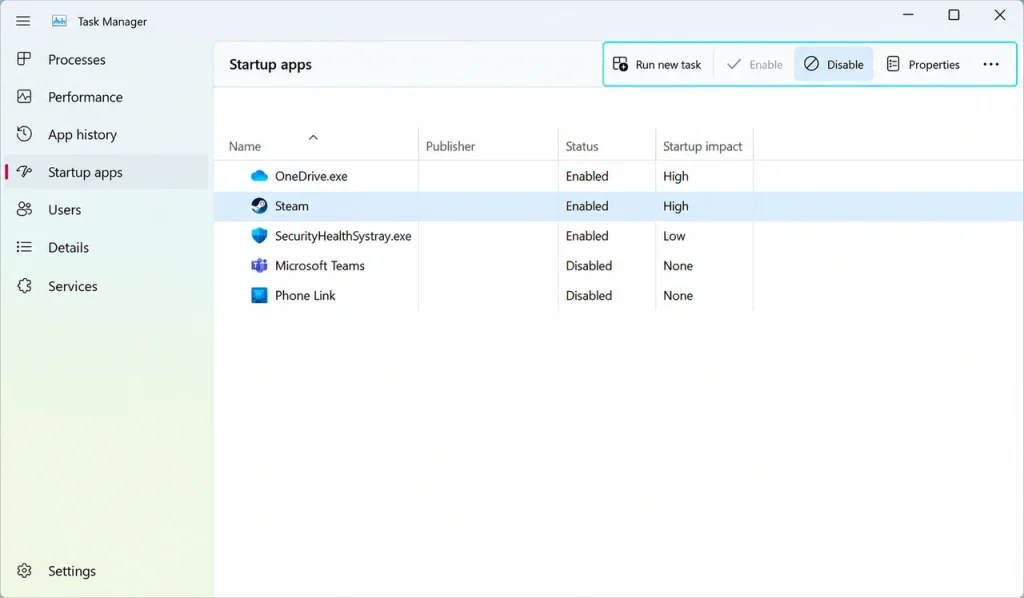
Cloud syncing, game launchers, backup jobs, and several apps opening together can keep a drive busy after sign-in. Reducing that overlap is often more useful than changing the storage driver.
- In Task Manager, open Startup apps.
- Select an optional app you recognize and do not need immediately after sign-in.
- Choose Disable. This changes automatic startup; it does not uninstall the app.
- Restart the PC, open only the app you need, and compare disk activity.
Change a few entries at a time. Leave security software, accessibility tools, and essential device utilities enabled unless you understand their role. The Startup impact column describes startup resource use; it is not proof that an app causes every later slowdown.
If a sync client is transferring a large backlog, use its own pause control for a short comparison test, then resume it. Similarly, schedule a large backup or game download for a quieter time. Do not interrupt an active backup by forcibly ending its process.
Search indexing and other maintenance can also create temporary activity after updates or large file changes. If they repeatedly dominate the disk, investigate the specific workload and its settings. Permanently disabling Windows Search or SysMain is not a universal fix for 100% disk usage and can create new usability or performance problems.
3. Finish Windows updates and check storage drivers
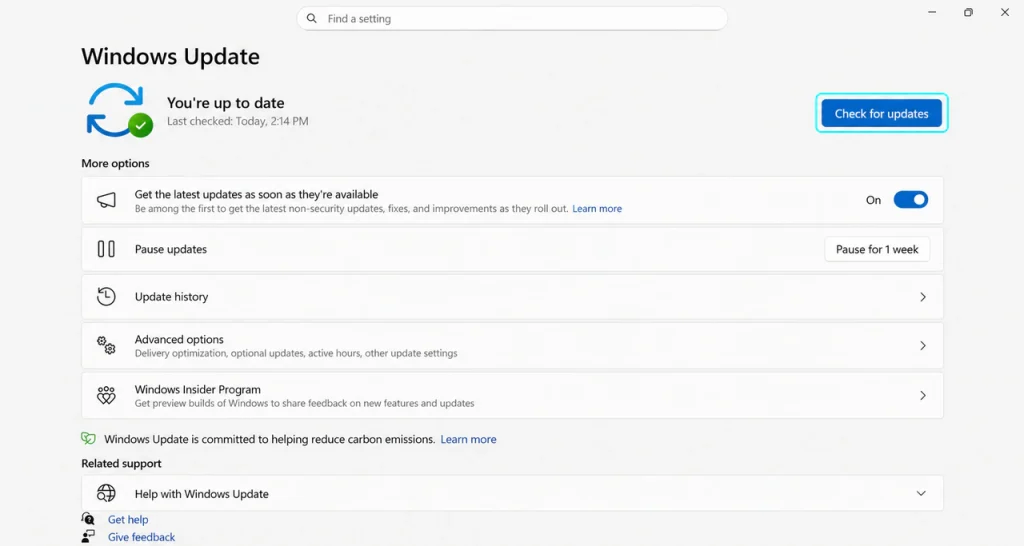
Downloading, unpacking, and installing updates involves disk work. If Task Manager points toward update activity, first check whether Windows is still completing a legitimate installation.
- Open Settings > Windows Update and inspect the current status.
- Let an installation already in progress finish. Save your work and restart if requested.
- After signing in, allow startup tasks to settle, then test the same workload again.
- If updates repeatedly fail, record the update name and error code rather than repeatedly forcing the PC off.
For persistent problems, check your PC or motherboard manufacturer’s support page for your exact model. Review applicable chipset or storage-controller drivers and any SSD firmware guidance. Use the correct package for your hardware and Windows version, and back up important files before firmware work.
If the problem began immediately after a driver change, record the installed version and check whether the manufacturer offers a supported rollback. Avoid generic driver-updater utilities, unrelated AHCI registry edits, or switching storage-controller modes in firmware as a trial fix. The wrong storage configuration can prevent Windows from starting.
4. Free up space on the system drive
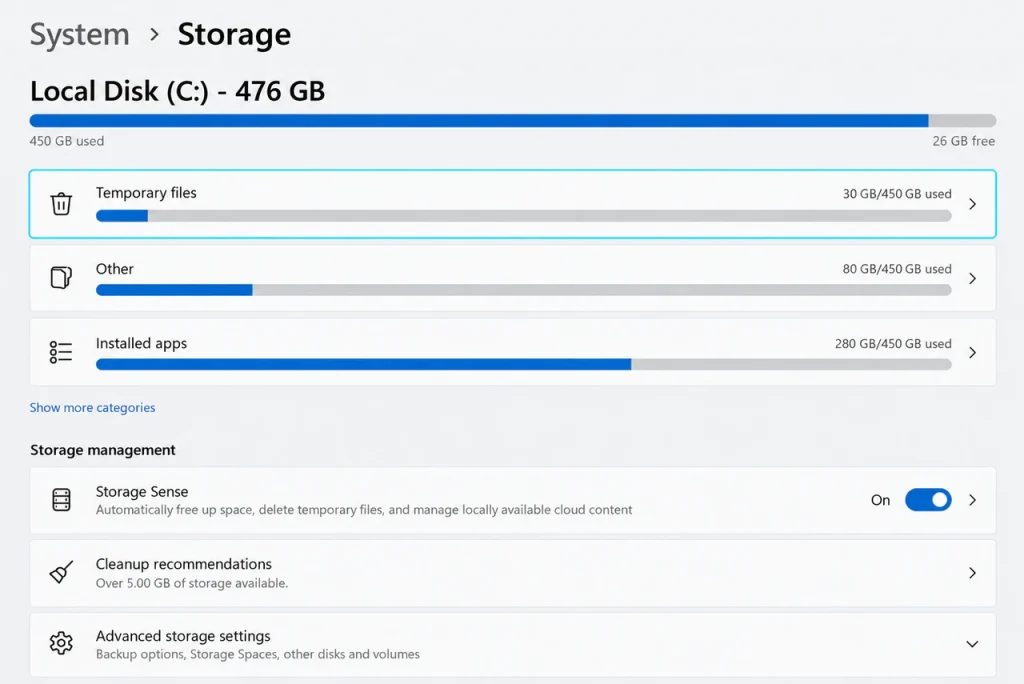
A full drive and high disk activity are different problems, but low free space can make temporary-file creation, updates, and everyday work harder. Check capacity separately instead of assuming that the 100% reading means the disk is full.
- Open Settings > System > Storage.
- Review the free space on the Windows drive and inspect the largest categories.
- Open Temporary files or Cleanup recommendations.
- Read the selected categories before removing anything. Keep Downloads or other personal files unless you have checked their contents.
- Move large personal files to another suitable location or uninstall apps you no longer use, then retest.
There is no single free-space percentage that guarantees a cure. Make room for the work you actually need to complete. If you enable Storage Sense, review its Recycle Bin, Downloads, and cloud-content rules first. Removing a previous Windows installation can also remove the option to return to that installation.
Avoid deleting files manually from Windows system folders or using registry cleaners to treat disk activity. For broader performance checks, see our guide to a slow computer.
5. Scan for malware with Windows Security
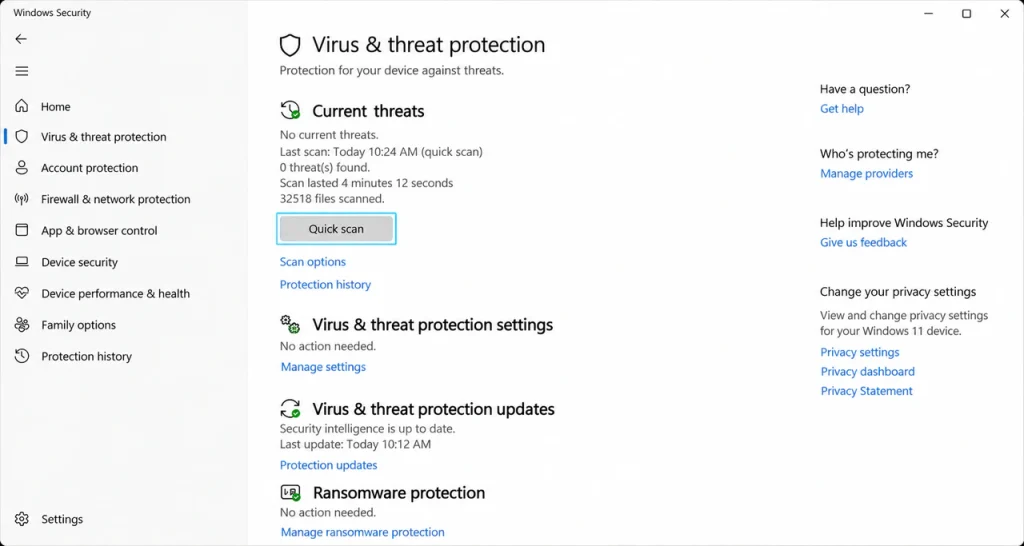
Unwanted software is one possible source of unexplained activity, especially if the slowdown comes with unfamiliar apps or other suspicious behavior. Run a scan rather than assuming every busy background process is malicious.
- Open Start, search for Windows Security, and launch it.
- Choose Virus & threat protection.
- Run a Quick scan and review the result.
- If concerns remain, select Scan options and choose the appropriate deeper scan. Save work before a scan that requires a restart.
If another security product manages protection, use its supported scan controls. Keep protection enabled while troubleshooting. A scan itself reads files and may temporarily increase disk activity, so judge ordinary performance after it finishes. A clean result is useful evidence, but it does not diagnose a driver or hardware fault.
6. Check drive health before running heavy repairs
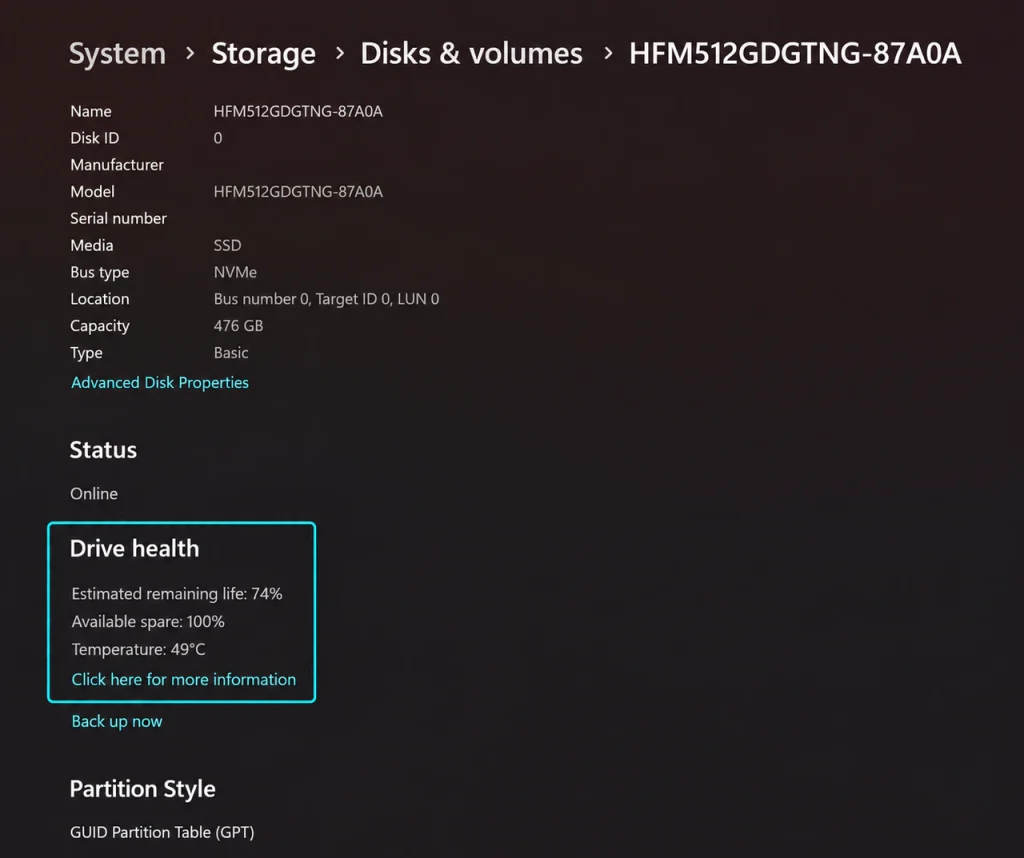
If 100% disk usage persists alongside repeated freezes, read errors, disappearing drives, or unusual mechanical noises, protect your files first. Copy important data to a separate device where possible. If a drive is failing or files are irreplaceable, consider specialist help before repeated scans or repair attempts.
- Open Settings > System > Storage > Advanced storage settings > Disks & volumes.
- Select Properties for the affected physical disk.
- Review any Drive health information and critical warnings shown.
- Use the drive or PC manufacturer’s diagnostic utility for a more appropriate hardware check, following its instructions.
The built-in health monitoring applies to supported NVMe SSDs; it does not provide the same coverage for SATA SSDs or hard disk drives. An absent warning is not a clean bill of health. Estimated remaining life, spare capacity, and temperature are context for investigation, not a guarantee that the drive is healthy or failing.
Do not repeatedly run long surface scans or format the drive to fix a usage percentage. If the hardware checks out, investigate the process, driver, and memory evidence collected earlier. An older hard drive may struggle with concurrent Windows workloads; a compatible SSD upgrade can help that bottleneck, while a faulty SSD needs diagnosis rather than another cleanup utility.
The useful test is whether the PC becomes responsive during the same everyday workload. Treat the cause you can identify, then compare again. A brief spike to 100% disk usage during real work is different from a drive that stays saturated after the work has stopped.