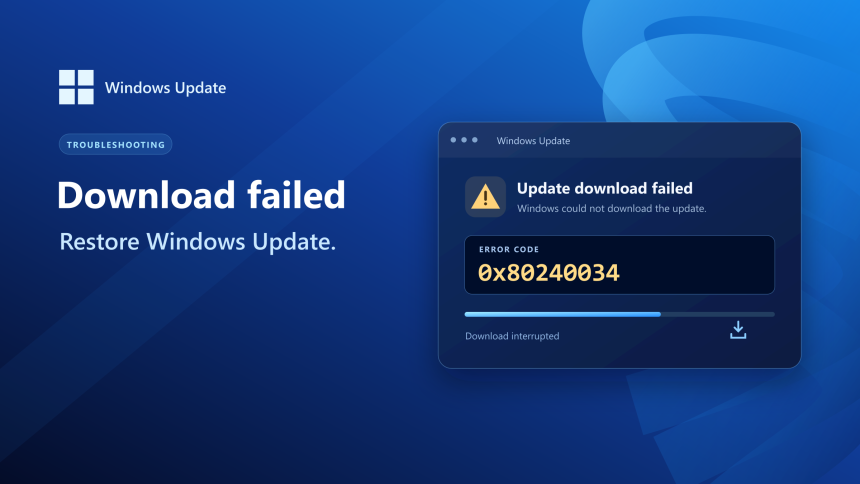
Windows Update error 0x80240034 means an update failed to download. You might see it after the download stops partway through, restarts repeatedly, or ends with a message asking you to try again.
The code identifies a download failure, but it does not explain the underlying cause. An interrupted connection, a problem with the update service, or incomplete downloaded files can require different fixes.
Start with the connection and built-in diagnostics. If the same update continues to fail, try downloading a fresh copy or installing the correct standalone package.
1. Restart Windows and check the connection
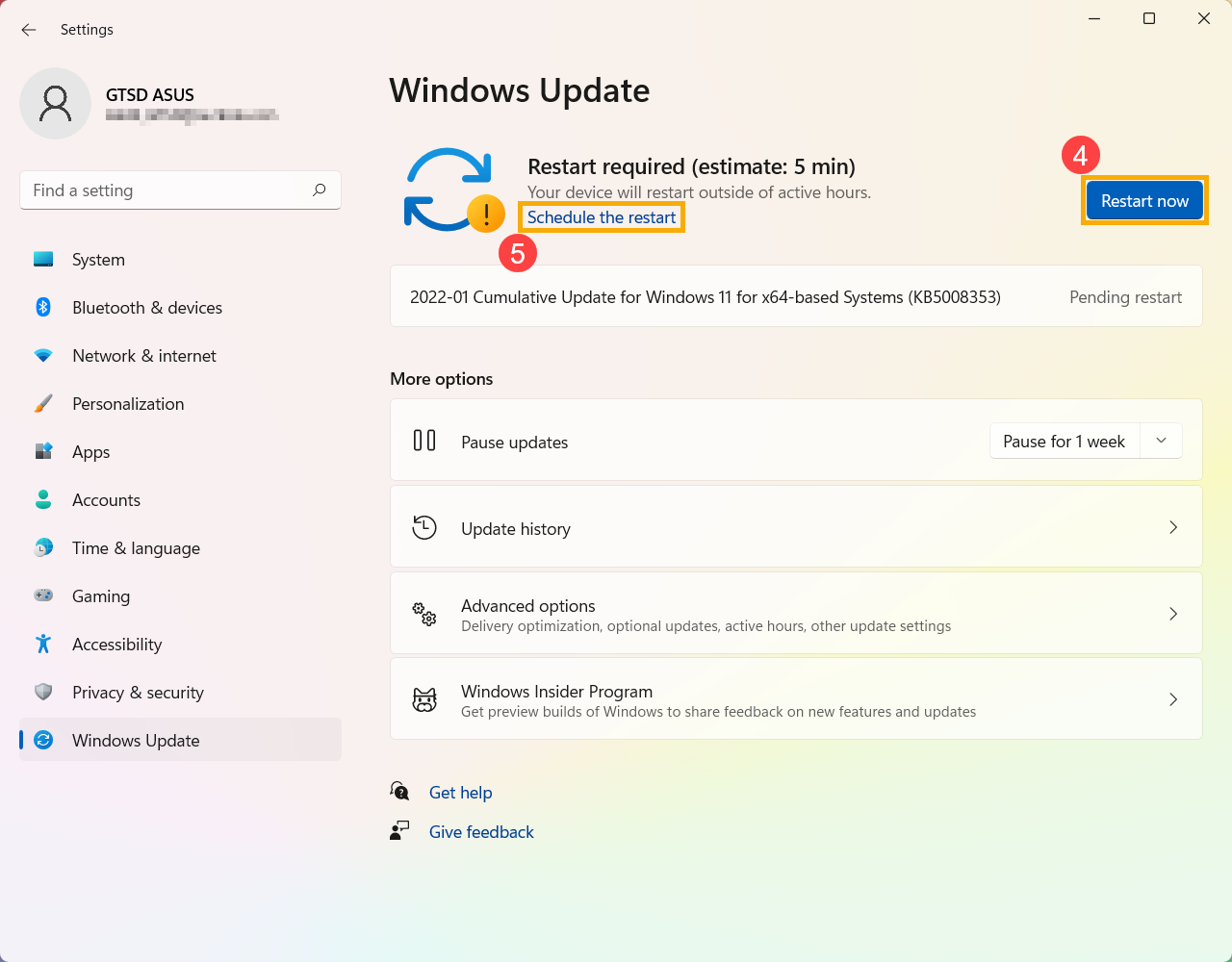
Before resetting anything, give Windows a chance to retry the download under normal conditions.
- Save your work and close unnecessary applications.
- Select Start > Power > Restart.
- After signing in, check that several websites open normally.
- Open Settings > Windows Update.
- Select Check for updates and retry the download.
On Windows 10, the update page is under Settings > Update & Security > Windows Update.
Keep a laptop connected to power and avoid putting it to sleep during the download. If Windows is already installing an update, allow that operation to finish rather than forcing a shutdown.
If your connection frequently drops, address that before repeating the download. On a personal PC, testing another trusted connection can help establish whether the problem follows your usual network.
If the second connection works, investigate the original network rather than immediately repairing Windows. On a managed work or school computer, follow your organization’s connection requirements.
2. Run the troubleshooter for Windows Update error 0x80240034
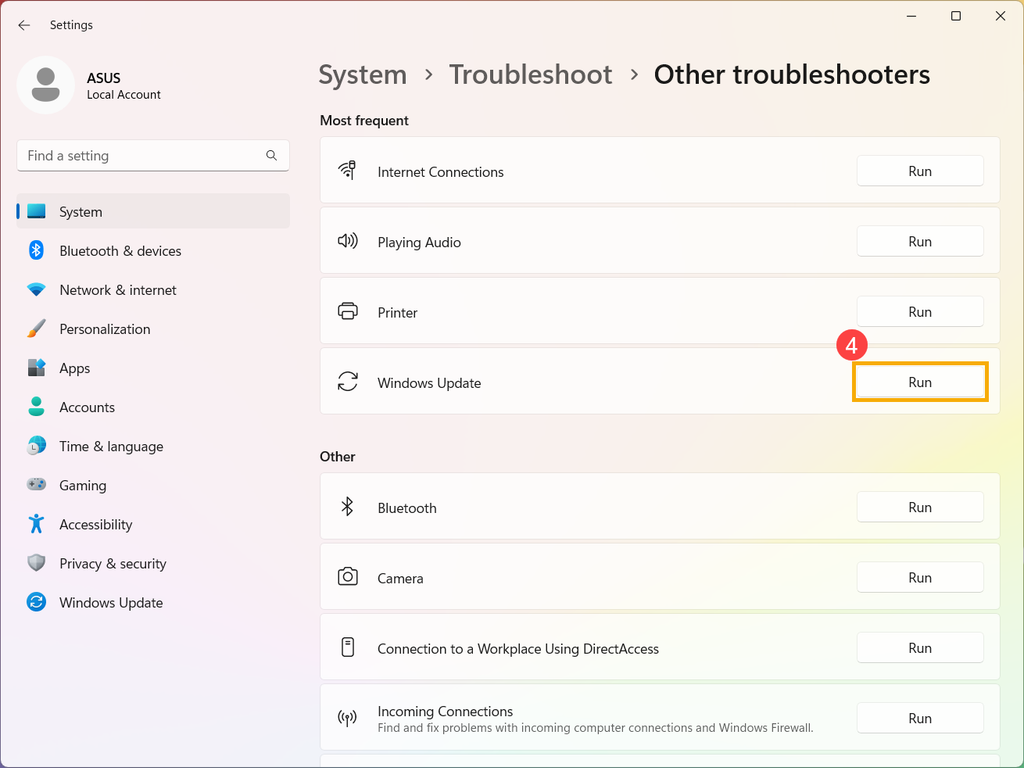
The Windows Update troubleshooter checks common problems and may apply repairs automatically.
For Windows 11:
- Open Start and search for Get Help.
- Open the application.
- Search for Windows Update troubleshooter.
- Follow the diagnostic prompts.
- Restart if requested, then retry the update.
Depending on your Windows version, you may also find it under Settings > System > Troubleshoot > Other troubleshooters.
On Windows 10, the older route is Settings > Update & Security > Troubleshoot > Additional troubleshooters > Windows Update.
Read the findings before moving on. A reported repair is useful information, but the final check is whether Windows downloads and installs the update successfully.
Record the failed update’s KB number, if one is listed. You will need it if you later try a standalone download.
3. Refresh incomplete Windows Update downloads
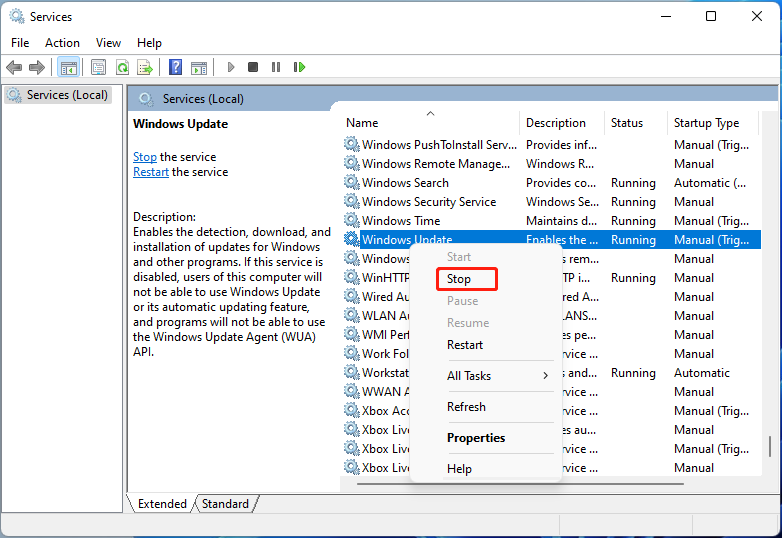
If Windows Update error 0x80240034 returns for the same update, refreshing its downloaded files may help. This makes Windows obtain another copy instead of continuing with the existing download cache.
Use this step after the earlier checks, and avoid doing it while an installation is actively running. On a managed device, ask IT before changing update files.
Open Command Prompt as administrator, then stop these services:
net stop bits
net stop wuauserv
If either service cannot be stopped, do not force the folder change. Restart the services you stopped and seek help with the reported error.
Once both are stopped, rename the download folder:
ren “%windir%\SoftwareDistribution\Download” Download.old
Then restart the services:
net start bits
net start wuauserv
Restart the PC and check for updates again.
This targets the download cache, not your personal files. Renaming it also retains the old folder instead of immediately deleting it.
If Download.old already exists, do not overwrite it or start deleting unrelated folders. Stop and review the previous troubleshooting attempt first. If the rename fails, restart the stopped services before leaving Command Prompt.
4. Download the correct standalone update package
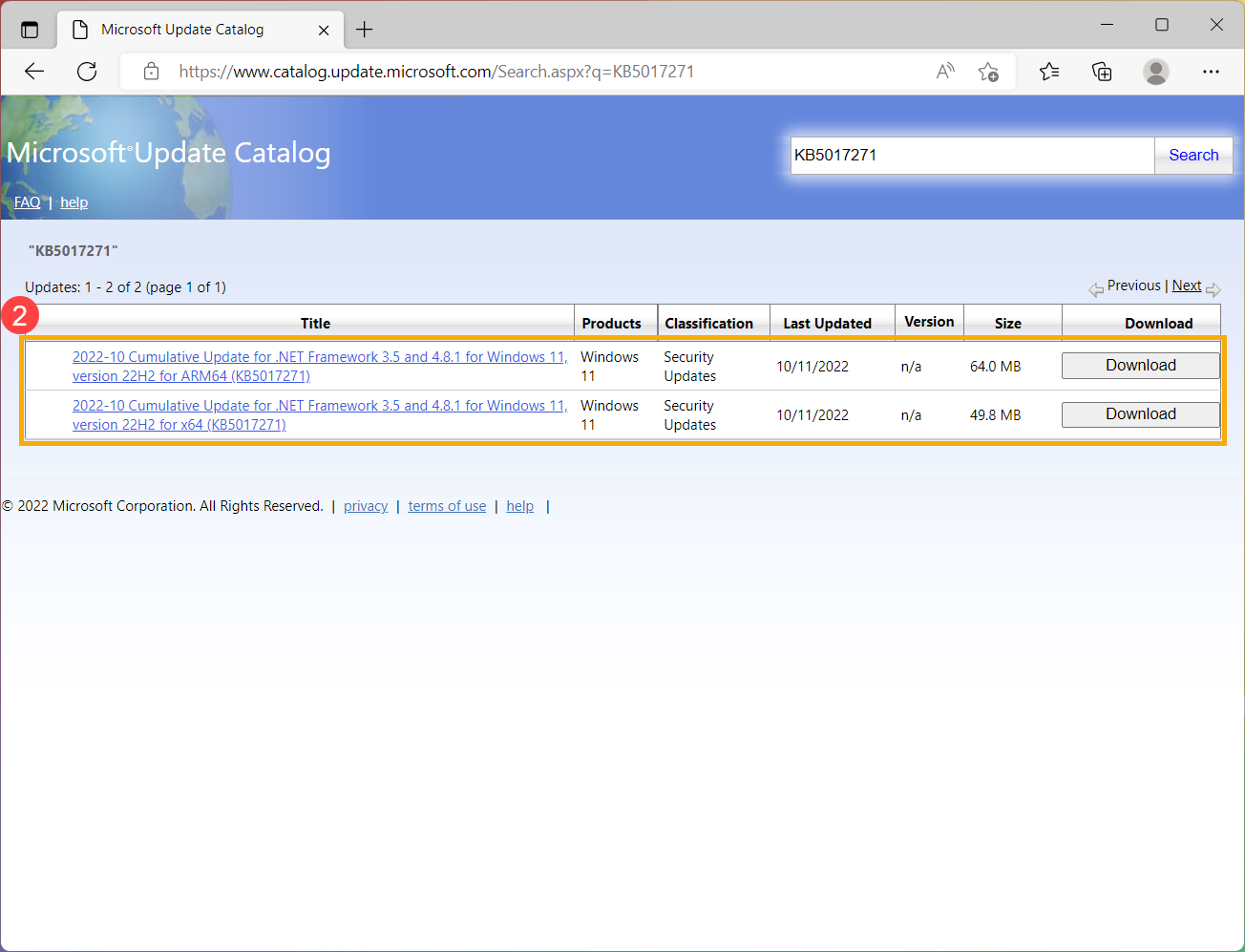
For an individual update with a KB number, a standalone package can provide another download route.
- Copy the KB number from Windows Update or update history.
- Search for that number in the Microsoft Update Catalog.
- Compare the results with your Windows version and system architecture.
- Download the matching package.
- Read any installation requirements, then run the downloaded installer.
- Restart if prompted.
You can check your Windows version by pressing Windows + R, entering winver, and pressing Enter. Look under Settings > System > About for the system type.
Do not select a package based only on a similar title. An update for another Windows release or architecture may not apply to your computer. Some packages also have prerequisites or installation instructions that must be followed.
If the installer says the update is not applicable, stop and verify the selection rather than trying to force it.
This method is intended for updates available as standalone packages. A feature upgrade may require a different installation route.
5. Check what happens after the download succeeds
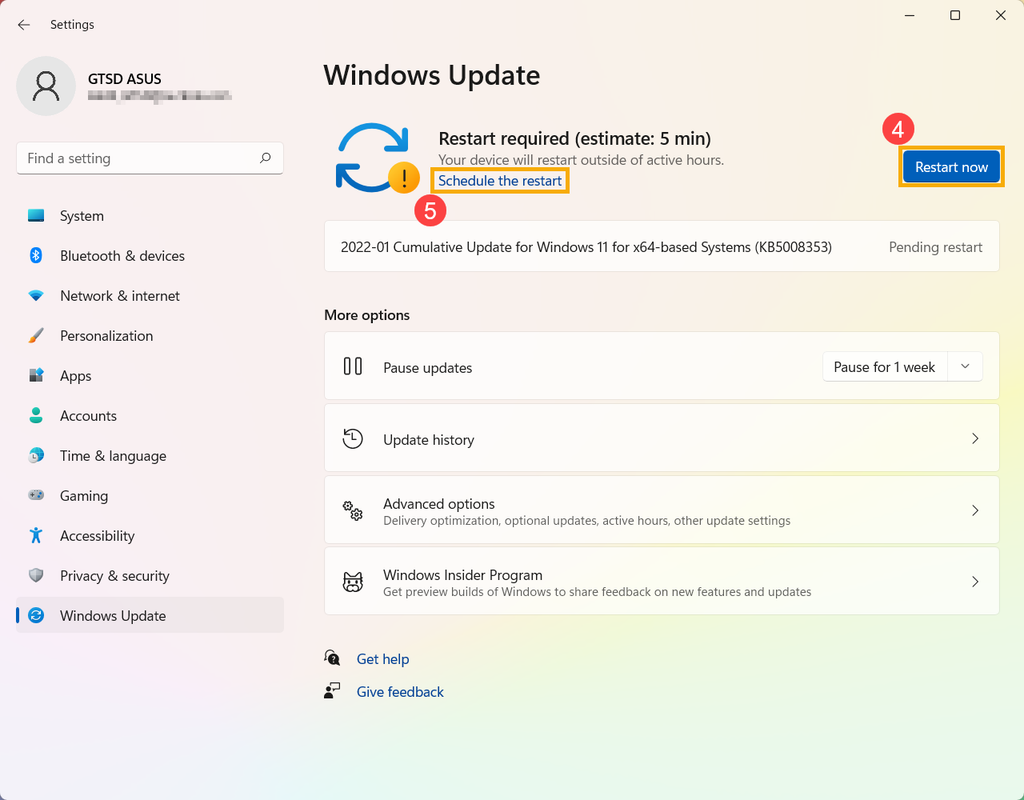
A successful download is progress, even if a later installation step fails. Check whether the error code has changed before repeating the same fixes.
For example:
- The download succeeds on another network: investigate the original connection or its filtering settings.
- A fresh download installs successfully: the previous cached download may have contributed to the failure.
- The standalone package downloads but fails to install: record the installer’s message and investigate that result.
- Several unrelated updates fail: broader update-service or Windows-component troubleshooting may be necessary.
Do not assume that every failed update has the same cause. Windows Update error 0x80240034 describes the download stage, so a later installation error may need a different approach.
If the problem remains, prepare the KB number, Windows version, complete error message, troubleshooter findings, and results from the cache or standalone-download tests. Give those details to support or your organization’s IT team.
Avoid disabling security protections, changing registry permissions, or reinstalling Windows simply because the download failed. Use the result of each check to decide what to investigate next.