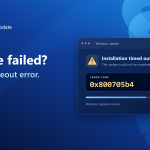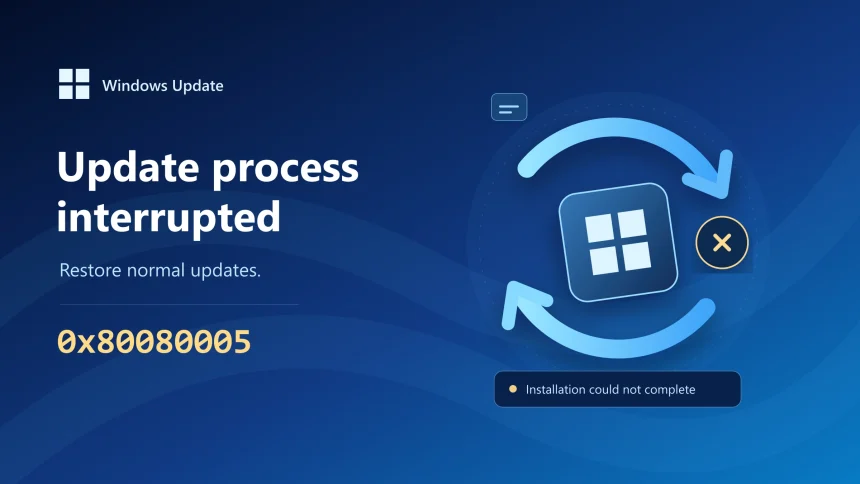
Windows Update error 0x80080005 can prevent your PC from checking for updates or completing an update attempt. The code means “Server execution failed.” In this context, “server” can refer to a Windows software component on your own computer, so the message does not automatically mean that an online update server is unavailable. Windows error-code reference
The code alone does not identify one specific cause. Start with the built-in troubleshooter, check for damaged system files, and test whether background software is interfering. Try one step at a time and check for updates after each change.
1. Restart Windows and check when the error appears
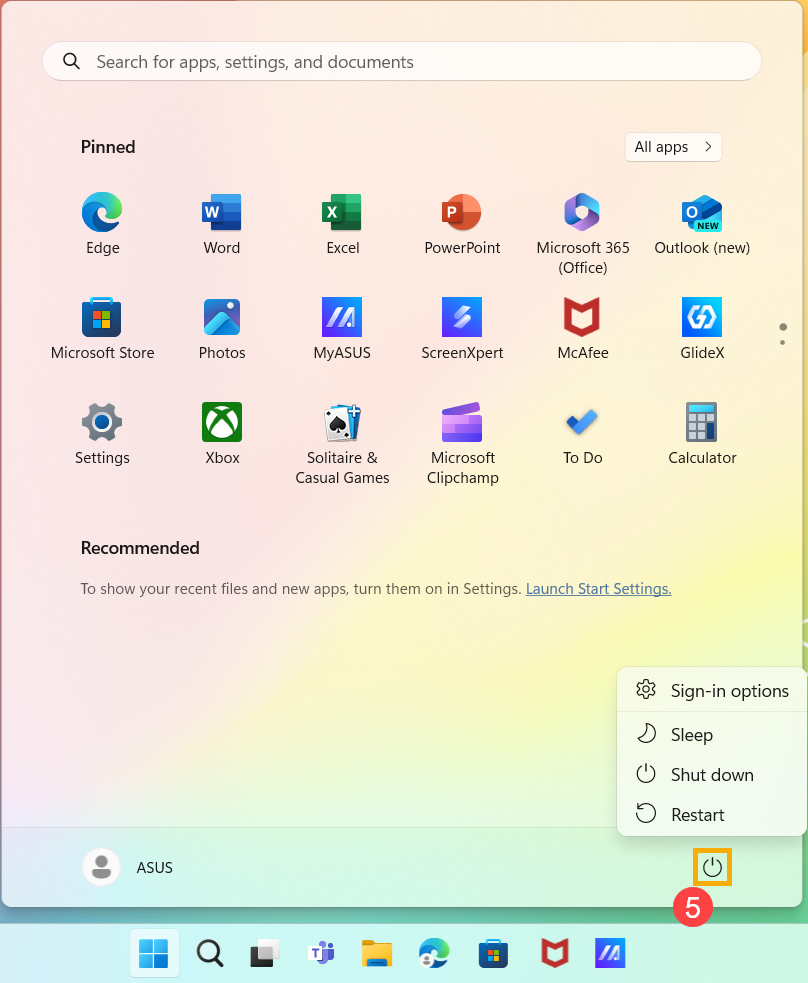
Save your work, open Start → Power, and select Restart. Once Windows loads, return to the update page:
- Windows 11: Open Settings → Windows Update.
- Windows 10: Open Settings → Update & Security → Windows Update.
Select Check for updates and note when the failure occurs. Does the error appear immediately, during a download, or after installation begins?
If Windows shows a KB number, record it alongside the error code. These details help distinguish a problem affecting the entire update system from a failure involving one package.
Before proceeding, check that your internet connection works and that the system drive has free space. On a work or school computer, ask your administrator to review the issue before changing service or startup settings.
2. Run the troubleshooter for Windows Update error 0x80080005
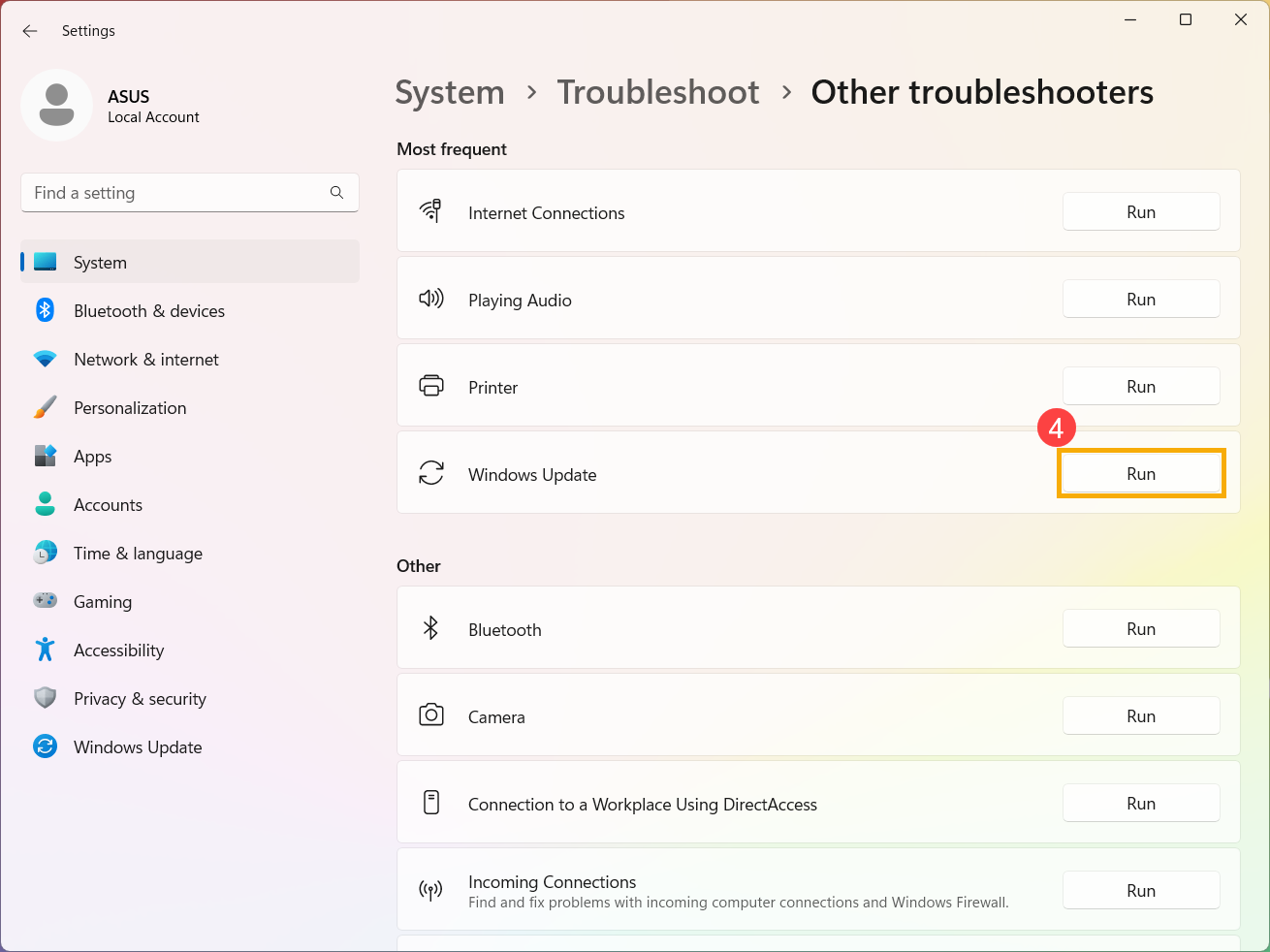
The Windows Update troubleshooter can check common update problems and attempt repairs automatically.
Open Start, search for Get Help, and launch the app. Search for Windows Update troubleshooter, then follow the diagnostic prompts.
On Windows 11, you can also check:
- Open Settings → System → Troubleshoot.
- Select Other troubleshooters.
- Find Windows Update and select Run.
Depending on your Windows version, this opens the Get Help diagnostic. On older Windows 10 installations, look under Settings → Update & Security → Troubleshoot → Additional troubleshooters.
Restart afterward and test the update again. If your menus differ, follow the Windows Update troubleshooter instructions.
Read the diagnostic result before closing it. If it identifies a problem it could not repair, keep that information for the next step.
3. Repair Windows components with DISM and SFC
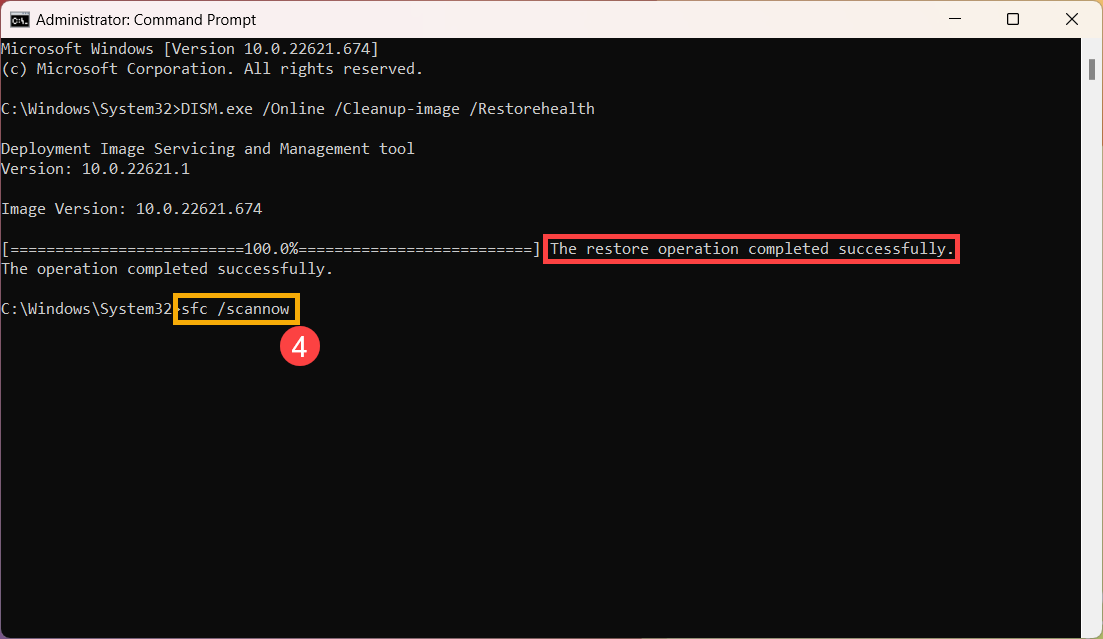
Damaged Windows components or protected system files can interfere with normal operation. DISM and System File Checker provide a supported way to check and repair that damage.
- Open Start and type Command Prompt.
- Right-click the result and select Run as administrator.
- Approve the permission prompt.
- Run this command:
DISM.exe /Online /Cleanup-Image /RestoreHealthWait for DISM to finish. After it reports successful completion, run:
sfc /scannowAllow verification to reach 100%. Restart your PC, then check for updates again. This is the recommended Windows system-file repair sequence.
If DISM fails, record its exact error. It normally uses Windows Update to obtain repair files, so a damaged update mechanism can also prevent DISM from completing. An alternative repair source may be necessary, as explained in the component repair instructions.
4. Test for background-software interference
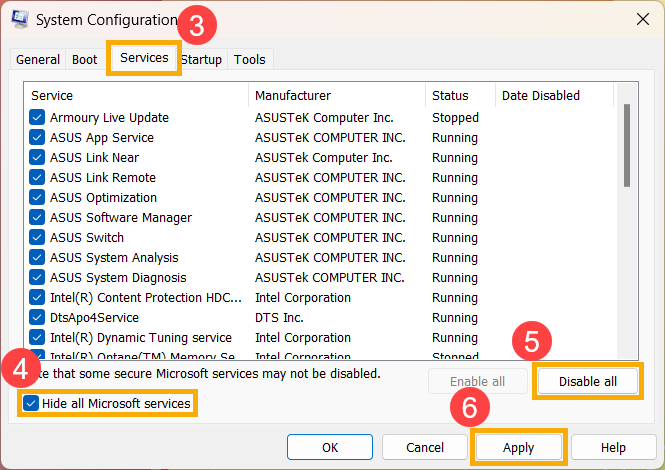
If Windows Update error 0x80080005 continues, a clean boot can help determine whether a nonessential service or startup application is involved.
Before starting, record which services and startup apps are enabled so you can restore their original state.
- Press Windows + R, type msconfig, and press Enter.
- Open the Services tab.
- Select Hide all Microsoft services. This exact checkbox is essential.
- Select Disable all, then Apply.
- Open the Startup tab and select Open Task Manager.
- Disable the currently enabled startup apps, keeping a record of them.
- Restart Windows and try the update again.
Do not change the advanced options on the Boot tab.
If updating works in this environment, re-enable the items in small groups and restart between tests to identify the conflict. If the error remains, background software has not been established as the cause.
After testing, restore the services and startup apps you changed. The clean boot instructions explain the isolation and restoration process.
If the new result is 0x80070020, use our guide to Windows Update error 0x80070020, which addresses an update operation being blocked by another process.
5. Review tools that changed update settings
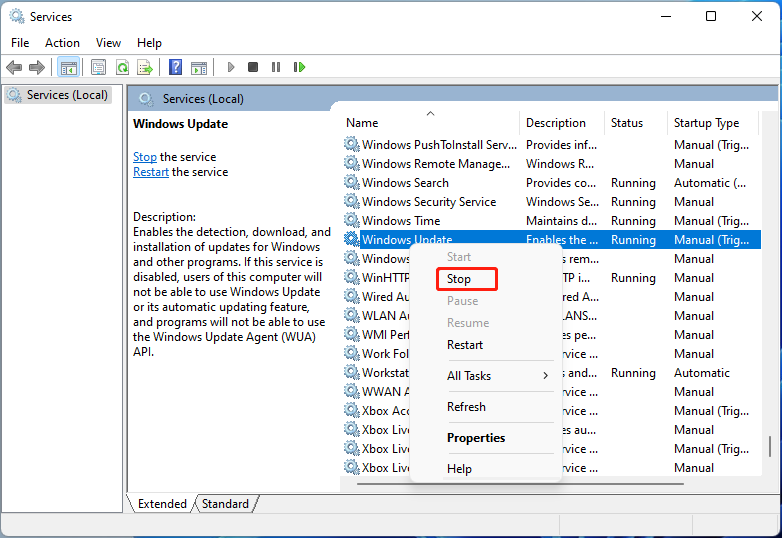
Did the error begin after running an update blocker, privacy utility, debloating script, or Windows optimization tool?
Check the original tool for an option to restore defaults or undo its changes. Reverse the specific update-related adjustment rather than applying another script with unknown effects.
You can also press Windows + R, enter services.msc, and check whether Windows Update is present. Record any error shown when attempting to start it.
A service being stopped while idle does not automatically indicate a fault. Avoid setting every Windows service to Automatic or applying broad registry-permission changes based only on this error code.
If a service is missing, or a setting keeps reverting after a restart, keep that finding for further diagnosis.
6. Repair Windows if error 0x80080005 persists
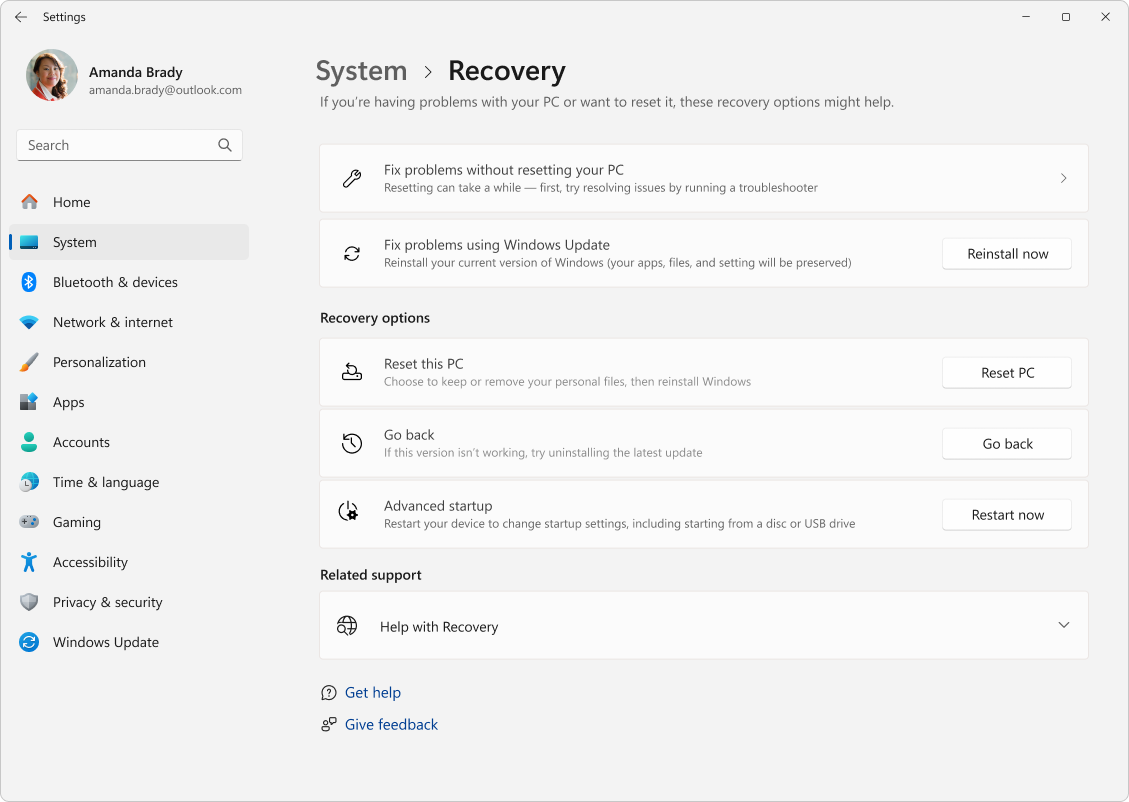
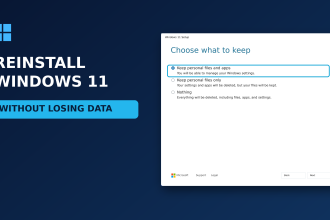
If the earlier steps do not resolve the problem, Windows 11 offers a repair reinstall on supported installations.
- Back up important files.
- Open Settings → System → Recovery.
- Find Fix problems using Windows Update.
- Select Reinstall now and follow the prompts.
This option reinstalls the current Windows version while preserving apps, files, and settings. Keep the PC connected to power and the internet throughout the process.
The option may be unavailable on managed devices or older installations. Because it downloads repair files through Windows Update, it may also fail if that mechanism is not working. Check the Windows repair reinstall instructions before proceeding.
After the repair, check for updates again. If Windows Update error 0x80080005 remains, provide support with your Windows version, the failed KB number, and the results from the troubleshooter and repair commands.