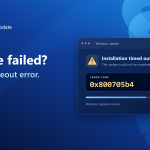
Windows Update error 0x8024402c means Windows cannot resolve the name of the update server or proxy server it needs to contact. In simple terms, your PC cannot find the network address required to check for or download updates.
- 1. Check whether the problem follows your network
- 2. Review proxy settings for Windows Update error 0x8024402c
- 3. Clear the DNS cache
- 4. Inspect the WinHTTP proxy configuration
- 5. Test whether a VPN changes the result
- 6. Run the Windows Update troubleshooter
- What if Windows Update error 0x8024402c remains?
The problem can involve DNS, an outdated proxy address, a VPN connection, or an organization’s internal update server. Start with connection checks, then review the settings that control how Windows reaches its update source.
1. Check whether the problem follows your network
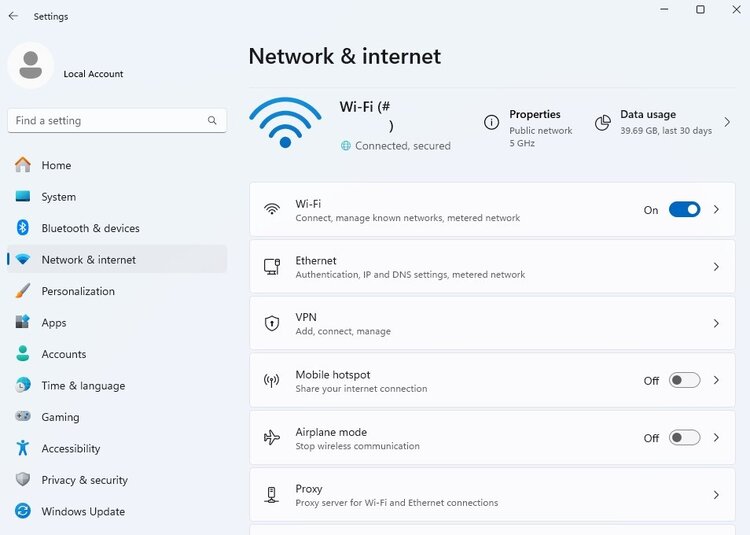
First, establish whether your internet connection works normally.
Open several websites rather than testing only one. If pages fail to load, resolve the connection problem before retrying Windows Update.
On a personal PC, try these steps:
- Save your work and restart Windows.
- Reconnect to your usual Wi-Fi or Ethernet network.
- Complete any network sign-in page, such as one used by a hotel or public hotspot.
- Open Settings > Windows Update and select Check for updates.
In Windows 10, the update page is under Settings > Update & Security > Windows Update.
If possible, test a personal PC on another trusted connection, such as your phone’s hotspot. Be aware that downloading updates can use substantial mobile data.
If updating works on the second connection, that points toward a problem with the original network, its DNS service, or its connection rules. It does not automatically mean Windows itself needs repairing.
On a work or school computer, check with IT before switching networks or changing connection settings. The device may need access to an internal update server.
2. Review proxy settings for Windows Update error 0x8024402c
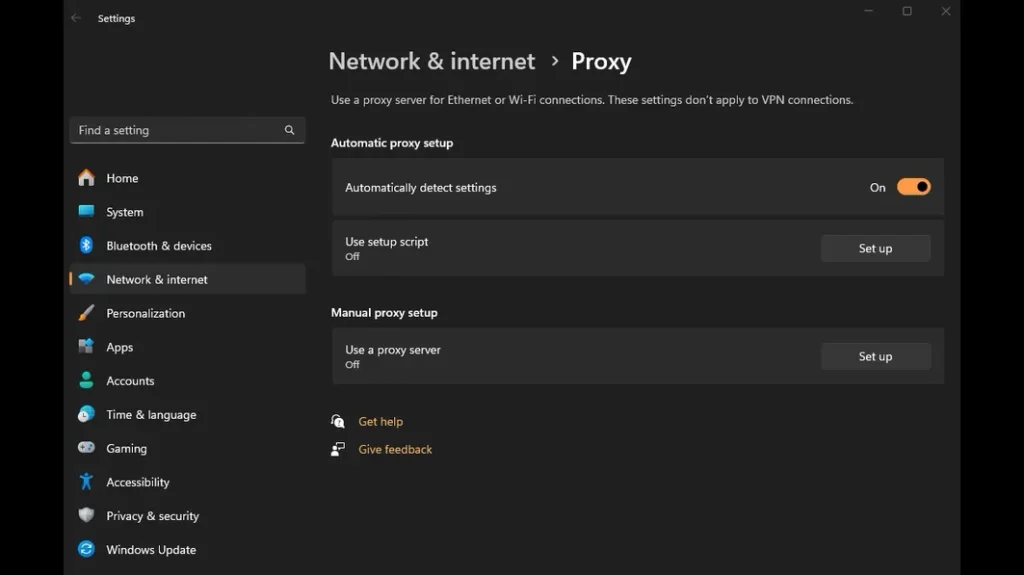
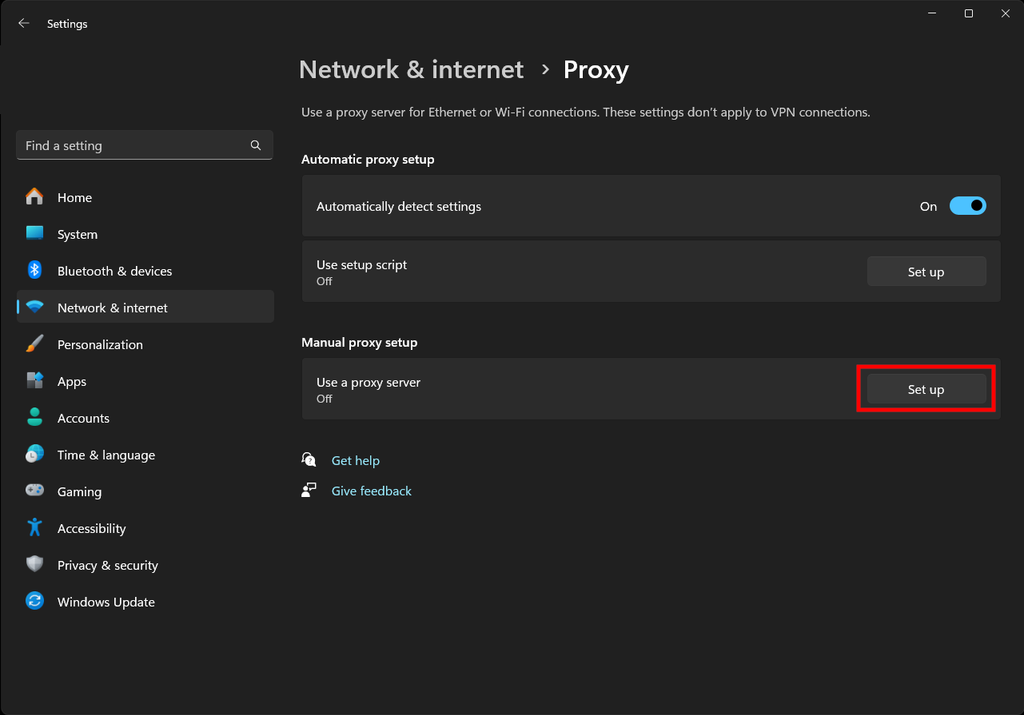
A proxy acts as an intermediary between your computer and another server. If Windows is configured to use a proxy address that no longer works, update requests may fail.
To inspect the settings:
- Press Windows + I.
- Select Network & internet > Proxy.
- Review Use setup script and Use a proxy server.
- Record the current configuration before making changes.
If this is your personal computer and an old manual proxy is no longer required, turn off that specific configuration and retry Windows Update.
Do not remove a setup script or proxy simply because you do not recognize it. Workplace networks, VPN applications, and some networking tools can require these settings.
If a proxy is necessary, confirm its address and port with the provider or administrator. A misspelled server name needs correcting, not repeated update attempts.
3. Clear the DNS cache
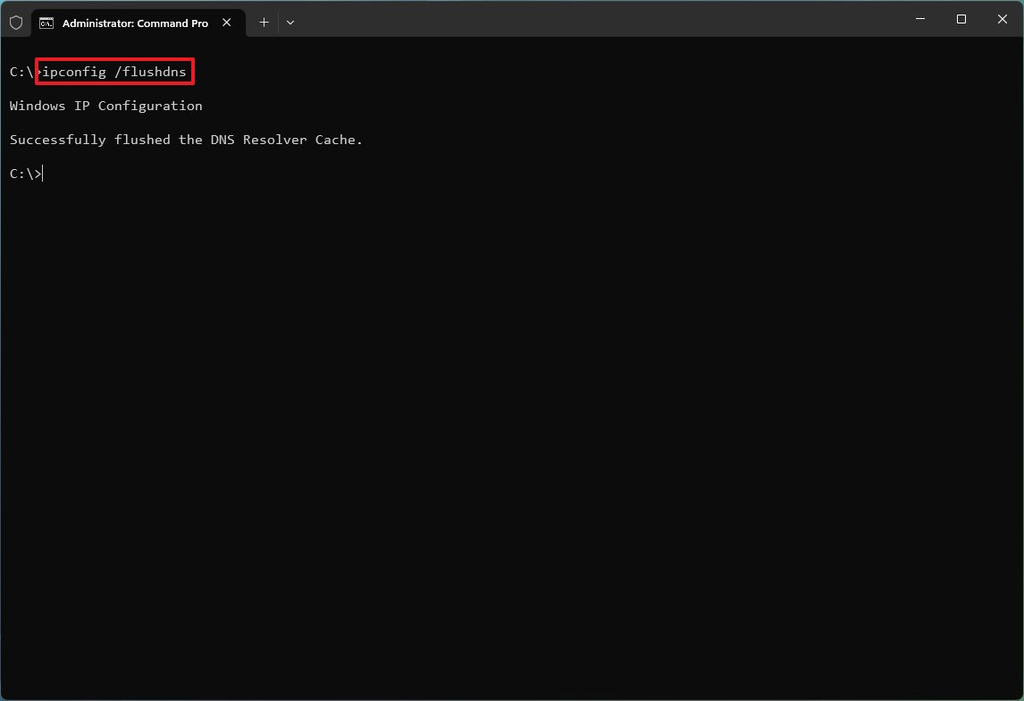
DNS translates server names into network addresses. Windows stores recent results locally, and clearing that cache can help when a stored entry is outdated.
Open Start, search for Command Prompt, and select Run as administrator. Enter:
ipconfig /flushdns
After the command finishes, retry Windows Update.
Clearing the DNS cache does not change your DNS server. It also cannot correct an unreachable proxy or a misspelled internal server name. Treat it as one targeted check rather than a complete network reset.
Avoid changing to a public DNS service without understanding your setup. A company update server may depend on internal DNS that a public service cannot resolve.
4. Inspect the WinHTTP proxy configuration
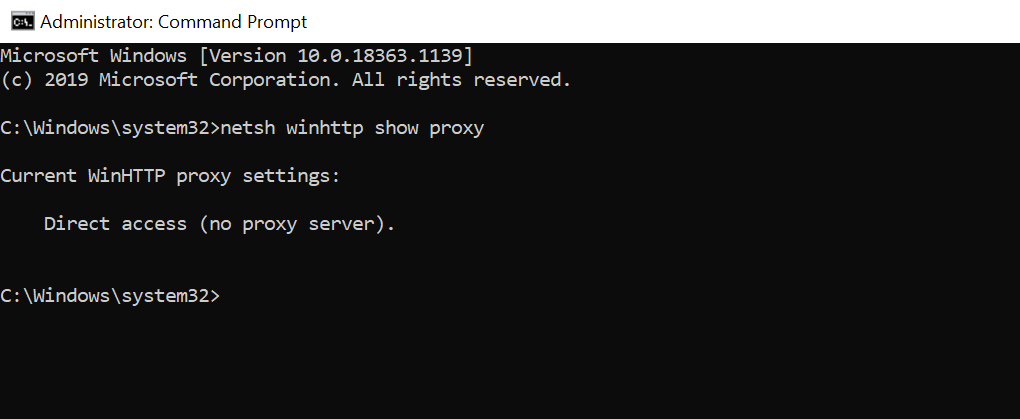
Windows Update can use WinHTTP, a Windows networking component whose proxy configuration may differ from the settings used by your browser. This explains why websites can open while update checks still fail.
In Command Prompt, run:
netsh winhttp show proxy
This command displays the configuration without changing it.
If a proxy server appears, compare it with the configuration your network actually requires. On a managed computer, give the result to IT.
For a personal PC that should connect directly to the internet, an obsolete WinHTTP proxy can be removed from an administrator Command Prompt:
netsh winhttp reset proxy
This resets the WinHTTP proxy configuration to direct access. Record the existing settings first, and use the command only after confirming that the proxy is unnecessary.
If your network requires a proxy, resetting it can prevent applications or updates from connecting. The correct fix in that situation is to restore the required configuration with help from the network provider.
5. Test whether a VPN changes the result
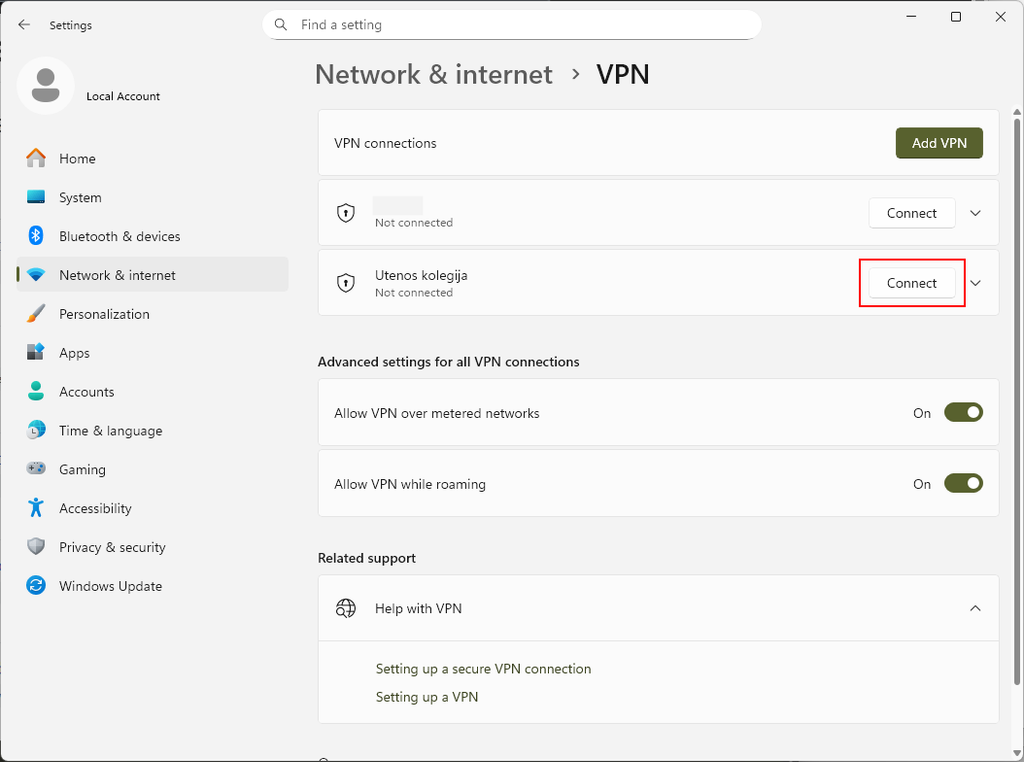
A VPN can change the network route, DNS servers, and proxy settings used by your computer.
On a personal PC, if you use an optional VPN:
- Disconnect it through the VPN application.
- Confirm that your normal internet connection still works.
- Retry Windows Update.
- Reconnect the VPN after the test.
If Windows Update error 0x8024402c appears only while the VPN is connected, check for a VPN-app update and ask its provider about DNS or update-service connectivity.
The reverse can apply to a managed computer. A workplace VPN may be required to reach an internal update server. Do not disconnect a required connection or disable security software merely to test an update.
6. Run the Windows Update troubleshooter
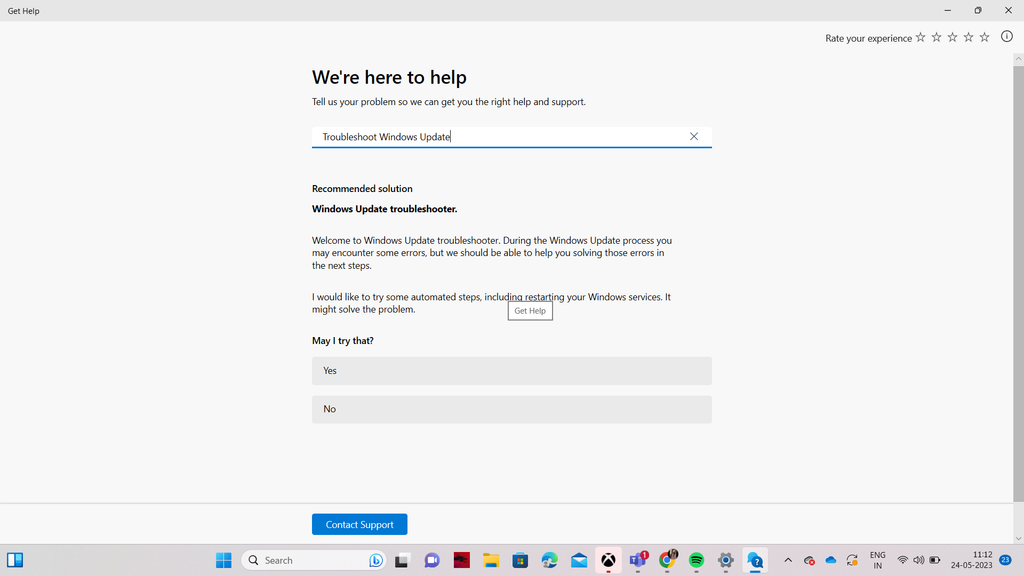
After checking network and proxy settings, run the built-in diagnostics.
On Windows 11:
- Open Get Help from Start.
- Search for Windows Update troubleshooter.
- Follow the diagnostic prompts.
- Restart if requested, then check for updates again.
Where available, you can also open Settings > System > Troubleshoot > Other troubleshooters and select Run beside Windows Update.
On Windows 10, the older Settings route is Update & Security > Troubleshoot > Additional troubleshooters > Windows Update.
Read the findings before making further changes. A completed diagnostic session does not necessarily mean the update installed successfully.
What if Windows Update error 0x8024402c remains?
If the error continues, the next useful step is to identify which server name Windows cannot resolve.
For a managed device, IT should check the configured update source, proxy address, internal DNS, and required network access. An unavailable internal update server cannot be repaired by deleting files on your PC.
For a personal computer, prepare these details for support:
- Whether ordinary websites open
- Whether another trusted network changes the result
- Whether a VPN is involved
- The WinHTTP proxy result
- The troubleshooter findings
Avoid deleting the update cache, editing the registry, or reinstalling Windows as the first response. This error specifically points to locating a network destination, so the connection and name-resolution checks should guide the investigation.