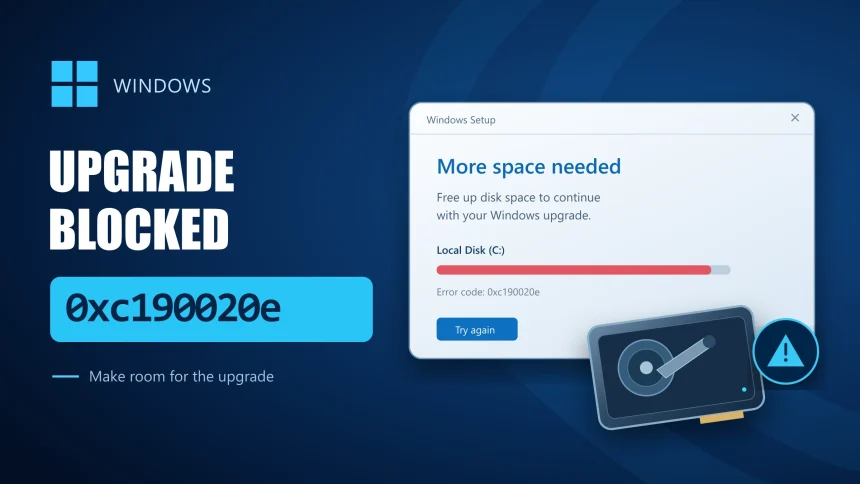
To fix Windows upgrade error 0xc190020e, free up space on the drive where Windows is installed, then run the upgrade again. This code means Setup has blocked installation because the available disk space does not meet its requirements.
The technical name is MOSETUP_E_INSTALLDISKSPACE_BLOCK. You may encounter it during a Windows feature upgrade or a compatibility check. It points to an installation-space problem; it does not, by itself, mean that the SSD is failing or that you need to replace Windows.
Start with the checks below. Back up important files before removing data or applications, and finish or cancel any active installation before beginning cleanup. Avoid deleting Windows folders manually just to make the free-space number larger.
| What you find | What to do next |
|---|---|
| The Windows drive is nearly full | Review storage categories and remove files you do not need |
| Large apps or personal files occupy most of the drive | Uninstall unused apps or move verified copies to another drive |
| Setup offers an external-storage option | Connect a suitable drive and follow that prompt |
| The same code returns after cleanup | Recheck free space and inspect the latest upgrade logs |
1. Check free space on the Windows drive
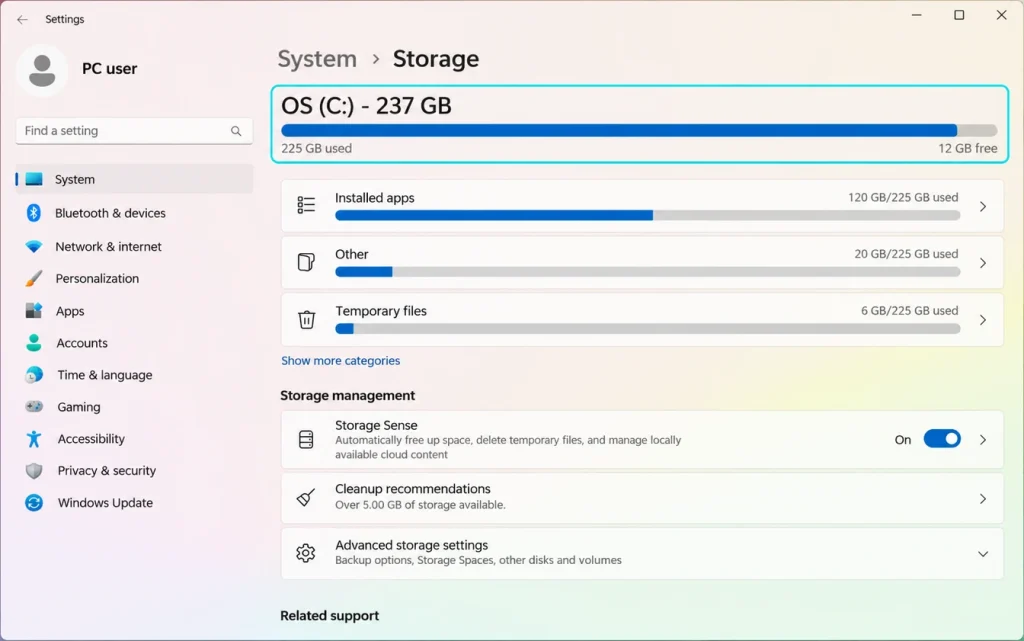
Check the drive that contains Windows, usually C:. Free space on another partition or an attached USB drive does not automatically count as space available on the Windows drive.
- Press Windows + I to open Settings.
- Select System > Storage.
- Note the capacity, used space, and remaining space for the Windows drive.
- Review categories such as Installed apps and Temporary files to see where the space is going.
You can also open File Explorer > This PC to check the available space on each drive. This is useful when the PC has several partitions with similar names.
Use the additional-space figure shown by your own upgrade prompt. The requirement varies with the upgrade path and installed components, so no single free-space target guarantees success on every PC. The example values in the images are not minimum requirements.
Keep disk capacity separate from disk activity. A drive showing 100% activity in Task Manager is a different issue from a nearly full drive. If that is also happening, see our Windows 11 disk-usage troubleshooting guide.
2. Fix Windows upgrade error 0xc190020e with storage cleanup
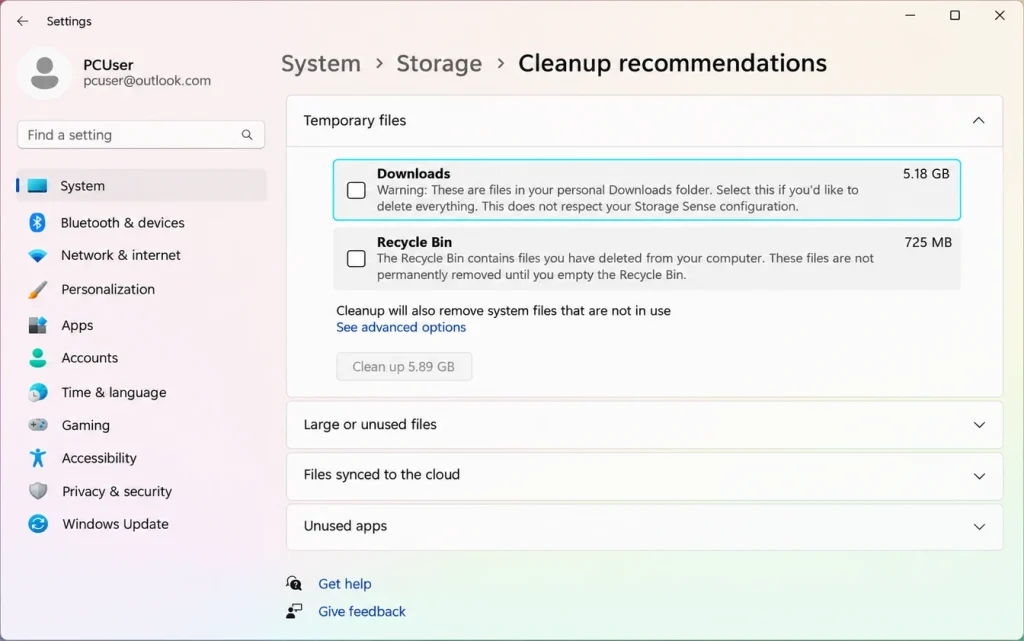
Use the built-in cleanup tools to review removable files. Read each category before selecting it; a recommendation does not mean that every file in it is disposable.
- In Windows 11, open Settings > System > Storage > Cleanup recommendations.
- Review the suggested categories and expand the ones you want to inspect.
- Select only items you understand and no longer need.
- Choose Clean up for the relevant section and wait for it to finish.
- Return to Storage and check how much space is now available.
Downloads contains personal files. Leave it unselected until you have checked its contents. Likewise, restore anything you still need from the Recycle Bin before emptying it. The image deliberately leaves these categories unchecked.
If the layout differs, use Temporary files in Storage or search for Disk Cleanup. Review the categories before confirming removal. Windows 10 uses some different labels and does not offer every Windows 11 cleanup control.
Be especially careful with Previous Windows installation(s). Removing this category deletes the old installation used for rollback, so you lose that route back to the previous version. Do not remove it if you still need that recovery option or have files to retrieve from it.
Storage Sense can help with future cleanup, but inspect its schedules first. Do not enable automatic removal from Downloads simply to get past this upgrade.
3. Move large files and uninstall unused apps
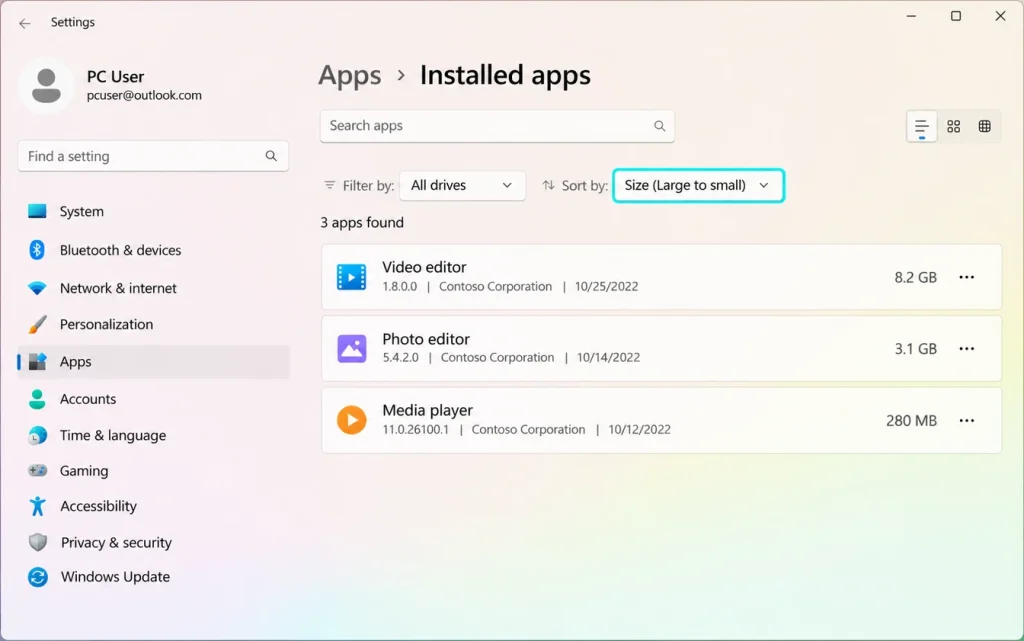
If temporary-file cleanup barely changes the available space, review large personal files and applications. Removing one unused application may be more useful than repeatedly clearing small caches.
- Open Settings > Apps > Installed apps in Windows 11.
- Sort by Size (Large to small), and check which drive holds each candidate.
- For an application you no longer need, open its three-dot menu and select Uninstall.
- Follow the uninstaller’s prompts. Preserve needed projects, saves, license information, and application data first.
In Windows 10, look under Settings > Apps > Apps & features. Some desktop programs instead need Control Panel > Programs > Programs and Features. Use these uninstall controls rather than deleting the application’s folder.
For videos, archives, or other large personal files, copy them to another drive, open a few copied files to verify them, and confirm that the transfer completed. Remove the originals only when you are satisfied that the copies are usable. Moving a file between folders on C: does not free space on C:.
Keep required drivers and work software. On a managed PC, ask the administrator before removing company applications. If an external drive is unavailable in File Explorer, our external-drive detection guide can help you investigate before transferring files.
4. Use external storage when Setup offers it
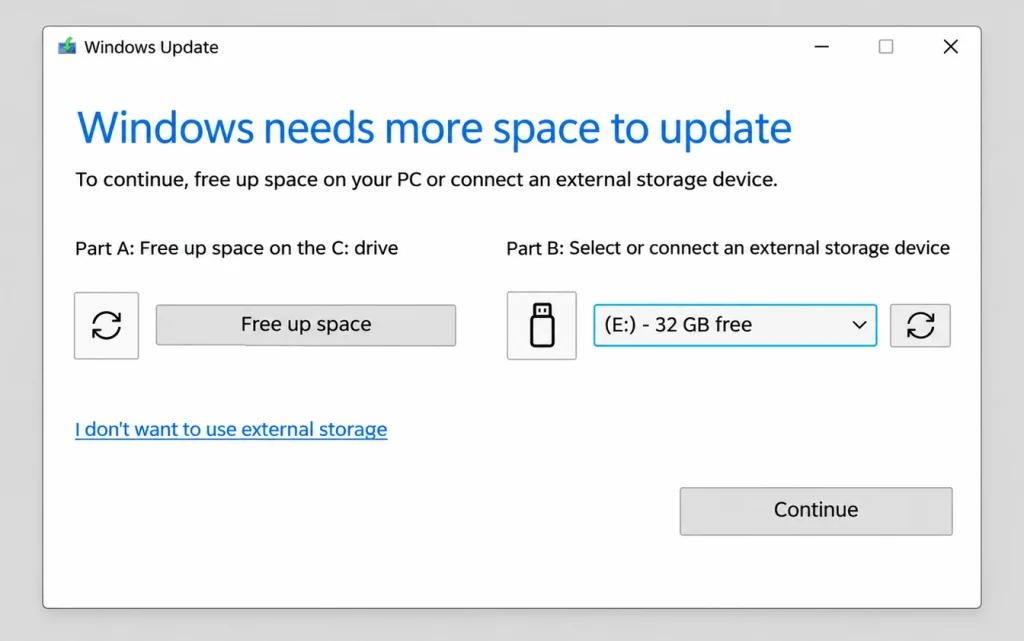
Some low-space update workflows offer external storage for temporary installation files. This reduces the internal space needed but does not eliminate that requirement. The option is not available in every upgrade path.
- When Windows shows a low-space prompt or Fix issues, open it.
- Connect an external drive with at least 10 GB free, or more if the prompt requests it.
- Back up important files on that drive, then select the correct device in the dropdown.
- Follow Next or Continue and keep the drive connected until installation finishes.
If Setup still requests space on C:, complete that cleanup too. A bootable installation USB is a different use of a USB drive; it does not automatically become temporary upgrade storage. Do not format a drive unless you intend to erase it.
5. Fix Windows upgrade error 0xc190020e if it returns
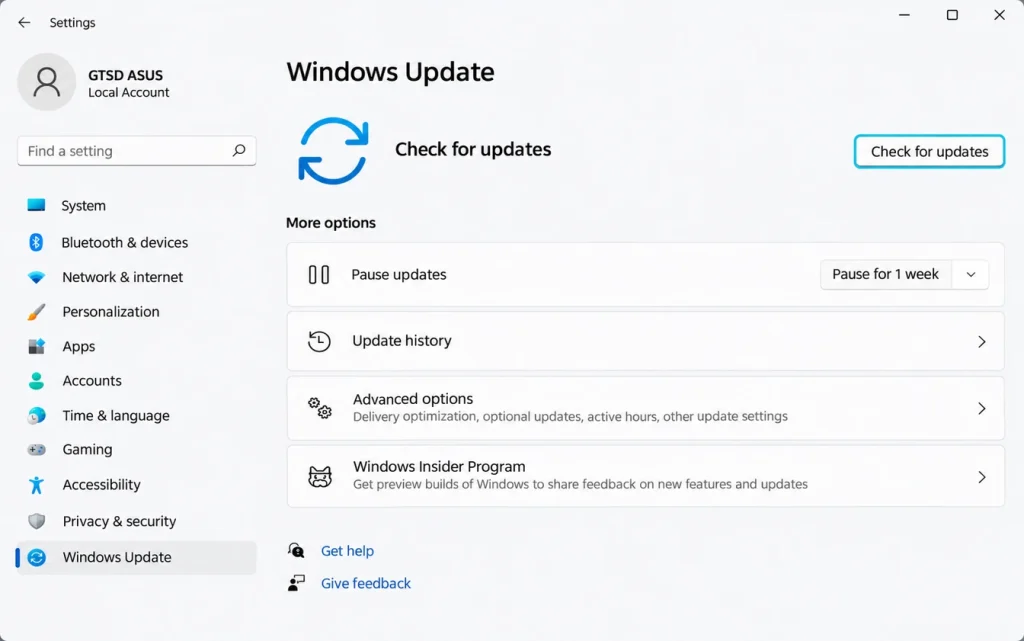
After cleanup, restart the PC, recheck the Windows drive, and retry through the same supported upgrade method. For Windows 11, open Settings > Windows Update and use the available check or retry control. Keep the PC connected to power.
If you still cannot fix Windows upgrade error 0xc190020e, write down the current free space, the additional space requested, and the exact code from the latest attempt. A different code needs its own investigation; do not assume every later failure has the same cause.
Before deleting failed-setup files, preserve the latest upgrade logs. SetupDiag can help analyze them. When automatically generated, its report may be available at:
C:\Windows\Logs\SetupDiag\SetupDiagResults.xmlDepending on the phase reached, relevant logs can also be under C:\$Windows.~BT\Sources\Panther or C:\Windows\Panther. Look for entries from the latest attempt, including setuperr.log and setupact.log. Not every blocked attempt creates every report.
Share the code, free-space readings, and relevant log findings with the PC maker or administrator if the block persists. Avoid posting entire logs publicly without reviewing their contents.
Do not resize recovery partitions, disable the page file, or run registry cleaners as a first response to this code. If your Windows drive remains too small after reasonable cleanup, discuss a larger supported system drive with a technician. For the separate task of preparing installation media, see our Windows bootable USB guide.