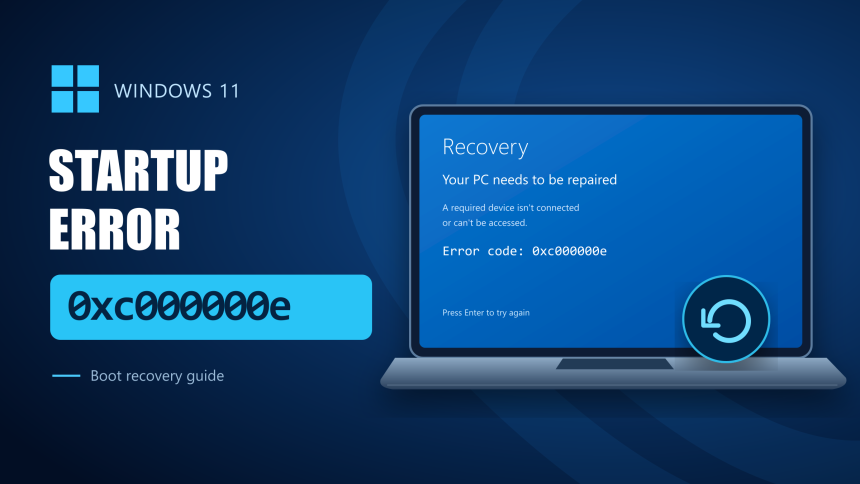
To fix startup error 0xc000000e in Windows 11, first check whether the PC can find its system drive, then work through the recovery tools. This error can appear when Windows cannot reach the device or boot information it needs to start. It does not automatically mean your files are gone.
The recovery screen may say that a required device is not connected or cannot be accessed. Some versions instead name a boot-loader file. Note the exact message and any recent change, such as an SSD clone, a firmware reset, or a disconnected drive. Those details help you choose the right repair.
| What you find | What to try |
|---|---|
| The system SSD is missing from firmware storage information | Check its connection and hardware detection first |
| The SSD is present, but the wrong entry boots | Select the correct Windows Boot Manager |
| The drive is detected and recovery tools open | Run Startup Repair |
| Startup Repair fails on a confirmed UEFI installation | Identify the Windows and EFI partitions before repairing boot files |
| The error followed a recent system change | Consider an available restore point |
Keep your BitLocker recovery key available. An encrypted Windows volume may need unlocking before recovery tools can read it. If the disk also reports read errors or keeps disappearing, protect important data before attempting repeated repairs.
1. Check the system drive and Windows Boot Manager
Start with the boot target. Shut down the PC and remove nonessential USB storage, memory cards, and external drives. Leave a Windows recovery USB disconnected until you need it in step 2.
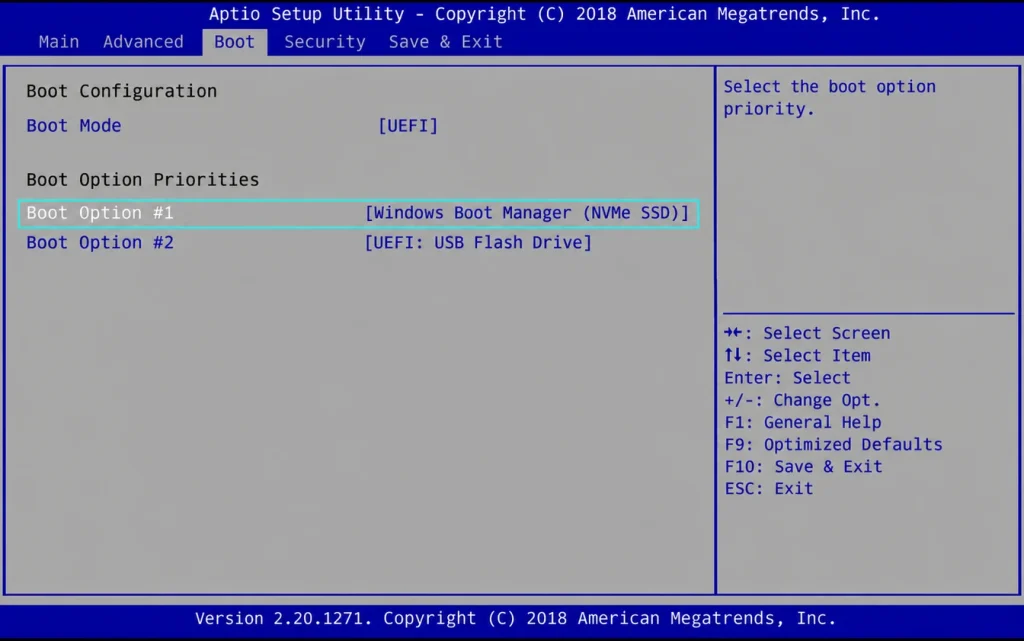
- Turn on the PC and open its firmware setup or one-time boot menu using the manufacturer’s startup key.
- Look under storage or NVMe information for the system drive. Identify it by model and capacity.
- If it is detected, look for Windows Boot Manager associated with that drive and select it.
- If Windows starts, place that entry first in the normal boot order.
Boot-menu keys vary by model; common examples include F2, Delete, Esc, and F12. A drive absent from storage information needs a connection or hardware check before a boot-file repair can help. Power down and follow the device’s service instructions before reseating hardware. Our Windows 11 SSD detection guide covers that situation.
If the problem began after a firmware reset, compare the boot and storage-controller settings with the previously working configuration. Do not randomly switch UEFI to legacy mode, change RAID/VMD to AHCI, or disable Secure Boot. Those changes can introduce a different startup problem.
If the error appeared after cloning, keep the original drive intact. Check our guide to Windows not booting after an SSD clone before cloning again.
2. Fix startup error 0xc000000e with Startup Repair
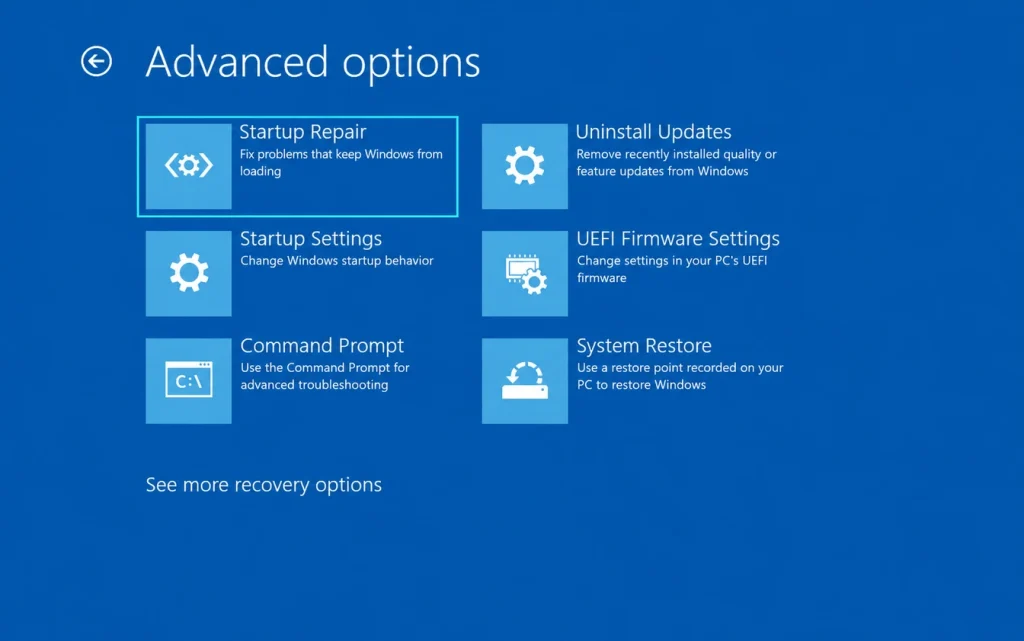
Startup Repair is the best first repair attempt once the system drive is detected. It checks common startup problems without requiring you to identify partitions manually.
- If the recovery screen offers a working recovery-environment option, open it. Otherwise, create Windows 11 installation media on another PC.
- Boot the affected PC from that USB. For a UEFI installation, select the USB’s UEFI boot entry if both UEFI and legacy entries appear.
- Follow the initial setup prompts and choose Repair my PC or Repair your computer, depending on the media version. Continue to the recovery tools rather than installation.
- Select Troubleshoot > Advanced options > Startup Repair, then follow any restart or account prompts.
- Enter a BitLocker recovery key if requested, and allow the process to finish.
- Remove the USB and test normal startup.
If you need installation media, follow our Windows Media Creation Tool USB guide. Creating that USB can erase the selected USB drive, so use one whose contents you have backed up.
Startup Repair can address some damaged startup files and boot-configuration problems. It cannot repair a failed SSD or supply a partition that was never cloned. If it cannot fix startup error 0xc000000e, record the result and continue with identification rather than repeating the same attempt indefinitely.
3. Identify Windows and the EFI System Partition
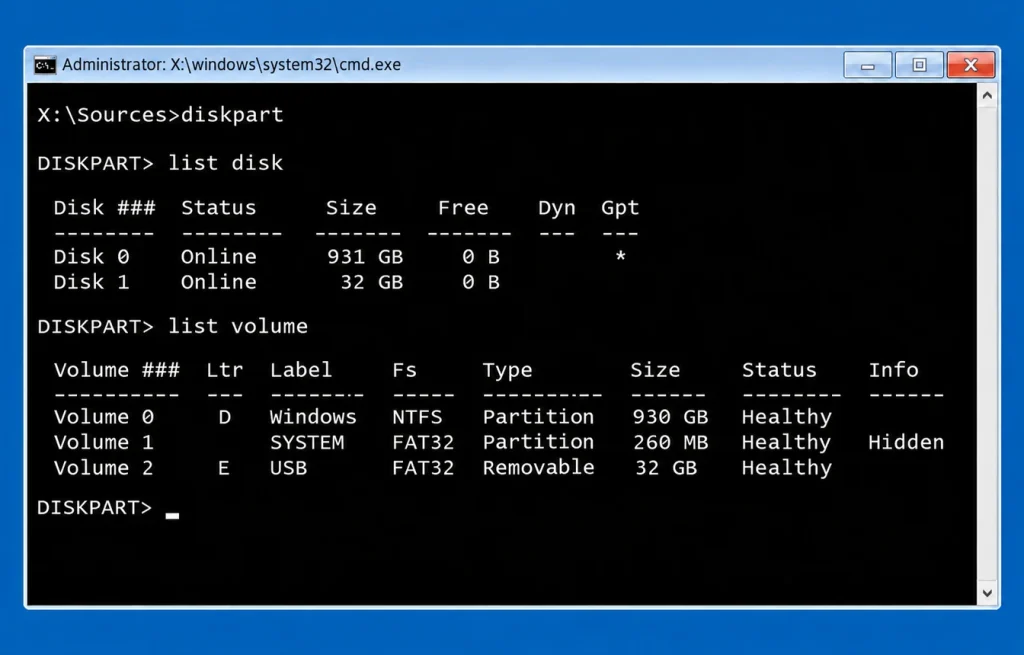
The manual procedure below is for an existing UEFI/GPT Windows installation. Stop if you find an MBR/legacy layout, multiple Windows installations you cannot distinguish, a missing EFI partition, or an unreadable volume. Those situations need a repair matched to the actual layout.
Open Troubleshoot > Advanced options > Command Prompt. In recovery, Windows may have a different drive letter. The X: drive normally belongs to the recovery environment, not your installed copy of Windows.
Begin with these inspection commands:
diskpart
list disk
list volume
Identify the internal Windows disk by its capacity and other available details. A star under Gpt indicates GPT partitioning; it does not, by itself, identify the right disk. The USB installer may also contain a FAT32 volume.
Inspect the candidate disk and partitions with the following commands. Replace N with the actual disk number and P with the candidate EFI partition number. Run each line individually and check the output before proceeding:
select disk N
detail disk
list partition
select partition P
detail partition
The EFI System Partition normally uses FAT32 and has the GPT type identifier below. Confirm its type and that it belongs to the intended Windows disk. Size alone is not a reliable identifier.
c12a7328-f81f-11d2-ba4b-00a0c93ec93bRecord the disk and EFI partition numbers, then leave DiskPart:
exitCheck the drive letter assigned to the Windows volume. For example, if it is D:, inspect:
dir D:\Windows
dir D:\Windows\System32
Use the actual letter from your machine. If the volume is locked or the expected Windows folders are absent, do not use it as the source for the next command. Unlock it through the appropriate BitLocker recovery process or get help identifying the installation.
4. Fix startup error 0xc000000e by rebuilding UEFI boot files
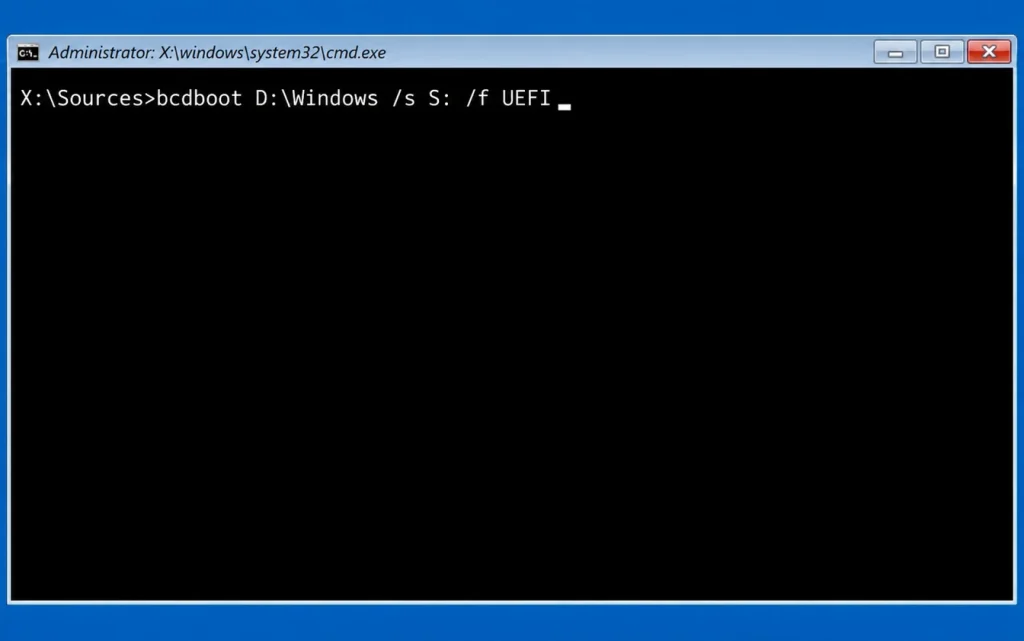
Use this step only after confirming the Windows installation and its existing EFI System Partition. BCDBoot copies startup files from Windows to the selected system partition. Choosing the wrong destination can modify another installation’s boot setup.
Back up important files before making manual changes. If you have several internal system disks or a dual-boot setup, get help choosing the destination rather than guessing. This procedure does not require formatting or deleting a partition.
If the confirmed EFI partition has no letter, assign an unused temporary letter in recovery. In this example, S: must be unused. Replace N and P with the numbers you recorded in step 3:
diskpart
select disk N
select partition P
detail partition
assign letter=S
exit
Recheck the partition details before the assignment. If S: is already assigned, use another unused letter and substitute it in the command below. If the assignment fails, stop and investigate the error; do not format the partition or change its type to force the operation.
For the example where Windows is on D: and the confirmed EFI partition is S:, run:
bcdboot D:\Windows /s S: /f UEFISubstitute both letters if yours differ. After a successful result, close Command Prompt, remove the USB, and select the system drive’s Windows Boot Manager when restarting.
The /s option targets the chosen partition. In this mode, BCDBoot does not create the usual Windows Boot Manager entry in firmware memory. If that entry is missing, boot-file copying alone may not restore it; use the PC manufacturer’s firmware recovery guidance or obtain assistance with restoring the entry.
If the command fails, keep the exact error message. Recheck the source Windows folder, encryption state, and destination partition. Our boot configuration data troubleshooting guide explains a related boot-data error, but its error code is different.
5. Use System Restore and check for hardware faults
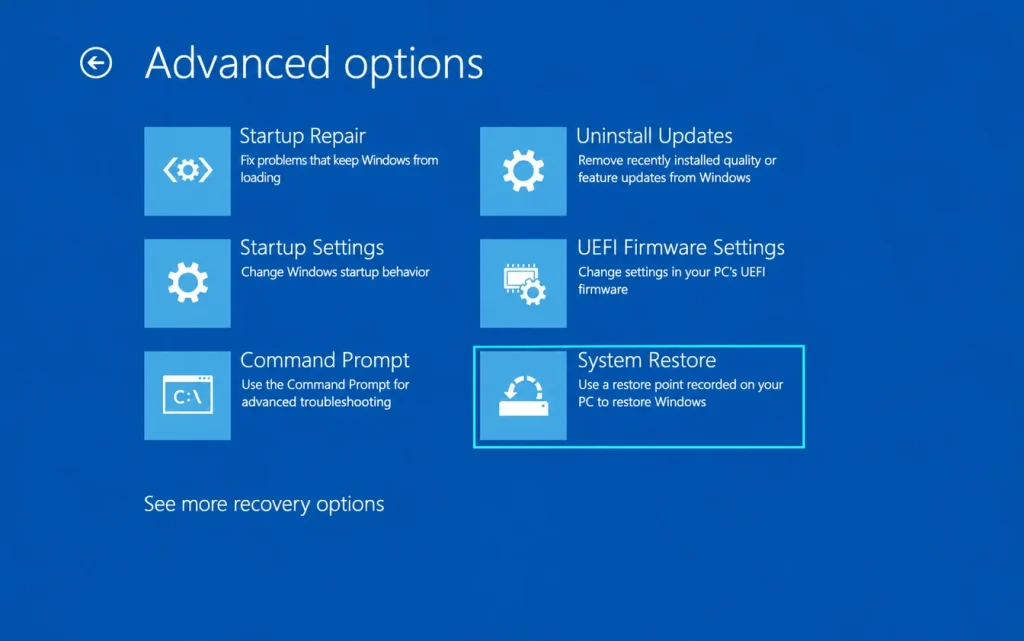
If the drive is readable and the error followed a recent driver, application, or system change, an existing restore point may help. Open Troubleshoot > Advanced options > System Restore and choose a point from before the failure.
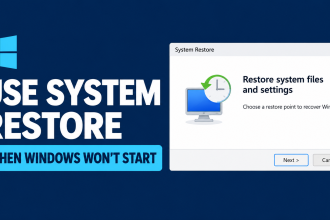
Review the affected applications before confirming. System Restore rolls back system files and settings and may remove recently installed software or drivers. It is not a personal-file backup, and a restore point must already exist. See our System Restore guide for a PC that will not start for the full walkthrough.
If you still cannot fix startup error 0xc000000e, check for evidence of a storage problem. Run the device maker’s built-in storage diagnostic where available. Intermittent detection, read errors, and failed diagnostics justify investigating the SSD, its connection, or its controller before attempting more writes.
Recover important files and verify the backup before considering a reset or reinstallation. A clean installation can erase data and applications, and it will not repair faulty hardware. Keep a working original disk or clone until the repaired PC starts independently and your files have been checked.