The “Windows Cannot Be Installed to This Disk” error appears when Windows Setup cannot install the operating system on your selected HDD or SSD. This commonly happens because the disk’s partition style doesn’t match the computer’s boot mode.
Whether you’re installing Windows 11 or Windows 10, the problem can often be resolved by checking your BIOS settings, verifying the disk partition style, or converting the drive to GPT.
Why Windows Cannot Be Installed to This Disk
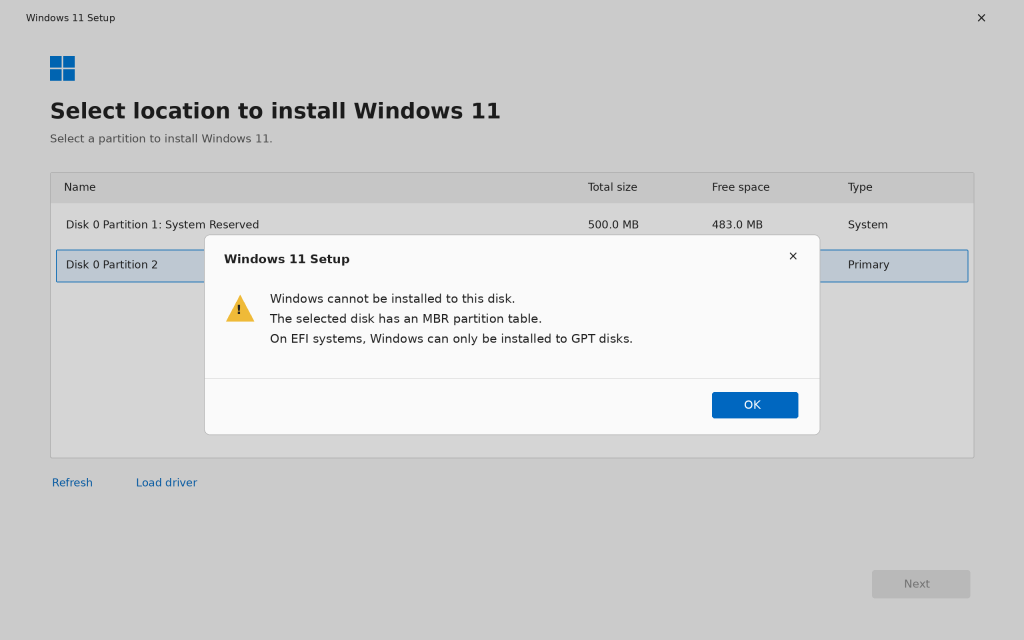
Windows Setup may display different errors depending on the storage configuration:
- “The selected disk has an MBR partition table.” This occurs when Windows Setup boots in UEFI mode but the target disk uses MBR.
- “The selected disk is of the GPT partition style.” This typically appears when Windows Setup boots in Legacy BIOS mode.
- “Windows cannot be installed to this disk.” Other storage, partition, or hardware problems may also cause this message.
For Windows 11, the recommended and officially supported configuration is UEFI with GPT.
Fix 1: Check UEFI Boot Settings
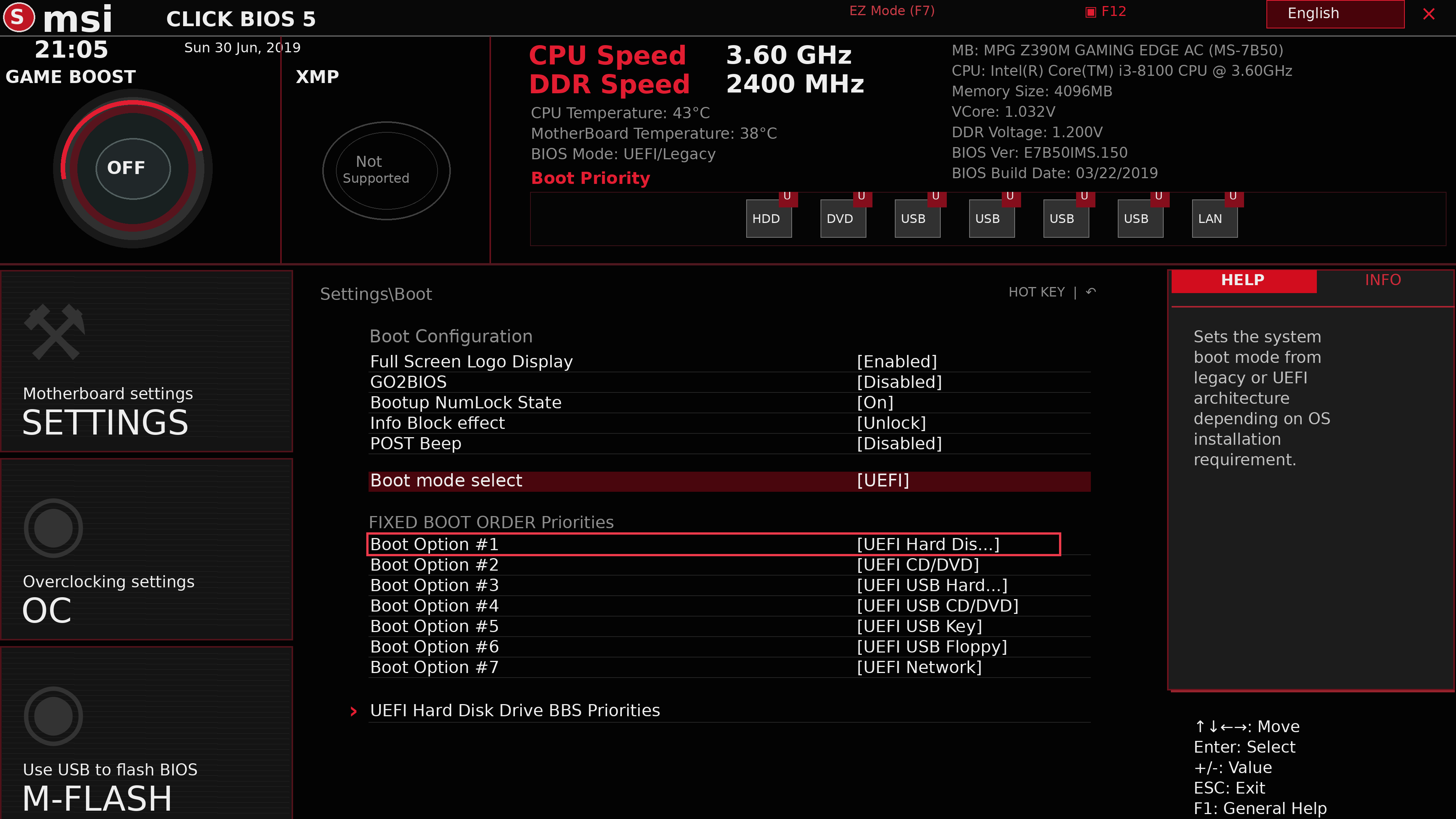
Incorrect BIOS boot settings are a common cause of Windows installation errors.
- Restart your computer and enter BIOS using F2, Delete, or your manufacturer’s designated key.
- Open the Boot or Advanced section.
- Locate Boot Mode or CSM settings.
- Confirm that UEFI boot mode is enabled.
- Save your settings and restart.
When booting from your installation USB, select the entry beginning with UEFI.
Important: Changing boot modes may prevent an existing Windows installation from starting if the system disk uses an incompatible partition style.
Fix 2: Check Your Disk Partition Style
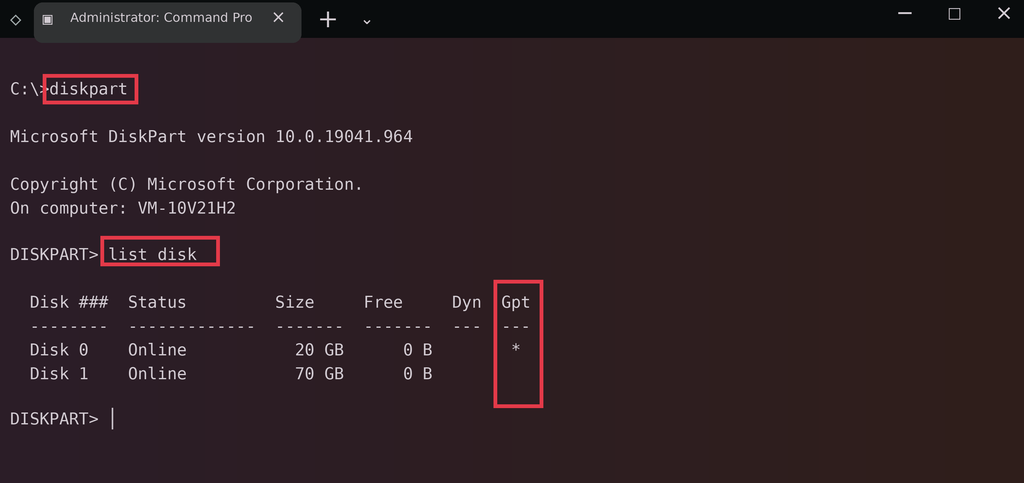
Before modifying partitions, identify whether your disk uses MBR or GPT.
- On the Windows Setup screen, press Shift + F10.
- Enter the following commands:
diskpart
list disk
- Check the GPT column in the disk list.
An asterisk (*) indicates that the disk uses GPT. If no asterisk appears, the disk uses MBR.
Type exit to close DiskPart.
Fix 3: Convert MBR to GPT
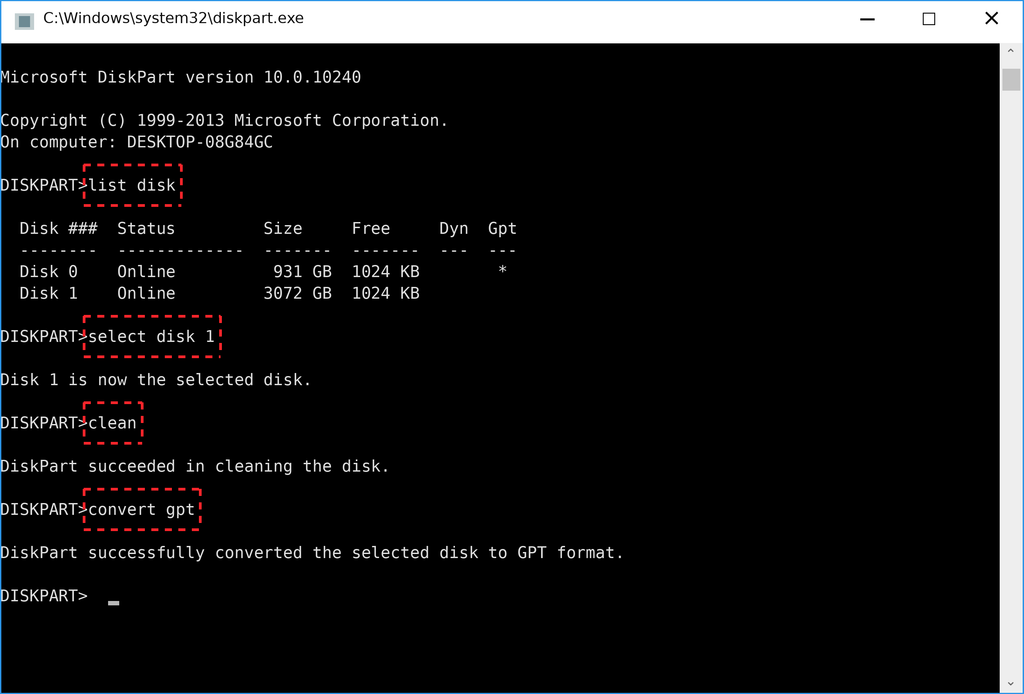
If Windows Setup reports an MBR partition error while booted in UEFI mode, converting the target disk to GPT can resolve the problem.
Warning: The following procedure permanently removes all partitions and data from the selected disk. Back up important files before proceeding.
- Press Shift + F10 during Windows Setup.
- Run these commands individually:
diskpart
list disk
select disk 0
clean
convert gpt
exit
- Close Command Prompt.
- Click Refresh on the installation screen.
- Select the unallocated space and click Next.
Replace 0 with the correct target disk number after carefully checking the disk’s capacity. Never assume your installation drive is Disk 0.
Windows Setup should now be able to install Windows on the GPT drive.
To preserve an existing Windows installation and files, Microsoft’s MBR2GPT utility can convert eligible system disks without deleting their contents. This requires a supported disk layout and correct UEFI boot configuration afterward.
Fix 4: Delete Existing Partitions for a Clean Installation
If you’re performing a completely fresh Windows installation, removing existing partitions on the installation drive may resolve partition-related errors.
- Open the Windows Setup drive selection screen.
- Identify the correct installation drive.
- Select each partition belonging to that drive.
- Click Delete until the drive displays unallocated space.
- Select the unallocated space and click Next.
When Windows Setup is booted in UEFI mode, it can automatically create the required GPT partitions.
Important: Deleting partitions permanently removes their contents. Do not delete partitions on other drives or use this method if you need to preserve existing data.
Fix 5: Recreate the Windows Installation USB
If the error persists, your installation media may be booting in the wrong mode or may have been prepared incorrectly.
- Visit https://www.microsoft.com/software-download/windows11
- Download Microsoft’s Media Creation Tool.
- Connect a USB flash drive with at least 8 GB of storage.
- Create new Windows installation media.
- Restart your computer and boot the USB in UEFI mode.
- Return to the installation drive selection screen.
If Windows Setup still reports a disk error, verify the exact message before making additional changes.
For Windows 11, use a compatible computer with UEFI firmware, Secure Boot capability, and a GPT system disk.