Windows activation can give this error 0x803f7001 when the pc does not see a proper license for the windows version that is on there. It seems like the main things to try are making sure the edition lines up with what you have a license for and then running that activation troubleshooter tool. You can also try linking it back to a digital license or putting in a product key if you have one.
Sometimes this happens after you do a clean install and maybe the wrong version got put on. Or if the motherboard was changed it might not recognize the old activation anymore. A brand new computer that has not been activated before could need the seller or maker to help out with it. I think that part depends on what exactly was done to the pc recently but not everything is always clear right away.
The whole thing feels a bit tricky if the hardware changed without warning.
1. Check the edition and activation error 0x803f7001
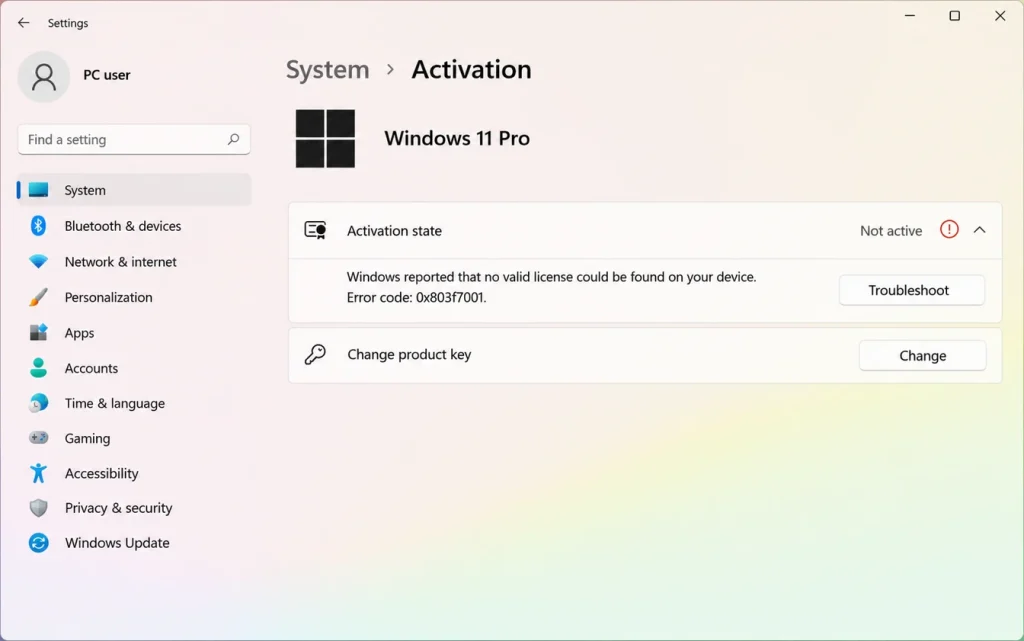
Start with the information on the Activation page. This prevents you from buying another license or reinstalling Windows before you know what is missing.
- Open Settings with Windows + I.
- In Windows 11, go to System > Activation. In Windows 10, go to Update & Security > Activation.
- Note the installed edition, such as Home or Pro, and expand the activation details if needed.
- Confirm the code is 0x803f7001. Record the full message and whether the problem began after installation, a repair, or a hardware change.
Next, compare the edition with your receipt, original PC specifications, or previous activation records. A Home license does not activate Pro. The edition matters even if you installed Windows on the same computer that was activated before.
| Your situation | Best next check |
|---|---|
| Windows was activated before a reinstall | Verify the edition and try the troubleshooter |
| You replaced the motherboard | Use the hardware-change reactivation route if eligible |
| You bought a separate product key | Check its edition and enter it through Activation settings |
| A new or refurbished PC has never activated | Ask the seller to verify the included Windows license |
Before continuing, confirm that the PC can get online. Activation needs an internet connection. If Wi-Fi itself is failing, resolve that connection problem first; changing a product key will not repair the network.
2. Run the troubleshooter for activation error 0x803f7001
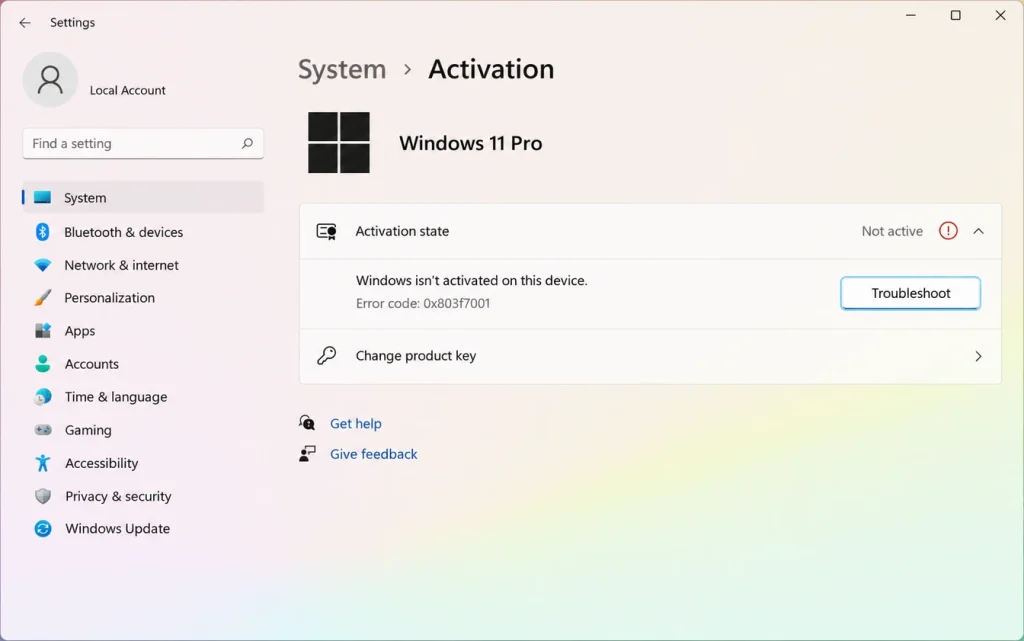
The Activation troubleshooter can look for an existing license and may identify an edition mismatch. It is the most useful first test when this installation should already be covered.
- Sign in with an administrator account and connect to the internet.
- Return to the Activation page in Settings.
- Select Troubleshoot and follow the prompts. Some Windows 11 builds may direct you to the Get Help app.
- Read the result before making another change. If Windows finds a license for a different edition, note which edition it identifies.
The Troubleshoot option normally appears only when Windows is not activated. If the page already shows an active state, check the current status before trying to replace a key.
If the tool offers to activate using an existing digital license, follow that route and then check the Activation page again. If it cannot find one, move to the product-key or hardware-change checks below. Running the tool repeatedly does not create a license that the device never had.
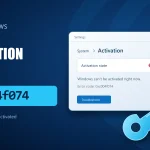
If the message changes to a different error code, record the new code. For example, the 0xc004f074 activation guide covers a different situation involving an organization’s activation service.
3. Enter a valid product key for the installed edition
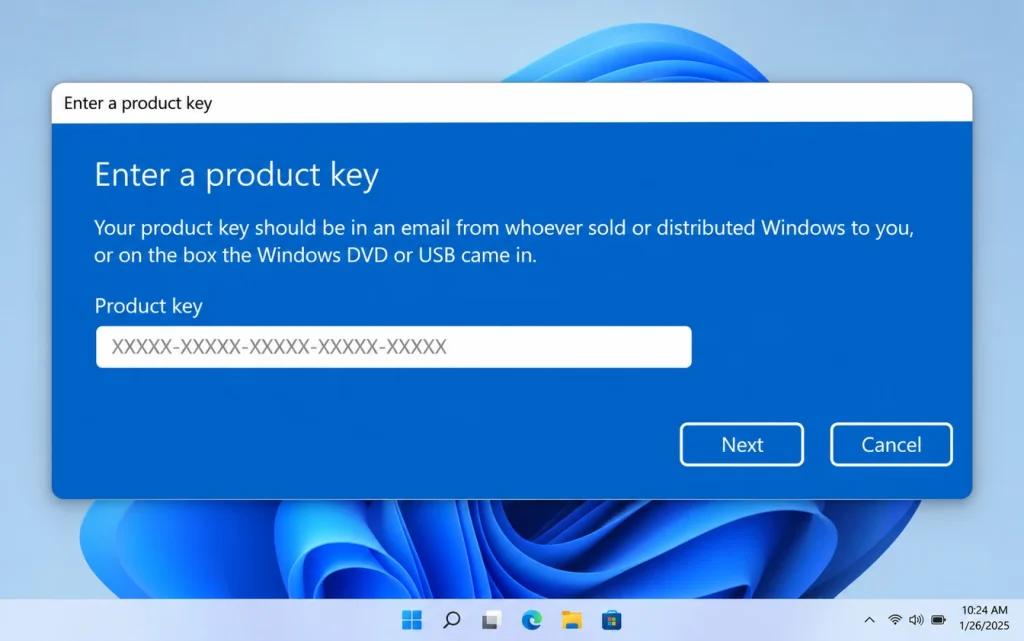
Use this step if you purchased Windows with a 25-character product key. Look in the purchase confirmation, retail packaging, or the documentation supplied with a refurbished PC. A device using a digital license may not need you to enter a key at all.
- Check that the key is intended for the installed Windows edition.
- Open Activation in Settings and select Change product key or the Change button beside it.
- Enter your own 25-character key carefully, then select Next.
- Complete the prompts and review the activation status. If the key is rejected, keep the message for the seller or support team.
Generic installation keys can select or install an edition, but they do not provide a purchased license. Substituting one for your own key will not resolve a missing entitlement. Avoid replacing the key with codes from unrelated PCs.
If you intended to move from Home to Pro, check the Windows Home to Pro upgrade guide. Confirm that you own a valid Pro license before changing editions. An edition upgrade and successful activation are separate parts of the process.
4. Reactivate after a motherboard or hardware change
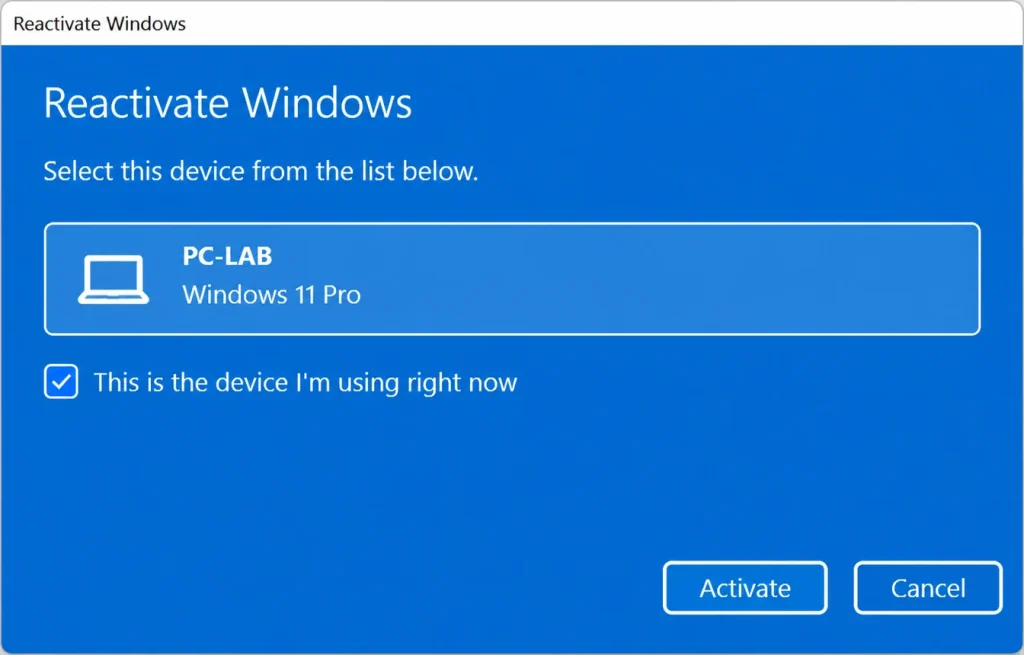
A digital license is associated with the device’s hardware. Replacing the motherboard can change that association, which may explain activation error 0x803f7001 on a PC that previously worked.
If your digital license was linked to a Microsoft account before the change, use that same account for the reactivation attempt. Signing in with a different account will not recover the original license association.
- Check that the installed edition is the same one you were licensed to use before the repair.
- Open Activation > Troubleshoot.
- If offered, select I changed hardware on this device recently and sign in with the account linked to the license.
- Choose the matching device, select This is the device I’m using right now, and then select Activate.
If the device is absent, verify that you used the original linked account. If you previously activated with a separately purchased product key, try that key through Change product key instead.
Reactivation is subject to the license’s eligibility and terms. A preinstalled license does not automatically become transferable because you sign in to an account. If a repair shop or the manufacturer replaced the motherboard, ask them to verify the licensing outcome before paying for another copy.
A similar missing-key message can use code 0xc004f213. Use the 0xc004f213 troubleshooting guide if that is the code now shown on your device.
5. Resolve a missing license or edition mismatch
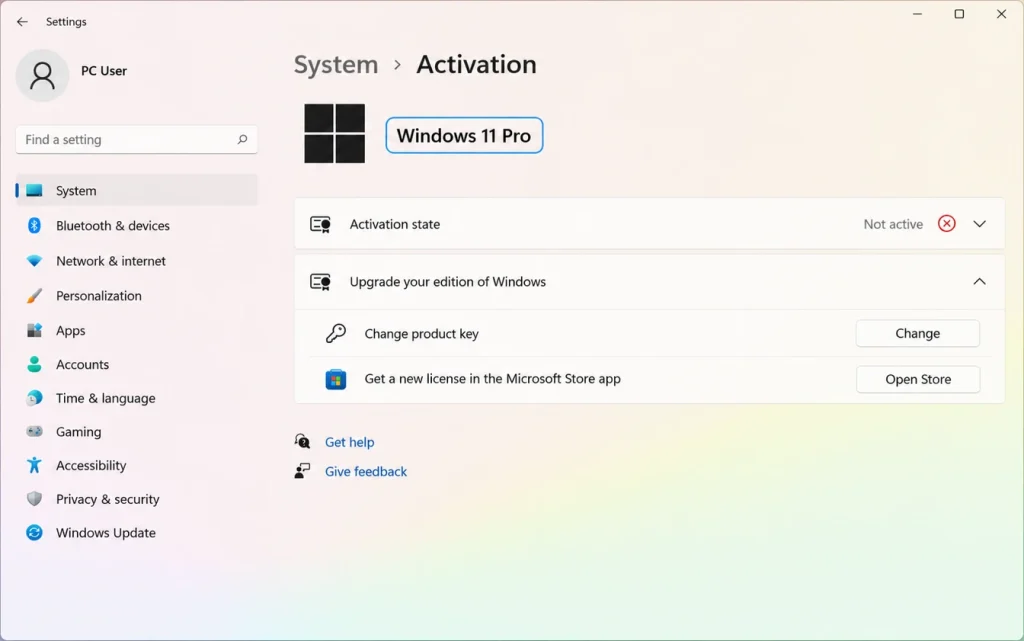
If activation error 0x803f7001 remains, choose the next step from the evidence you collected. The right resolution is different for an incorrect installation and a PC that was sold without a usable license.
- You own Home but installed Pro: use your licensed Home edition, or obtain a valid Pro license if you need Pro. Returning from Pro to Home can require a clean installation. Back up files and app setup information before planning that change.
- You own Pro but installed Home: follow the edition-upgrade option offered by the troubleshooter, or use your valid Pro key through the supported upgrade process.
- The PC was sold with Windows included: contact the seller or manufacturer with the order details, installed edition, and error code. Ask them to confirm the license before purchasing a replacement.
- No license was included: obtain a valid license for the edition you intend to use. You can review the Store option on the Activation page or buy from an authorized seller.
- The device belongs to work or school: ask IT to verify how it should activate before replacing a company-provided key.
Keep your product key private when sharing screenshots or requesting help. Support can begin with the error code, edition, purchase history, and description of the hardware change; you do not need to publish the full key.
After the license or edition issue is resolved, return to Settings and confirm that the activation state is active. Keep the purchase record and any recovery information. Registry edits, disk scans, and repeated reinstalls cannot supply a license that was never assigned to the device.