PCBugLab PCBugLab
  • Home
  • How-to guides
    How-to guidesShow More: How-to guides
    windows-error-0x80080005-pcbuglab
    How to fix Windows Update error 0x80080005
    7 Min Read
    update-service-disabled-featured-pcbuglab
    How to fix Windows error 0x80070422
    Windows Update error 0x80240034 download failure illustration-pcbuglab
    How to fix Windows error 0x80240034
    7 Min Read
    Windows error 0x8024402c - pcbuglab
    How to fix Windows error 0x8024402c
    8 Min Read
    windows-update-error-0x800705b4-featured-pcbuglab
    How to fix Windows Update error 0x800705b4
    7 Min Read
  • Tech news
    Tech newsShow More: Tech news
    Acer Predator Atlas 8 handheld with its screen, joysticks and front controls
    Acer Predator Atlas 8: New handheld costs $1,299.99
    4 Min Read
    apple-airtag-4-pack-amazon-deal-pcbuglab
    AirTag 4-pack deal: the big price drop you need to know
    3 Min Read
    rtx-5090-featured-pcbuglab
    RTX 5090 shipment worth $470,000 vanishes at airport
    4 Min Read
    Xbox Ally X20 vs Xbox Ally X - PCBUGLAB
    Xbox Ally X20 vs Xbox Ally X: Is the upgrade worth it?
    5 Min Read
    Super Nt Plus - Mega SG - PCBUGLAB
    Analogue Super Nt Plus and Mega Sg Plus bring retro upgrades
    4 Min Read
  • Gaming news
    Gaming newsShow More: Gaming news
    gta6-cyberleek-pcbuglab
    Cyberleek claims GTA 6 Xbox leak playable for PC
    5 Min Read
  • Cybersecurity
    CybersecurityShow More: Cybersecurity
    cPGuard update attack - pcbuglab
    cPGuard update attack plants backdoors on Linux servers
    2 Min Read
    Gorbag WinRAR attacks - pcbuglab
    New Gorbag WinRAR attacks target Ukraine’s sensitive data
    3 Min Read
    Chinese hackers launch ARTEX AI attacks-pcbuglab
    Chinese hackers launch ARTEX AI attacks on 200+ organizations
    3 Min Read
    BTCPay Server flaw exploit - pcbuglab
    BTCPay Server flaw exploit lets hackers steal Bitcoin and Litecoin
    3 Min Read
    Chrome-extension-search-hijacking-pcbuglab
    Chrome extension search hijacking: what you need to know now
    4 Min Read
  • Contact
Reading: How to fix Inaccessible boot device in Windows 11
Share
PCBugLabPCBugLab
Font ResizerAa
  • Home
  • Cybersecurity
  • Tech news
  • How-to guides
  • Hardware
Search
  • Home
  • Cybersecurity
  • Tech news
  • How-to guides
  • Hardware
Follow US
PCBugLab > How-to guides > How to fix Inaccessible boot device in Windows 11
How-to guides

How to fix Inaccessible boot device in Windows 11

buglab
By
buglab
Last updated: October 21, 2026
6 Min Read
Inaccessible_boot_device_pcbuglab
SHARE

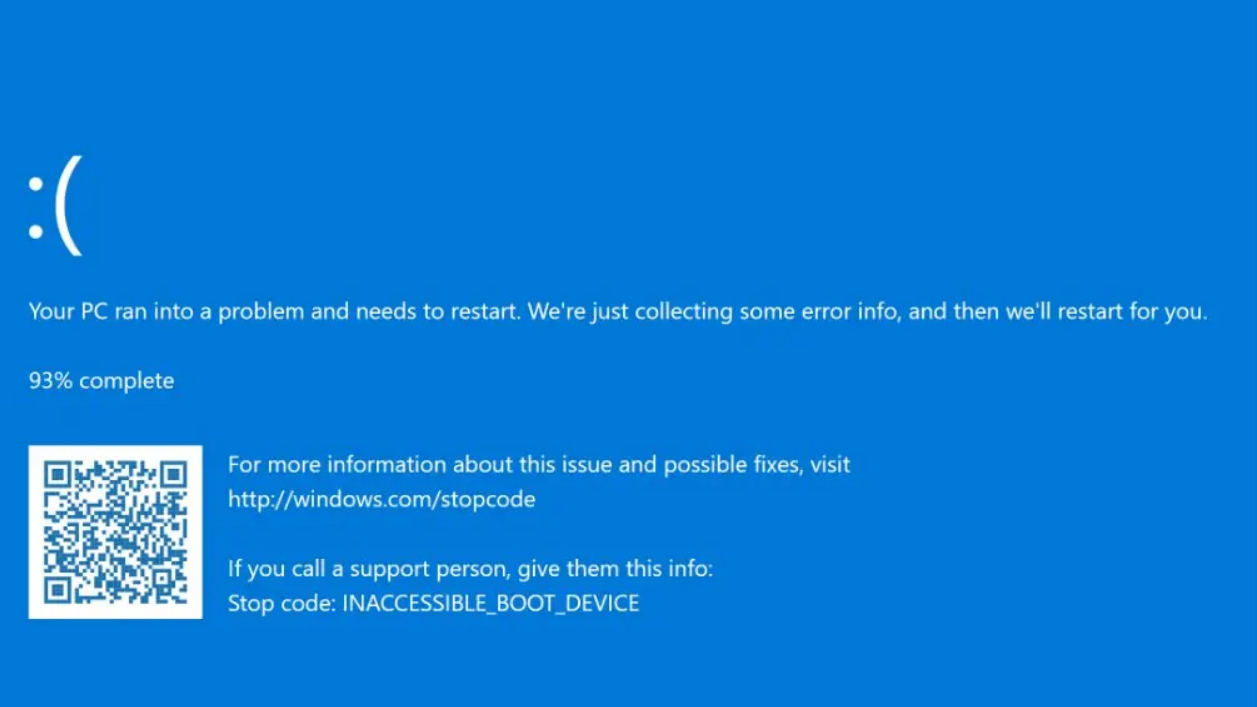
The Inaccessible Boot Device in Windows 11 error appears when Windows loses access to the system partition during startup. Instead of reaching your desktop, your computer displays the INACCESSIBLE_BOOT_DEVICE stop code and may restart repeatedly.

Contents
  • 1. Check recent hardware and BIOS changes
  • 2. Open Windows Recovery Environment
  • 3. Run Startup Repair
  • 4. Fix Inaccessible Boot Device after an update
  • 5. Use System Restore to reverse recent changes
  • 6. Check whether the Windows drive is detected
  • Before resetting or reinstalling Windows

Also known as error 0x0000007B, this problem can involve storage drivers, a changed BIOS setting, file system corruption, or failing storage hardware. It does not automatically mean your SSD needs replacing.

Start by considering what happened before the error. A recent update, SSD replacement, or firmware change gives you a useful starting point.
Inaccessible_boot_device

1. Check recent hardware and BIOS changes

If the error appeared after installing a drive or storage controller, check that installation against the manufacturer’s instructions.

A changed storage controller setting can also prevent Windows from starting. If you recently changed the controller mode in BIOS or UEFI, restore its previous setting.

Avoid randomly switching between AHCI, RAID, or other storage modes. Windows needs a compatible driver for the configuration it uses to start.

If you have not changed these settings, leave them alone and move to the recovery steps below.

2. Open Windows Recovery Environment

Most fixes for Inaccessible Boot Device in Windows 11 begin in Windows Recovery Environment, also called WinRE.

After repeated startup failures, Windows may open Automatic Repair. Select Advanced options to access the recovery tools.

If you can reach the sign-in screen, hold Shift while selecting Power → Restart.

If recovery never opens, use another computer to create a Windows 11 installation USB from the official Microsoft download page. Boot the affected PC from that USB and select Repair my PC.

Have your BitLocker recovery key ready if your drive is encrypted. Some recovery tools require it.

3. Run Startup Repair

Startup Repair checks for common problems that prevent Windows from loading, including damaged startup files and boot configuration issues.

From the recovery menu:

  1. Select Troubleshoot.
  2. Open Advanced options.
  3. Select Startup Repair.
  4. Follow the prompts and allow the repair to finish.

Restart when the process completes and check whether Windows loads normally.

Startup Repair is a useful first repair attempt, but it cannot resolve every storage driver or hardware problem.

4. Fix Inaccessible Boot Device after an update

If the first crash happened immediately after a Windows update, try removing that update through recovery.

Navigate to:

Troubleshoot → Advanced options → Uninstall Updates

Choose Uninstall latest quality update if the problem followed a regular monthly update. Follow the prompts, then restart.

If the error followed a major Windows version upgrade, check whether Uninstall latest feature update is available instead.

Some updates cannot be removed. If Windows cannot complete the uninstall, note the message and continue with another recovery option. Removing an update through this tool preserves your personal files and installed applications.

5. Use System Restore to reverse recent changes

If Startup Repair and update removal do not help, try System Restore, provided a suitable restore point exists.

  1. Open Troubleshoot → Advanced options → System Restore.
  2. Select your Windows installation if prompted.
  3. Choose a restore point created before the startup problem.
  4. Review Scan for affected programs, if available.
  5. Confirm the restore and let it finish.

System Restore reverses system changes without removing your personal files. However, applications, drivers, and settings changed after the selected restore point can be affected.

Select System Restore specifically. Other recovery tools, including Reset this PC, have different effects on your data and applications.

6. Check whether the Windows drive is detected

If Inaccessible Boot Device in Windows 11 persists, check whether your PC’s BIOS or UEFI lists the SSD or hard drive.

Use your manufacturer’s instructions to enter firmware settings and inspect the storage information. If the drive is missing, contact the manufacturer or a qualified technician.

A drive detected by firmware but absent from Windows recovery may require a compatible storage controller driver or further hardware investigation. Detection alone does not prove that the drive is healthy.

Microsoft’s troubleshooting guidance recommends checking whether the operating system disk is accessible before attempting advanced boot repairs.

Before resetting or reinstalling Windows

If these steps fail, protect your files before choosing a reset or clean installation. Keep my files still removes applications and settings, while a clean installation can erase data.

Repeatedly reinstalling Windows will not repair a failing drive or an incompatible storage configuration. If your files are not backed up, arrange data recovery or technical assistance before proceeding.
TAGGED:Boot ErrorsBSODInaccessible Boot DeviceWindows 11Windows Recovery

Sign Up For Daily Newsletter

Be keep up! Get the latest breaking news delivered straight to your inbox.
By signing up, you agree to our Terms of Use and acknowledge the data practices in our Privacy Policy. You may unsubscribe at any time.
Share This Article
Facebook Copy Link Print
Previous Article Memory Management Blue Screen - pcbuglab How to fix the Memory Management blue screen in Windows 11
Next Article error-page-fault-in-nonpaged-area-featured-pcbuglab How to fix Page Fault In Nonpaged Area
Leave a review

Leave a Review Cancel reply

Your email address will not be published. Required fields are marked *

Please select a rating!

FacebookLike
InstagramFollow

Subscribe Now

Subscribe to our newsletter to get our newest articles instantly!
Most Popular
gta6-cyberleek-pcbuglab
Cyberleek claims GTA 6 Xbox leak playable for PC
November 23, 2026
windows-error-0x80080005-pcbuglab
How to fix Windows Update error 0x80080005
November 18, 2026
update-service-disabled-featured-pcbuglab
How to fix Windows error 0x80070422
November 11, 2026
Windows Update error 0x80240034 download failure illustration-pcbuglab
How to fix Windows error 0x80240034
November 11, 2026
Windows error 0x8024402c - pcbuglab
How to fix Windows error 0x8024402c
November 11, 2026

You Might Also Like

Memory Management Blue Screen - pcbuglab
How-to guides

How to fix the Memory Management blue screen in Windows 11

6 Min Read
cloned-ssd-boot-error-windows-pcbuglab
How-to guides

How to fix Windows won’t boot after cloning an SSD?

11 Min Read
windows-update-error-0x800705b4-featured-pcbuglab
How-to guides

How to fix Windows Update error 0x800705b4

7 Min Read
how-to-use-snipping-tool-pcbuglab
How-to guides

How to use Snipping Tool on Windows

10 Min Read

Always Stay Up to Date

Subscribe to our newsletter to get our newest articles instantly!
PCBugLab PCBugLab

Clear solutions for everyday PC problems. Explore troubleshooting guides, hardware advice, and practical insights to get more from your technology.

Explore

  • Home
  • Cybersecurity
  • Tech news
  • How-to guides
  • Hardware

Have a Question or Suggestion?

Tell us which PC problems or tech topics you’d like us to cover. Your feedback helps shape our next guides.
Contact Us
Welcome Back!

Sign in to your account

Username or Email Address
Password

Lost your password?