PCBugLab PCBugLab
  • Home
  • How-to guides
    How-to guidesShow More: How-to guides
    windows-error-0x80080005-pcbuglab
    How to fix Windows Update error 0x80080005
    7 Min Read
    update-service-disabled-featured-pcbuglab
    How to fix Windows error 0x80070422
    Windows Update error 0x80240034 download failure illustration-pcbuglab
    How to fix Windows error 0x80240034
    7 Min Read
    Windows error 0x8024402c - pcbuglab
    How to fix Windows error 0x8024402c
    8 Min Read
    windows-update-error-0x800705b4-featured-pcbuglab
    How to fix Windows Update error 0x800705b4
    7 Min Read
  • Tech news
    Tech newsShow More: Tech news
    Acer Predator Atlas 8 handheld with its screen, joysticks and front controls
    Acer Predator Atlas 8: New handheld costs $1,299.99
    4 Min Read
    apple-airtag-4-pack-amazon-deal-pcbuglab
    AirTag 4-pack deal: the big price drop you need to know
    3 Min Read
    rtx-5090-featured-pcbuglab
    RTX 5090 shipment worth $470,000 vanishes at airport
    4 Min Read
    Xbox Ally X20 vs Xbox Ally X - PCBUGLAB
    Xbox Ally X20 vs Xbox Ally X: Is the upgrade worth it?
    5 Min Read
    Super Nt Plus - Mega SG - PCBUGLAB
    Analogue Super Nt Plus and Mega Sg Plus bring retro upgrades
    4 Min Read
  • Gaming news
    Gaming newsShow More: Gaming news
    gta6-cyberleek-pcbuglab
    Cyberleek claims GTA 6 Xbox leak playable for PC
    5 Min Read
  • Cybersecurity
    CybersecurityShow More: Cybersecurity
    cPGuard update attack - pcbuglab
    cPGuard update attack plants backdoors on Linux servers
    2 Min Read
    Gorbag WinRAR attacks - pcbuglab
    New Gorbag WinRAR attacks target Ukraine’s sensitive data
    3 Min Read
    Chinese hackers launch ARTEX AI attacks-pcbuglab
    Chinese hackers launch ARTEX AI attacks on 200+ organizations
    3 Min Read
    BTCPay Server flaw exploit - pcbuglab
    BTCPay Server flaw exploit lets hackers steal Bitcoin and Litecoin
    3 Min Read
    Chrome-extension-search-hijacking-pcbuglab
    Chrome extension search hijacking: what you need to know now
    4 Min Read
  • Contact
Reading: How to use voice typing on a Chromebook and type faster
Share
PCBugLabPCBugLab
Font ResizerAa
  • Home
  • Cybersecurity
  • Tech news
  • How-to guides
  • Hardware
Search
  • Home
  • Cybersecurity
  • Tech news
  • How-to guides
  • Hardware
Follow US
PCBugLab > How-to guides > How to use voice typing on a Chromebook and type faster
How-to guides

How to use voice typing on a Chromebook and type faster

buglab
By
buglab
Last updated: October 17, 2026
5 Min Read
chromebook-featured-pcbuglab
SHARE

Voice typing on a Chromebook lets you enter text by speaking instead of using the keyboard. Whether you are drafting an email, making notes, or giving your hands a break, the built-in Dictation feature is a useful place to start.

Contents
  • Enable voice typing on a Chromebook
  • Start speaking in a text field
  • Add punctuation while you dictate
  • Make Chromebook voice typing easier to review
  • What to check if Dictation does not work
  • Start small and build a useful routine

You can enable it through ChromeOS accessibility settings, then activate it when your cursor is inside a text field. No separate dictation extension is required. Google describes the feature as a way to enter text in most places where you normally type.

Here is how to set it up and make your first attempt easier to edit.

Enable voice typing on a Chromebook
enable-voice-typing-pcbuglab

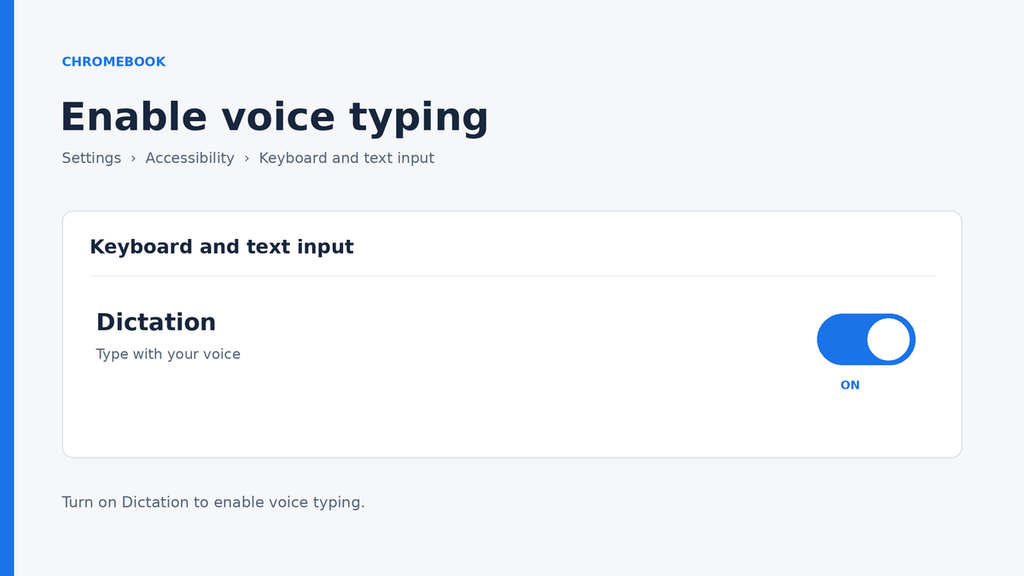
Start by turning on Dictation:

  1. Select the time in the bottom-right corner.
  2. Open Settings.
  3. Select Accessibility.
  4. Open Keyboard and text input.
  5. Turn on Dictation, sometimes labelled Enable dictation (speak to type).

Google places Dictation among ChromeOS’s keyboard and text-input accessibility features.

Once enabled, choose a simple place to practise. A blank note is better than an important message that you might accidentally send before checking it.

Start speaking in a text field
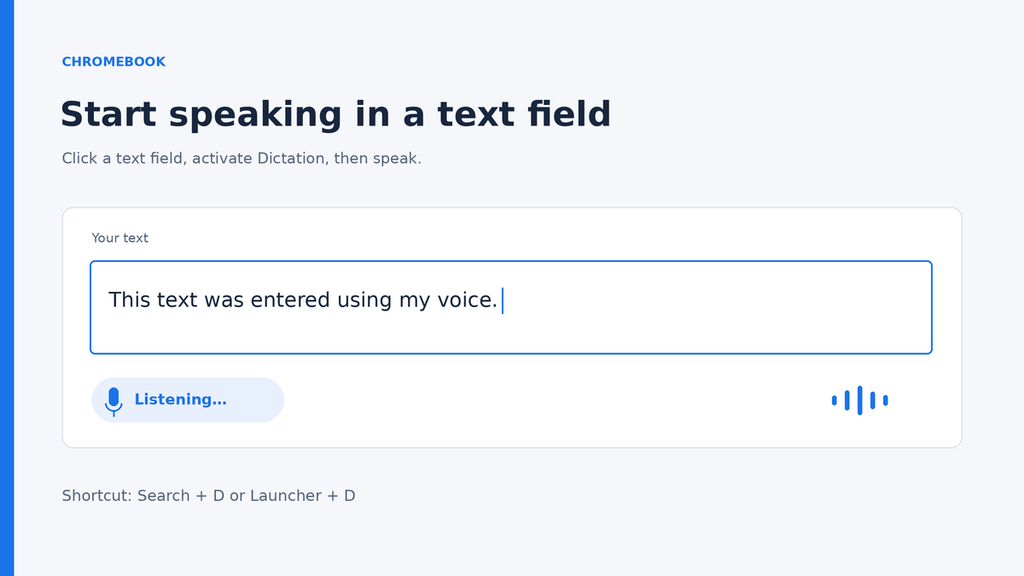
Click where you want your words to appear. Then press Search + D or Launcher + D, depending on your keyboard, and begin speaking.

You can also use the Dictation microphone icon. Pressing the shortcut again turns Dictation off. ChromeOS requires an editable field to be selected, and Dictation can stop automatically after a period without recognised speech.

For your first test, try a short sentence such as:

“Please send me the meeting notes.”

Check what appears before continuing. This gives you a chance to adjust your pace without having a whole paragraph to correct.

Add punctuation while you dictate
punctuation-pcbuglab

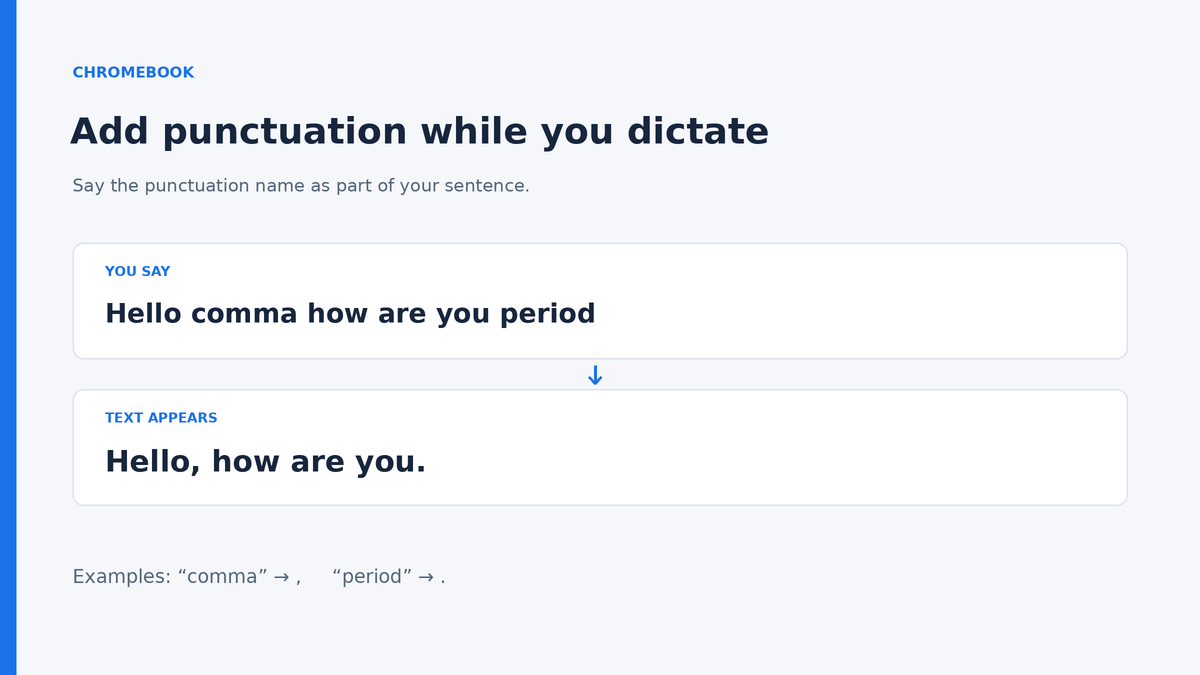
You can speak common punctuation, including “comma,” “period,” and “question mark.” Google also supports commands such as “new line,” “undo,” and “delete the previous word.”

Before saying an editing command, wait for the previous spoken text to clear from the recognition box. Command availability varies by language.

Practise punctuation separately before attempting a long document. It is easier to build a comfortable rhythm when you are not also trying to compose several paragraphs.

Make Chromebook voice typing easier to review

Treat dictation as a first draft. Speak in short sections, pause to read the result, and correct mistakes before moving on.

Pay particular attention to names, numbers, email addresses, and technical terms. A sentence can look grammatically correct while containing the wrong word.

For example, when drafting an appointment message, verify the date and time manually. When writing instructions, check that each step still means what you intended.

You can combine speech and keyboard editing. There is no need to dictate every correction if selecting a word and typing its replacement is quicker.

What to check if Dictation does not work

First, click inside the text area again and restart Dictation. If the field is not editable, ChromeOS cannot insert recognised speech there.

Next, check your language settings. Google warns that speech recognition will not work when the spoken language does not match the device language.

Try another text field to establish whether the problem affects one website or your wider setup. Keep a note of what happens: nothing appearing, incorrect words, and commands being typed as text are different symptoms.

Start small and build a useful routine

Try dictating one paragraph during your next writing task, then edit it normally. Compare how comfortable that feels with typing the same kind of text.

Voice input does not have to replace your keyboard completely. It can simply become another way to get a draft onto the screen when speaking feels more convenient.


TAGGED:AccessibilityChromebookChromeOSHow-to guidesPC guidesVoice Typing

Sign Up For Daily Newsletter

Be keep up! Get the latest breaking news delivered straight to your inbox.
By signing up, you agree to our Terms of Use and acknowledge the data practices in our Privacy Policy. You may unsubscribe at any time.
Share This Article
Facebook Copy Link Print
Previous Article Super Nt Plus - Mega SG - PCBUGLAB Analogue Super Nt Plus and Mega Sg Plus bring retro upgrades
Next Article whatsapp-usernames-pcbuglab How to reserve and change your WhatsApp username
Leave a review

Leave a Review Cancel reply

Your email address will not be published. Required fields are marked *

Please select a rating!

FacebookLike
InstagramFollow

Subscribe Now

Subscribe to our newsletter to get our newest articles instantly!
Most Popular
gta6-cyberleek-pcbuglab
Cyberleek claims GTA 6 Xbox leak playable for PC
November 23, 2026
windows-error-0x80080005-pcbuglab
How to fix Windows Update error 0x80080005
November 18, 2026
update-service-disabled-featured-pcbuglab
How to fix Windows error 0x80070422
November 11, 2026
Windows Update error 0x80240034 download failure illustration-pcbuglab
How to fix Windows error 0x80240034
November 11, 2026
Windows error 0x8024402c - pcbuglab
How to fix Windows error 0x8024402c
November 11, 2026

You Might Also Like

Memory Management Blue Screen - pcbuglab
How-to guides

How to fix the Memory Management blue screen in Windows 11

6 Min Read
microsoft-word-featured-pcbuglab.com
How-to guides

How to remove a section break in Word

6 Min Read
activation-error-0x803fa067-pcbuglab
How-to guides

How to fix Windows activation error 0x803fa067

10 Min Read
Critical_process_died-featured-pcbuglab
How-to guides

How to fix Critical Process Died in Windows 11

5 Min Read

Always Stay Up to Date

Subscribe to our newsletter to get our newest articles instantly!
PCBugLab PCBugLab

Clear solutions for everyday PC problems. Explore troubleshooting guides, hardware advice, and practical insights to get more from your technology.

Explore

  • Home
  • Cybersecurity
  • Tech news
  • How-to guides
  • Hardware

Have a Question or Suggestion?

Tell us which PC problems or tech topics you’d like us to cover. Your feedback helps shape our next guides.
Contact Us
Welcome Back!

Sign in to your account

Username or Email Address
Password

Lost your password?