PCBugLab PCBugLab
  • Home
  • How-to guides
    How-to guidesShow More: How-to guides
    windows-error-0x80080005-pcbuglab
    How to fix Windows Update error 0x80080005
    7 Min Read
    update-service-disabled-featured-pcbuglab
    How to fix Windows error 0x80070422
    Windows Update error 0x80240034 download failure illustration-pcbuglab
    How to fix Windows error 0x80240034
    7 Min Read
    Windows error 0x8024402c - pcbuglab
    How to fix Windows error 0x8024402c
    8 Min Read
    windows-update-error-0x800705b4-featured-pcbuglab
    How to fix Windows Update error 0x800705b4
    7 Min Read
  • Tech news
    Tech newsShow More: Tech news
    Acer Predator Atlas 8 handheld with its screen, joysticks and front controls
    Acer Predator Atlas 8: New handheld costs $1,299.99
    4 Min Read
    apple-airtag-4-pack-amazon-deal-pcbuglab
    AirTag 4-pack deal: the big price drop you need to know
    3 Min Read
    rtx-5090-featured-pcbuglab
    RTX 5090 shipment worth $470,000 vanishes at airport
    4 Min Read
    Xbox Ally X20 vs Xbox Ally X - PCBUGLAB
    Xbox Ally X20 vs Xbox Ally X: Is the upgrade worth it?
    5 Min Read
    Super Nt Plus - Mega SG - PCBUGLAB
    Analogue Super Nt Plus and Mega Sg Plus bring retro upgrades
    4 Min Read
  • Gaming news
    Gaming newsShow More: Gaming news
    gta6-cyberleek-pcbuglab
    Cyberleek claims GTA 6 Xbox leak playable for PC
    5 Min Read
  • Cybersecurity
    CybersecurityShow More: Cybersecurity
    cPGuard update attack - pcbuglab
    cPGuard update attack plants backdoors on Linux servers
    2 Min Read
    Gorbag WinRAR attacks - pcbuglab
    New Gorbag WinRAR attacks target Ukraine’s sensitive data
    3 Min Read
    Chinese hackers launch ARTEX AI attacks-pcbuglab
    Chinese hackers launch ARTEX AI attacks on 200+ organizations
    3 Min Read
    BTCPay Server flaw exploit - pcbuglab
    BTCPay Server flaw exploit lets hackers steal Bitcoin and Litecoin
    3 Min Read
    Chrome-extension-search-hijacking-pcbuglab
    Chrome extension search hijacking: what you need to know now
    4 Min Read
  • Contact
Reading: How to upgrade Windows Home to Pro
Share
PCBugLabPCBugLab
Font ResizerAa
  • Home
  • Cybersecurity
  • Tech news
  • How-to guides
  • Hardware
Search
  • Home
  • Cybersecurity
  • Tech news
  • How-to guides
  • Hardware
Follow US
PCBugLab > How-to guides > How to upgrade Windows Home to Pro
How-to guides

How to upgrade Windows Home to Pro

buglab
By
buglab
Last updated: October 15, 2026
6 Min Read
SHARE

Want to upgrade Windows Home to Pro? This guide explains how to check your current edition, change to Windows 11 Pro, and activate it with a valid license. Follow the steps below to prepare your PC and complete the upgrade.

Contents
  • 1. Before you upgrade Windows Home to Pro
  • 2. Upgrade Windows Home to Pro with a valid key
  • 3. Upgrade Windows Home to Pro using a generic key
  • 4. Activate Windows 11 Pro
  • What if you do not have a Pro key?

Windows Home handles everyday browsing, entertainment, and office tasks. However, you may need Pro when your work requires features such as BitLocker management, Remote Desktop hosting, or joining a business domain. Microsoft identifies these among the capabilities available in its Pro editions.

To upgrade Windows Home to Pro, first check your installed edition and activation status. You can then use a suitable Pro product key or purchase an upgrade through the Microsoft Store.

This guide focuses on Windows 11 Home to Pro. Changing editions does not upgrade Windows 10 to Windows 11.

1. Before you upgrade Windows Home to Pro

Before entering a key, confirm which edition your computer is running:

  1. Press Windows + I to open Settings.
  2. Select System → About.
  3. Find Windows specifications.
  4. Check the entry beside Edition.

If it shows Windows 11 Home, you can proceed with a Home-to-Pro upgrade. If it already shows Windows 11 Pro, check activation instead of attempting another edition change.

Next, open Settings → System → Activation. Microsoft recommends activating your existing Home installation before using its manual upgrade instructions.

Save your work, back up important files, and connect your laptop to its charger before continuing.
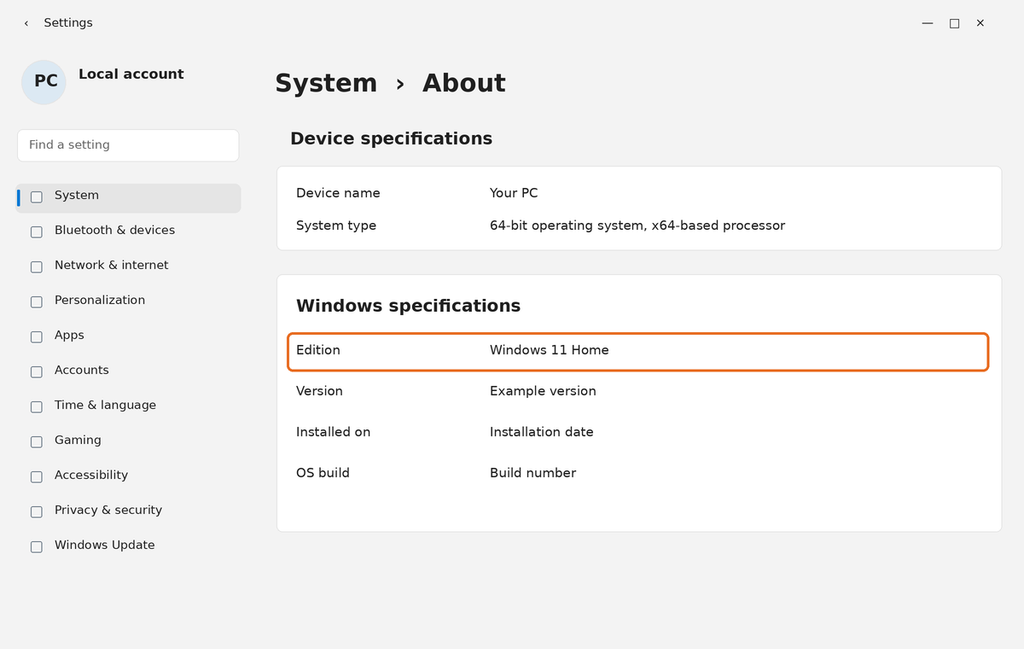
Windows 11 Settings showing the Home edition before you upgrade Windows Home to Pro

2. Upgrade Windows Home to Pro with a valid key

If you already own a suitable Windows 11 Pro product key, try the direct upgrade route first:

  1. Open Settings → System → Activation.
  2. Expand Upgrade your edition of Windows.
  3. Select Change beside Change product key.
  4. Enter your 25-character Windows 11 Pro key.
  5. Select Next and follow the instructions.
  6. Allow Windows to complete the process and restart when requested.

Microsoft documents this method for upgrading an activated Windows 11 Home installation to Pro.

Check the edition and installation requirements listed with your purchase. A key intended for a different edition or licensing arrangement may not work for your setup.

Windows 11 Settings showing the Home edition before you upgrade Windows Home to Pro

3. Upgrade Windows Home to Pro using a generic key

Some troubleshooting instructions use a generic Pro setup key to change the installed edition before entering a purchased activation key. One commonly referenced key is: VD4D4-NDBGX-MTQ2D-G2D9B-F9CKG

However, a generic key does not provide a Windows Pro license or activate Windows by itself. You still need a valid Pro license or an existing digital entitlement for that edition.

Treat this as an alternative troubleshooting method, rather than a required step for every upgrade. If your seller or support technician specifically recommends it, enter the generic key through Change product key and follow any available edition-upgrade prompts.

If Windows rejects it, record the error message. Do not assume that repeatedly entering the same key will resolve the problem.
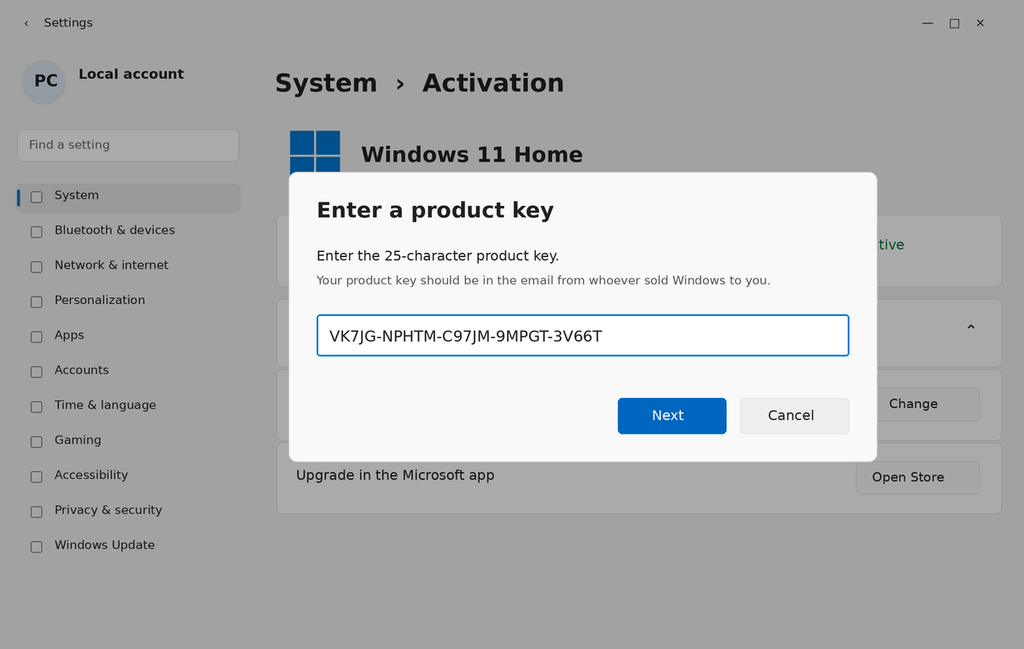
Generic Pro setup key entered in the Windows change product key window

4. Activate Windows 11 Pro

After the edition changes, return to Settings → System → Activation.

If Windows is not activated:

  1. Select Change product key.
  2. Enter your valid Windows 11 Pro activation key.
  3. Select Next and follow the activation prompts.
  4. Keep the computer connected to the internet.

Then confirm that the page shows Windows 11 Pro and an active activation state. Microsoft explains that installing or activating Pro on a device previously licensed only for Home requires a valid license for Pro.
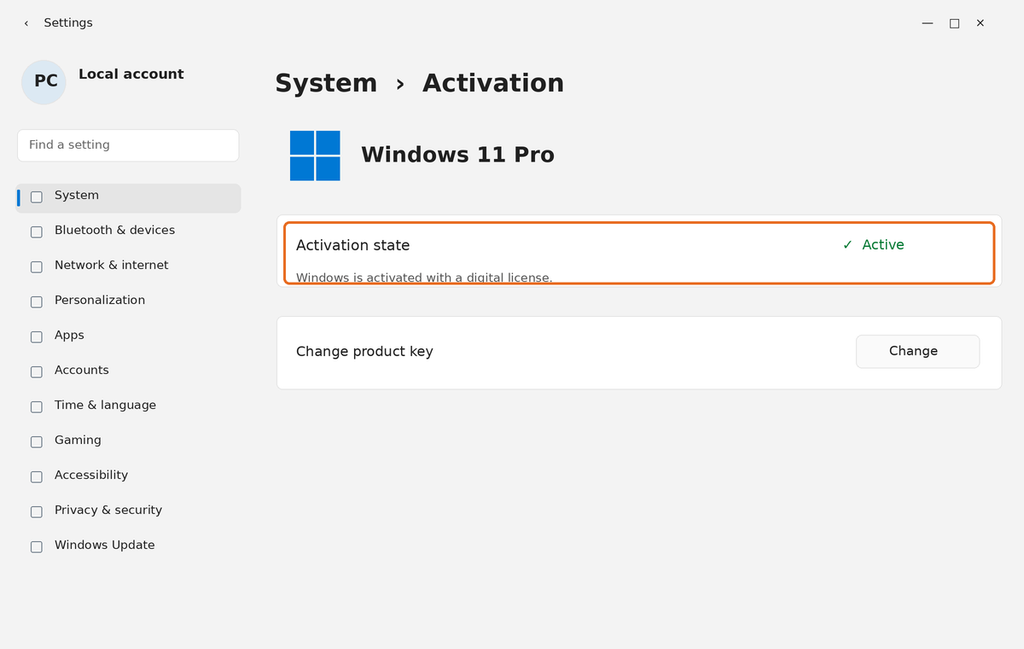
Windows 11 Pro Activation settings showing an active license

What if you do not have a Pro key?

You can purchase a Windows 11 Pro license key from here. Before ordering, review the license terms, device limit, and installation requirements to confirm it suits your setup.

Once you receive your key, follow the upgrade and activation instructions above.

Check the result before making further changes

After completing the upgrade, open Settings → System → Activation. Confirm that the installed edition is Windows 11 Pro and the activation state shows Active.

If an error appears, record the complete error code and keep your purchase confirmation ready when contacting support. Hide your full product key and personal information in screenshots.

If a clean installation is necessary, back up your important files first and use the official Windows 11 download page to obtain the installation media.

TAGGED:Home to Prohow to guidesWindows 11 UpgradeWindows activationWindows guidesWindows home to proWindows upgrade

Sign Up For Daily Newsletter

Be keep up! Get the latest breaking news delivered straight to your inbox.
By signing up, you agree to our Terms of Use and acknowledge the data practices in our Privacy Policy. You may unsubscribe at any time.
Share This Article
Facebook Copy Link Print
Previous Article cybersecurity-featured-pcbuglab How to spot phishing emails and protect your accounts
Next Article How to fix blue screen errors in Windows 11
Leave a review

Leave a Review Cancel reply

Your email address will not be published. Required fields are marked *

Please select a rating!

FacebookLike
InstagramFollow

Subscribe Now

Subscribe to our newsletter to get our newest articles instantly!
Most Popular
gta6-cyberleek-pcbuglab
Cyberleek claims GTA 6 Xbox leak playable for PC
November 23, 2026
windows-error-0x80080005-pcbuglab
How to fix Windows Update error 0x80080005
November 18, 2026
update-service-disabled-featured-pcbuglab
How to fix Windows error 0x80070422
November 11, 2026
Windows Update error 0x80240034 download failure illustration-pcbuglab
How to fix Windows error 0x80240034
November 11, 2026
Windows error 0x8024402c - pcbuglab
How to fix Windows error 0x8024402c
November 11, 2026

You Might Also Like

activation-error-0x803fa067-pcbuglab
How-to guides

How to fix Windows activation error 0x803fa067

10 Min Read
drive-not-found-error-pcbuglab
How-to guides

How to fix external drive not showing

11 Min Read
cloned-ssd-boot-error-windows-pcbuglab
How-to guides

How to fix Windows won’t boot after cloning an SSD?

11 Min Read
windows-cannot-be-installed-to-this-disk-featured
How-to guides

How to Fix “Windows cannot be Installed to this disk”

5 Min Read

Always Stay Up to Date

Subscribe to our newsletter to get our newest articles instantly!
PCBugLab PCBugLab

Clear solutions for everyday PC problems. Explore troubleshooting guides, hardware advice, and practical insights to get more from your technology.

Explore

  • Home
  • Cybersecurity
  • Tech news
  • How-to guides
  • Hardware

Have a Question or Suggestion?

Tell us which PC problems or tech topics you’d like us to cover. Your feedback helps shape our next guides.
Contact Us
Welcome Back!

Sign in to your account

Username or Email Address
Password

Lost your password?