
Have you ever noticed Ready, Enter, Edit, or Point in the bottom-left corner of Microsoft Excel?
These labels identify Excel current cell mode. Each mode affects how Excel responds to your keyboard, mouse, and arrow keys.
Understanding cell modes is especially useful when working with formulas. If an arrow key moves the text cursor instead of selecting another cell, or clicking a cell inserts its reference into a formula, the active mode helps explain why.
Here is what each mode means and how to use it.
Where to Find the Current Cell Mode
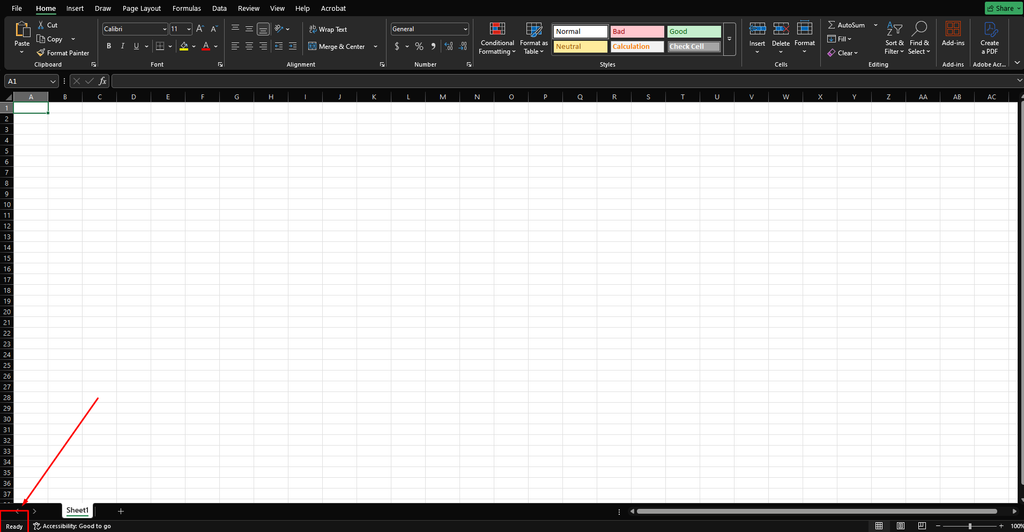
Excel displays the current cell mode on the left side of the status bar, along the bottom of the window.
The four main modes are:
- Ready
- Enter
- Edit
- Point
If the indicator is missing, right-click the status bar and check whether Cell Mode is enabled. This menu also lets you choose which other indicators appear.
Ready Mode: Navigate and Work with Cells
Ready is Excel standard working state. It usually appears when a cell is selected and you are not entering or editing its contents.
In Ready mode, you can:
- Navigate between cells using the arrow keys.
- Select cells and ranges.
- Copy and paste data.
- Apply formatting.
- Delete cell contents.
- Begin entering a value or formula.
For example, select A1, then press the Right Arrow key. The active selection moves to B1.
You will typically see Ready mode while navigating and organizing a worksheet.
Enter Mode: Add New Content
Excel switches to Enter mode when you begin typing into a selected cell.
For example, select A1 and type:
Quarterly Sales
Excel is now entering new content. To complete or cancel the entry:
- Press Enter to accept it.
- Press Esc to cancel it.
Enter mode supports text, numbers, dates, and formulas. If the selected cell already contains data, typing directly into it begins replacing that content.
Edit Mode: Modify Existing Content
Edit mode lets you change a cell’s existing contents without replacing the entire entry.
Suppose A1 contains:
Annual Sales Report
To add a year, select the cell and press F2, then append the text:
Annual Sales Report 2026
You can also begin editing by double-clicking the cell or selecting it and clicking inside the Formula Bar.
The Formula Bar is particularly useful when working with long formulas or lengthy text.
Why the Arrow Keys Behave Differently
In Ready mode, the arrow keys normally move the active selection between cells. In Edit mode, they move the insertion point through the cell’s contents.
For example:
- Select a cell containing Microsoft Excel.
- Press F2.
- Press the Left Arrow key.
The text cursor moves within the entry, allowing you to change individual characters.
How to Finish or Cancel an Edit
When you have finished editing:
- Press Enter to accept the changes.
- Press Tab to accept the changes and move to the next cell.
- Press Esc to discard the current edits.
Esc is especially useful if you accidentally begin changing a formula and want to preserve the original.
Point Mode: Build Formulas by Selecting Cells
Point mode lets you insert cell references into a formula by selecting cells or ranges.
For example, to total the values in A1:A10:
- Select the cell where you want the result.
- Type =SUM(.
- Select the range A1:A10.
- Type ) and press Enter.
The completed formula is:
=SUM(A1:A10)
While you select the range for the formula, Excel uses Point mode to insert the reference.
This approach makes formula entry easier and helps reduce mistakes caused by typing cell addresses manually.
Example: Multiply Price by Quantity
If B2 contains a price and C2 contains a quantity, you can build the calculation as follows:
- Type =.
- Click B2.
- Type *.
- Click C2.
- Press Enter.
Excel creates:
=B2*C2
Selecting references is particularly helpful when cells are far apart or a formula uses several ranges.
Use F2 to Control Formula Editing
F2 is a useful shortcut when working with cell modes.
Selecting a populated cell and pressing F2 starts editing its contents. During formula entry or editing, F2 can also switch how the arrow keys behave: they may move the insertion point within the formula or select cells to use as references.
If an arrow key unexpectedly adds a cell reference, check the mode shown on the status bar. Pressing F2 can help you switch to the behavior you need.
Customize What Happens After Pressing Enter
By default, pressing Enter confirms an entry and usually moves the selection down one cell.
In Excel for Windows, you can adjust this behavior:
- Open File > Options > Advanced.
- Under Editing options, locate After pressing Enter, move selection.
- Choose a direction, or clear the checkbox to keep the selection in the same cell.
This setting can make repetitive data entry more convenient when your worksheet follows a particular layout.
Choose Where to Edit Cell Contents
Excel also lets you control whether editing takes place directly inside cells.
In Excel for Windows:
- Open File > Options > Advanced.
- Under Editing options, find Allow editing directly in cells.
- Enable or disable the setting.
When enabled, you can edit content directly within a cell. When disabled, use the Formula Bar to make changes.
Editing through the Formula Bar can be helpful when you prefer a dedicated space for reviewing text and formulas.
Cell Mode and Selection Mode Are Different
Excel cell modes describe whether you are navigating, entering content, editing content, or selecting formula references.
Selection modes control how you select worksheet ranges. These include:
- Extend Selection: Press F8 to expand a selection using the arrow keys.
- Add to Selection: Press Shift + F8 to select additional, nonadjacent cells or ranges.
These selection states can also appear on the status bar, but they serve a different purpose from Ready, Enter, Edit, and Point.
Other Useful Status Bar Indicators
The status bar can display additional information, including:
- Average, Count, and Numerical Count
- Minimum, Maximum, and Sum
- Caps Lock, Num Lock, and Scroll Lock status
- Page information
- Zoom level
- Macro recording status
For example, selecting a range of numeric cells can display its average, count, and sum without requiring a formula.
Right-click the status bar to choose which available indicators appear.
Use Cell Modes to Explain Unexpected Behavior
You do not need to monitor the status bar constantly. However, checking the current cell mode can help you understand what Excel expects your next action to do.
| What happens | What it usually means |
| Arrow keys move between cells | Excel is in Ready mode. |
| Typing begins replacing the selected cell’s contents | Excel has entered Enter mode. |
| Arrow keys move through text or a formula | Excel is in Edit mode. |
| Selecting cells inserts references into a formula | Excel is using Point mode. |
Knowing these modes makes it easier to navigate worksheets, edit existing entries, and build formulas with confidence.
For more details, see Microsoft’s guide to Excel status bar options.