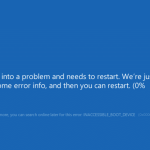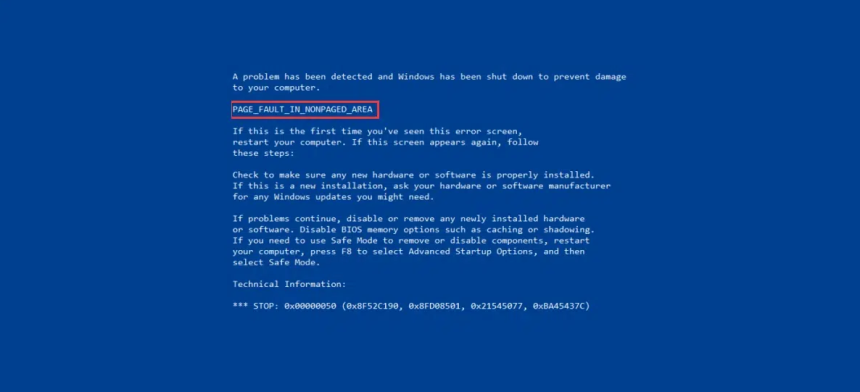
The Page Fault in Nonpaged Area error can crash your Windows 11 PC during startup, gaming, or everyday work. It usually appears with the stop code PAGE_FAULT_IN_NONPAGED_AREA, also known as 0x00000050.
This error means Windows referenced an invalid system memory address. A faulty driver, defective memory, security software, or disk corruption can be involved. The message alone does not prove that your RAM needs replacing.
If Windows still starts, back up your important files before troubleshooting. Make one change at a time, then check whether the crash returns.
Check what changed before the error
Start with the timing. Did Page Fault in Nonpaged Area first appear after installing a driver, adding RAM, or updating an application?
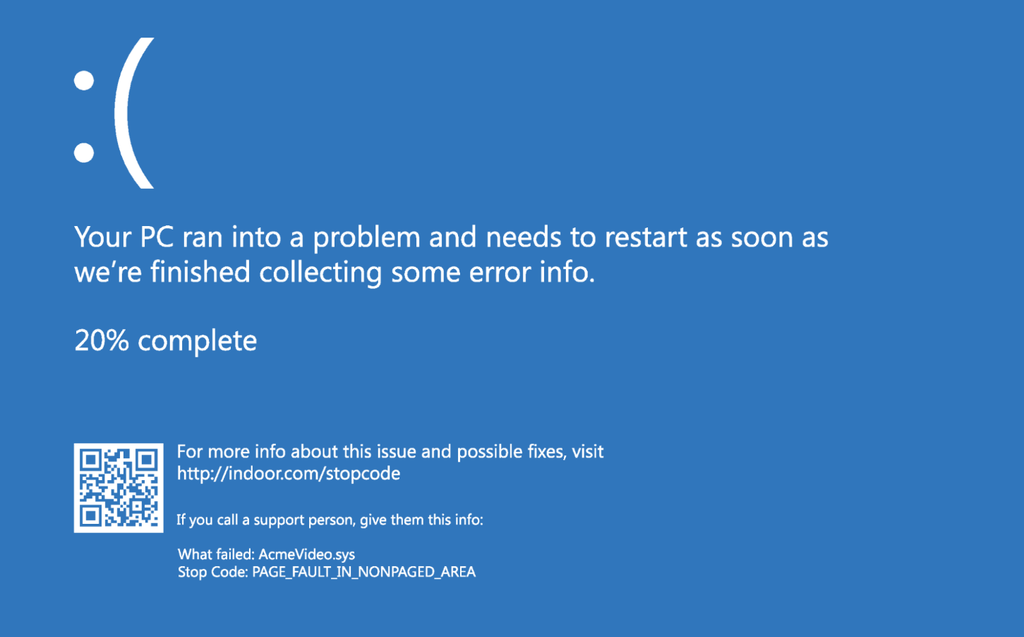
Write down any filename shown beside What failed on the crash screen. A filename ending in .sys can provide a useful clue, although it does not establish the cause by itself.
If you recently added hardware, check its installation and compatibility using the manufacturer’s instructions. Microsoft recommends reversing recent hardware changes and running manufacturer-provided diagnostics when investigating this stop code.
Roll back a recently updated driver
A driver deserves closer attention when the crashes begin immediately after its installation.
To check whether a previous version is available:
- Right-click Start and select Device Manager.
- Find the device you recently updated.
- Right-click it and select Properties.
- Open the Driver tab.
- Select Roll Back Driver, if available.
- Follow the prompts and restart your PC.
If rollback is unavailable, check your computer or component manufacturer’s official support page for a compatible driver. Use the exact model and Windows version when selecting a download.
Avoid changing several drivers together. Testing after each change makes it easier to identify which one affected the crashes.
Repair Windows system files
Damaged Windows files are worth checking before attempting a reinstall. Run these tools while booted into your installed copy of Windows.
Search for Command Prompt, then select Run as administrator.
Enter:
DISM.exe /Online /Cleanup-Image /RestoreHealth
Allow the operation to finish. Then run:
sfc /scannow
DISM repairs the Windows component store, while System File Checker checks protected system files and replaces damaged copies when possible.
Read the completion message and restart your computer. If a command fails, record the error rather than repeatedly running it without investigating.
These /Online instructions apply to the running operating system. Repairing an offline Windows installation from recovery requires different commands.
Test your RAM for Page Fault in Nonpaged Area
Windows Memory Diagnostic provides a built-in way to check for memory errors.
- Save your work.
- Open Start.
- Search for Windows Memory Diagnostic.
- Select Restart now and check for problems.
- Let the test complete.
After Windows restarts, check the results notification. You can also open Event Viewer → Windows Logs → System and look for MemoryDiagnostics-Results.
If errors are reported, contact your PC manufacturer or a qualified technician for further testing. A passing result does not completely rule out intermittent memory problems, so keep investigating if the crashes continue.
Use Safe Mode if Windows keeps restarting
If the computer crashes before you can troubleshoot, try Safe Mode. It loads Windows with a limited selection of drivers and services.
From the sign-in screen, hold Shift while selecting Power → Restart. In Windows Recovery Environment, choose:
Troubleshoot → Advanced options → Startup Settings → Restart
Press 4 or F4 to start Safe Mode. Have your BitLocker recovery key available if the device is encrypted.
Image: Microsoft. Startup options may vary by device.
If the PC runs reliably in Safe Mode, investigate recently installed drivers and software. This helps narrow the problem, but it does not conclusively rule out hardware failure.
Restore Windows to before the crashes
If Page Fault in Nonpaged Area started after a system change and other checks have not helped, use an existing restore point.
Open Windows Recovery Environment, then select:
Troubleshoot → Advanced options → System Restore
Choose a restore point from before the first crash. Review Scan for affected programs, if available, before confirming.
System Restore preserves personal files, but it can remove or reverse applications, drivers, and settings changed after the selected restore point. It requires a restore point that already exists.
When the error needs further investigation
Persistent crashes may require storage diagnostics or analysis of Windows crash dumps. Keep the stop code, any displayed filename, memory test results, and a record of your troubleshooting.
Avoid deleting the .sys file mentioned on the crash screen. A technician can investigate its involvement without removing a file Windows or a device may need.