PCBugLab PCBugLab
  • Home
  • How-to guides
    How-to guidesShow More: How-to guides
    windows-error-0x80080005-pcbuglab
    How to fix Windows Update error 0x80080005
    7 Min Read
    update-service-disabled-featured-pcbuglab
    How to fix Windows error 0x80070422
    Windows Update error 0x80240034 download failure illustration-pcbuglab
    How to fix Windows error 0x80240034
    7 Min Read
    Windows error 0x8024402c - pcbuglab
    How to fix Windows error 0x8024402c
    8 Min Read
    windows-update-error-0x800705b4-featured-pcbuglab
    How to fix Windows Update error 0x800705b4
    7 Min Read
  • Tech news
    Tech newsShow More: Tech news
    Acer Predator Atlas 8 handheld with its screen, joysticks and front controls
    Acer Predator Atlas 8: New handheld costs $1,299.99
    4 Min Read
    apple-airtag-4-pack-amazon-deal-pcbuglab
    AirTag 4-pack deal: the big price drop you need to know
    3 Min Read
    rtx-5090-featured-pcbuglab
    RTX 5090 shipment worth $470,000 vanishes at airport
    4 Min Read
    Xbox Ally X20 vs Xbox Ally X - PCBUGLAB
    Xbox Ally X20 vs Xbox Ally X: Is the upgrade worth it?
    5 Min Read
    Super Nt Plus - Mega SG - PCBUGLAB
    Analogue Super Nt Plus and Mega Sg Plus bring retro upgrades
    4 Min Read
  • Gaming news
    Gaming newsShow More: Gaming news
    gta6-cyberleek-pcbuglab
    Cyberleek claims GTA 6 Xbox leak playable for PC
    5 Min Read
  • Cybersecurity
    CybersecurityShow More: Cybersecurity
    cPGuard update attack - pcbuglab
    cPGuard update attack plants backdoors on Linux servers
    2 Min Read
    Gorbag WinRAR attacks - pcbuglab
    New Gorbag WinRAR attacks target Ukraine’s sensitive data
    3 Min Read
    Chinese hackers launch ARTEX AI attacks-pcbuglab
    Chinese hackers launch ARTEX AI attacks on 200+ organizations
    3 Min Read
    BTCPay Server flaw exploit - pcbuglab
    BTCPay Server flaw exploit lets hackers steal Bitcoin and Litecoin
    3 Min Read
    Chrome-extension-search-hijacking-pcbuglab
    Chrome extension search hijacking: what you need to know now
    4 Min Read
  • Contact
Reading: How to reinstall Windows 11 without losing data
Share
PCBugLabPCBugLab
Font ResizerAa
  • Home
  • Cybersecurity
  • Tech news
  • How-to guides
  • Hardware
Search
  • Home
  • Cybersecurity
  • Tech news
  • How-to guides
  • Hardware
Follow US
PCBugLab > How-to guides > How to reinstall Windows 11 without losing data
How-to guides

How to reinstall Windows 11 without losing data

buglab
By
buglab
Last updated: November 6, 2026
5 Min Read
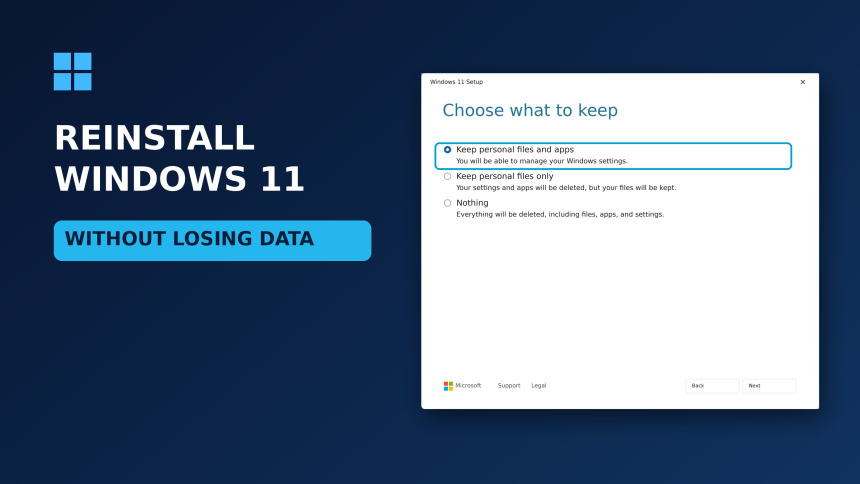
reinstall-windows-11-without-losing-data-featured-clean
SHARE

You can reinstall Windows 11 to resolve system crashes, corrupted files, and performance issues while keeping your personal data. Microsoft provides several recovery methods that allow you to reinstall Windows while keeping important documents, photos, and other files.

Contents
  • Before You Reinstall Windows 11
  • Method 1: Reinstall Windows 11 Using Windows Update
  • Method 2: Reinstall Windows 11 Using an ISO File
  • Download and Mount the ISO
  • Choose What to Keep
  • Method 3: Reinstall Windows 11 with Reset This PC
  • Check Your Files and Windows Activation

This guide explains how to reinstall Windows 11 without losing data, including methods that also preserve your installed applications and settings.

Before You Reinstall Windows 11
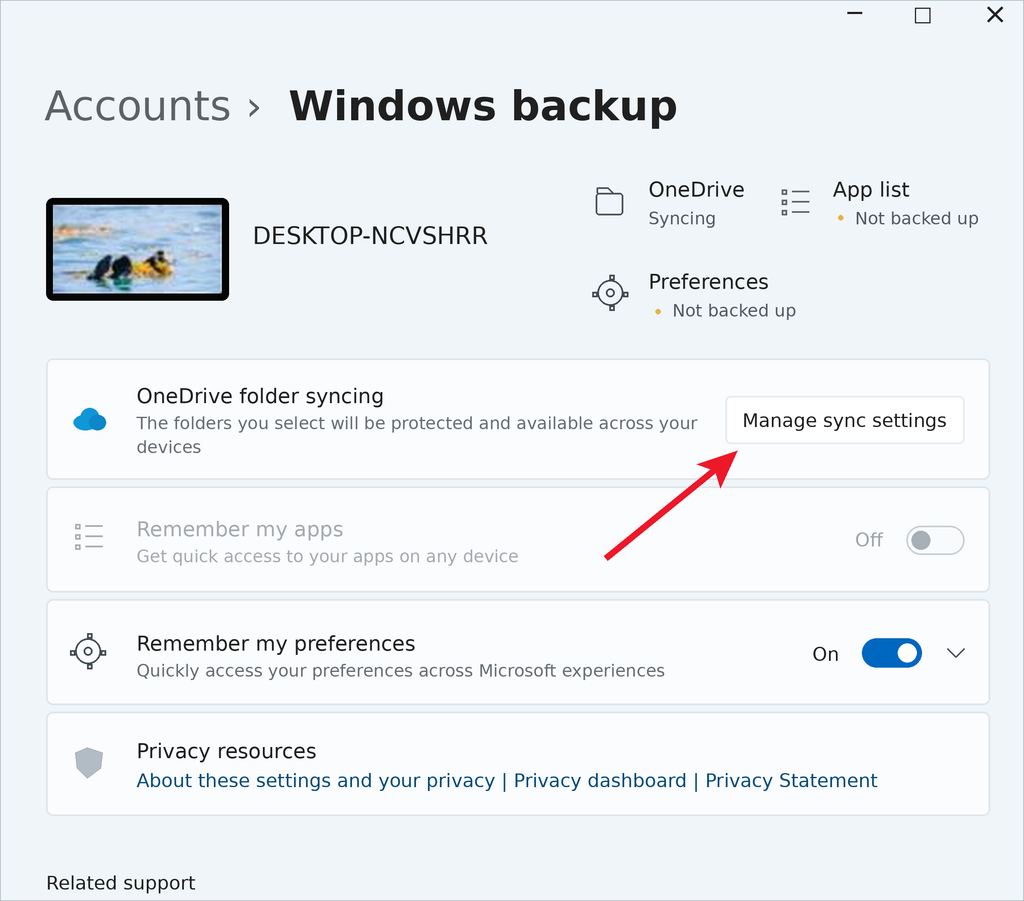
OneDrive sync settings for backing up files before you reinstall Windows 11

Although Windows offers options to keep personal files, it’s important to prepare your computer before starting.

  1. Back up important documents, photos, and other files to an external drive or OneDrive.
  2. Connect your laptop to a power source.
  3. Make sure your computer has sufficient free storage.
  4. Save your BitLocker recovery key if device encryption is enabled.

The installation method you choose determines whether installed applications and settings will remain available.

Method 1: Reinstall Windows 11 Using Windows Update
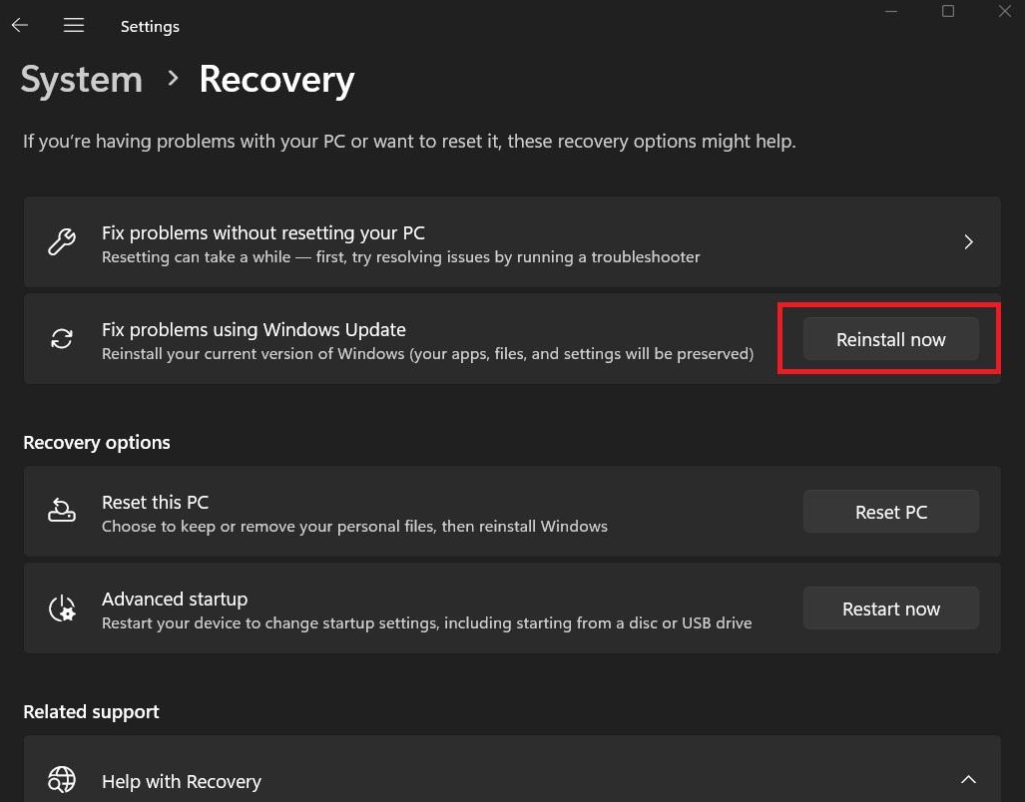
Reinstall Windows 11 using the Windows Update recovery option

The easiest way to reinstall Windows 11 without losing data is through the built-in Windows Update recovery feature.

This method reinstalls the current Windows version while preserving personal files, applications, and settings.

  1. Press Windows + I to open Settings.
  2. Navigate to System → Recovery.
  3. Locate Fix problems using Windows Update.
  4. Click Reinstall now.
  5. Follow the on-screen instructions.
  6. Restart your computer when prompted.

Windows will download the necessary files and repair the operating system.

Note: This feature may not appear on older Windows 11 builds or certain managed computers.

Method 2: Reinstall Windows 11 Using an ISO File
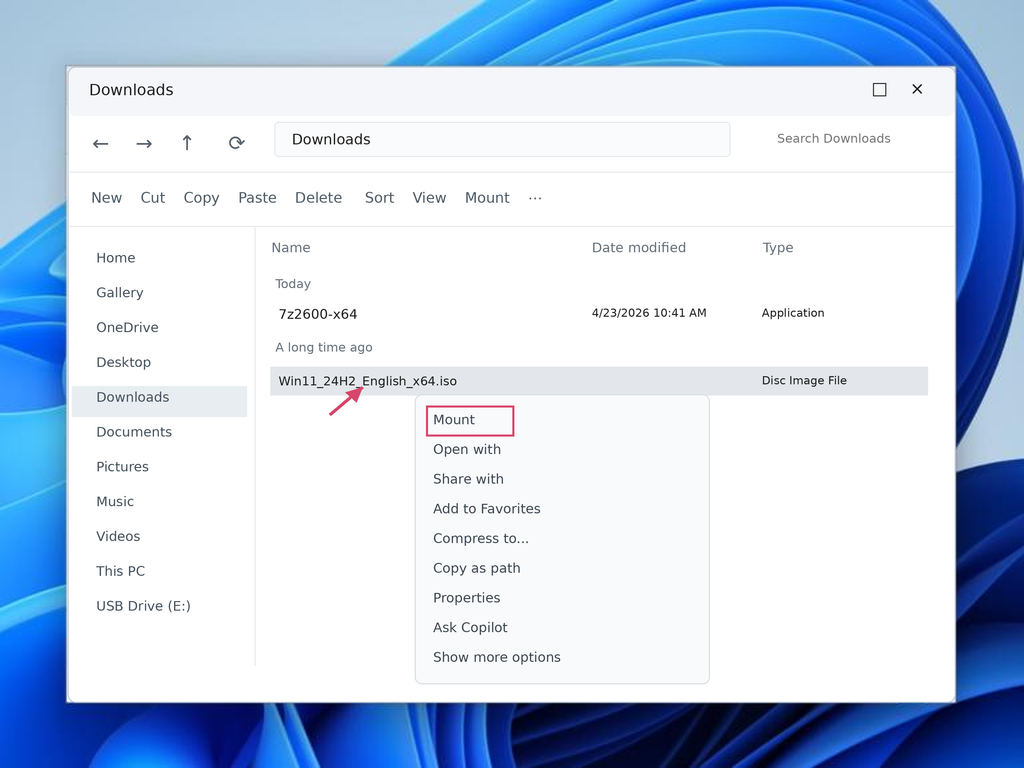
Mount a Windows 11 ISO file in File Explorer for an in-place repair

You can also reinstall Windows 11 using an official ISO file. This in-place repair method can preserve personal files and installed applications.

Download and Mount the ISO

  1. Visit https://www.microsoft.com/software-download/windows11
  2. Download the official Windows 11 ISO file.
  3. Open File Explorer and locate the downloaded ISO.
  4. Right-click the file and select Mount.
  5. Open the mounted virtual drive and run setup.exe.

Make sure the installation media is compatible with your existing Windows edition and language.

Choose What to Keep
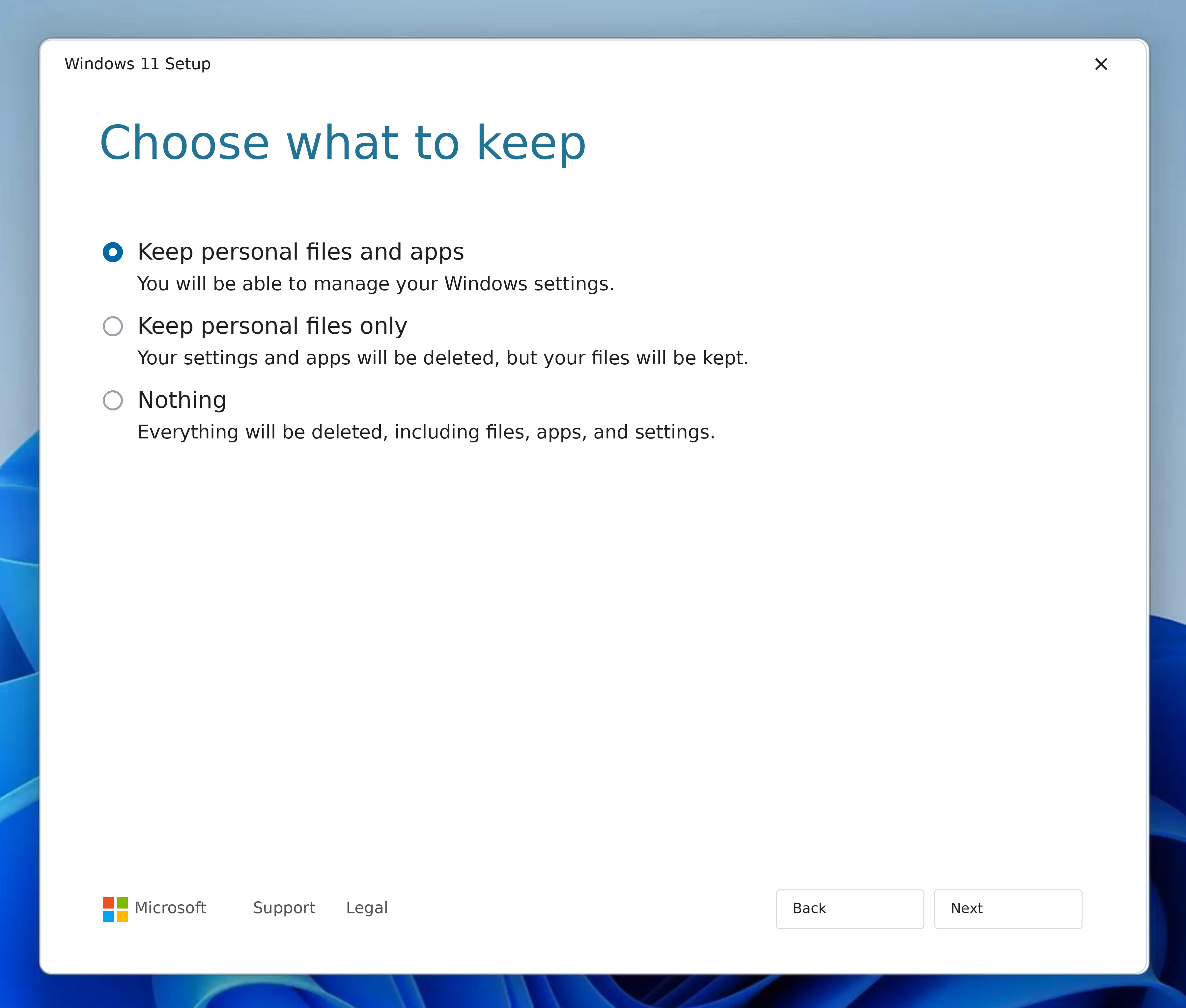
Keep personal files and apps selected in Setup to reinstall Windows 11

During Windows Setup:

  1. Follow the installation instructions.
  2. Click Change what to keep.
  3. Select Keep personal files and apps.
  4. Click Next.
  5. Confirm your selection on the Ready to install screen.
  6. Click Install.

Your computer will restart several times during installation.

Important: Start setup.exe from your running Windows desktop. Booting directly from installation media to perform a clean installation can erase personal files and applications.

Method 3: Reinstall Windows 11 with Reset This PC
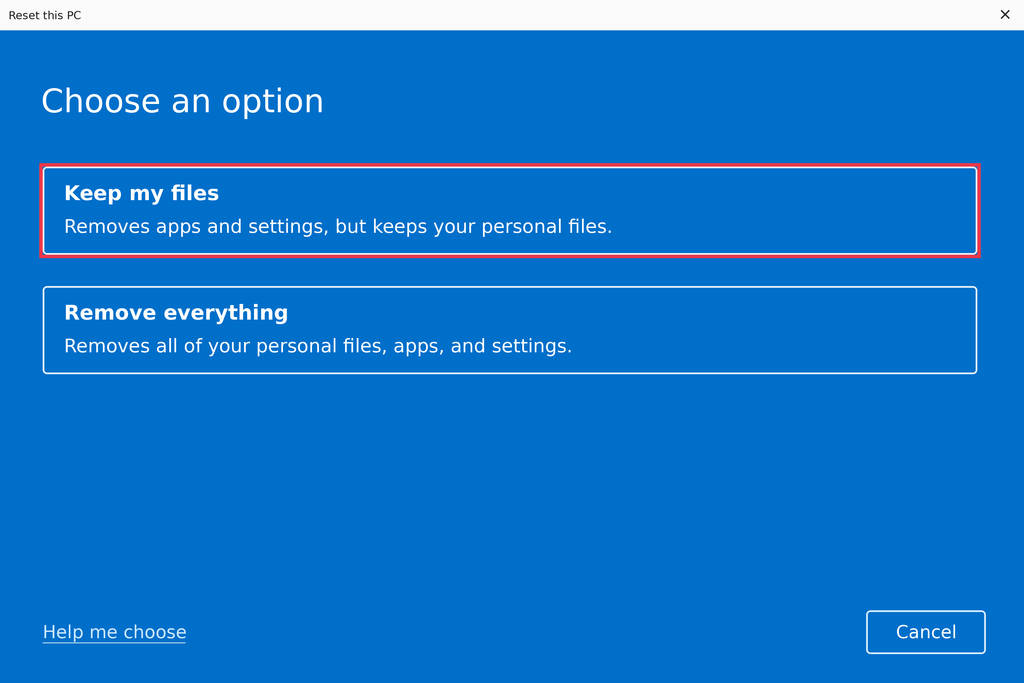
Keep my files option to reinstall Windows 11 with Reset this PC

If Windows Update recovery or an in-place installation isn’t suitable, you can use Reset this PC to reinstall Windows 11 while keeping personal files.

However, this method removes installed applications and resets system settings.

  1. Open Settings → System → Recovery.
  2. Under Reset this PC, click Reset PC.
  3. Select Keep my files.
  4. Choose Cloud download or Local reinstall.
  5. Review the settings and applications that will be removed.
  6. Click Reset to begin.

Cloud download retrieves fresh Windows installation files, while Local reinstall uses files already stored on your computer.

Avoid selecting Remove everything unless you intentionally want to erase your data.

Check Your Files and Windows Activation
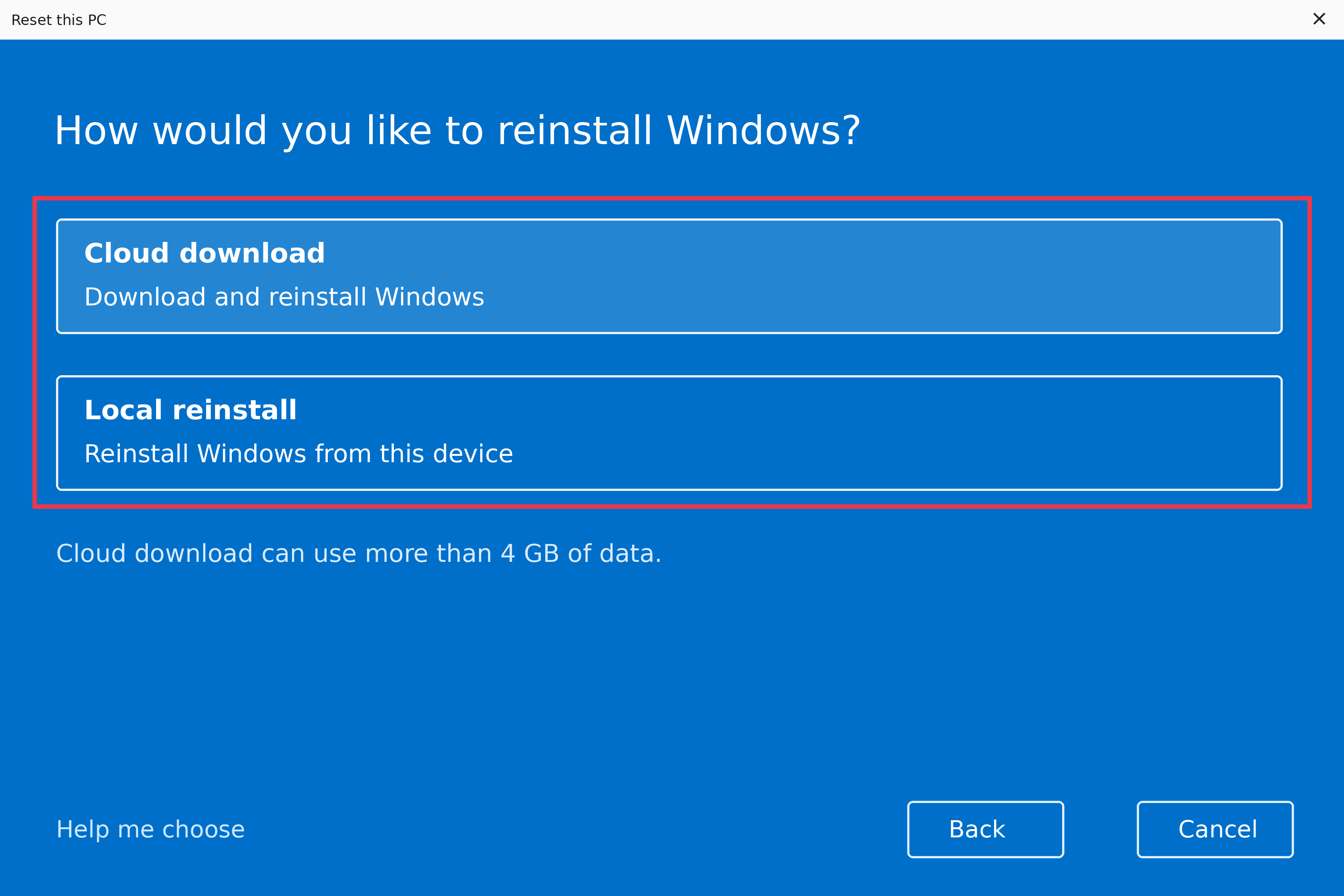
Cloud download and Local reinstall options in Reset this PC

After you reinstall Windows 11, verify that your personal files and system activation are intact.

  1. Open File Explorer and check your Documents, Desktop, Downloads, and Pictures folders.
  2. Launch important applications to confirm they work correctly.
  3. Open Settings → System → Activation.
  4. Verify that Windows is activated.
  5. Install any pending updates through Settings → Windows Update.

If your device already has a matching digital license, Windows 11 should normally reactivate automatically when connected to the internet.

For the best chance of preserving both personal files and applications, use Windows Update recovery or a compatible in-place ISO installation rather than performing a clean installation.
TAGGED:Reinstall Windows 11Windows 11Windows 11 ISOWindows 11 RecoveryWindows 11 RepairWindows 11 Reset

Sign Up For Daily Newsletter

Be keep up! Get the latest breaking news delivered straight to your inbox.
By signing up, you agree to our Terms of Use and acknowledge the data practices in our Privacy Policy. You may unsubscribe at any time.
Share This Article
Facebook Copy Link Print
Previous Article windows-cannot-be-installed-to-this-disk-featured How to Fix “Windows cannot be Installed to this disk”
Next Article how-to-fix-pc-reset-error-pcbuglab How to fix “There was a problem resetting your PC”
Leave a review

Leave a Review Cancel reply

Your email address will not be published. Required fields are marked *

Please select a rating!

FacebookLike
InstagramFollow

Subscribe Now

Subscribe to our newsletter to get our newest articles instantly!
Most Popular
gta6-cyberleek-pcbuglab
Cyberleek claims GTA 6 Xbox leak playable for PC
November 23, 2026
windows-error-0x80080005-pcbuglab
How to fix Windows Update error 0x80080005
November 18, 2026
update-service-disabled-featured-pcbuglab
How to fix Windows error 0x80070422
November 11, 2026
Windows Update error 0x80240034 download failure illustration-pcbuglab
How to fix Windows error 0x80240034
November 11, 2026
Windows error 0x8024402c - pcbuglab
How to fix Windows error 0x8024402c
November 11, 2026

You Might Also Like

windows-update-error-0x800705b4-featured-pcbuglab
How-to guides

How to fix Windows Update error 0x800705b4

7 Min Read
fix-error-0xc0000098-pcbuglab
How-to guides

How to fix boot configuration data error 0xc0000098

10 Min Read
how-to-fix-bluetooth-windows-11-pcbuglab
How-to guides

Bluetooth not working on Windows 11: How to fix it

9 Min Read
fix Video TDR Failure - pcbuglab
How-to guides

How to fix Video TDR Failure in Windows

11 Min Read

Always Stay Up to Date

Subscribe to our newsletter to get our newest articles instantly!
PCBugLab PCBugLab

Clear solutions for everyday PC problems. Explore troubleshooting guides, hardware advice, and practical insights to get more from your technology.

Explore

  • Home
  • Cybersecurity
  • Tech news
  • How-to guides
  • Hardware

Have a Question or Suggestion?

Tell us which PC problems or tech topics you’d like us to cover. Your feedback helps shape our next guides.
Contact Us
Welcome Back!

Sign in to your account

Username or Email Address
Password

Lost your password?