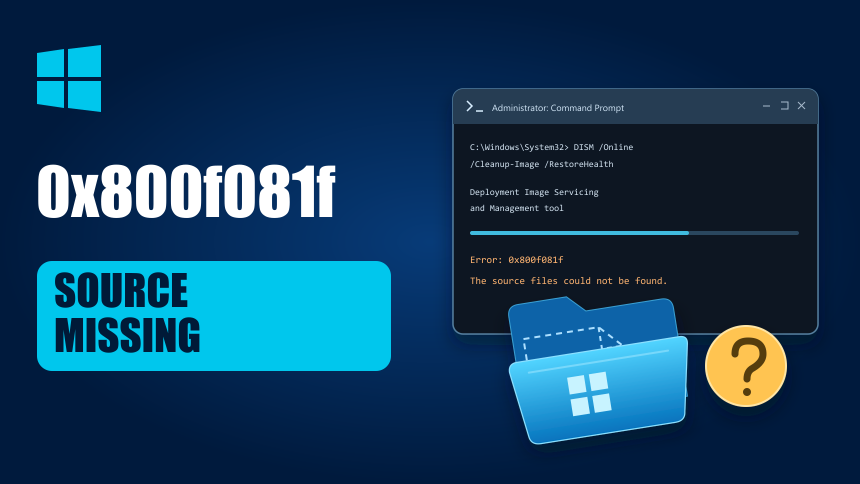
Error 0x800f081f usually means Windows cannot find the source files needed to complete a servicing operation. It can appear while installing an update, enabling an optional feature, or running DISM to repair Windows. The best fix depends on which operation failed.
The code is associated with CBS_E_SOURCE_MISSING. That points toward missing or unavailable component files, but it does not tell you whether the cause is a damaged component store, an unsuitable repair image, or a blocked download source. Repeating the same command with the same unavailable files will not resolve the underlying problem.
Before making changes, save your work and back up important files. Use the steps below for Windows 11 or Windows 10, following only the branch that matches your error.
| Where the error appears | What to check first |
|---|---|
| Windows Update | The failed KB number, update troubleshooter, and Windows servicing health. |
| DISM /RestoreHealth | Whether Windows can obtain repair files or needs a suitable alternate source. |
| .NET Framework 3.5 setup | The Windows version and the installation method it supports. |
| A work-managed device | Update and optional-feature policies with your administrator. |
1. Identify where error 0x800f081f appears
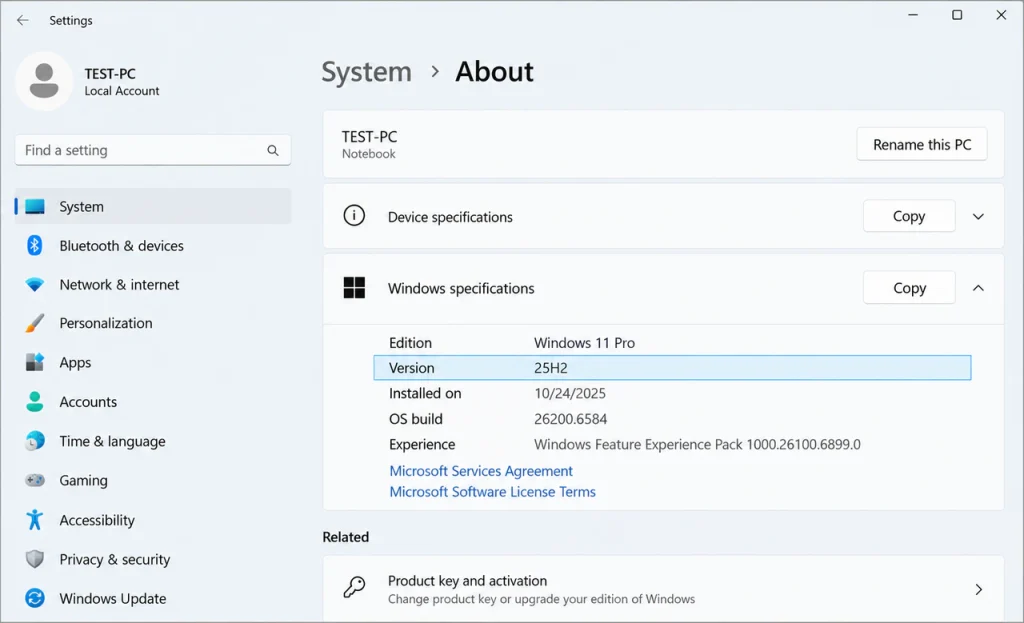
Write down the complete message before changing anything. An update failure and a .NET installation failure can show the same code while requiring different source files.
- Press Windows + R, type
winver, and press Enter. - Record the Windows version and OS build. You can also find these under Settings > System > About > Windows specifications.
- If an update failed, open Windows Update and note its full name and KB number. Check Update history for the failure entry.
- If DISM failed, save the exact command and final error. If a feature failed, record the feature name.
Finish any pending restart before trying the same operation again. Check that the PC has working internet access and enough free storage for the update or repair. On a managed PC, ask the administrator whether repair content is provided through a company update server or another approved source.
Do not disable security software, change registry permissions, or resize a recovery partition just because another Windows error guide recommends it. Those actions do not establish which files this operation needs.
2. Run the Windows Update troubleshooter
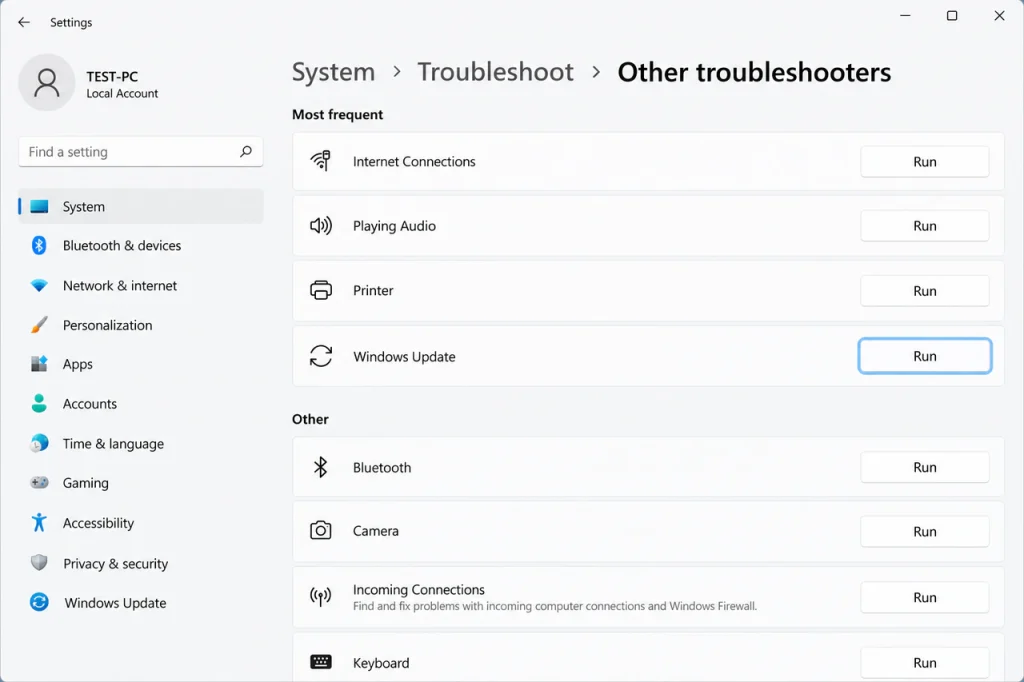
Use this step when error 0x800f081f appears in Windows Update. If it occurs only while enabling .NET Framework 3.5, move to the version-specific instructions later in this guide.
- On Windows 11, open Settings > System > Troubleshoot > Other troubleshooters.
- Select Run beside Windows Update. Current builds may open the diagnostics in Get Help; follow the prompts there.
- On Windows 10, use Settings > Update & Security > Troubleshoot > Additional troubleshooters when that route is available, or use Get Help.
- Apply the offered fixes, restart, and check the failed update again.
Record the result even if the troubleshooter finds nothing. A clean diagnostic does not prove the component store is healthy, and a reported fix does not guarantee that the original update will now install.
On Windows 10, update availability also depends on the edition and its servicing eligibility. A troubleshooting command does not extend an operating system’s support period or make an inapplicable update compatible.
3. Repair the component store with DISM and SFC
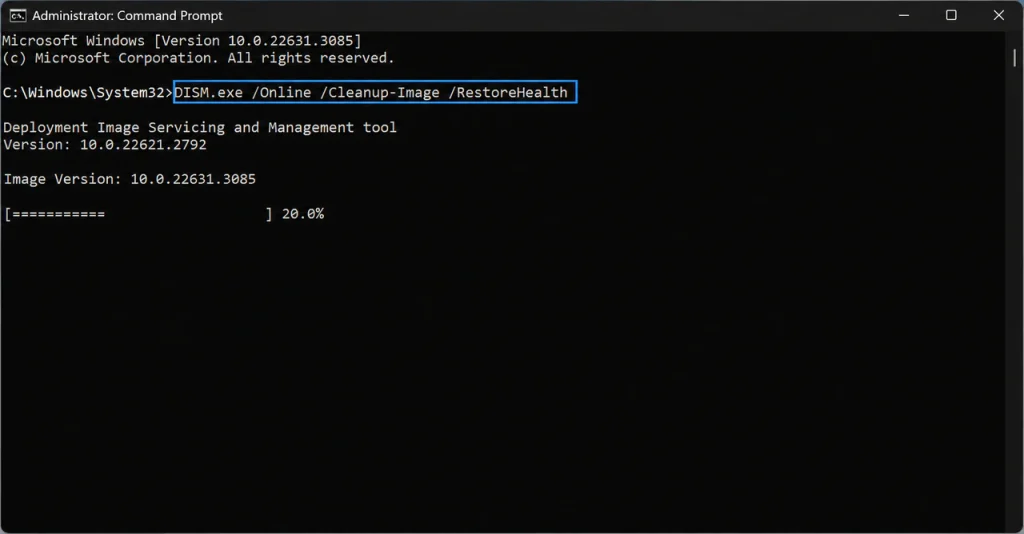
For a servicing or update failure, first let Windows try its configured repair source. Open Start, search for Command Prompt, and select Run as administrator. Enter:
DISM.exe /Online /Cleanup-Image /RestoreHealthLeave the window open until DISM returns a final result. It normally uses Windows Update for repair content, subject to device policy. Progress can pause, so a stationary percentage alone is not proof that the command has stopped.
If DISM succeeds, run System File Checker:
sfc /scannowWait for verification to finish. Restart if repairs were made, then retry the original update or feature installation. For help interpreting the scan, see our SFC scannow guide.
If DISM itself reports error 0x800f081f, keep that result and continue to the repair-source step. Repeating SFC does not supply the source content that DISM is missing.
4. Supply a matching DISM repair source
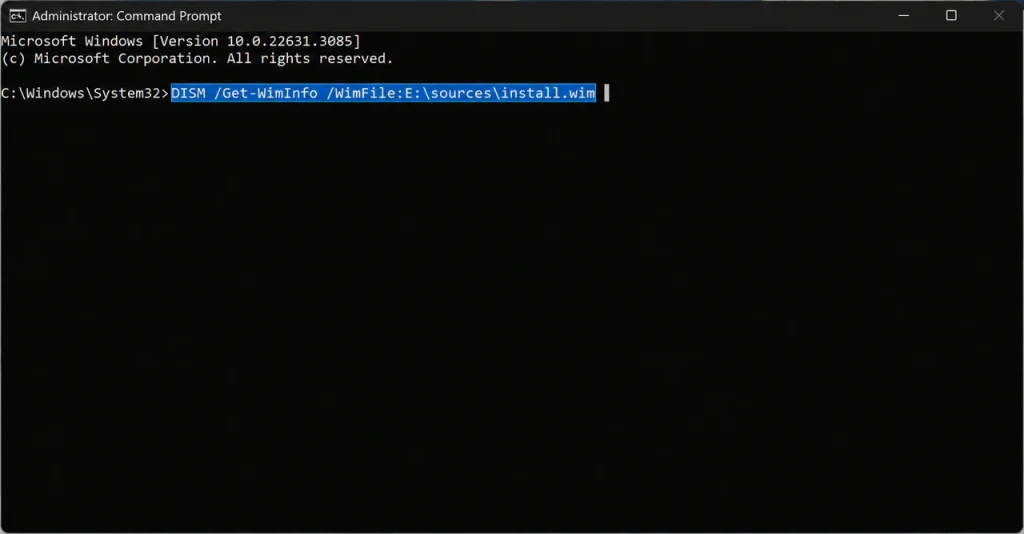
An alternate source must contain files suitable for the Windows installation you are repairing. Check the Windows release, architecture, edition, and required language components. Its servicing level matters too: an older image can lack files required by a more recently updated system.
Obtain appropriate Windows installation media through a trusted official download or your organization. Mount the ISO in File Explorer and note its drive letter. The following inspection command assumes the mounted drive is E: and contains sources\install.wim:
DISM /Get-WimInfo /WimFile:E:\sources\install.wimRead the listed images and identify the index for your installed edition. Do not assume that Pro, Home, or another edition always has the same index. If the media contains install.esd, inspect that file instead:
DISM /Get-WimInfo /WimFile:E:\sources\install.esdFor example, only if your matching edition is index 6, the WIM repair command would be:
DISM /Online /Cleanup-Image /RestoreHealth /Source:WIM:E:\sources\install.wim:6For an ESD source, use the corresponding format:
DISM /Online /Cleanup-Image /RestoreHealth /Source:ESD:E:\sources\install.esd:6Replace E: and 6 with the actual drive and matching index. Run the command for the file format you have, not both. These examples allow the configured online source to remain available; /LimitAccess would block Windows Update fallback.
If suitable media still fails, preserve the error and review %windir%\Logs\DISM\dism.log and %windir%\Logs\CBS\CBS.log, or ask an administrator to validate the source. The sources\sxs folder used for certain optional features is not a universal replacement for a complete Windows repair source.
5. Use the correct .NET Framework 3.5 installation method
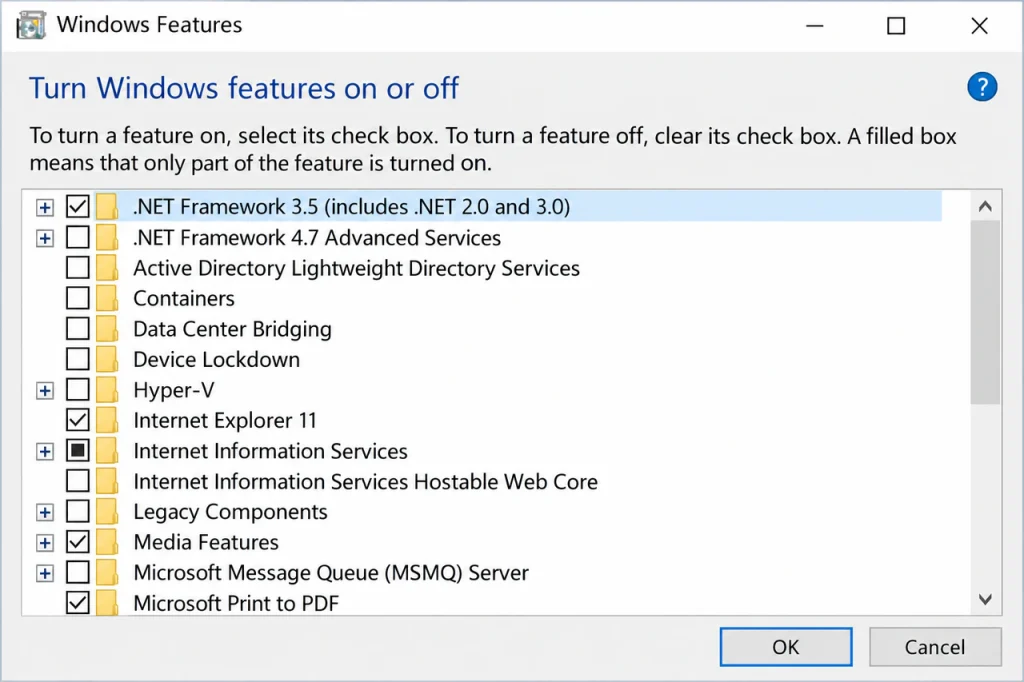
Follow this section only if the failure occurs while installing .NET Framework 3.5. Installing an unrelated .NET runtime is not a general fix for error 0x800f081f.
Windows 10 and Windows 11 25H2 or earlier: press Windows + R, enter optionalfeatures, and select .NET Framework 3.5 (includes .NET 2.0 and 3.0). Allow Windows to obtain the required files if prompted. The screenshot shows this older Windows Features method.
If that download fails, a matching installation source may help. With suitable media mounted as E:, the optional-feature command is:
DISM /Online /Enable-Feature /FeatureName:NetFx3 /All /Source:E:\sources\sxsUse the actual media drive. The source must be suitable for that Windows release; a random copied SxS folder can fail or introduce mismatched content. A company-managed device may need its administrator to supply or permit the feature files.
Windows 11 26H1, build 28000, and later: .NET Framework 3.5 uses a standalone installer rather than the optional Windows component. Use the official .NET Framework 3.5 installer for Windows 11 26H1 where applicable. Check that the installer explicitly supports your release. Do not use the NetFx3 DISM command above for this installation model.
.NET Framework 3.5 and modern .NET are different products. Install the component the application requires instead of uninstalling existing framework versions without a specific reason.
6. Repair Windows without removing your apps
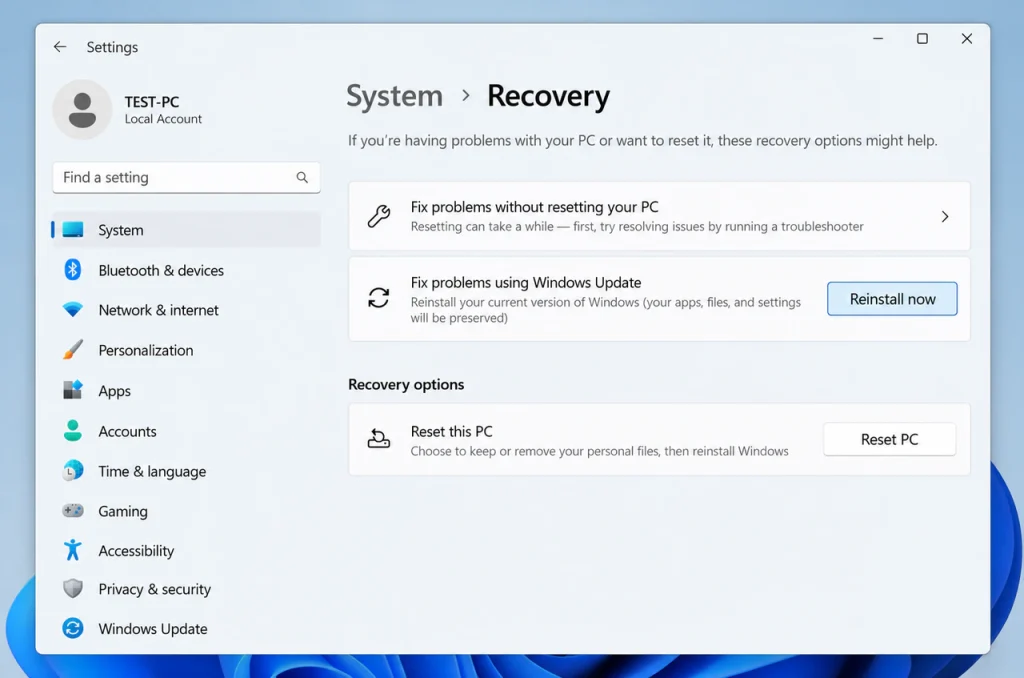
If servicing remains broken after the source checks, an installation repair may be more practical than repeating unsuccessful commands. Back up important files first, keep your BitLocker recovery key accessible if encryption is enabled, and connect the PC to power.
- On a supported Windows 11 installation, open Settings > System > Recovery.
- Find Fix problems using Windows Update and select Reinstall now.
- Review the confirmation and follow the repair process, keeping power and internet access available.
- Restart when required, then retry the operation that originally failed.
This option reinstalls the current Windows version while preserving apps, files, and settings. It can be absent on older builds or managed devices. It also depends on access to update content, so it may not resolve a blocked download source by itself.
If the option is unavailable, a compatible in-place repair using installation media may be appropriate. Start setup from within the running Windows installation and confirm that Keep personal files and apps is available before proceeding. If it is not, stop and check the media compatibility; do not continue expecting your apps to survive.
Reset this PC is a different recovery choice and can remove installed applications. For persistent failures, keep the Windows build, failed KB or feature name, exact command, and latest servicing error together. That record helps identify why the required source is unavailable.