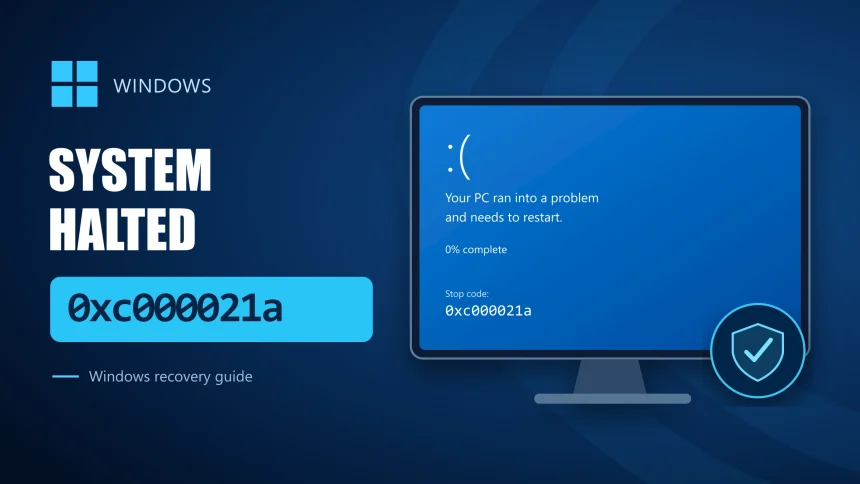
To fix Windows error 0xc000021a, start by identifying what changed before the crashes began. A recent update, driver, or application can provide a useful lead. If Windows cannot start, use its recovery tools before considering a reset or reinstall.
The stop code 0xc000021a, also called WINLOGON_FATAL_ERROR, indicates a fatal failure involving a critical Windows subsystem, such as Winlogon or CSRSS. Windows cannot keep running safely when these components fail. Damaged or mismatched system files and incompatible software are possible causes; the code alone does not identify the faulty component.
Photograph the error, note when it first appeared, and disconnect nonessential USB accessories. Keep the laptop connected to power. If you can reach the desktop, back up important files before making changes. Have your BitLocker recovery key ready, since some recovery tools may request it.
| What happened before the error? | Best starting point |
|---|---|
| No clear trigger; Windows keeps restarting | Open recovery and try Startup Repair |
| A Windows update just installed | Check whether the latest update can be removed |
| A new driver or application was installed | Use Safe Mode to reverse that specific change |
| Windows can reach the desktop | Repair Windows components and system files |
| Several changes occurred, or earlier steps failed | Try an available restore point before resetting |
1. Open recovery and run Startup Repair
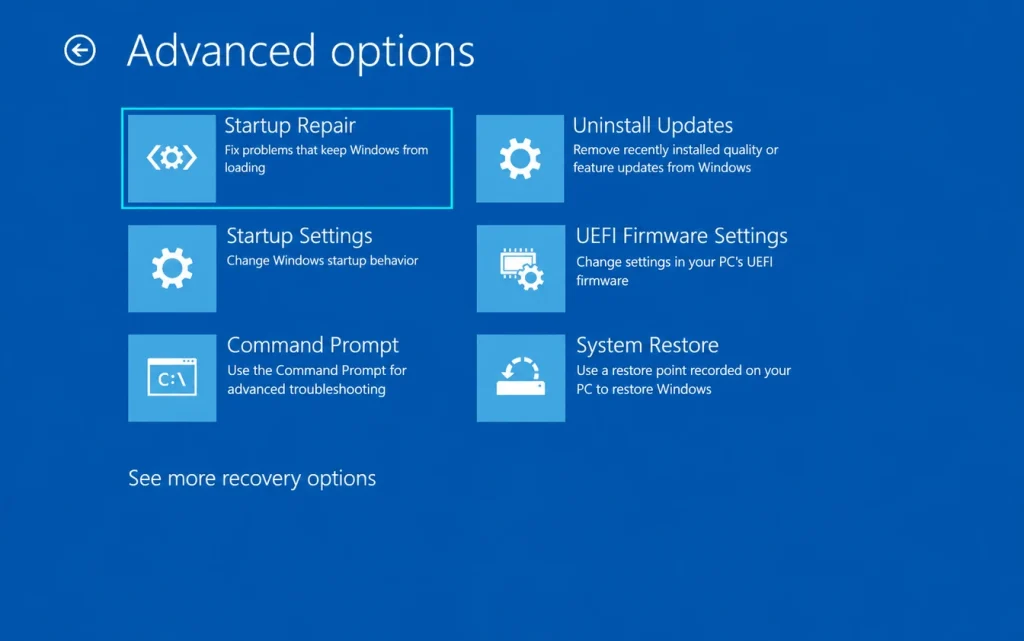
Startup Repair is a reasonable first check when Windows cannot finish starting and there is no obvious recent change. It can address some startup problems, but it will not resolve every cause of this stop code.
- At the sign-in screen or Start menu, hold Shift while selecting Power > Restart.
- In the recovery menu, choose Troubleshoot > Advanced options > Startup Repair.
- Select the Windows installation or account if asked, then follow the prompts.
- Allow the check to finish and try starting Windows normally.
If Windows already displays Automatic Repair, use its Advanced options button to reach the recovery tools. If neither Windows nor its recovery environment opens, boot from suitable Windows installation media and select the repair option instead of starting a new installation.
You can create that media on another working PC. Our bootable Windows USB guide explains the preparation. Creating the USB erases its existing contents, so use a spare drive.
If Startup Repair reports that it could not repair the PC, record the message and continue with the step that matches the timing of the failure. Repeating the same unsuccessful repair does not help identify what caused the crash.
2. Fix Windows error 0xc000021a after an update
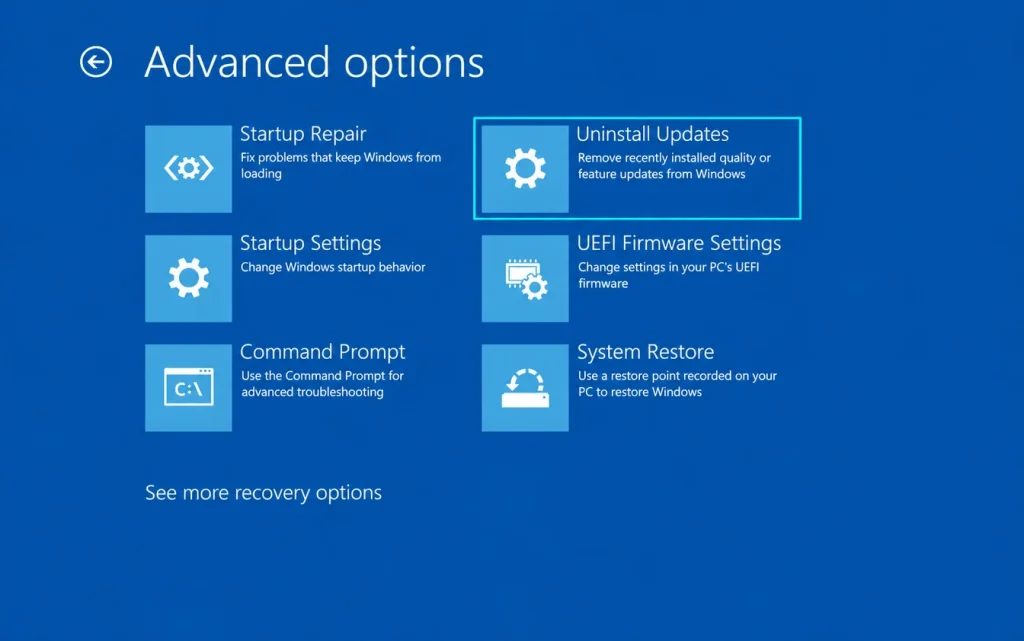
If the first crash occurred immediately after a Windows update, removing that update can help test whether it introduced the problem. Do not remove unrelated updates simply because they appear in the list.
- Open Troubleshoot > Advanced options > Uninstall Updates in recovery.
- For a recent monthly update, select Uninstall latest quality update.
- Confirm the removal if Windows offers it, and allow the process to finish.
- Restart and check whether Windows now reaches the desktop.
If the problem followed a major Windows version upgrade, the feature-update rollback option may be relevant when available. It is different from removing a monthly quality update. Some updates cannot be uninstalled, and rollback options may no longer be available.
If you can sign in, Windows 11 also provides Settings > Windows Update > Update history > Uninstall updates. Use the update date and the first crash date to guide your choice.
Removing a security update can leave the PC without its fixes. Once Windows is stable, back up your files, check for a corrected update, and return the device to a supported update path. Successful removal is a troubleshooting result, not a reason to stop updating permanently.
3. Use Safe Mode to undo recent software changes
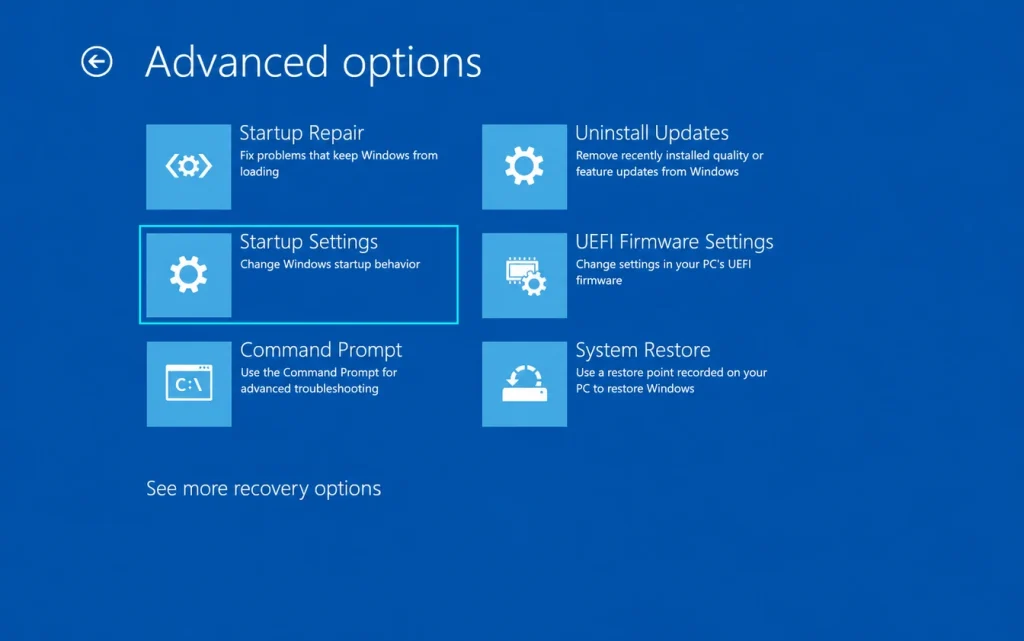
Safe Mode starts Windows with a limited set of drivers and services. If it works, use that access to investigate a recent installation rather than removing software at random.
- Open Troubleshoot > Advanced options > Startup Settings.
- Select Restart, then press 4 or F4 for Safe Mode.
- If a new application preceded the error, uninstall it through the usual Windows application settings when its uninstaller works in Safe Mode.
- If a driver update preceded the error, open Device Manager, locate that device, and check Properties > Driver > Roll Back Driver.
- Restart normally and test before making another change.
The rollback button may be unavailable if Windows has no earlier driver package. In that case, obtain an appropriate supported driver from the device maker. Some application uninstallers also require normal Windows operation. If removal is blocked, use a restore point rather than forcing services to run or deleting program folders manually.
On a work-managed device, contact the IT administrator before changing security, sign-in, or management software. These tools can have organization-specific recovery procedures.
If Safe Mode also crashes, move to System Restore in step 5. Do not make disabling driver-signature enforcement or other security protections your routine workaround. The aim is to identify the incompatible component and restore a working configuration.
4. Fix Windows error 0xc000021a by repairing system files
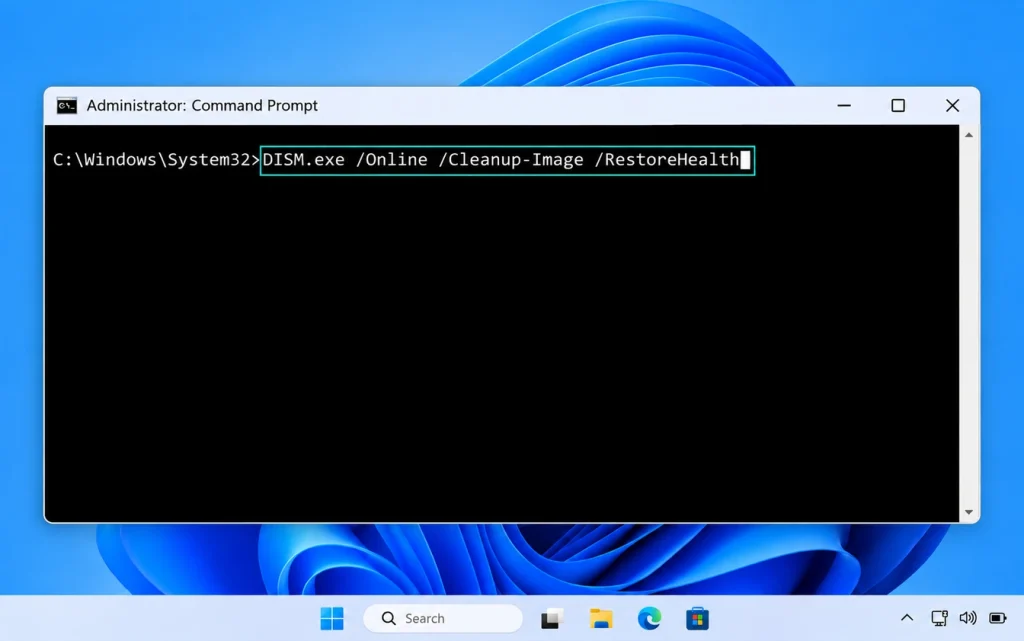
Use this procedure when you can start the installed Windows system and open an administrator command prompt. DISM repairs the Windows component image; System File Checker then checks protected system files.
- Search for Command Prompt from the desktop.
- Right-click it and choose Run as administrator.
- Enter the following command and let it finish:
DISM.exe /Online /Cleanup-Image /RestoreHealthAfter DISM reports successful completion, run:
sfc /scannowWait for verification to finish, note the result, and restart. If files were repaired, check whether the same startup failure returns. If a command fails, preserve its exact error instead of assuming that the repair completed.
Important: /Online targets the currently running Windows environment. Do not copy this command into a recovery prompt at X:\Windows\System32 and assume it repairs the Windows installation on your SSD. Offline repair needs the correct Windows partition, any required drive unlock, and appropriate command options or repair source.
If Windows will not start, use the recovery steps in this guide or get help with a correctly targeted offline repair. Do not replace winlogon.exe or csrss.exe with files downloaded from another computer or an unofficial website.
For help interpreting the scan results, see our Windows system-file repair guide.
5. Restore Windows to an earlier working state
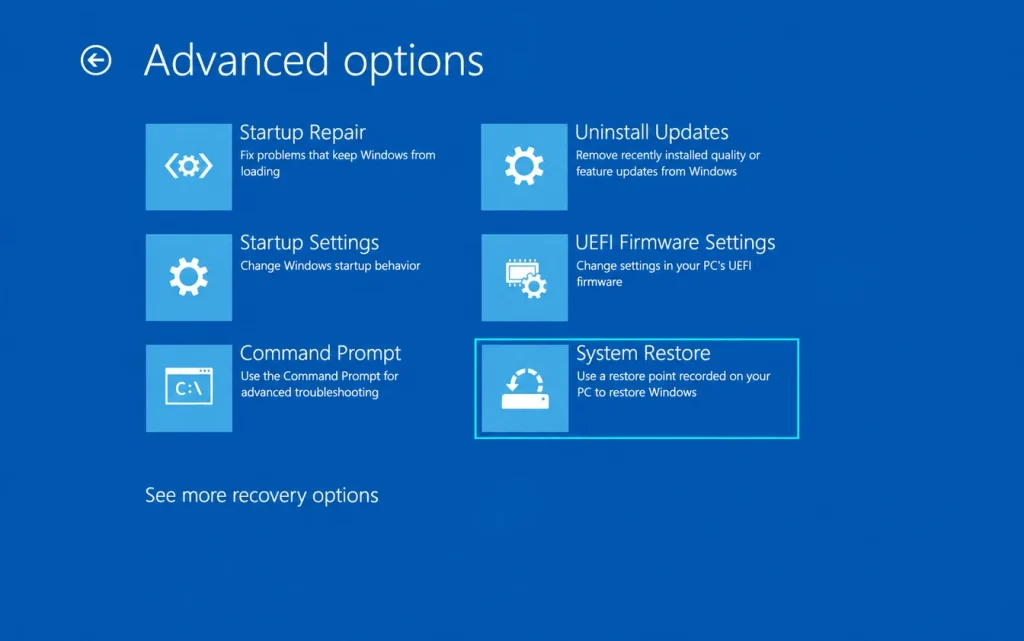
If the earlier checks do not fix Windows error 0xc000021a, try a restore point created before the failure began. This is especially useful when several software or settings changes make the trigger unclear.
- Open Troubleshoot > Advanced options > System Restore.
- Choose a restore point dated before the first crash.
- Select Scan for affected programs when available and review what will change.
- Confirm the selected point and allow the restore to complete without interrupting power.
- Restart and test Windows before reinstalling recently removed software.
System Restore reverts system settings, drivers, and installed programs associated with the selected point. It is designed to leave personal files unaffected, but it does not replace a separate backup. If no suitable restore points exist, there is nothing for this tool to restore.
Our System Restore guide for a PC that will not start covers the recovery workflow in more detail.
If recovery still fails, secure your files before considering Troubleshoot > Reset this PC. Keep my files reinstalls Windows while retaining personal files, but removes installed applications and resets settings. It is not a backup guarantee. Review the reset summary carefully; Remove everything has different consequences.
When important files are not backed up or the drive appears to be failing, stop before resetting and arrange data recovery or technical help. Repeated crashes after a clean installation also warrant a broader hardware and storage assessment instead of more file replacements.