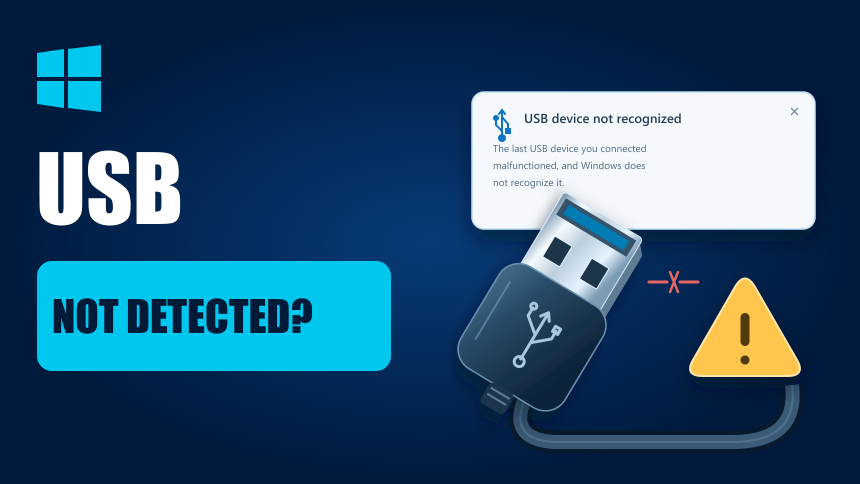
A USB not recognized warning means Windows could not identify or start a connected device correctly. You might see “USB device not recognized,” an unknown device in Device Manager, or a message about a failed device descriptor request. The cause can be as simple as a faulty cable or an unpowered hub, so start with connection checks before changing drivers.
The steps below apply to Windows 11 and Windows 10. Windows 11 is used for the example images; Settings labels can differ on older versions. Save your work, safely eject working USB storage before unplugging it, and keep access to a built-in keyboard, touchpad, or another working input device while troubleshooting.
| What happens | What to check first |
|---|---|
| One device fails on several computers | The accessory, its cable, and its power supply |
| The device works directly but fails through a hub | The hub, dock, upstream cable, and power adapter |
| Several devices fail on the same port | The PC’s port, controller, and manufacturer diagnostics |
| The problem appears after sleep | Device or dock firmware, drivers, and power behavior |
| A USB drive is detected but missing from File Explorer | Its disk status and drive letter, rather than USB recognition alone |
1. Check the USB port, cable, and power
Disconnect the affected device and inspect the connector and port. Bent pins, a loose socket, or a damaged cable need attention before software troubleshooting. Do not force a connector or insert metal tools into a port.
- Reconnect the device directly to the PC, temporarily bypassing a USB hub, dock, extension lead, or adapter.
- Try another suitable USB port. On a desktop, a rear motherboard port is a useful comparison with a front-panel port.
- If the device uses a detachable cable, test a known-working data cable. A cable that charges a device may not support the data connection you need.
- Connect the device’s supplied power adapter where required. Check the dock or powered hub’s adapter too.
- Test the accessory on another compatible computer, and test a known-working accessory on the original port.
USB-C describes the connector shape; it does not guarantee that every cable and port supports the same data, video, charging, or Thunderbolt features. Match the device’s requirements to the PC and cable specifications. A display or dock compatibility problem may need a different port or cable rather than a generic driver.
If a storage device is detected in Windows but absent from File Explorer, open Disk Management to inspect its status. That is a different situation from a device that cannot be identified at all. Do not initialize, format, or create a new volume on a drive containing files you need.
2. Find the USB not recognized error code
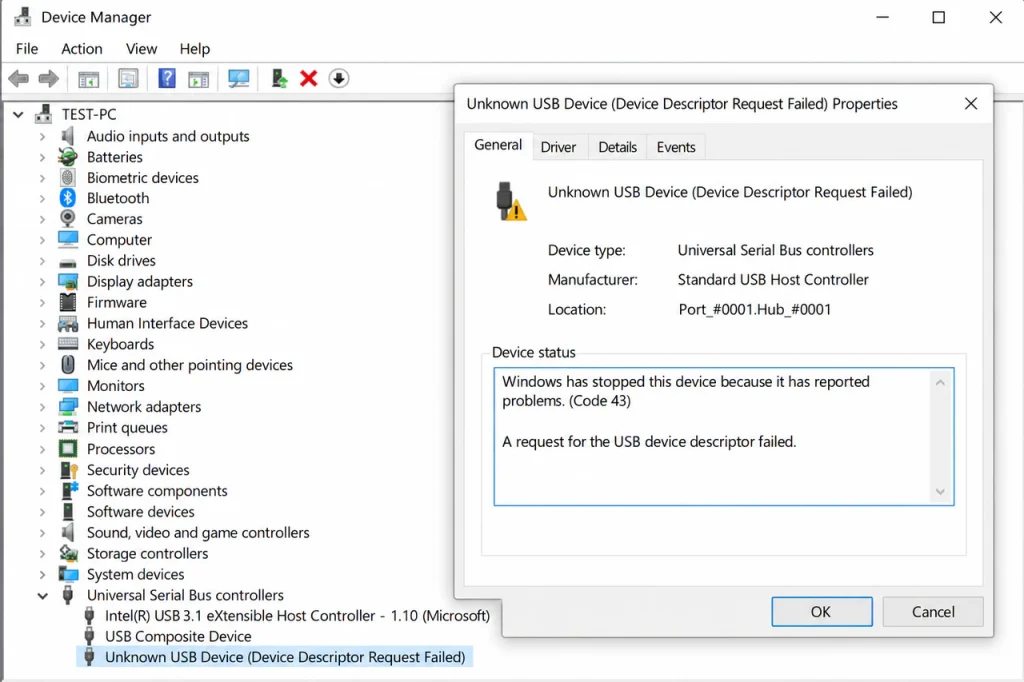
Restart the PC once with the affected accessory disconnected, then reconnect it after signing in. Restart an externally powered accessory according to its instructions. If the USB not recognized warning returns, record the details rather than repeatedly reconnecting it without a new test.
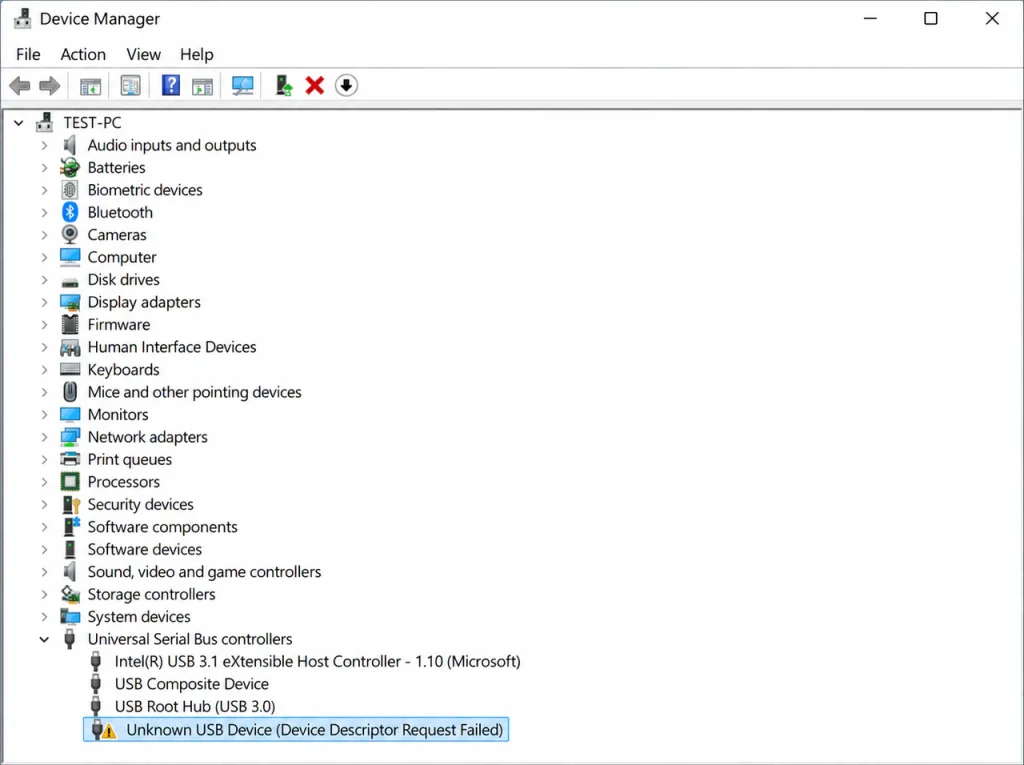
- Right-click Start and open Device Manager.
- Expand Universal Serial Bus controllers. Also check Other devices or the accessory’s usual category if it is listed elsewhere.
- Look for a warning symbol or an entry such as Unknown USB Device (Device Descriptor Request Failed).
- Open the affected entry’s Properties.
- On the General tab, note the message and error code under Device status.
Code 43 means the device reported a problem; it does not identify one universal cause. Code 28 points toward missing drivers. A descriptor failure can involve the connection, power, device hardware, or USB communication, so installing a random driver is not a reliable diagnosis.
To identify the correct entry, observe which item appears when the accessory is connected and disappears when it is safely disconnected. Do not assume that every hidden or unfamiliar USB entry belongs to the failing device.
3. Reinstall only the affected USB device
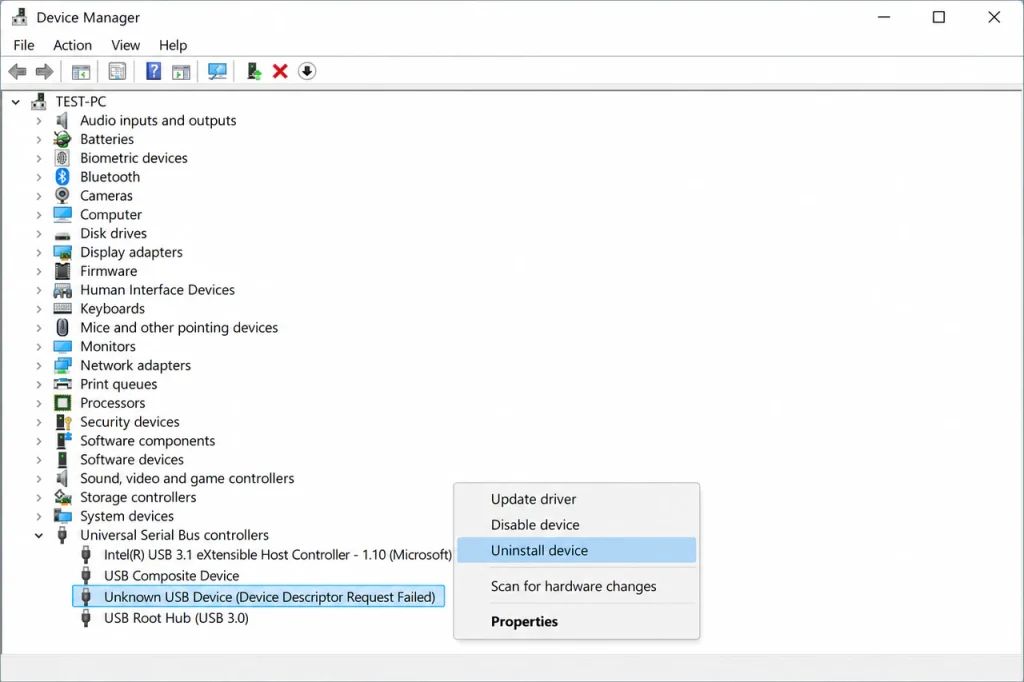
If connection checks and a restart have not helped, removing the affected device entry can let Windows detect it again. Start with that single device rather than uninstalling every USB controller or hub.
- Have another way to control the PC ready, especially if your mouse and keyboard connect through the same hub.
- In Device Manager, right-click the problem device identified in the previous step.
- Select Uninstall device and read the confirmation carefully. For this initial redetection test, leave any option to remove the driver package unchecked.
- After uninstalling the entry, disconnect the affected accessory.
- Restart Windows, then reconnect the device directly to the PC.
Windows will attempt to detect the accessory and load a suitable driver. Some printers, scanners, specialist adapters, and other devices need their manufacturer’s software installed in a particular order. Follow those model-specific instructions if automatic detection does not complete setup.
If the same USB not recognized error returns immediately, revisit the cable and second-computer tests. Repeating the uninstall process without new evidence is unlikely to reveal whether the accessory or the PC is responsible.
4. Update Windows and the correct device drivers
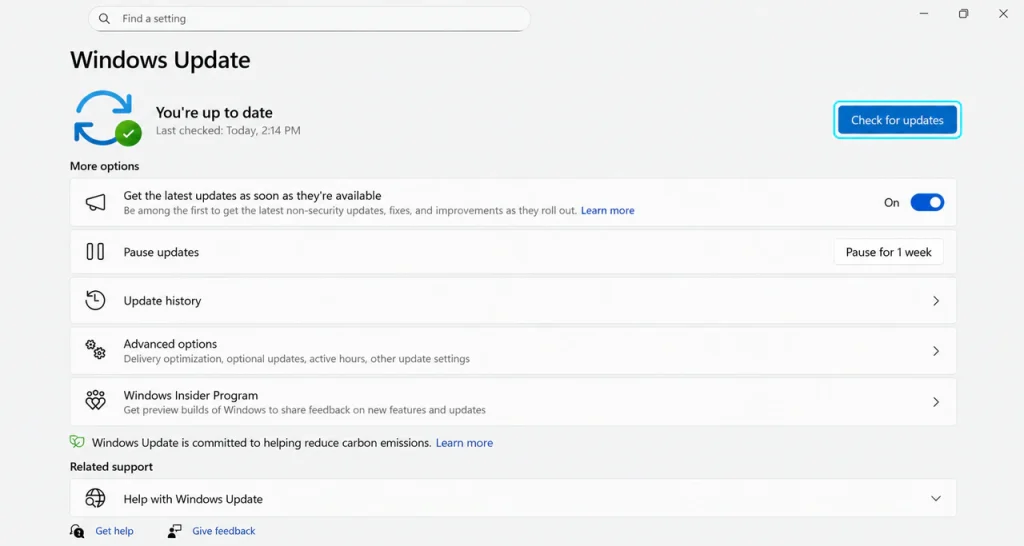
Driver or firmware compatibility can affect USB devices, docks, and controllers. Use the PC and accessory model numbers to choose updates rather than installing a package advertised as a universal USB fix.
- On Windows 11, open Settings > Windows Update. On Windows 10, open Settings > Update & Security > Windows Update.
- Check for updates and complete any required restart.
- Review relevant optional driver updates where offered. On Windows 11, these are under Advanced options > Optional updates.
- Check the PC manufacturer’s official support page for applicable chipset, USB-controller, or dock-related updates for your exact model.
- Check the accessory or dock manufacturer’s setup instructions and firmware guidance too.
You can also use Update driver > Search automatically for drivers on the affected device in Device Manager. Finding no newer driver there does not prove that the manufacturer has no updated package.
Before firmware work, follow the manufacturer’s power and backup requirements. If the failure started immediately after a driver change, record the version and check for a supported rollback. Avoid third-party driver-updater utilities, registry-cleaning fixes, or resetting firmware settings as a first response.
5. Check power management if USB fails after sleep
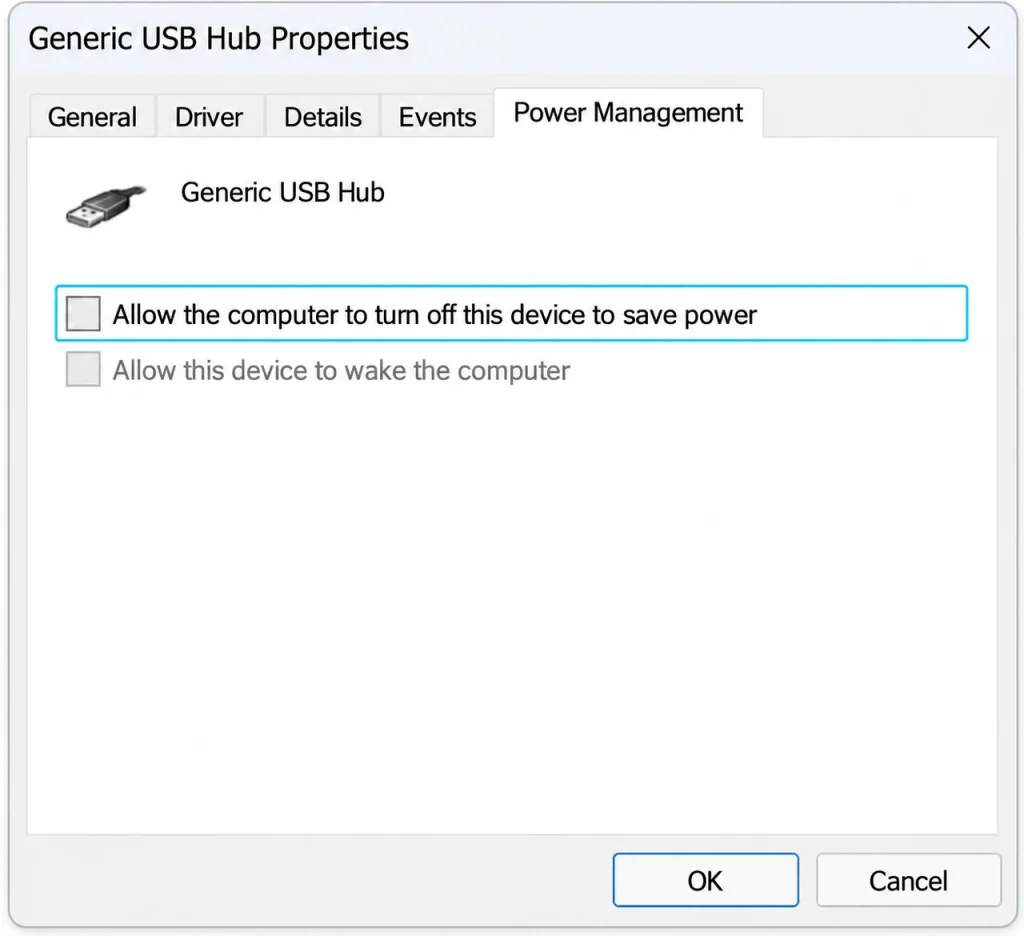
A device that works after startup but fails after sleep needs a different test from one that has never connected successfully. Update the PC, dock, and accessory first, then check whether the failure consistently follows sleep or a period of inactivity.
- Open Device Manager and identify the hub serving the affected accessory. View > Devices by connection can help show the relationship.
- Open that hub’s Properties and look for a Power Management tab.
- If the tab is available and the manufacturer’s troubleshooting instructions recommend this test, note the original setting, then temporarily clear Allow the computer to turn off this device to save power.
- Select OK, reconnect the accessory as needed, and repeat the same sleep-and-wake test.
- If it makes no difference, restore the original setting. If it helps, check for a driver or firmware fix before making the change permanent.
Some systems do not expose this tab; skip the test if it is absent. Do not change every hub or disable USB selective suspend across all power plans as a routine fix. Power-saving behavior is part of normal USB operation, and broad changes can reduce battery life without solving the fault.
If USB not recognized errors continue, use the comparison tests to choose the next step: an accessory failing on multiple PCs needs device support; several known-working accessories failing on one PC need port or controller investigation. Stop using a damaged port, and give support the device model, error code, driver version, and test results. For wider system symptoms, see our PC performance troubleshooting guide.