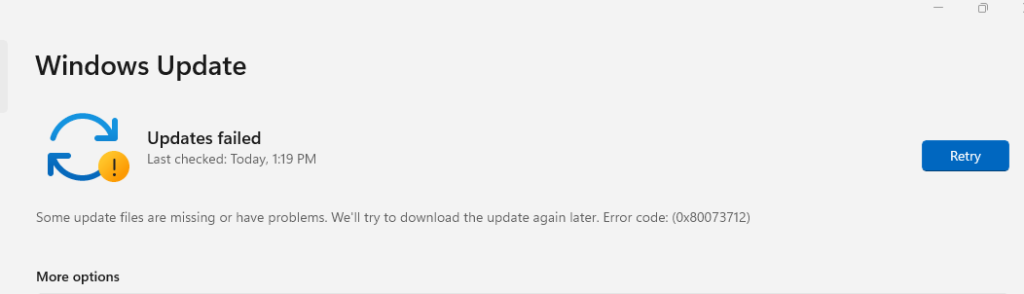
Error 0x80073712 can prevent Windows from installing updates when files needed by the update process are missing or corrupted. The problem often involves the Windows Component Store, which holds files used to maintain and repair the operating system.
An interrupted installation, damaged update cache, or underlying system corruption may be responsible. Work through the steps below, checking Windows Update after each method.
Why Does Error 0x80073712 Occur?
Common causes include:
- Corruption in the Windows Component Store.
- Missing or damaged system files.
- Incomplete update downloads.
- An update interrupted by a shutdown or power loss.
Before troubleshooting, restart your PC, check that your internet connection is working, and make sure the system drive has enough free space.
Method 1: Run the Windows Update Troubleshooter
Start with Windows’ built-in troubleshooting tool. It checks for common update problems and may apply repairs automatically.
On Windows 11:
- Open Settings.
- Select System → Troubleshoot → Other troubleshooters.
- Find Windows Update and select Run.
- Follow the prompts.
On Windows 10:
- Open Settings → Update & Security.
- Select Troubleshoot → Additional troubleshooters.
- Choose Windows Update → Run the troubleshooter.
Restart the computer if prompted, then try the update again.
Method 2: Repair Windows with DISM and SFC
DISM repairs the Windows image that System File Checker uses to replace damaged system files. Run DISM first, followed by SFC.
- Search for Command Prompt in the Start menu.
- Select Run as administrator.
- Enter this command:
DISM /Online /Cleanup-Image /RestoreHealth
Keep the computer connected to the internet and allow the operation to finish. Progress may pause at certain percentages.
Once DISM completes successfully, run:
sfc /scannow
Wait for the verification to finish, then restart Windows and check for updates.
If DISM reports that it cannot find the source files, note the exact error message. It may require installation media matching your Windows version to complete the repair.
Method 3: Rebuild the Windows Update Cache
Windows stores downloaded updates and related data locally. Renaming the cache folders allows Windows to create fresh copies.
Open Command Prompt as administrator and run these commands one at a time:
net stop wuauserv
net stop cryptSvc
net stop bits
Next, rename the cache folders:
ren %SystemRoot%\SoftwareDistribution SoftwareDistribution.old
ren %SystemRoot%\System32\catroot2 catroot2.old
If a folder with the .old name already exists, use another name, such as SoftwareDistribution.old2 or catroot2.old2.
Start the services again:
net start wuauserv
net start cryptSvc
net start bits
Restart the PC and check for updates. Windows will rebuild the folders as needed.
If a rename command returns Access is denied or says the folder is in use, restart the computer and retry the procedure before opening Windows Update.
Method 4: Download the Failed Update Manually
Installing the standalone update package may help when the automatic download or installation process fails. However, it may still fail if Windows has unresolved component corruption.
- Open Windows Update in Settings.
- Check Update history and note the failed update’s KB number.
- Visit the Microsoft Update Catalog.
- Search for that KB number.
- Download the package matching your Windows version and system architecture, such as x64 or ARM64.
- Open the downloaded package and follow the installation prompts.
Restart Windows if requested.
Method 5: Perform an In-Place Repair Installation
If the error continues, an in-place repair can reinstall Windows system components while preserving personal files and installed applications.
Back up important files before starting.
- Obtain official Windows installation media that matches your installed language, edition, and architecture.
- While signed in to Windows, mount the ISO or open the installation USB.
- Run setup.exe from the installation media.
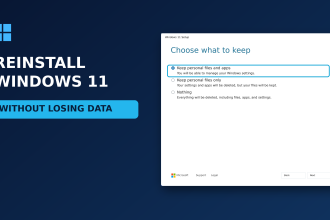
- Follow the prompts until you reach Choose what to keep.
- Select Keep personal files and apps.
- Continue with the installation.
For a repair that preserves applications, start Setup from within Windows. If Keep personal files and apps is unavailable, stop and check that the installation media is compatible with your current installation.
After the repair finishes, open Windows Update and try installing the remaining updates.