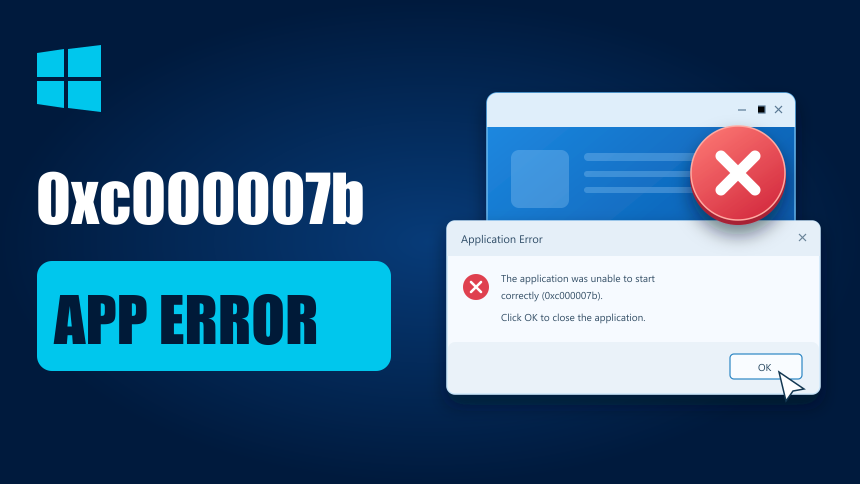
Error 0xc000007b usually appears when Windows cannot load an application or one of its required components correctly. You may see “The application was unable to start correctly” when opening a game, launcher, or desktop program. The useful first step is to identify which app fails, rather than replace Windows files at random.
The code corresponds to an invalid image format. In this context, an “image” is an executable program or library, not a photo. A mismatch between 32-bit and 64-bit components is one possible cause; damaged application files and incompatible dependencies can also be involved. The code alone does not identify a particular DLL or prove that a runtime is missing.
These steps apply to Windows 11 and Windows 10. Restart the PC once, finish any pending installation, and test the same app after each change. Stop when it opens normally.
| What happens | Where to start |
|---|---|
| Only one app fails | Check its requirements, then repair its installation. |
| A game fails after installing mods or plug-ins | Remove the recent additions using their supported removal steps, then verify the game files. |
| An older game requires additional components | Use the runtime installers supplied or specified by its publisher. |
| Several unrelated apps fail | Check shared runtimes and Windows system files. |
1. Check app compatibility for error 0xc000007b
Start with the app publisher’s system requirements. Confirm that the installed release supports your Windows version and processor architecture. A newly downloaded installer can still be the wrong edition for your PC.
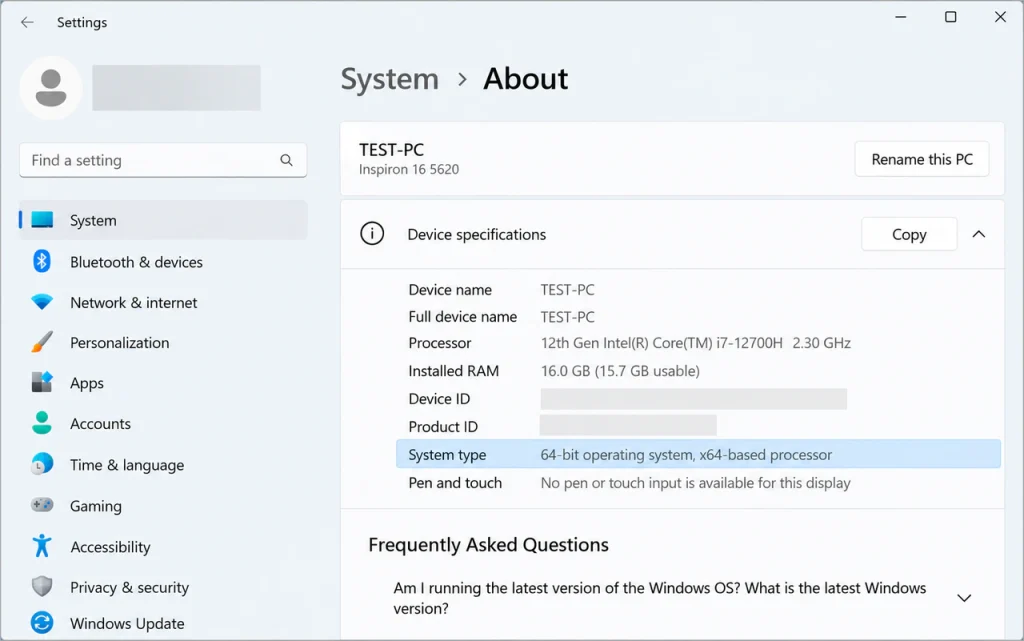
- Press Windows + I to open Settings.
- Go to System > About.
- Under Device specifications, read System type.
- Compare that information with the app’s download options and requirements. If you have the wrong installer, download the appropriate release directly from the publisher.
An x64-based PC running 64-bit Windows can normally run both supported 32-bit and 64-bit applications. However, an app must load compatible components: a 32-bit program cannot simply use a 64-bit DLL in place of the version it needs. On a Windows 10 PC running a 32-bit operating system, a 64-bit application will not run. ARM-based PCs have additional compatibility considerations; follow the publisher’s guidance for that device.
System type describes Windows and the processor, not the architecture of every installed app. Check the app’s installer, documentation, or support information to determine whether that specific program is x86, x64, or ARM64.
If error 0xc000007b started after adding a plug-in, mod, or manually copied library, restore the app to its supported configuration first. Keep a backup of your settings and saves before removing anything.
2. Repair or reinstall the affected app
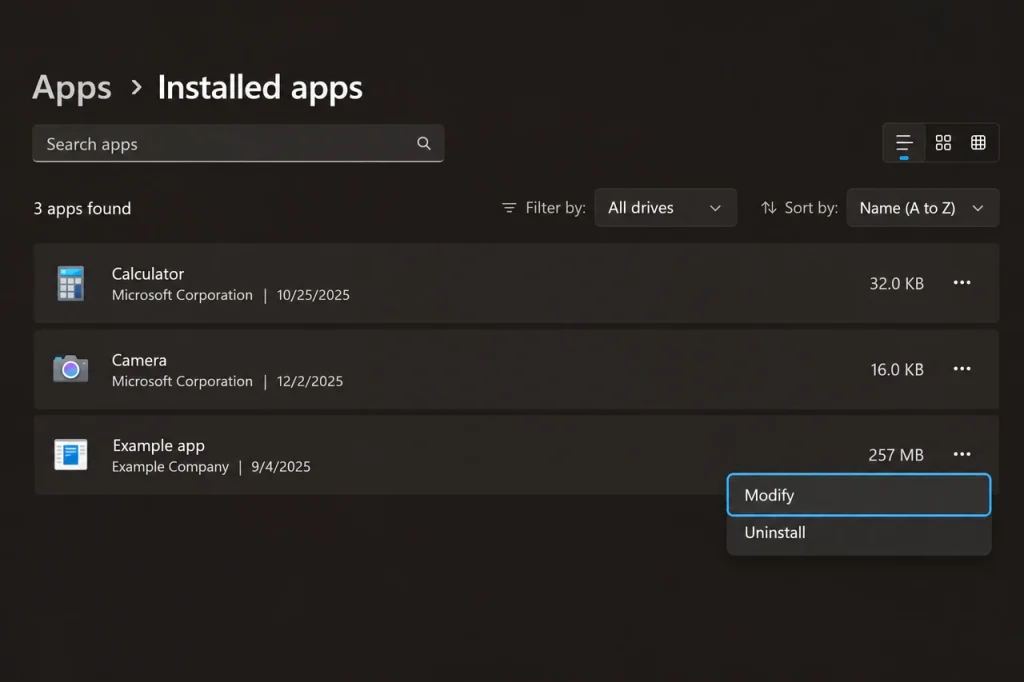
When other programs open normally, repairing the affected app is a more focused starting point than changing shared Windows components. A repair can replace incomplete or damaged application files while preserving data, although the available options depend on the program.
- Close the app and its launcher.
- On Windows 11, open Settings > Apps > Installed apps. On Windows 10, use Settings > Apps > Apps & features.
- Find the affected program and open its available options. Use Modify or Advanced options > Repair if offered. Some desktop apps instead provide a repair option when you run their installer again.
- For a game installed through a launcher, use its built-in file verification or repair command if available.
- Restart if requested, then launch the app normally.
If repair is unavailable or does not help, back up local saves, projects, settings, and license details before uninstalling. Download a fresh installer from the publisher, reinstall the application, and test it before adding extensions or restoring custom files.
A reset is different from a repair and may delete application data. Read the confirmation carefully. Do not remove shared runtimes just because their names appear alongside the affected program in the app list.
3. Repair the required Visual C++ redistributables
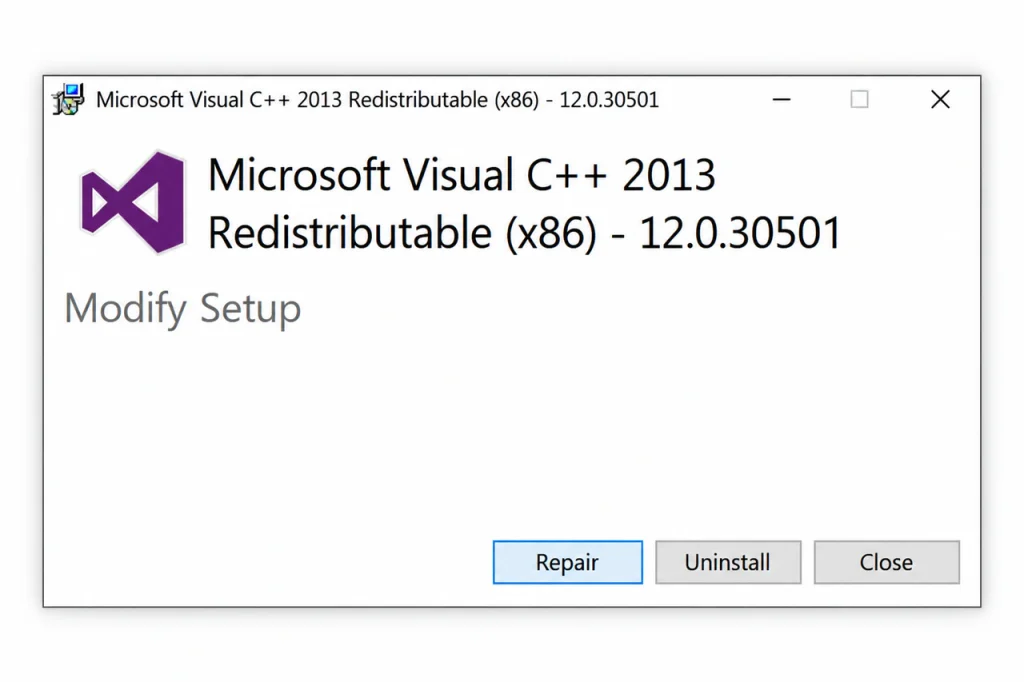
Many desktop applications rely on Visual C++ runtime libraries. Repairing the package the app actually requires can resolve damaged runtime files, but installing every package you can find is not a reliable diagnosis for error 0xc000007b.
- Check the app publisher’s requirements or the prerequisite installers included with its setup package.
- Press Windows + R, type
appwiz.cpl, and press Enter. - Find the required Visual C++ Redistributable entry. Check both its release and architecture.
- Select Change, then Repair if the installer offers it. Alternatively, run the appropriate official redistributable installer again and choose Repair.
- Complete the prompts, restart if requested, and test the affected app.
The runtime architecture must match the application. A 32-bit app needs the x86 package even on 64-bit Windows; a 64-bit app needs its corresponding package. Both may legitimately be installed on the same PC. ARM64 systems require attention to the architecture of the application and supported runtime package.
For apps that require the current v14 runtime, the official installer downloads are available for x86, x64, and ARM64. Choose the package specified for your app. Older software may require a separate legacy release; the latest v14 package does not replace every older runtime.
The screenshot shows a legacy installer as an example of the Repair control. Match your own app’s requirements rather than copying that example version. Keep other installed redistributables unless the publisher’s troubleshooting instructions specifically require their removal.
4. Install legacy runtime components only when required
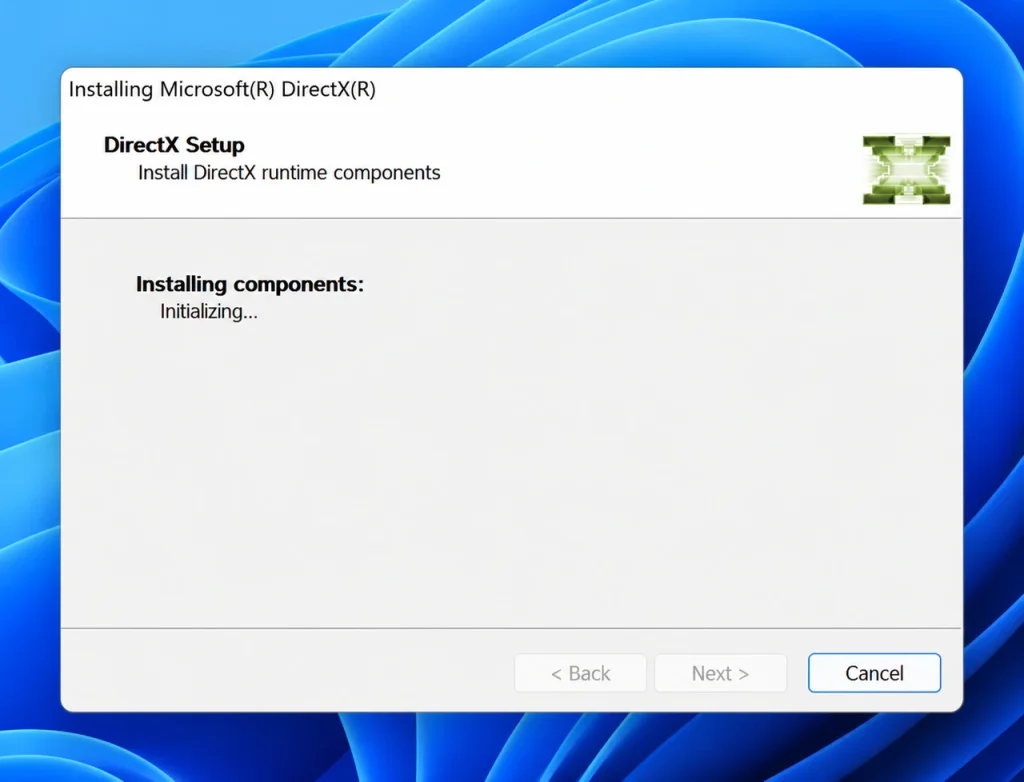
Some older games depend on optional DirectX libraries that are separate from the DirectX version built into Windows. Having DirectX 12 does not guarantee that every legacy component an older game expects is present.
- Check the game’s prerequisite list or its original installation files.
- If the publisher supplies a DirectX prerequisite installer, use that trusted copy.
- If the game specifically requires the legacy package, obtain the DirectX End-User Runtimes (June 2010) installer from its official download page.
- Run the downloaded self-extracting package, choose a temporary extraction folder, then run DXSETUP.exe from that folder.
- Finish setup, restart if prompted, and test the game again.
This package adds optional side-by-side components used by older software, including certain D3DX, XInput, and XAudio libraries. It does not downgrade the DirectX version integrated into Windows. Use it when the application requires those components, rather than treating it as a universal fix.
Likewise, enable a legacy .NET component only when the app explicitly requires it. Do not install unrelated framework versions or download individual DLLs from file-sharing sites. Copying a library into the application folder, System32, or SysWOW64 can introduce a different version or architecture and make diagnosis harder.
5. Repair Windows system files
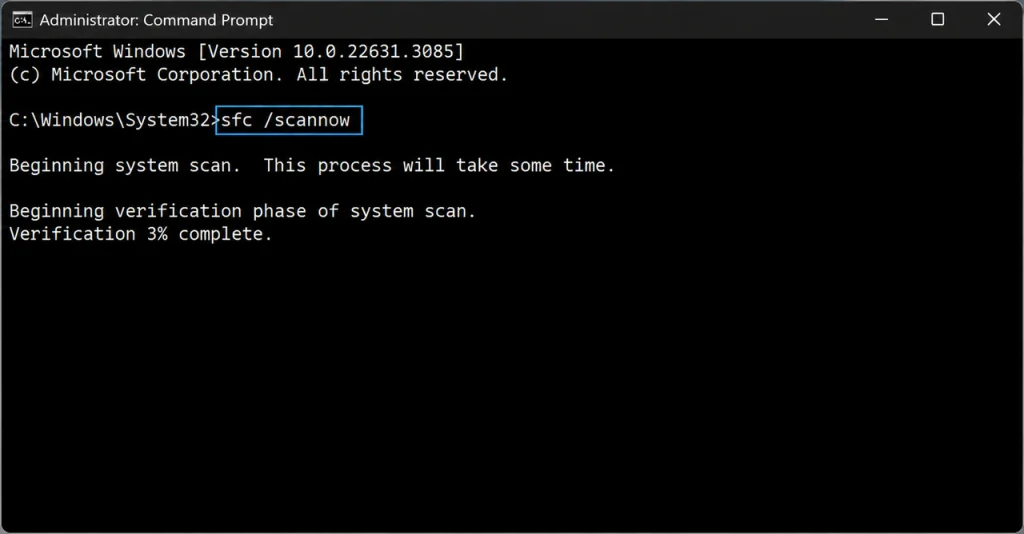
If several unrelated programs fail, or the app and its required runtimes have already been repaired, check Windows itself. Install available Windows updates and restart first. Then run the built-in servicing and file-checking tools in this order.
- Open Start and search for Command Prompt.
- Choose Run as administrator and approve the prompt.
- Run the DISM command below. Allow it to finish successfully before continuing.
DISM.exe /Online /Cleanup-Image /RestoreHealthDISM normally uses Windows Update to obtain repair files, so keep an internet connection available. If it reports an error, record that message and resolve it before treating the servicing step as complete.
Next, run System File Checker in the same administrator window:
sfc /scannowWait for verification to reach 100%. If Windows reports that it repaired files, restart and try the application again. If it finds no integrity violations, protected system files are less likely to explain the problem. If files could not be repaired, keep the result for further troubleshooting.
These tools repair Windows components; they do not correct an incompatible third-party plug-in or replace every application library. If error 0xc000007b persists in only one program, contact its publisher with the exact app version, Windows version, processor architecture, full error message, and the repairs already attempted. That information is more useful than repeating runtime installations without identifying the failing component.