A slow computer usually has a specific bottleneck: too many active apps, limited memory, a busy or nearly full drive, background updates, or hardware struggling with the workload. Malware can also affect performance, but slowness alone does not prove that your PC is infected.
The useful question is when the slowdown happens. A PC that takes too long to become usable after sign-in needs different checks from one that slows down during video editing. If only websites are slow while local apps work normally, check your browser and internet connection before treating it as a Windows performance problem.
Save your work, close apps you do not need, and select Start > Power > Restart. After signing in, repeat the task that felt slow. If the problem returns, work through the checks below, testing after each change.
| What you notice | Possible cause | First check |
|---|---|---|
| Sluggish for several minutes after sign-in | Startup apps, syncing, or updates | Task Manager and Startup apps |
| Slows down with many apps or tabs open | Memory pressure or a demanding app | CPU and Memory usage |
| Long pauses opening files or launching apps | Storage activity or hardware limits | Disk activity and free space |
| Gets slower as the laptop becomes hot | Cooling or power constraints | Ventilation, power connection, and manufacturer diagnostics |
1. Find the cause of a slow computer
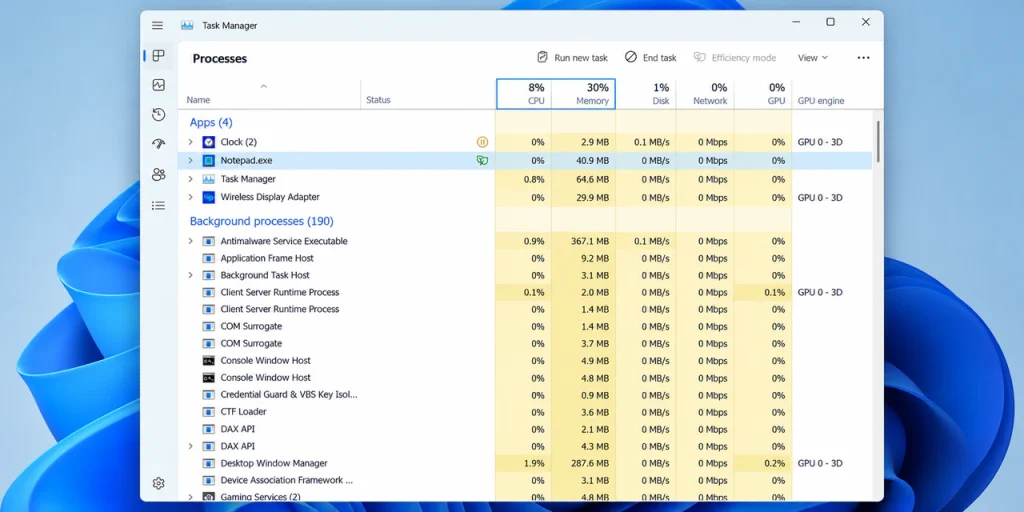
Open Task Manager with Ctrl + Shift + Esc while the problem is happening. Select Processes, then click the CPU, Memory, or Disk column to sort by resource use.
- Repeat the action that normally feels slow and watch which apps rise to the top.
- Close an unneeded app normally, then try the task again.
- If an app is unresponsive, save what you can and use End task only for that app. Unsaved work in it can be lost.
- Open Performance to see whether the same resource remains heavily used over time.
A brief CPU spike when opening an app is normal. A high memory percentage also needs context: the important clue is whether the PC becomes unresponsive during your usual workload. High disk activity means the drive is busy; it does not mean the drive is full.
Do not end unfamiliar Windows processes or security software to lower a number. Close apps normally before forcing them to stop.
2. Disable unnecessary startup apps
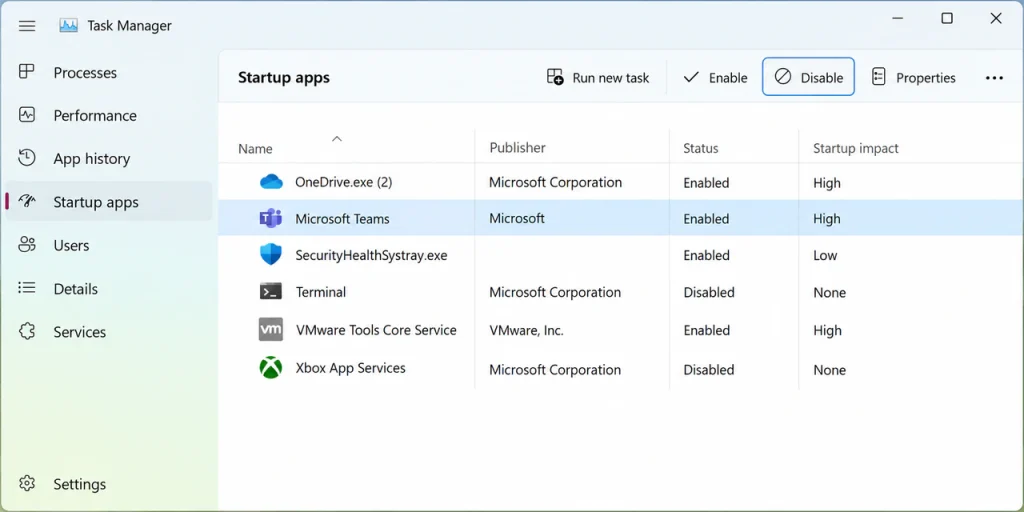
If the desktop appears quickly but stays sluggish after sign-in, several apps may be starting together. Chat clients, game launchers, and other optional tools can compete with the app you actually want to use.
- In Task Manager, select Startup apps. Windows 10 uses a Startup tab; select More details first if needed.
- Review the Status and Startup impact columns.
- Select an optional app you recognize and choose Disable.
- Restart and check whether sign-in feels faster.
Disabling startup does not uninstall the app. You can still open it manually, and you can return to this list to enable it again.
Leave antivirus, backup, accessibility, and essential device utilities alone unless you understand their role. Change a few recognizable apps at a time so you can tell what helped. These controls are also available under Settings > Apps > Startup.
3. Free up storage without deleting important files
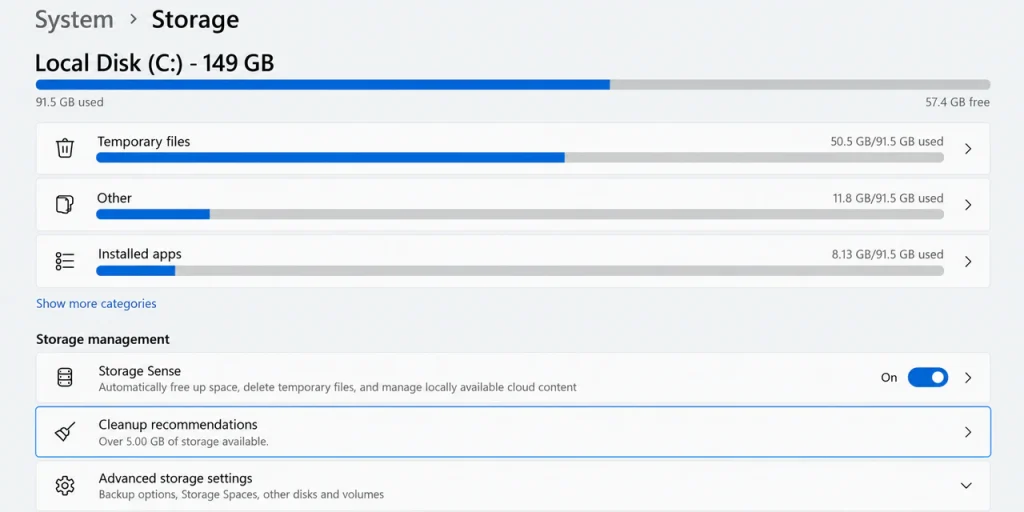
Low free space can make a slow computer harder to update and use. Check Settings > System > Storage to see what is consuming space on the Windows drive.
- On Windows 11, open Cleanup recommendations or Temporary files.
- Review the categories and descriptions before selecting anything.
- Remove only files you no longer need. Check Downloads and the Recycle Bin carefully because they may contain personal files.
- Move large personal files elsewhere if appropriate, and uninstall apps you no longer use through Windows Settings.
Do not delete folders from Windows or Program Files by hand. If you remove a previous Windows installation, you can lose the ability to return to that version.
There is no single free-space percentage that fixes every PC. Make enough room for your apps, working files, and pending updates, then retest. If you enable Storage Sense, review its deletion rules rather than accepting them without checking.
4. Finish Windows updates and check drivers
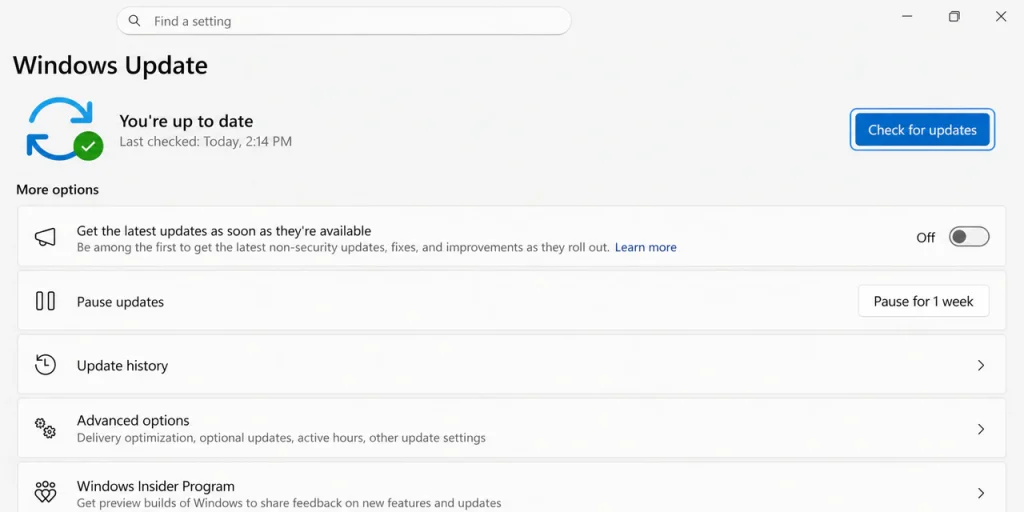
Windows may be downloading, installing, or completing updates while you work. This can temporarily increase resource use. It is different from a slowdown that continues every day after updates have finished.
- On Windows 11, open Settings > Windows Update. On Windows 10, use Settings > Update & Security > Windows Update.
- Check whether an update is downloading, installing, or waiting for a restart.
- Allow active updates to finish. Save your work and restart when requested.
- If no update is running, select Check for updates and install applicable regular updates.
For a problem tied to a device, such as graphics stuttering, check its manufacturer’s support page for your exact model. Install relevant drivers rather than every optional package you can find. A generic third-party driver updater is unnecessary for these checks.
If the slowdown began immediately after an update or new app, note its name and installation date before making further changes. Windows 10 standard support ended on October 14, 2025; its Settings layout is included here for readers still using it.
5. Scan for malware and unwanted software
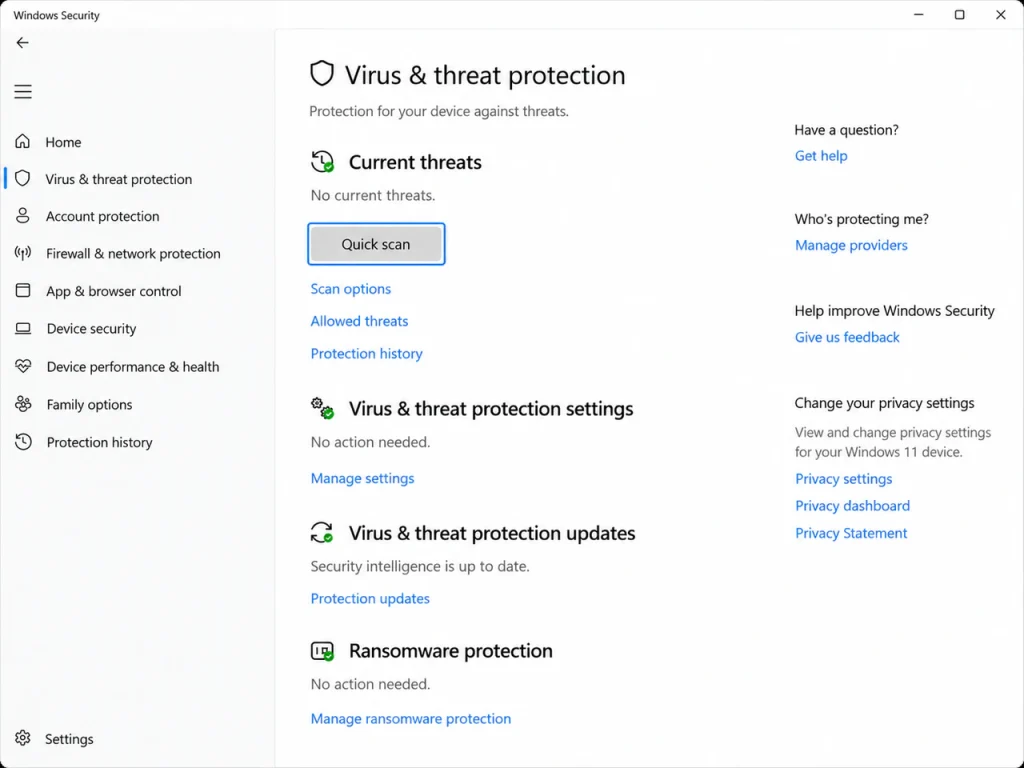
Unexpected pop-ups, unfamiliar apps, or browser settings changing by themselves deserve a security check. A slow computer without those symptoms may have another cause, but checking your active antivirus is still useful.
- Open Windows Security > Virus & threat protection.
- If Microsoft Defender is your active antivirus, check its protection updates and run a Quick scan.
- Review the results and follow the recommended actions.
- If concerns remain, open Scan options and consider a Full scan.
If another antivirus manages protection, use that product’s scan controls. Avoid installing a second real-time antivirus just to compare results, and do not turn protection off as a performance fix.
A scan itself can temporarily use CPU and disk resources. Let it complete before judging normal performance. A clean result is helpful evidence, not proof that every possible security issue has been excluded.
6. Check memory, storage hardware, and cooling
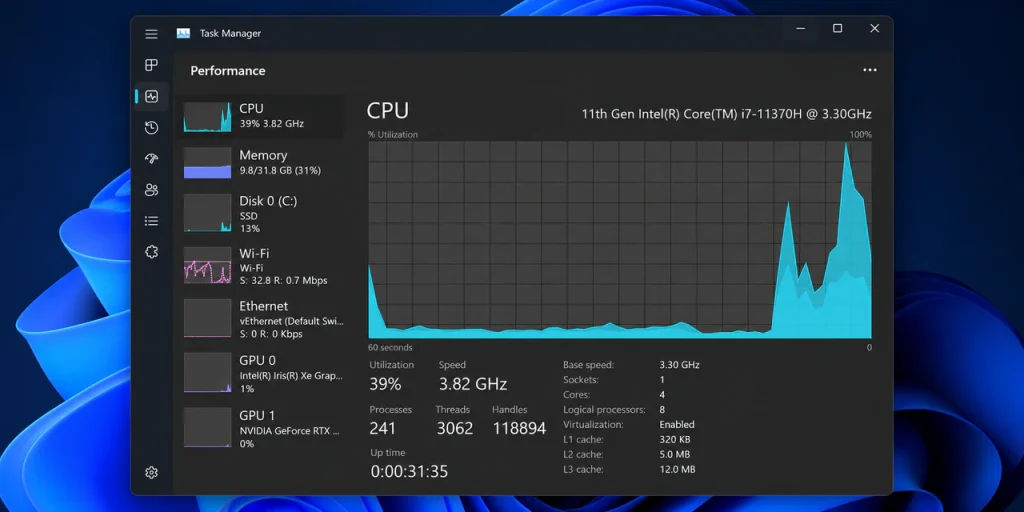
If your slow computer still struggles after those checks, revisit Task Manager > Performance during your normal workload. This can show whether your hardware is consistently the limiting factor.
- Memory stays heavily used and apps stall: reduce simultaneous apps and browser tabs. More RAM may help if the PC supports an upgrade; check the model’s specifications before buying.
- An HDD stays busy during ordinary tasks: a compatible SSD upgrade may improve loading and responsiveness. Confirm the storage bottleneck first and back up your files.
- Performance drops as the laptop heats up: use a firm surface, keep vents unobstructed, and follow the manufacturer’s cooling guidance. Loud fans alone do not establish a hardware fault.
- The laptop is much slower on battery: test with its appropriate power adapter connected. Power-saving settings can trade performance for battery life.
Dell’s performance troubleshooting guide links hardware decisions to the resource that is constrained. ASUS also discusses power, heat, and system diagnostics.
Keep the same app and workload when comparing results. A lower usage number at idle is less useful than a PC that responds better during the work you need it to do.
If the computer is suddenly much slower and also reports storage errors, loses files, or repeatedly freezes, prioritize a backup and manufacturer diagnostics. Record when the problem began and which resource stays busy. That evidence is more useful than repeatedly running cleanup tools or resetting Windows without knowing the cause.