To fix slow File Explorer in Windows 11, first identify whether the delay affects Home, a particular folder, or every window. Common causes include unavailable recent locations, preview handlers inspecting files, slow network drives, and heavy disk activity.
The fastest way to narrow it down is to compare a small local folder with the location that keeps hanging. Work through the checks below in order, testing the same folder after each change. That makes it easier to identify what actually helped.
| Where the delay happens | Start here |
|---|---|
| Explorer and the taskbar both stop responding | Restart Windows Explorer |
| Home is slow, but a local folder opens quickly | Open This PC and check recent or pinned locations |
| A photo, video, or document folder hangs | Turn off the preview pane and use Details view |
| Only an external, network, or cloud folder is slow | Check that location and its connection |
| Every folder is slow alongside other apps | Check resource usage, updates, and system files |
1. Fix slow File Explorer with a restart
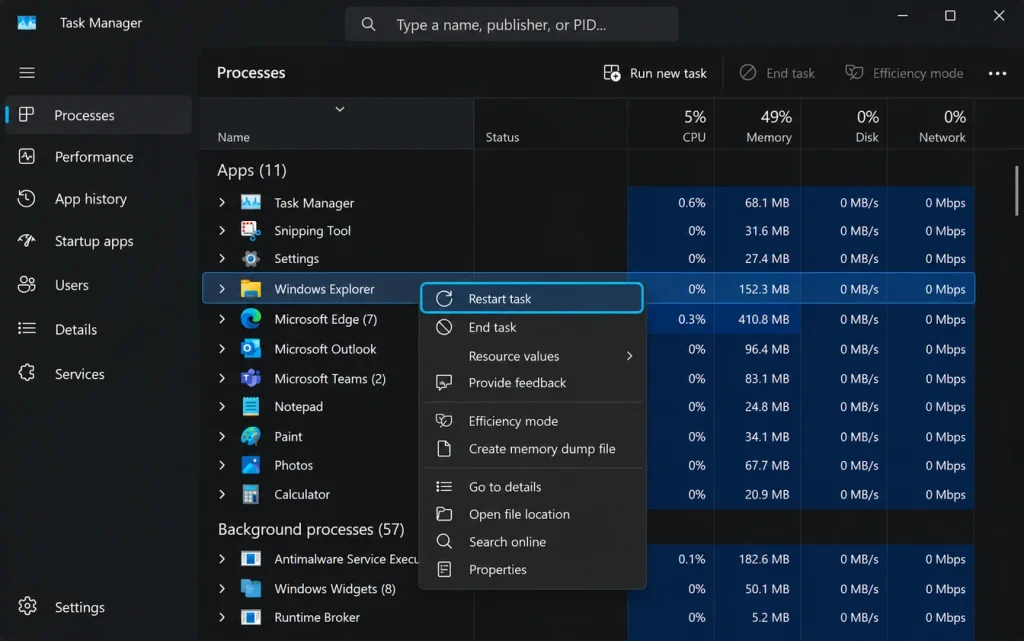
Restarting Explorer reloads the Windows desktop shell and file-browsing interface. It is a useful first check for a temporary hang, although it will not resolve every underlying cause.
- Finish or cancel active file transfers, and save work in open applications.
- Press Ctrl + Shift + Esc to open Task Manager.
- On Processes, locate Windows Explorer. Use the search box if your Task Manager has one.
- Right-click Windows Explorer and select Restart. Some versions also offer a Restart task button.
- Wait for the desktop and taskbar to return, then reopen the folder.
The taskbar may disappear briefly. If Explorer is not listed, use Run new task, enter explorer.exe, and select OK. If the slowdown returns immediately, continue with the checks below. A normal PC restart is also worth trying after saving your work, especially when Windows is waiting to finish an update.
2. Fix slow File Explorer on Home
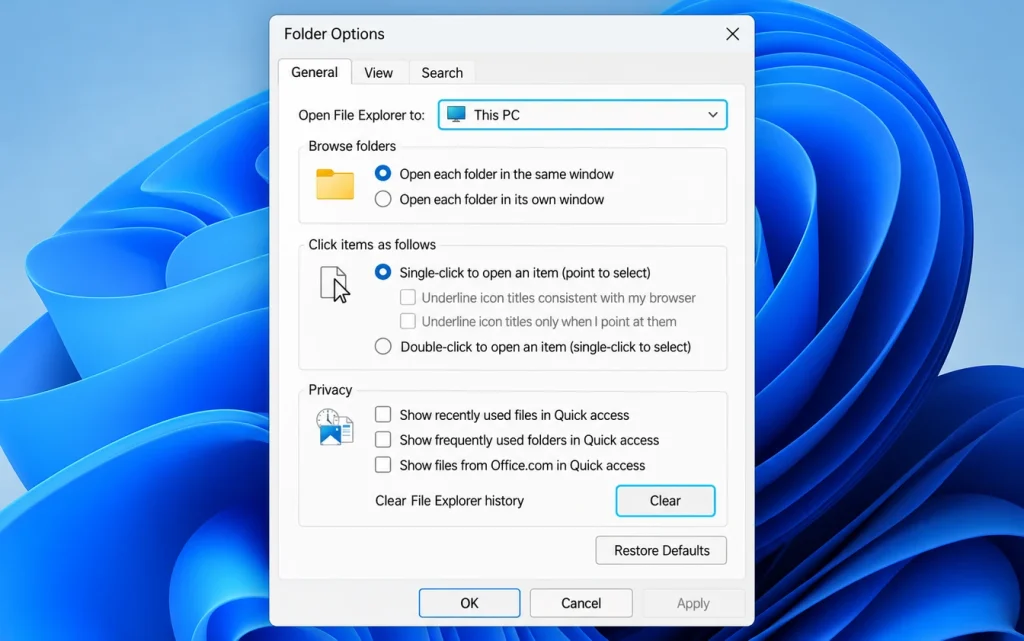
If a slow File Explorer mainly affects the Home page, test a different starting location. Press Windows + R, enter %windir%, and press Enter. This opens a local Windows folder for comparison; do not change or delete anything inside it.
If that folder responds normally, change Explorer’s opening page:
- In File Explorer, select the three-dot See more menu, then Options.
- On the General tab, set Open File Explorer to to This PC.
- Under Privacy, select Clear beside the File Explorer history option.
- For a comparison test, turn off the available recent-file and frequent-folder options. Your version may also show an account-based file option.
- Select Apply, then OK, and open a new Explorer window.
Clearing history removes browsing-history entries rather than deleting your documents. It does not necessarily remove pinned folders. Review Quick access separately and unpin locations you no longer use, especially disconnected shares or unavailable drives. Unpinning a folder removes its shortcut, not the folder itself.
This PC is a diagnostic starting point, not a guaranteed speed boost. It can still be delayed by problematic drives. If both views are slow, investigate the drive and background activity in step 4.
3. Turn off previews and test a simpler folder view
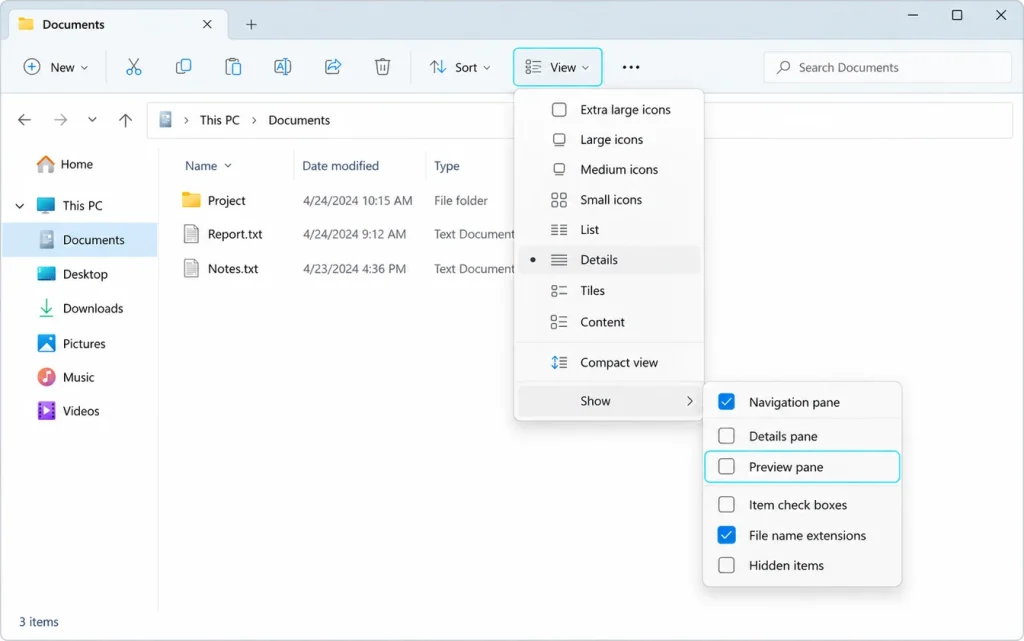
To fix slow File Explorer when selecting files, start by testing the preview pane. Preview handlers supplied by document or media applications may need to read a file before displaying it. A large, damaged, remote, or online-only file can make that work more noticeable.
- Open the affected folder and check whether the preview pane is visible.
- If it is, press Alt + P to hide it. Depending on the Windows build, the control is also available through View > Show > Preview pane.
- Select View > Details instead of a large-icon layout.
- Compare the same folder again, including selecting a few different files.
If the folder becomes responsive, re-enable one feature at a time. Details view reduces reliance on large thumbnail displays, but it does not guarantee that Explorer stops reading all metadata. If one file type causes the delay, update the application that provides its preview support.
As a further test, open Options > View and enable Always show icons, never thumbnails, then select Apply. Record the original setting so you can restore thumbnails afterward. Treat these changes as diagnostic choices rather than permanent requirements.
4. Check slow drives and background activity
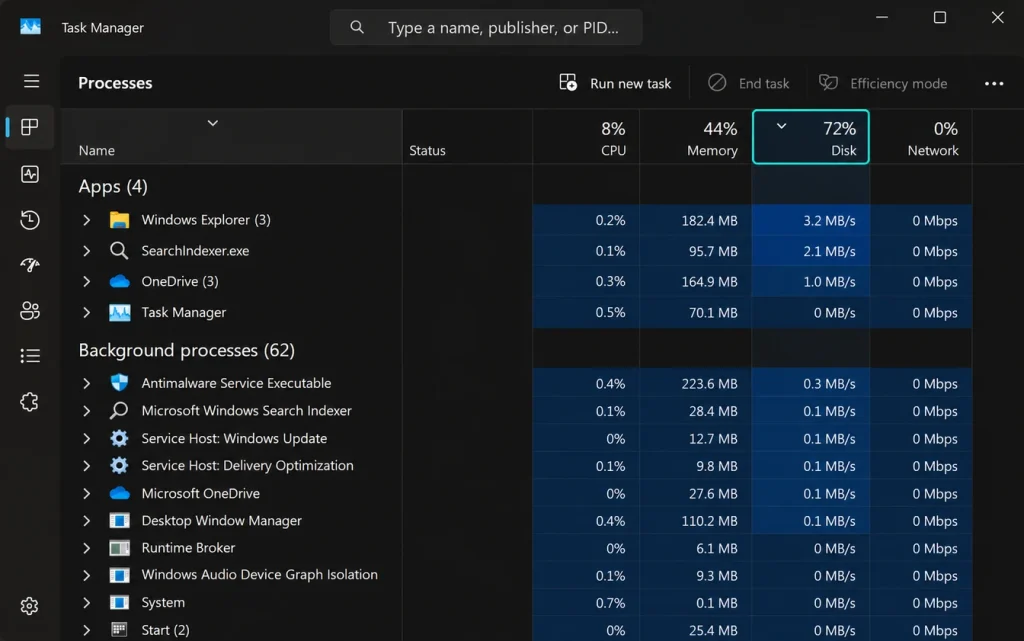
To fix slow File Explorer on a particular drive, compare the affected network, USB, or cloud folder with a small folder on the internal drive. The window may be waiting for storage rather than struggling with its own interface.
For a network share, reconnect to the correct network or approved VPN and test the share directly. For an external drive, finish transfers and use safe removal before disconnecting it; then compare local browsing with it disconnected. A connection or drive problem needs its own fix. Do not format a drive merely because Explorer takes a long time to open it.
For cloud files, check the sync client for errors or ongoing downloads. An online-only file may need to download before its contents or preview are available. If you temporarily pause syncing to compare performance, resume it after the test.
- Open Task Manager > Processes while the delay occurs.
- Sort by Disk, then compare CPU and Memory.
- Look for activity that lasts throughout the slowdown, such as a large transfer, indexing, or synchronization.
- Let expected work finish, or pause an appropriate application through its own controls, then test again.
A high percentage is a clue, not proof of a faulty disk or application. Do not end unfamiliar system processes or disable security protection. If the entire PC is sluggish, also check available space under Settings > System > Storage. Back up important files promptly if a drive also produces read errors, disconnects, or unusual noises.
5. Fix slow File Explorer with Windows repairs
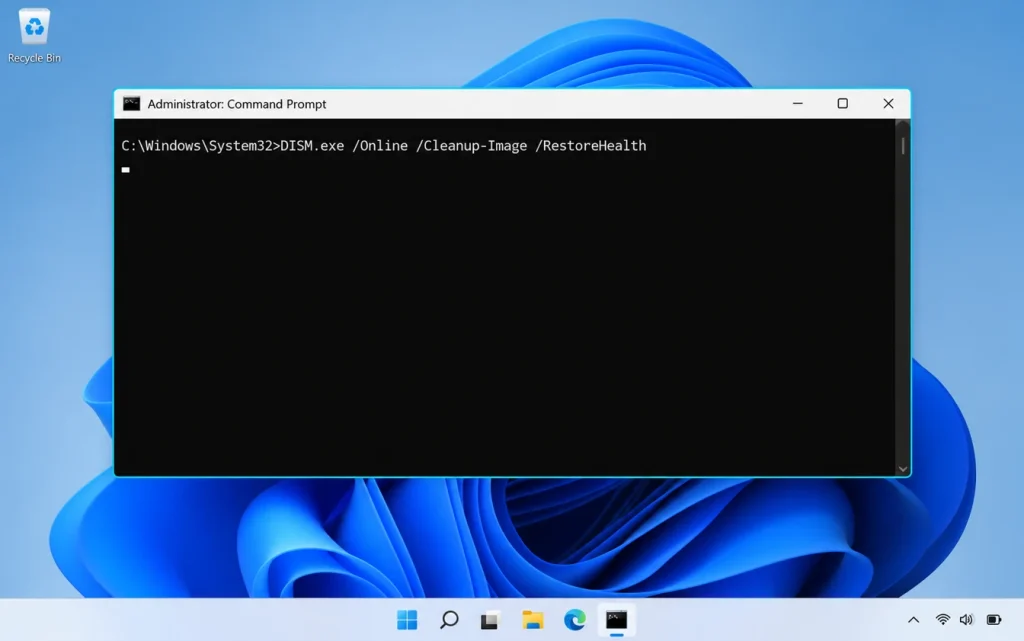
If Explorer remains slow across local folders after the earlier checks, install available Windows fixes. Open Settings > Windows Update > Check for updates, allow installation to finish, and restart when requested.
For persistent problems, check the Windows image and protected system files:
- Search for Command Prompt, select Run as administrator, and approve the prompt.
- Run the following command and allow it to finish:
DISM.exe /Online /Cleanup-Image /RestoreHealthAfter DISM completes successfully, run:
sfc /scannowWait for verification to finish, note the result, and restart before testing Explorer again. These tools repair Windows components and system files; they do not fix a failing drive or an unreachable network share. If DISM reports an error, record the code rather than repeatedly running the command without addressing it.
If a slow File Explorer began immediately after installing an archive utility, cloud client, or other app that integrates with right-click menus, update that app and test again. A clean boot can help isolate background software, although some shell extensions may remain loaded. On a managed PC, involve IT before changing services or startup settings.
Keep the final diagnosis specific: which folder is affected, whether Home differs from This PC, and which change improved the behavior. Those observations are more useful than applying a collection of registry tweaks or resetting Windows before the cause is clear.