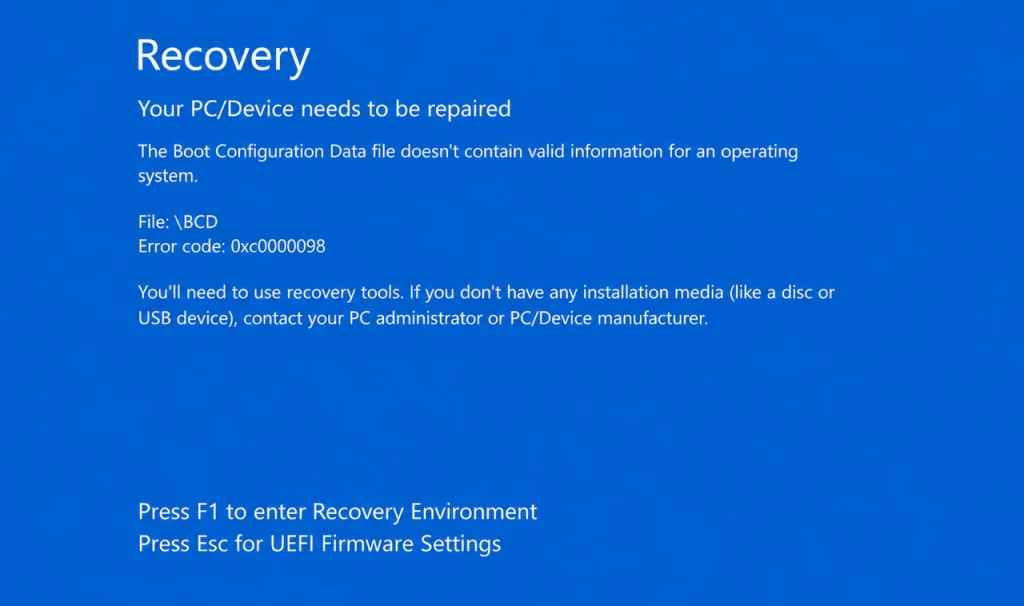
BCD error 0xc0000098 prevents Windows from starting when its boot configuration is missing, damaged, or unable to identify a valid operating system. Instead of the sign-in screen, you may see a blue Recovery page referring to the BCD file or a Windows loader.
Start with Windows Startup Repair. If that does not work, the next step on a standard UEFI installation is to identify the correct Windows and EFI partitions before repairing the boot files with BCDBoot. The drive letters shown in recovery can differ from those used on your desktop.
This guide focuses on Windows 11 and other UEFI/GPT Windows installations. The manual commands below are not a universal repair for legacy BIOS/MBR systems or complex dual-boot configurations.
1. What does BCD error 0xc0000098 mean?
Boot Configuration Data tells Windows Boot Manager where to find the installed operating system and how to load it. When that information is unusable, startup can stop before Windows has a chance to open its normal troubleshooting tools.
Read the complete message before changing anything. Note the error code and the file path. A screen that names \BCD points directly to the boot configuration; a screen naming winload.efi may require additional investigation if repairing the boot environment does not help.
BCD error 0xc0000098 can follow a failed boot-file change, an interrupted operation, or changes made while cloning or repartitioning a drive. A recurring failure can also justify checking the storage hardware. The error code alone does not prove that the SSD has failed or that personal files have been lost.
Before you begin: protect access to your files
Keep the PC connected to power. Have the BitLocker recovery key available if encryption is enabled, and back up important files whenever you can access them. On a work or school device, involve the administrator before changing the boot configuration. Do not format, delete, or recreate partitions as a first troubleshooting step.
2. Open Windows Recovery Environment
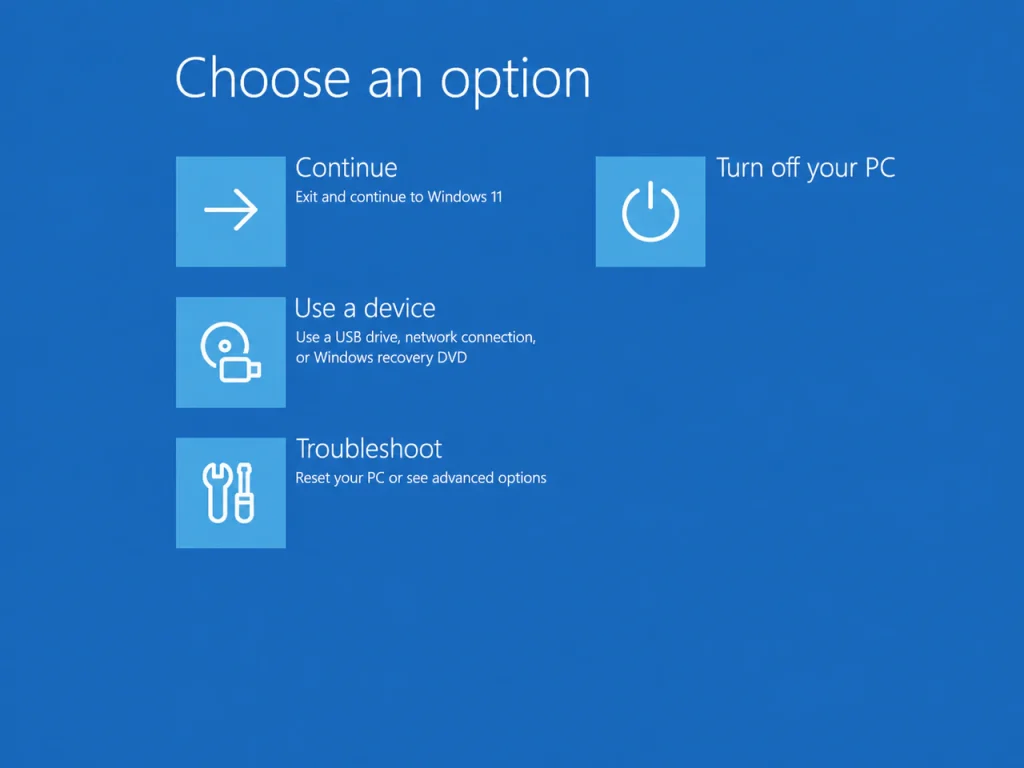
If the Recovery screen offers a key to enter the recovery environment, use the option displayed on that computer. The exact keys and menu wording vary. If a restart returns to the same error and the recovery option will not open, use Windows installation media.
- On a working computer, create an official Windows installation USB using Microsoft’s Windows download tools. Creating it erases the selected USB drive, so use one with no files you need.
- Connect the USB to the affected PC and use its manufacturer-documented boot menu to select the USB’s UEFI entry.
- Follow the language and keyboard prompts, then choose Repair your computer or Repair my PC, depending on the installer version.
- Select Troubleshoot → Advanced options.
Choose the repair route rather than beginning a new installation. You are opening tools for the existing Windows installation.
3. Run Startup Repair
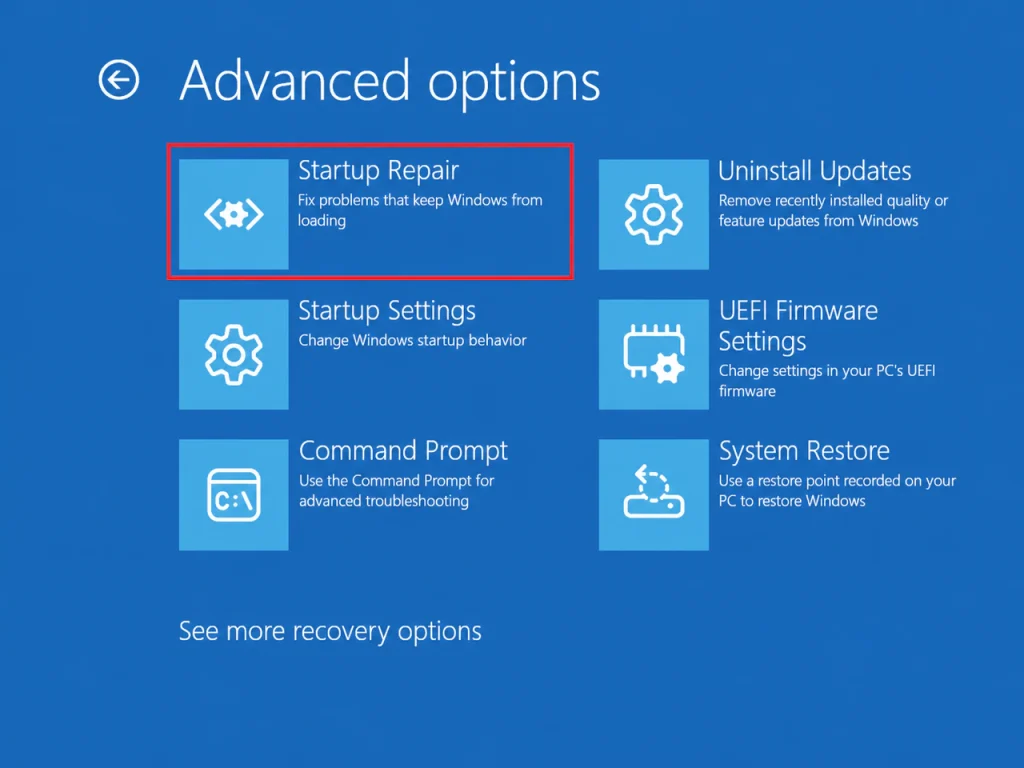
In recovery, select Troubleshoot → Advanced options → Startup Repair and follow the prompts. Enter the BitLocker recovery key if requested, then allow the repair attempt to finish without interrupting power.
Startup Repair can address common startup faults, including damaged boot configuration data. It is a sensible first repair for BCD error 0xc0000098 because Windows handles the diagnosis before you make manual changes. It cannot repair every cause of the error.
Restart and test normal startup. If the same error returns, go back to Advanced options → Command Prompt. Record any Startup Repair message rather than running it repeatedly without a change in symptoms.
4. Identify the Windows and EFI partitions
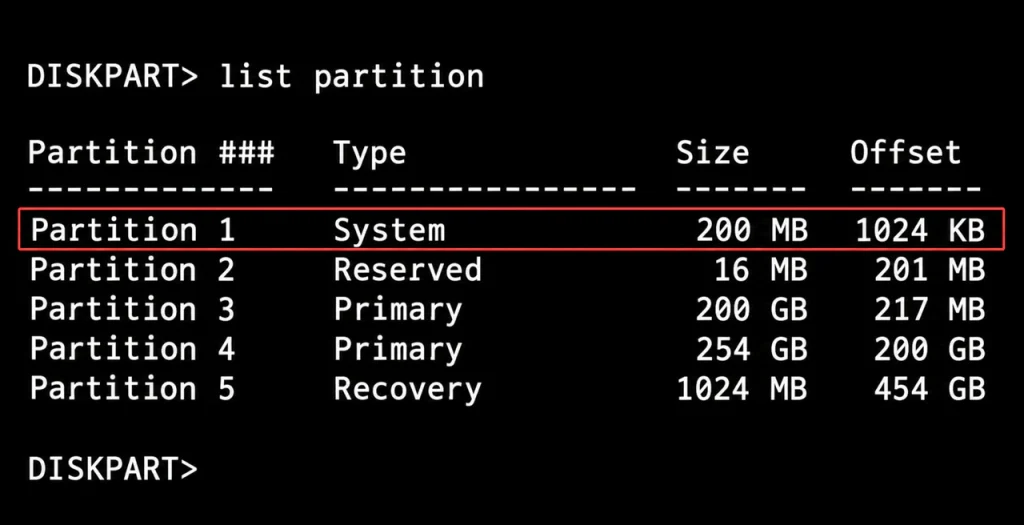
Do not assume the Windows installation is on C: in recovery. List the available volumes first:
diskpart
list volume
exit
Check likely Windows volumes individually, using their listed letters. For example:
dir C:\Windows
dir D:\Windows
Confirm that the intended installation contains the expected Windows directory and its System32 folder. If the drive is BitLocker-locked, unlock it using its recovery key before continuing. If more than one Windows installation exists, identify the correct one rather than choosing the first result.
The remaining examples assume the verified Windows installation is D:\Windows. Replace D: with its actual recovery-environment letter.
Next, inspect the disk containing that Windows volume. In DiskPart, select its volume using the number from list volume, then run detail volume to identify its disk. Select that disk and inspect its partitions:
diskpart
list volume
select volume <Windows-volume-number>
detail volume
select disk <Windows-disk-number>
list partition
select partition <EFI-partition-number>
detail partition
The angle-bracket values are placeholders. Substitute numbers verified on your own PC; do not paste this block unchanged.
On a conventional UEFI/GPT Windows disk, the EFI System Partition uses FAT32 and is identified as the system partition. Its size varies; size alone is not a reliable identifier. Do not select the Windows, recovery, or Microsoft Reserved partition in its place.
After confirming the EFI partition, give it an unused temporary letter. This example uses S::
assign letter=S
exit
If it already has a letter, use that letter instead. If S: is occupied, choose another unused letter and substitute it in the next section. Stop if the partition layout is unclear, the Windows disk is absent, or the drive reports read errors.
5. Rebuild the boot files with BCDBoot
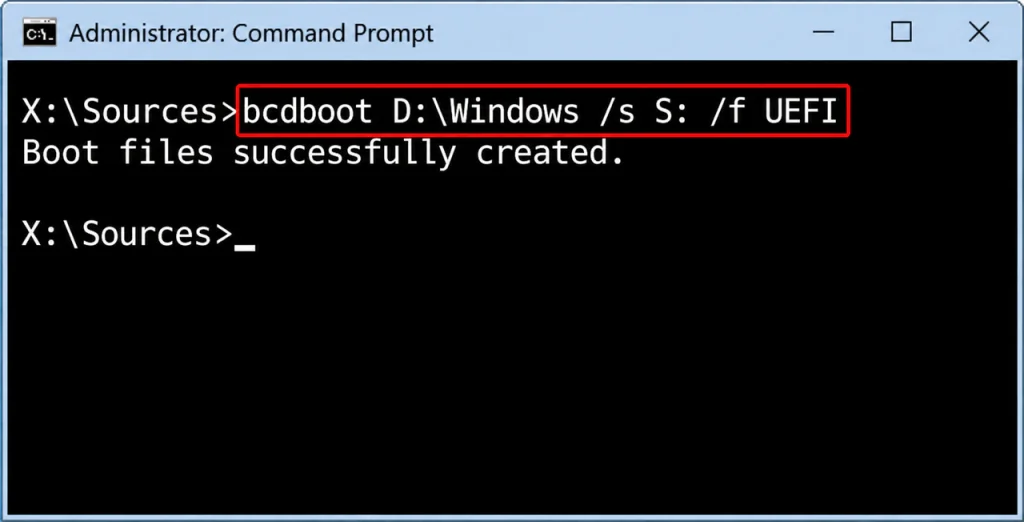
With both locations verified, you can repair the boot environment associated with BCD error 0xc0000098. The example below assumes D: is Windows and S: is its EFI System Partition.
If the existing BCD file is present and readable, keep a backup before proceeding:
copy S:\EFI\Microsoft\Boot\BCD D:\BCD-before-repairUse a different backup filename if that destination already exists. A missing BCD cannot be copied; an access-denied or disk-read error should be investigated before continuing. Then run:
bcdboot D:\Windows /s S: /f UEFI| Part of the command | Purpose |
|---|---|
D:\Windows | The verified Windows installation used as the source. |
/s S: | The verified destination system partition. |
/f UEFI | Creates boot files for UEFI firmware. |
BCDBoot copies boot-environment files from Windows and configures the BCD store. A successful run should report that the boot files were created. Close Command Prompt, shut down, remove the installation USB, and test startup from the internal drive.
Using /s does not create a new Windows Boot Manager firmware entry. If files were created but the PC still does not locate Windows, check the manufacturer’s UEFI boot menu for Windows Boot Manager on the correct drive. Missing firmware entries or multiple EFI partitions require a more specific diagnosis.
If BCDBoot reports a failure, recheck the source path, encryption state, and destination partition. Avoid adding random Bootrec commands or formatting the EFI partition to force a result.
6. Use System Restore if the error returns
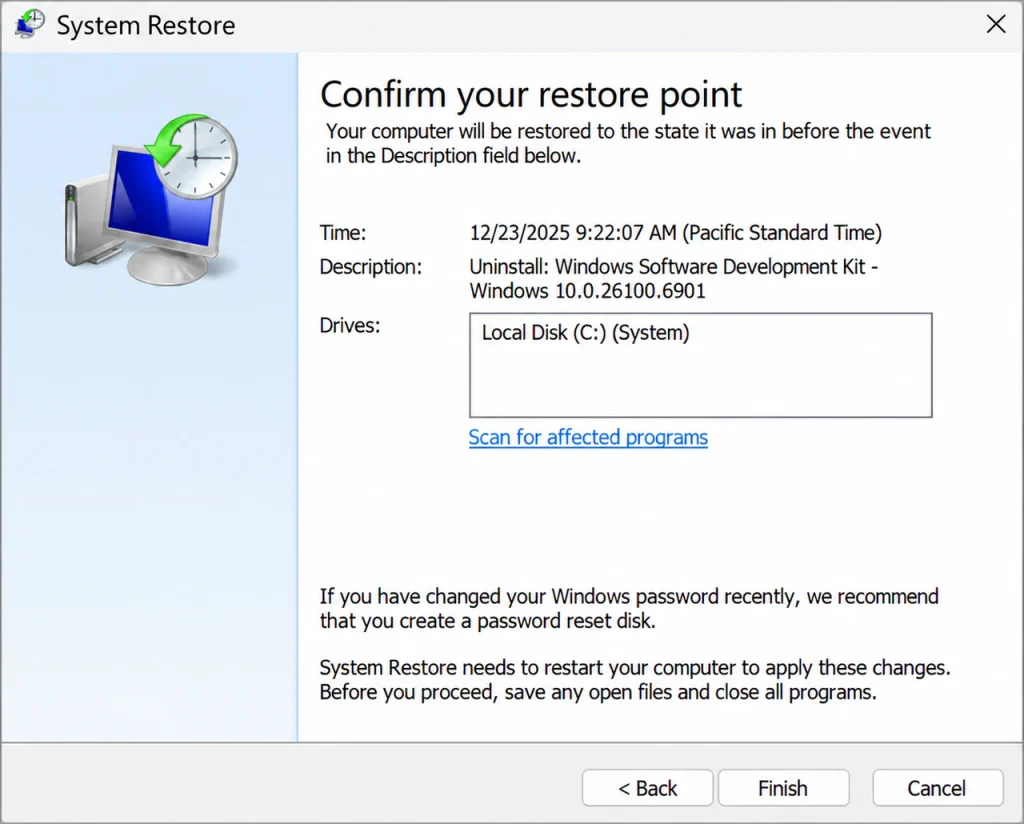
If BCD error 0xc0000098 remains after boot-file repair, and the failure followed a recent system change, try Troubleshoot → Advanced options → System Restore. Select an available restore point from before the problem and review the affected programs before confirming.
System Restore reverses system changes while keeping personal files. It can remove newer apps or drivers, and it requires an existing restore point. It is a fallback for related system changes, not a guaranteed substitute for repairing a damaged EFI boot environment.
If the drive disappears from firmware, diagnostics report storage failures, or boot files become damaged again, investigate the hardware before attempting a reset or reinstall. Back up accessible data first. A clean installation removes data from its selected installation target and will not fix a failing SSD.
Once Windows starts, back up your files and test another restart. If startup now hangs on loading dots instead of showing the error code, follow the separate guide to Windows 11 stuck on the loading screen. A changed symptom needs a fresh diagnosis rather than another round of the same commands.