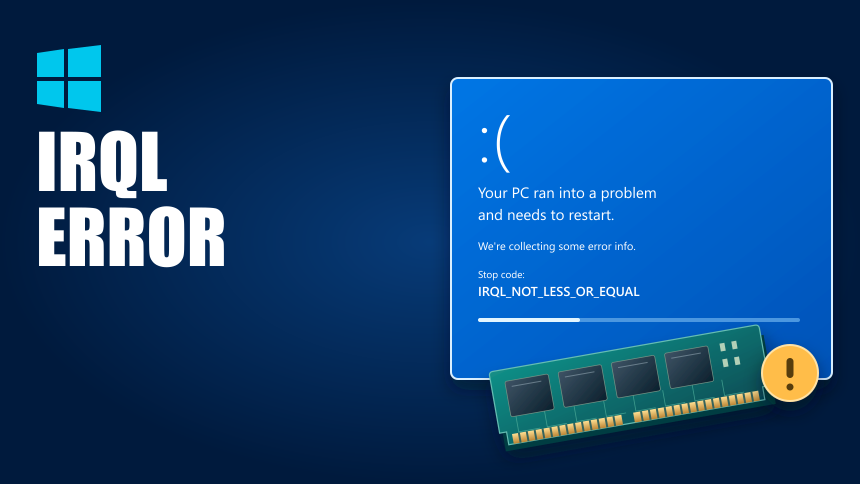
An IRQL error can interrupt a game, stop a download, or restart Windows before you can sign in. If the crash screen shows IRQL_NOT_LESS_OR_EQUAL, start by checking recent driver, software, and hardware changes. The message describes an invalid memory access at a restricted execution level; it does not identify a single broken component by itself.
The stop code for this error is 0x0000000A, often shortened to 0xA. A different message, DRIVER_IRQL_NOT_LESS_OR_EQUAL, uses 0xD1. Some troubleshooting steps overlap, but record the exact code and any file name shown instead of treating every similar crash as identical.
These steps apply to Windows 11 and Windows 10. If Windows stays open long enough, back up important files first. Photograph the crash message and note what you were doing, when it began, and whether a new driver, app, peripheral, or RAM upgrade came just before it.
| When the crashes began | Best starting point |
|---|---|
| Immediately after a driver update | Roll back that specific driver. |
| After adding a utility, VPN, or peripheral | Undo that change and test again. |
| After changing RAM or memory profiles | Restore the previous stable memory settings and test RAM. |
| Windows restarts before you can troubleshoot | Use Safe Mode to regain access. |
| No clear trigger and crashes keep returning | Collect crash evidence alongside driver and memory checks. |
1. Start Safe Mode if the IRQL error keeps returning
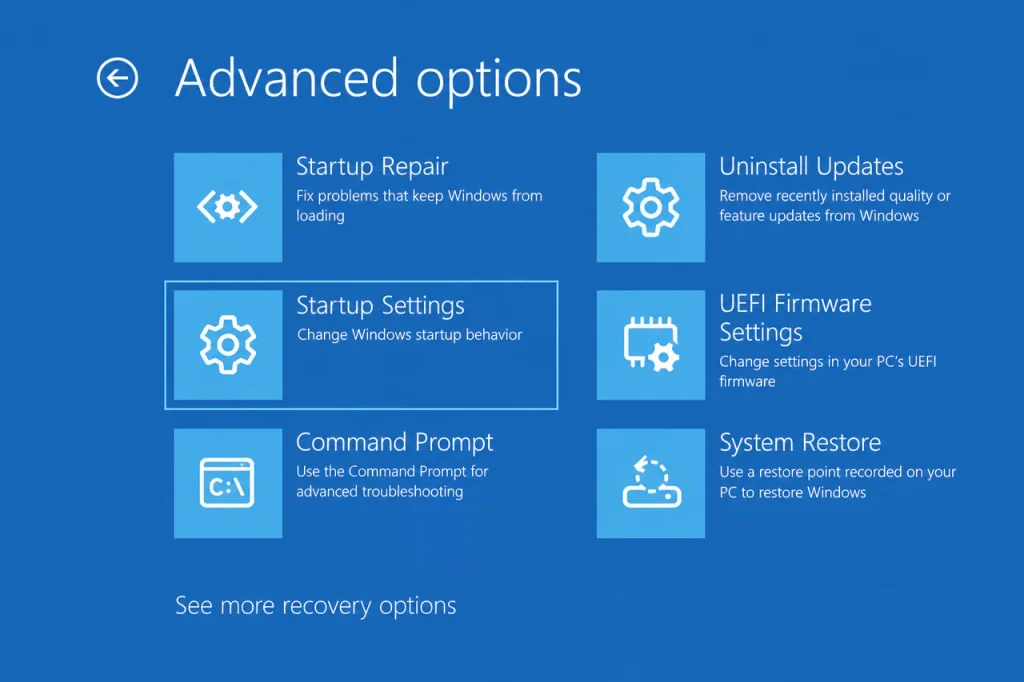
If Windows is stable enough to use normally, go straight to the driver checks below. Safe Mode is useful when crashes prevent you from reaching Settings or removing a recent change. It loads a smaller set of drivers and services, which can give you a workable troubleshooting session.
- Save any open work. From the Start menu or sign-in screen, hold Shift while selecting Power > Restart.
- In the recovery menu, choose Troubleshoot > Advanced options > Startup Settings > Restart.
- Press 4 or F4 for Safe Mode. Use the networking option only if you need network access and it is available.
- Sign in and make one targeted change, such as rolling back the driver installed just before the crashes.
Have your BitLocker recovery key available before entering recovery options on an encrypted PC. Safe Mode sign-in may require your account password rather than a PIN. Restart normally after completing the change.
If Safe Mode works, that is useful evidence, but it does not identify the culprit on its own. If Windows cannot reach even the sign-in screen, use the recovery environment offered after a failed startup or Windows installation media. Avoid repeatedly interrupting an active update just to force a recovery screen.
2. Roll back or update the problem driver
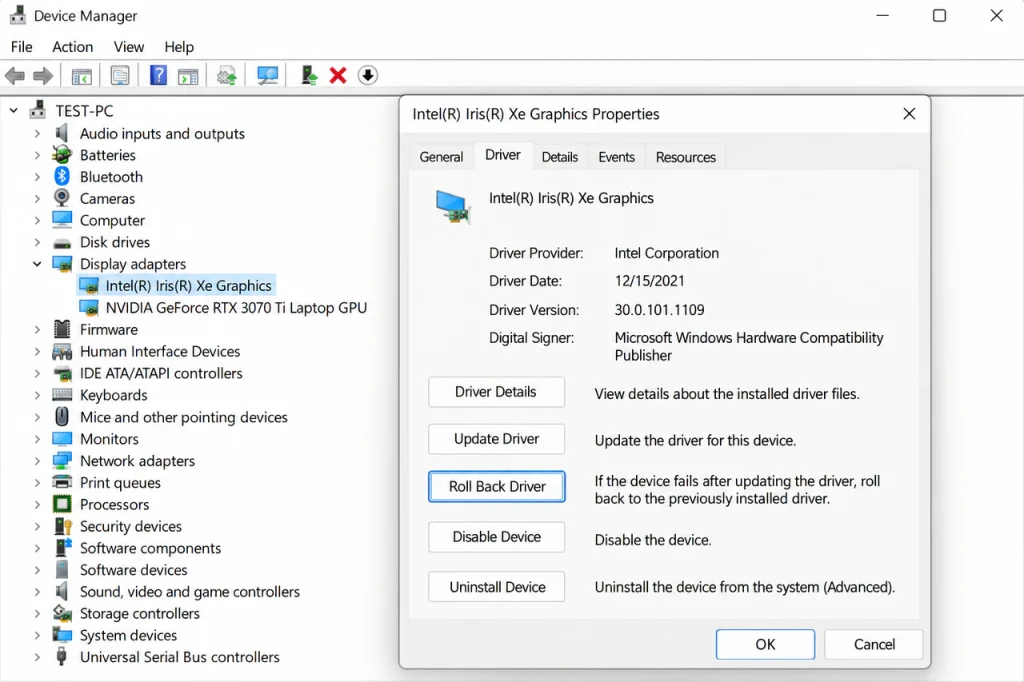
Prioritize a driver that changed immediately before the IRQL error appeared. Graphics, network, storage, and other device drivers can be involved. A crash-screen file name is a lead to investigate, not automatic proof that the named file caused the damage.
- Right-click Start and open Device Manager.
- Expand the category for the device you are investigating.
- Right-click that device, select Properties, and open the Driver tab.
- If the crashes began after its update, select Roll Back Driver when available.
- Follow the prompts, restart, and repeat the activity that previously triggered the crash.
If rollback is unavailable, Windows does not have a previous package available through that control. Obtain an appropriate earlier or corrected driver from the PC or device manufacturer. For laptops and prebuilt systems, check the PC maker’s supported driver package first.
If there was no recent update, check Windows Update and the manufacturer’s support page for a suitable fix. On Windows 11, relevant driver packages may appear under Windows Update > Advanced options > Optional updates. Install a driver that matches your hardware and Windows version; do not replace every driver at once.
The screenshot uses a graphics adapter as an example of the rollback control. Follow the evidence for your own device. Avoid third-party driver updater bundles, and keep a copy of a working network driver available before changing networking software.
3. Undo recent software and hardware changes
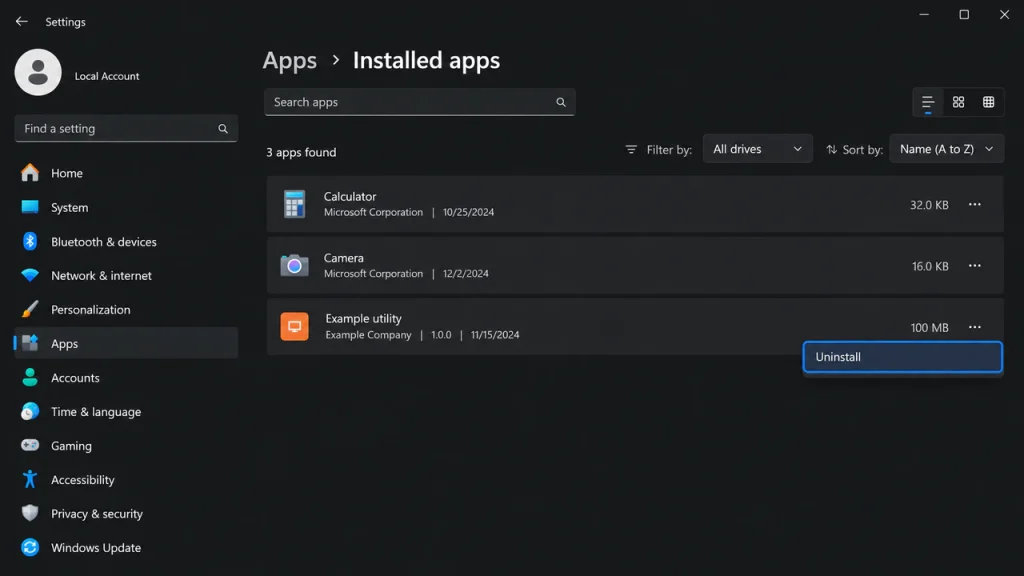
Low-level utilities can install drivers even when they look like ordinary desktop apps. If crashes started after adding or updating a VPN, monitoring tool, tuning utility, or similar software, check for a corrected release or remove that specific recent addition using its supported uninstaller.
- On Windows 11, open Settings > Apps > Installed apps. On Windows 10, open Settings > Apps > Apps & features.
- Locate the app added or updated shortly before the first crash.
- Back up its settings or license details if needed, then use Uninstall.
- Restart and test before removing anything else.
For a work-managed security or networking product, ask the administrator responsible for it to handle removal. Do not disable broad security protections as a general-purpose test.
Shut down and disconnect a recently added nonessential USB accessory or dock, then test without it. If that helps, investigate the accessory, its power supply, and its driver before reconnecting everything. Do not remove internal components while the PC is powered.
If you recently changed CPU or GPU tuning, return those particular settings to their previous stable values. Avoid resetting every firmware option: unrelated changes to storage, boot, or security settings can create a separate startup problem.
4. Test RAM with default memory settings
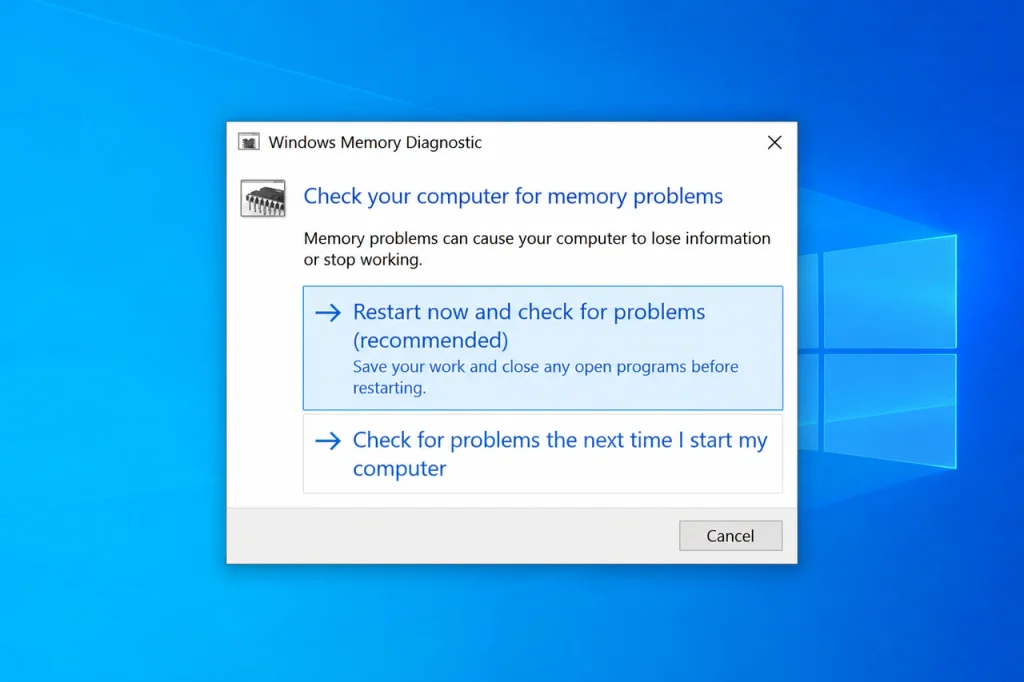
Memory instability can contribute to an IRQL error, particularly after a RAM upgrade or tuning change. However, a stop message alone is not a reason to buy replacement RAM. Start with a test and the configuration history.
If you enabled an XMP, EXPO, or manual memory overclock shortly before the crashes, return that specific memory profile to the system’s default setting using the motherboard or PC maker’s instructions. Record the original settings first. Leave unrelated boot and storage options alone.
- Save your work and close applications.
- Press Windows + R, type
mdsched.exe, and press Enter. - Select Restart now and check for problems when you are ready for the PC to reboot.
- Allow Windows Memory Diagnostic to finish and Windows to start again.
- Read the result notification. If you miss it, look for MemoryDiagnostics-Results entries in Event Viewer’s Windows Logs > System log.
Reported memory errors require further hardware investigation. They can involve a module, memory settings, a slot, or another part of the memory subsystem. Ask the PC maker or a qualified technician to isolate the problem if you are not comfortable testing components.
A passing test does not rule out intermittent instability. If crashes continue at default settings, preserve the results and consider the manufacturer’s extended diagnostics rather than assuming the RAM is healthy or defective from one scan.
5. Repair Windows files and review recurring crashes
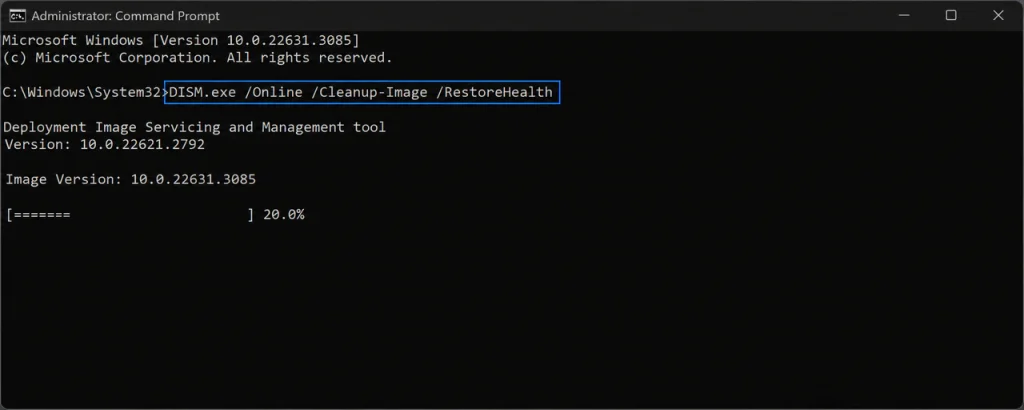
After checking recent changes, drivers, and memory, use the built-in Windows repair tools if damaged system files may also be involved. Open Command Prompt as administrator and run:
DISM.exe /Online /Cleanup-Image /RestoreHealthWait for a successful completion result before running:
sfc /scannowAllow verification to finish. Restart if repairs were made, then test again. Keep the final messages if either command fails. These tools can repair Windows components; they cannot fix defective RAM or make an incompatible third-party driver compatible.
For the full sequence and result explanations, use our SFC scannow guide.
If the IRQL error returns, record the crash times and check whether small crash dumps exist in C:\Windows\Minidump. Dump creation depends on the system’s crash-dump settings, so an empty folder does not mean the crash was harmless. A technician can analyze available dumps alongside the driver history and hardware test results.
A file such as ntoskrnl.exe appearing in an analysis is not, by itself, a reason to replace that file. It may identify where Windows detected a problem rather than what originally caused it. Avoid downloading replacement system files or applying registry “IRQL fixes.”
Do not enable Driver Verifier as a routine first step on your everyday PC. It is intended for controlled driver testing and can deliberately trigger crashes. If the checks above do not isolate the cause, seek targeted dump analysis or hardware support before escalating to reinstalling Windows.