Windows 11 audio problems can leave you with silent speakers, headphones that do not play sound, or one app that stays quiet while everything else works. The cause is often a changed output device, an app volume setting, or an audio driver. Start with the symptom you can reproduce, then test the same audio after each fix so you know what helped.
This guide focuses on sound playback. If other people cannot hear you during calls, check the microphone input and the calling app’s permissions separately. Before troubleshooting, save your work, restart the PC, and play a familiar local audio file or a second app to rule out a single broken video or website.
| Symptom | Start here |
|---|---|
| No sound from any app | Check the output device and connections |
| Only one app is silent | Check Volume mixer and the app’s output |
| The cause is unclear | Run the audio troubleshooter |
| Sound is distorted, crackling, or unusually quiet | Test with audio enhancements off |
| Sound stopped after an update | Check the audio driver and rollback option |
1. Check Windows 11 audio output and connections
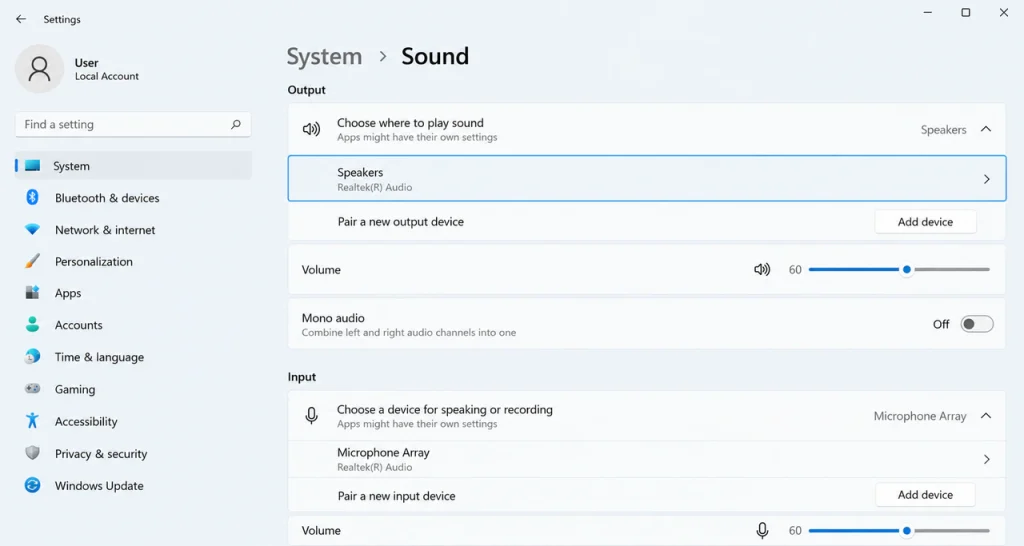
Windows can send audio to an HDMI monitor, a USB headset, or a previously connected device instead of the speakers you expect. This is especially easy to miss after docking a laptop or connecting a display.
- Press Windows + I and open System > Sound.
- Under Output, choose the speakers or headphones you actually want to use.
- Make sure the Windows volume is not muted, then raise it to a comfortable level. Check the accessory’s physical volume wheel, power switch, and mute button too.
- Play audio again. If your headphones work but the speakers do not, unplug the headphones and recheck the selected output.
For wired devices, push the plug fully into the correct output socket. A microphone input will not drive headphones. For USB audio, test another USB port and, where practical, connect directly to the PC while checking the fault. Test an external speaker or headset on another compatible device to distinguish a PC issue from faulty audio hardware.
If your monitor has no speakers, selecting its HDMI or DisplayPort audio output will not make sound come from the laptop. Choose the laptop speakers instead.
2. Check app volume in Volume mixer
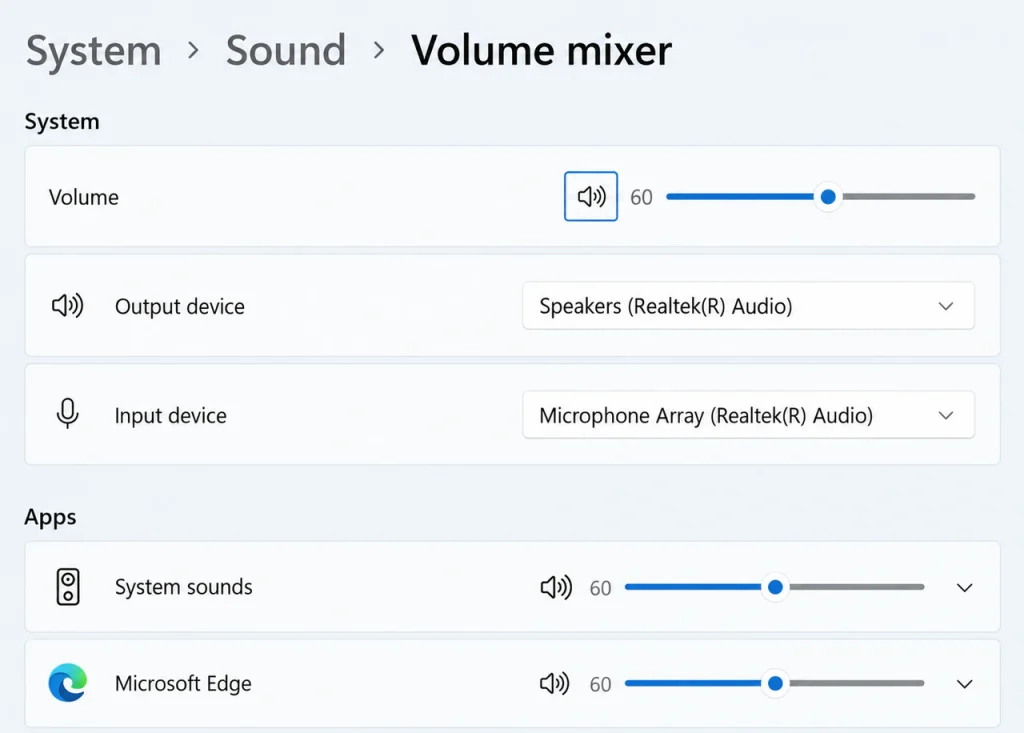
If system sounds work but a browser, game, or media player is silent, check that app before reinstalling drivers. Windows keeps separate volume and output settings for individual apps.
- Open the affected app and start playing audio so it can appear in the mixer.
- Go to Settings > System > Sound > Volume mixer.
- Under Apps, find the affected application. Unmute it and raise its volume if necessary.
- Expand the app’s options where available and check its Output device. Select the intended speakers or headphones, or use the default device after correcting the system output.
- Check the app’s own sound settings, then close and reopen it if it still uses the previous output.
Browsers can also mute individual tabs or websites. A meeting app may have its own speaker selector, independent of Windows. If one website is silent, test a second site and check the tab’s mute state before changing system settings.
For unusually quiet playback, compare the system volume, app slider, and device’s hardware volume rather than immediately turning every control to maximum.
3. Run the audio troubleshooter
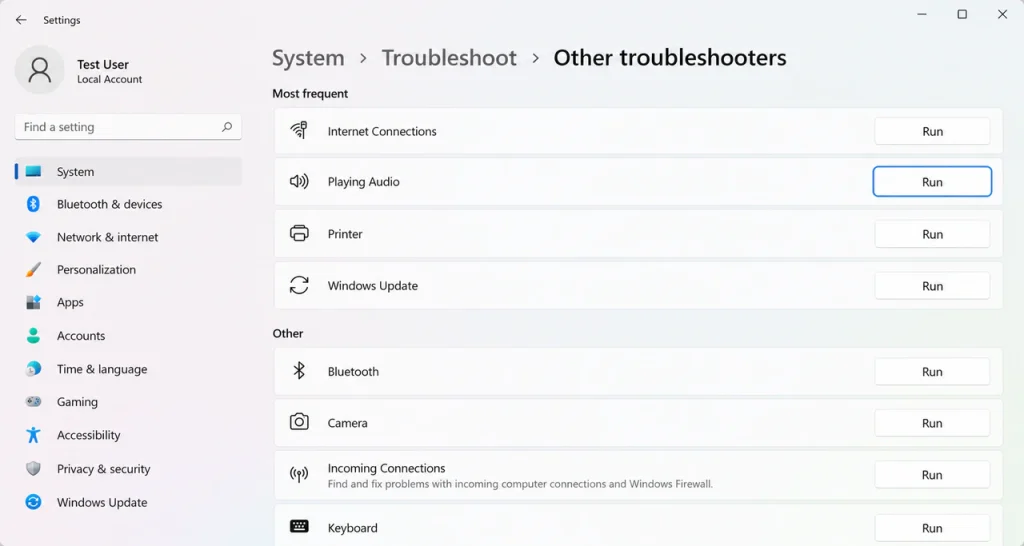
When the obvious settings look correct, let Windows check the playback path. The current Windows 11 audio troubleshooter is available through Get Help; Settings may also provide a shortcut to it.
- Open Start, search for Get Help, and launch the app.
- Search for audio troubleshooter.
- Follow the prompts and choose the playback device you are troubleshooting when asked.
- Read any recommended change, apply the relevant fix, and test the same sound again.
You may also find Settings > System > Troubleshoot > Other troubleshooters > Audio > Run. Older builds label the entry Playing Audio, as shown in the image. The available labels and launch route depend on your Windows version.
If the tool reports a problem but cannot repair it, keep the device name and error message. That is more useful for the next step than repeatedly running the same check.
4. Turn off audio enhancements
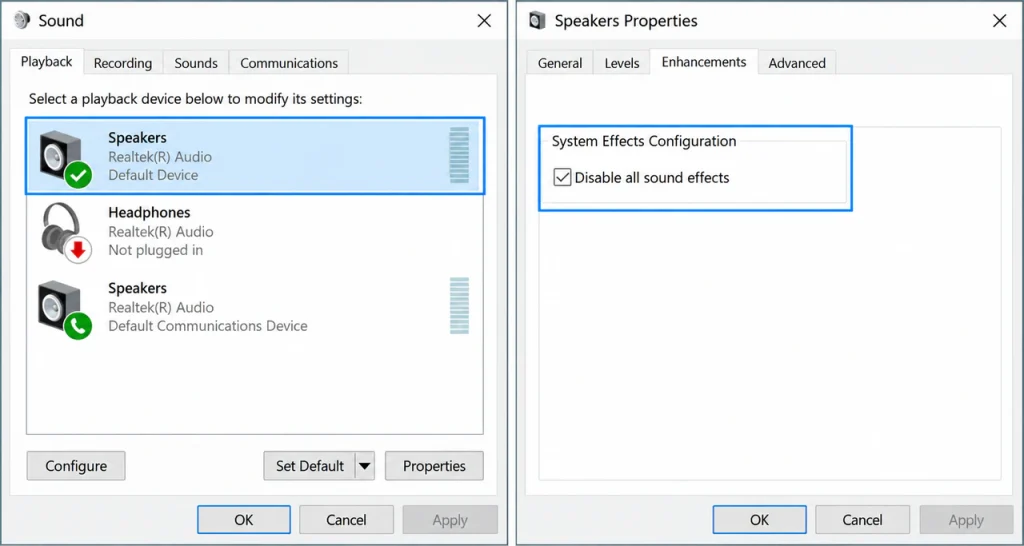
Audio processing can sometimes cause distortion, crackling, or unexpected volume changes. Test playback with enhancements disabled before assuming the speakers are damaged.
- Open Settings > System > Sound.
- Under Output, open the properties for the device you are using.
- If an Audio enhancements menu is available, set it to Off.
- Play the same audio again and compare the result.
Some drivers expose this setting through the classic dialog instead. From the Sound page, open More sound settings, select the device on the Playback tab, and choose Properties. On an Enhancements tab, select Disable all enhancements or Disable all sound effects, depending on the driver, then choose Apply and OK. The image illustrates this alternate interface.
If neither option exists, skip it; enhancement controls depend on the hardware and driver. If turning them off makes no difference, restore your preferred setting. For continuing distortion, try another format offered by the device’s properties and retest, keeping note of the original. There is no single sample rate that fixes every PC.
5. Update or roll back the audio driver
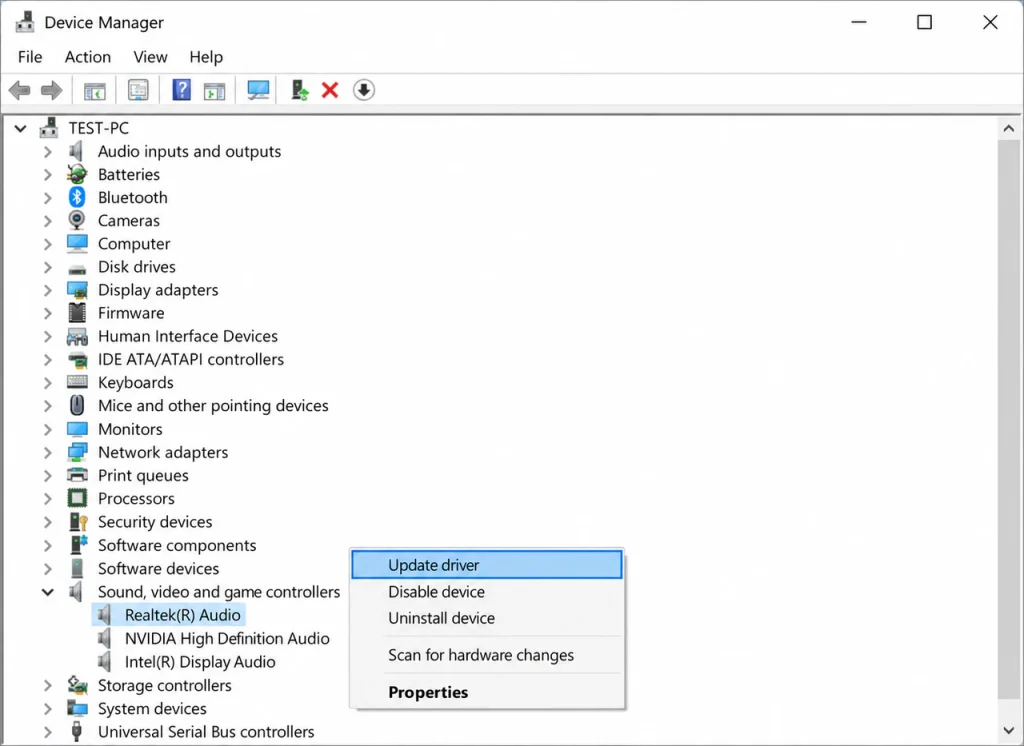
If Windows 11 audio problems affect every app, or started after an update, check the driver for the affected playback device. Install pending Windows updates and restart first, especially if Windows is already asking for a restart.
- Right-click Start and open Device Manager.
- Expand Sound, video and game controllers.
- Find the relevant audio device, such as Realtek(R) Audio. The name varies; HDMI audio may use the graphics hardware’s name.
- Right-click the device and select Update driver > Search automatically for drivers.
- If no update is found, check the PC or audio-device manufacturer’s official support page for your exact model and Windows 11. Follow its installation instructions and restart when required.
If sound worked before a recent driver update, open that device’s Properties > Driver > Roll Back Driver. Follow the prompts and restart. A disabled rollback button means Windows has no previous version available through that option.
Reinstalling a driver is a later option. Download the correct manufacturer’s installer before removing anything, note the current driver version, and follow the manufacturer’s procedure. Windows may reinstall a suitable driver after a restart, but keep the installer available in case it does not. Avoid replacing every audio device or using third-party driver-updater utilities.
If Windows 11 audio still fails, compare the built-in speakers with a known-working headset. A single failing output suggests a device, cable, port, or device-specific driver issue; several silent outputs suggest a wider software problem. For Bluetooth headphones that will not connect, use the separate Windows 11 Bluetooth troubleshooting guide. Give support your PC model, affected output, driver version, and any diagnostic error before considering a Windows reset.