You can download Windows 11 in a different language directly from Microsoft’s website. The official ISO download page lets you choose a product language before saving the installation file.
However, downloading another language and changing the language of your existing installation are different tasks. If you simply want Windows menus and settings in another language, installing a language pack may save you a full reinstall.
This guide explains both options and what to check before proceeding.
Download Windows 11 in a different language from Microsoft
For a compatible Intel or AMD PC, open the official Windows 11 download page.
Then:
- Scroll to Download Windows 11 Disk Image (ISO) for x64 devices.
- Select Windows 11 from the download menu.
- Click Download Now.
- Under Select the product language, choose your preferred language.
- Click Confirm.
- Select 64-bit Download and save the ISO.
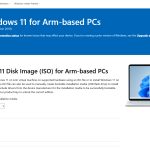
For a Snapdragon or another supported ARM-based PC, use Microsoft’s separate Windows 11 Arm64 download page.
Choose the architecture for the computer where you will install Windows, even if you download the file using another device.
Choose the right Windows language
Check the language options carefully before downloading. Microsoft may list regional versions separately, such as English and English International.
For an upgrade or repair installation, Microsoft instructs you to choose the same language as your current Windows installation. Check Settings → Time & language → Language & region before selecting your download.
If your goal is to change the interface language while preserving your current setup, consider the language-pack method below first.
Change the display language without reinstalling
On a Windows edition that supports multiple display languages, you can download a language pack through Settings.
- Press Windows + I.
- Open Time & language → Language & region.
- Under Preferred languages, select Add a language.
- Search for your preferred language and select Next.
- Select Language pack and Set as my Windows display language, where available.
- Click Install.
- Sign out when prompted, then sign back in.
You can also choose an installed language from the Windows display language menu.
A keyboard layout is separate from the display language. Adding a keyboard lets you type using that layout, but it does not automatically translate Windows menus.
Check for Windows Home Single Language restrictions
If Windows displays “Your Windows license supports only one display language,” your installed edition has a language restriction.
Check your edition under:
Settings → System → About → Windows specifications
Windows Home Single Language does not support adding extra Windows display languages. Downloading another ISO does not change the capabilities of your license. To use multiple display languages, you need an appropriately licensed edition that supports them.
Prepare before installing from another-language ISO
If you intend to reinstall Windows, back up your files and confirm which edition your license covers before starting.
When running Setup from your existing Windows installation, review Choose what to keep carefully. If you need to preserve applications and files, proceed only when Keep personal files and apps is explicitly available.
If that option is missing, stop and check the installation media, language, edition, and supported upgrade path. Do not assume that an ISO in a different language will preserve your current setup.
Booting from installation media starts a different installation process and can lead to a clean installation that removes data.
What to do if your preferred language is missing
The languages available as full installation downloads are not identical to every language option available inside Windows.
Check Add a language in Settings to see whether your preferred language has the display features you need. Availability can vary, and some languages provide typing or other language features without a complete Windows interface translation.
For most users with a working installation and a supported edition, a language pack is the most convenient way to change the Windows interface. Use the ISO when you actually need installation media.