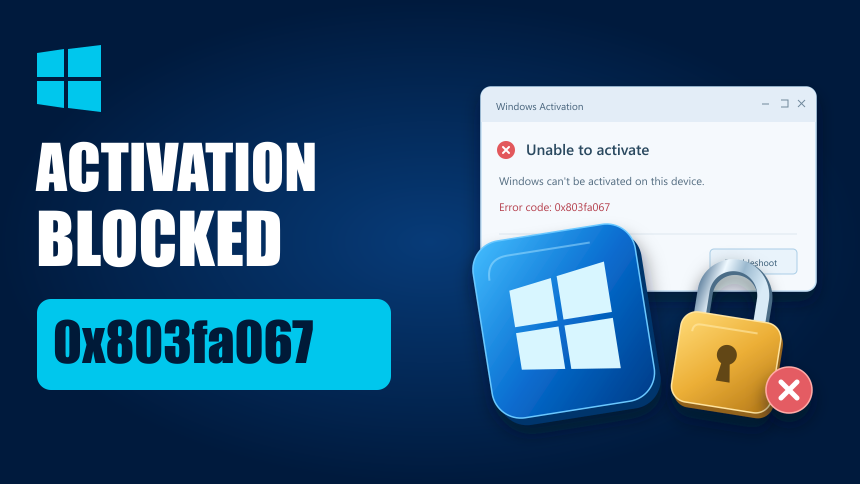
Error 0x803fa067 means Windows has not completed activation with the licensing information currently available. It can appear while changing editions, entering a product key, or reactivating a PC after a motherboard replacement. The right fix depends on what changed before the error appeared.
Begin by checking your installed Windows edition and activation status. A Home license does not activate Pro, and an edition-change key is not automatically proof of a purchased license. If the computer was activated before a repair, investigate reactivation before buying another key.
This guide uses Windows 11 menu paths. On Windows 10, the equivalent activation page is under Settings > Update & Security > Activation. Keep the exact error message with your notes, because a later activation attempt may return a different code.
| When the error appeared | What to check first |
|---|---|
| After entering a new key | Key accuracy, source, and Windows edition |
| During a Home-to-Pro upgrade | Whether Home was activated and a valid Pro license is available |
| After reinstalling Windows | Whether the installed edition matches the existing license |
| After a motherboard replacement | Hardware-change reactivation and the repair provider’s guidance |
| On a company-managed PC | The organization’s activation process and administrator |
1. Check the edition behind error 0x803fa067
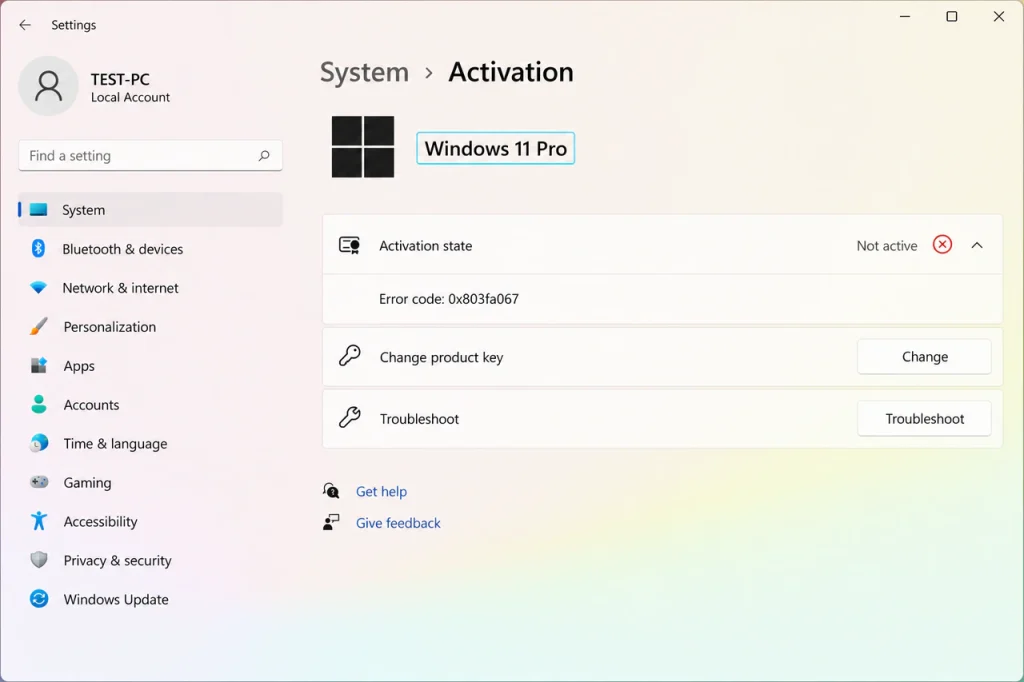
Do this before changing keys or reinstalling anything. You need to know both what Windows is running and what you are entitled to activate.
- Press Windows + I to open Settings.
- Select System > Activation.
- Note the edition shown at the top, such as Windows 11 Home or Windows 11 Pro.
- Expand Activation state and record the full message and error code.
- Compare the edition with your purchase receipt, original PC specification, or previous activation records.
If you own Home but Pro is installed, repeatedly entering the Home key into Pro will not resolve the mismatch. You need either the correctly licensed edition or a valid Pro entitlement. Confirm that situation before planning a reinstall, and back up your files before any installation work.
If the page already says Active, check whether the error belongs to an attempted upgrade rather than the currently installed edition. An activated Home installation and a failed Pro upgrade are different states.
Do not assume a product ID shown elsewhere in Settings is your activation key. A Windows product key has 25 characters in five groups; a digital license may not require you to enter one manually.
2. Reconnect and install pending Windows updates
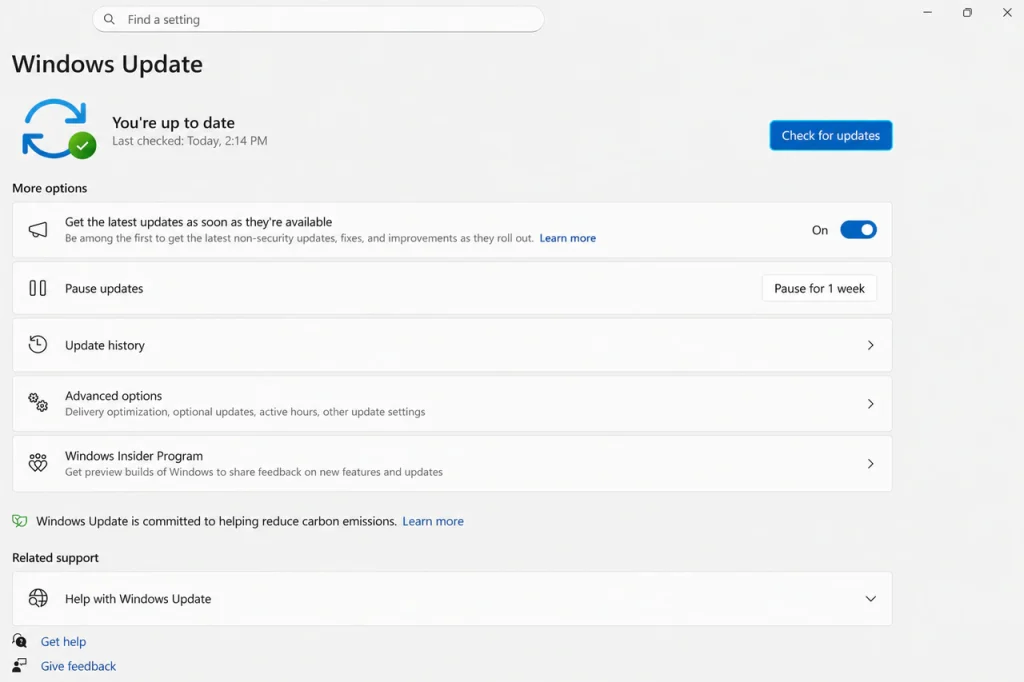
Activation needs to communicate with the activation service. Check the basic connection before concluding that a key has been rejected permanently.
- Confirm that an ordinary website opens in your browser.
- Complete any Wi-Fi sign-in page required by the network.
- Open Settings > Windows Update and select Check for updates.
- Install applicable updates and restart when required.
- Return to System > Activation and retry the activation action offered there.
This is a prerequisite check, not a promise that an update repairs every licensing problem. If Windows reports a temporary service problem, wait before retrying. Repeatedly changing keys while a request is pending makes it harder to establish which attempt produced the latest message.
On a work device, follow your organization’s connection requirements and contact its administrator. Do not change corporate activation settings or point Windows at an activation server found in an online tutorial.
Disconnecting the internet to force an edition change does not create a license. Keep the supported activation process online and use the edition and entitlement checks to decide what to do next.
3. Run the Activation troubleshooter
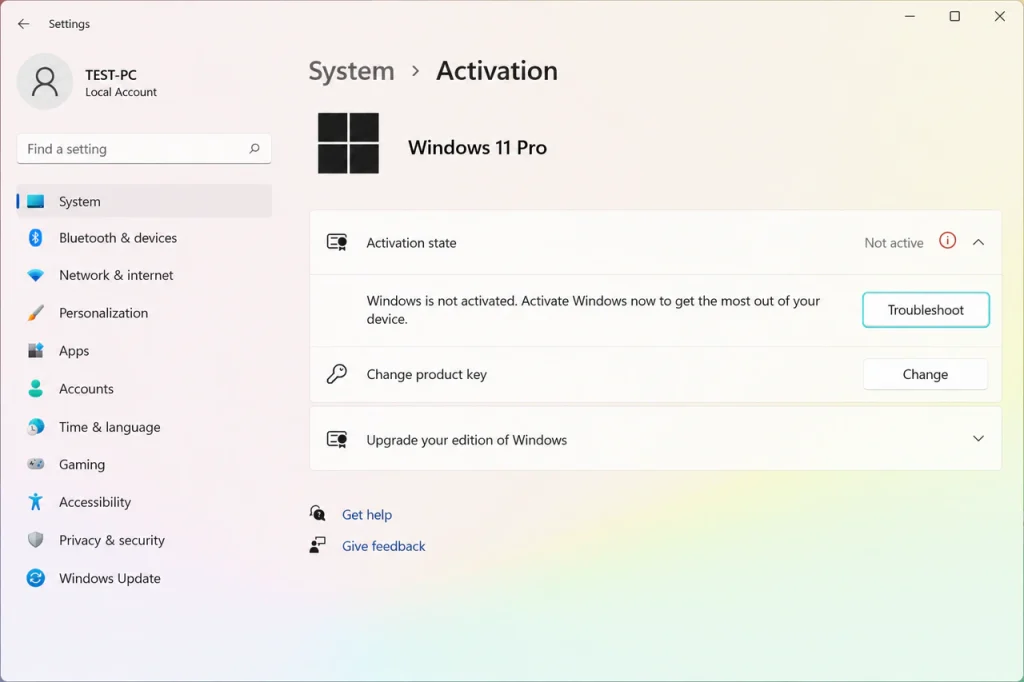
The built-in troubleshooter can check for an existing license and guide you toward the appropriate activation path. It cannot turn an invalid key into a valid license.
- Sign in with an administrator account you are authorized to use.
- Open Settings > System > Activation.
- If Windows is not activated and a Troubleshoot option appears, select it.
- Follow the diagnostic prompts and read the result before making another change.
- If the current Windows 11 workflow opens Get Help, continue the activation diagnostics there. You can also open Get Help and search for Windows activation.
The Troubleshoot option normally appears only while Windows is not activated. Its absence on an already activated installation is not itself a fault. Menu wording and the handoff to Get Help can vary between Windows releases.
If the tool identifies a license for a different edition, follow that finding rather than trying unrelated keys. If it reports a new error, record that code and investigate it; the next step should follow the current result.
Keep a brief record of the outcome, including whether the tool found a digital license, reported an edition mismatch, or offered hardware-change reactivation. That information is useful if support needs to review the case.
4. Enter a valid key for the installed edition
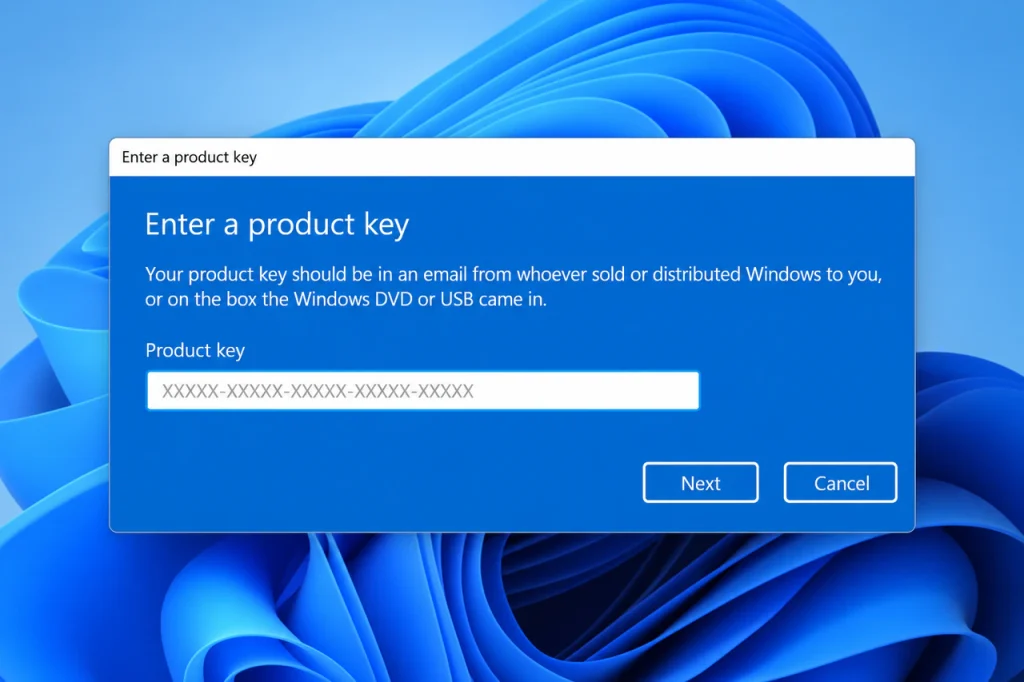
Use this method if you have a legitimate product key appropriate for the edition you are activating. A PC with an existing digital license may instead activate online without another key.
- Open Settings > System > Activation.
- Select Change beside Change product key. Expand the edition-upgrade section if your version places it there.
- Enter your 25-character key carefully.
- Select Next and follow the verification prompts.
- Recheck Activation state after the process finishes.
When upgrading Home to Pro, first confirm that Home is activated and that you have a valid Pro key or purchased Pro upgrade. Follow the edition-upgrade prompts shown by Windows. Do not confuse a publicly shared generic installation key with a purchased activation license.
If a newly purchased key still produces error 0x803fa067, contact the seller with the receipt, edition, and error message. Avoid posting the complete key in a forum or screenshot. A support request usually starts with purchase details and the activation result, not a publicly exposed license code.
For the related edition-change scenario, our Home-to-Pro activation guide explains checks for error 0xc004f050. Use the code currently shown on your own PC when choosing troubleshooting steps.
5. Handle motherboard replacements and support escalation
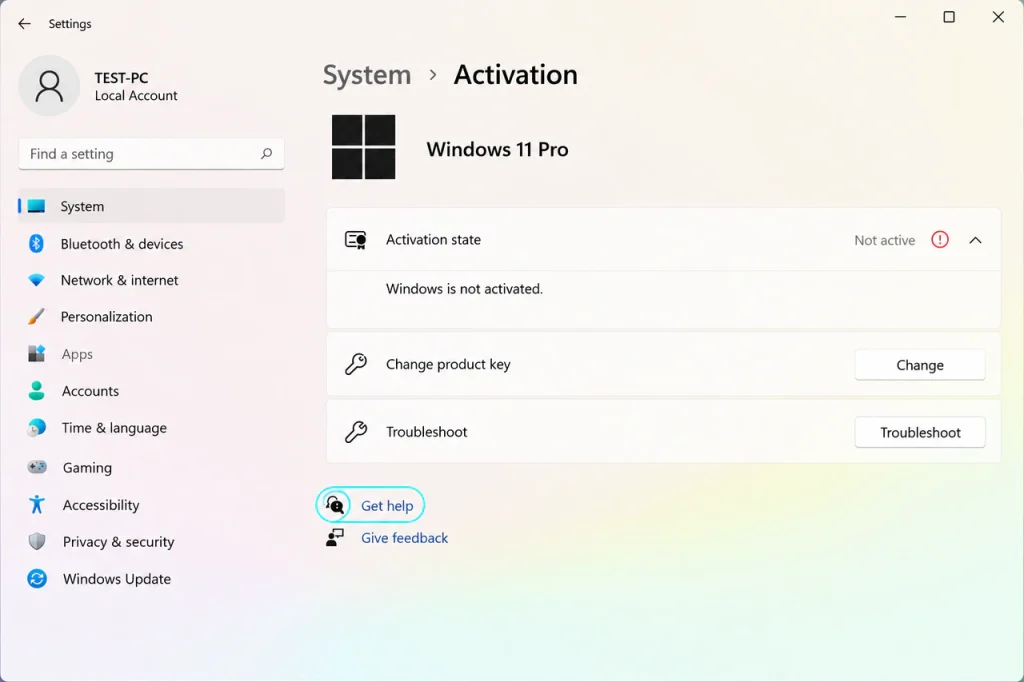
A motherboard replacement can change the hardware identity associated with a digital license. If the PC was activated before the repair, preserve that history instead of assuming a new license is immediately necessary.
For an eligible digital license linked to your account before the change, run the Activation troubleshooter and select I changed hardware on this device recently if offered. Sign in with the same linked account, identify the device you changed, select This is the device I’m using right now, and follow the activation prompts.
If the device is missing, confirm the account first. Linking a different account after the repair does not prove ownership of an earlier entitlement. Reactivation eligibility depends on the license and the circumstances of the hardware change.
For an OEM repair, contact the PC manufacturer or repair provider. Dell specifically documents error 0x803fa067 after motherboard replacement and advises using the troubleshooter if automatic reactivation has not occurred within 48 hours in that scenario. That timing is not a universal fix for invalid keys or edition mismatches, and replacing more hardware does not address the documented activation issue.
If the problem remains, use Get Help from the activation page or the device maker’s normal support channel. Prepare the Windows edition, exact error, purchase or repair record, previous activation status, and troubleshooter result. Keep full keys and account credentials out of public screenshots.
Do not reset Windows, run activation scripts, or disable security software merely to remove the message. Resolve the edition, entitlement, or repair-related reactivation issue first; an installation change should follow a confirmed diagnosis and a backup.