When Windows 11 Bluetooth stops working, the right fix depends on what has failed: the Bluetooth switch may be missing, a device may refuse to pair, or headphones may connect without playing sound. Start with the matching symptom below, then work through the relevant checks. You rarely need to reset Windows to solve a Bluetooth connection problem.
Before changing anything, restart the computer and the accessory. Charge the accessory or replace its batteries, then place it close to the PC. If your only keyboard or mouse uses Bluetooth, connect a wired alternative or use the laptop’s built-in keyboard and touchpad before removing devices or changing drivers.
| What you see | Where to start |
|---|---|
| Bluetooth is off, or the accessory is not listed | Check the switch and pairing mode in fix 1 |
| Bluetooth is on, but connections keep failing | Run the troubleshooter in fix 2 |
| A previously paired device will not reconnect | Remove its saved pairing in fix 3 |
| The Bluetooth switch is missing, or several devices fail | Check the adapter and driver in fix 4 |
| Headphones connect, but audio plays elsewhere | Select the sound output in fix 5 |
1. Check Windows 11 Bluetooth and pairing mode
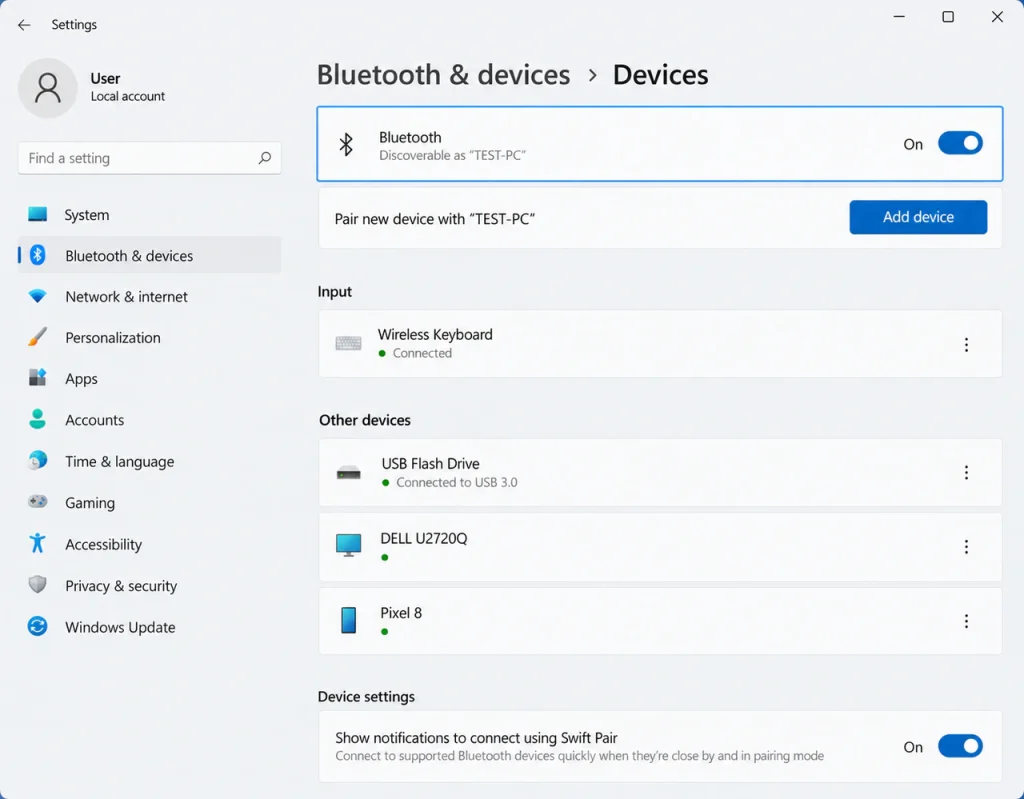
A powered-on accessory is not necessarily ready to pair. Many headphones, speakers, and controllers need a separate button press or a held power button to become discoverable. Follow the accessory manufacturer’s instructions rather than guessing from the power light.
- Press Windows + I and open Bluetooth & devices.
- Turn Bluetooth on. If the switch is missing, continue to the adapter checks in fix 4.
- Open Network & internet > Airplane mode and make sure Airplane mode is off.
- Put the accessory into pairing mode. If it automatically connects to a nearby phone or another PC, disconnect it there temporarily.
- Return to Bluetooth & devices, select Add device > Bluetooth, and choose the accessory. Complete any confirmation or PIN instructions shown.
If the accessory still does not appear, open Bluetooth & devices > Devices. Where available, change Bluetooth devices discovery to Advanced to show additional device types. Settings labels can vary between Windows releases.
For a new desktop PC, check its specifications before assuming it includes Bluetooth. Some desktops need a compatible USB Bluetooth adapter.
2. Run the Bluetooth troubleshooter
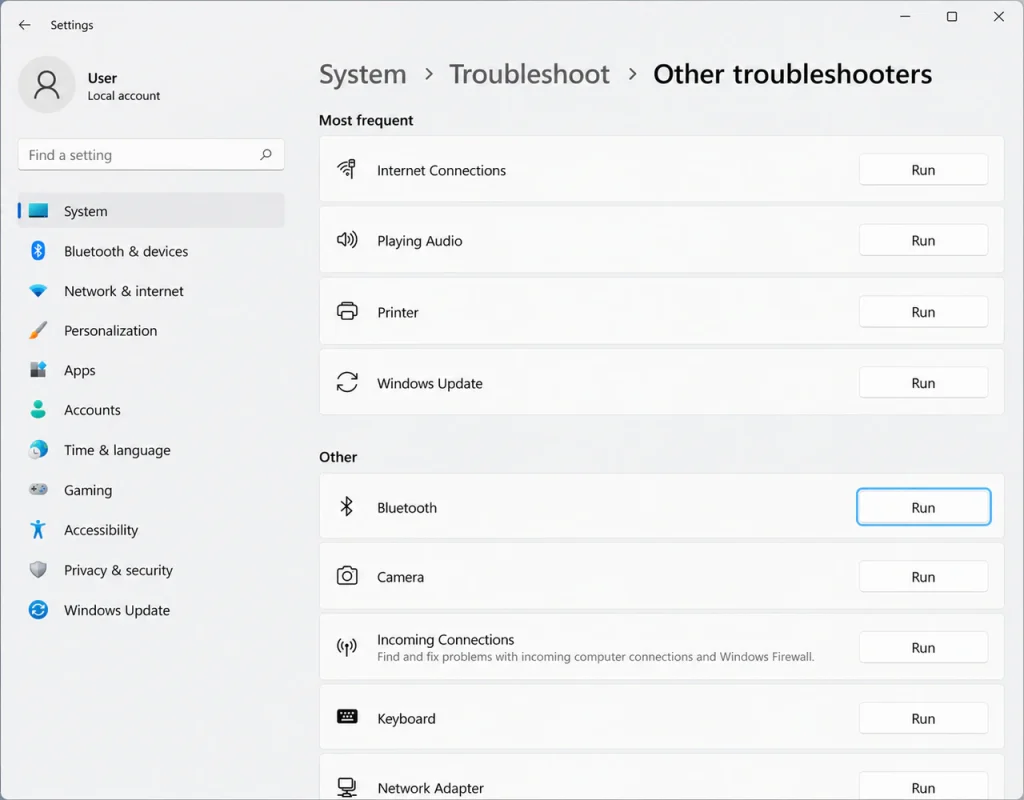
If the basic checks do not help, use the built-in diagnostic route before changing drivers.
- Open Start, type Get Help, and open the app.
- Search for Bluetooth troubleshooter.
- Follow the questions and allow the checks you want to run. Read any proposed change before accepting it.
- Test the same accessory again after the troubleshooter finishes.
Some Windows builds also show Settings > System > Troubleshoot > Other troubleshooters > Bluetooth > Run, as illustrated here. That entry may open Get Help. If it is absent, use Get Help directly; you do not need to install an old troubleshooting package.
Make a note of the result. A report that the adapter is unavailable points toward fix 4, while a problem affecting only one accessory makes a fresh pairing more useful.
3. Remove the device and pair it again
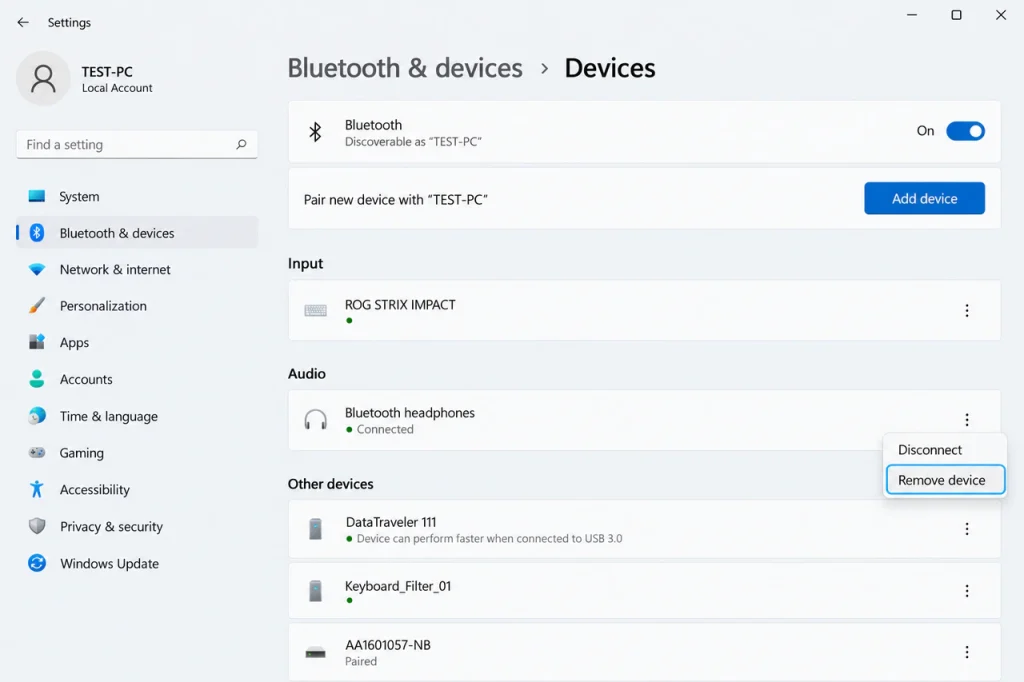
A saved pairing can stop working even though both devices are otherwise healthy. Removing that single entry lets Windows and the accessory establish a new connection. Have an alternative input device ready if you are troubleshooting a Bluetooth keyboard or mouse.
- Open Settings > Bluetooth & devices > Devices.
- Find the affected accessory, select its three-dot menu, and choose Remove device. Confirm the removal.
- Turn the accessory off, then put it back into pairing mode. Some models require clearing their own saved pairing; use the manufacturer’s instructions if necessary.
- Select Add device > Bluetooth in Windows and pair the accessory again.
Test it before removing any other devices. If it works with your phone but never appears on the PC, focus next on the computer’s Bluetooth adapter. If it also fails to pair with another compatible device, the accessory itself may need attention.
Keep the test simple: one accessory, close range, and no competing connection to another computer.
4. Check the Bluetooth adapter and driver
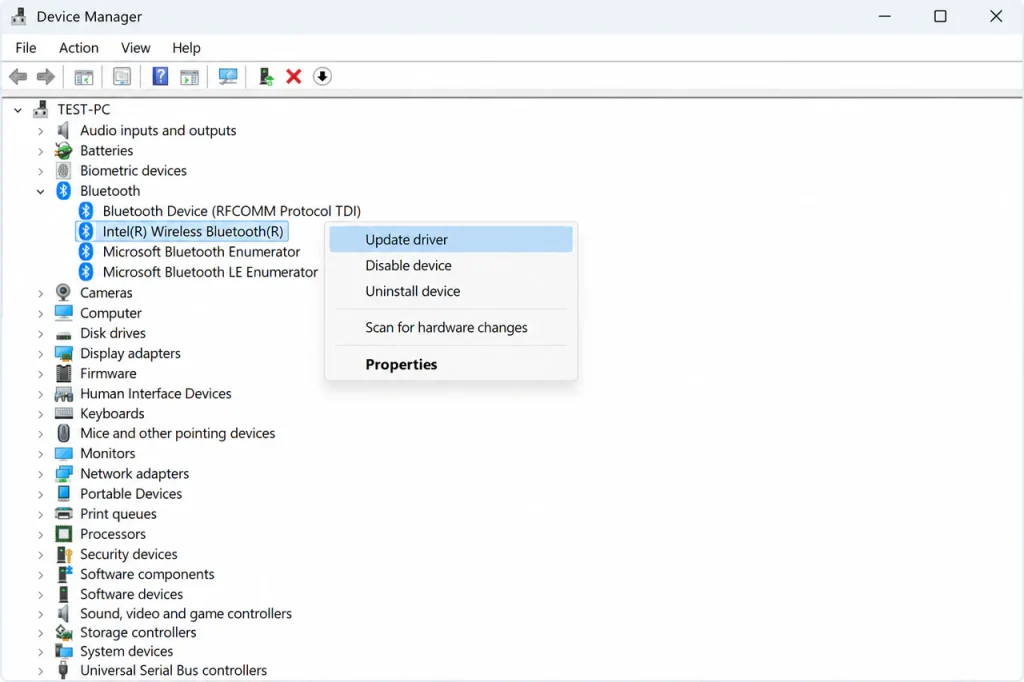
A missing Bluetooth switch, repeated failures across several accessories, or a Device Manager warning can indicate an adapter or driver problem. Start by checking what Windows actually detects.
- Right-click Start and open Device Manager.
- Expand Bluetooth and find the hardware adapter. Its name varies; Intel(R) Wireless Bluetooth(R) is one example. Choose the adapter rather than an enumerator or an individual paired device.
- If its context menu offers Enable device, select it. Otherwise, open Properties and note any error under Device status.
- Check Settings > Windows Update for updates. Under Advanced options > Optional updates, install an applicable Bluetooth driver if one is offered.
- You can also select Update driver > Search automatically for drivers in Device Manager. If that finds nothing, check the PC or adapter manufacturer’s support page for your exact model and Windows version.
“The best drivers are already installed” does not prove that the manufacturer has no newer package. Download drivers from Windows Update or the hardware manufacturer’s official website, and restart when instructed. Avoid third-party driver-updater utilities.
If Windows 11 Bluetooth stopped working immediately after a driver update, check Properties > Driver > Roll Back Driver. The button is available only when Windows retains a previous driver.
If Bluetooth has disappeared entirely, save your work, hold Shift while selecting Start > Power > Shut down, wait one minute, then turn the PC on again. If the adapter remains absent, check the manufacturer’s hardware and firmware instructions.
Reinstalling the adapter is a later step. Download the correct driver first and keep another way to control the PC. Windows may reinstall the driver after removal and restart, but that is not guaranteed; you may need the saved installer. Follow the manufacturer’s procedure for your model.
5. Fix Bluetooth devices that connect without sound
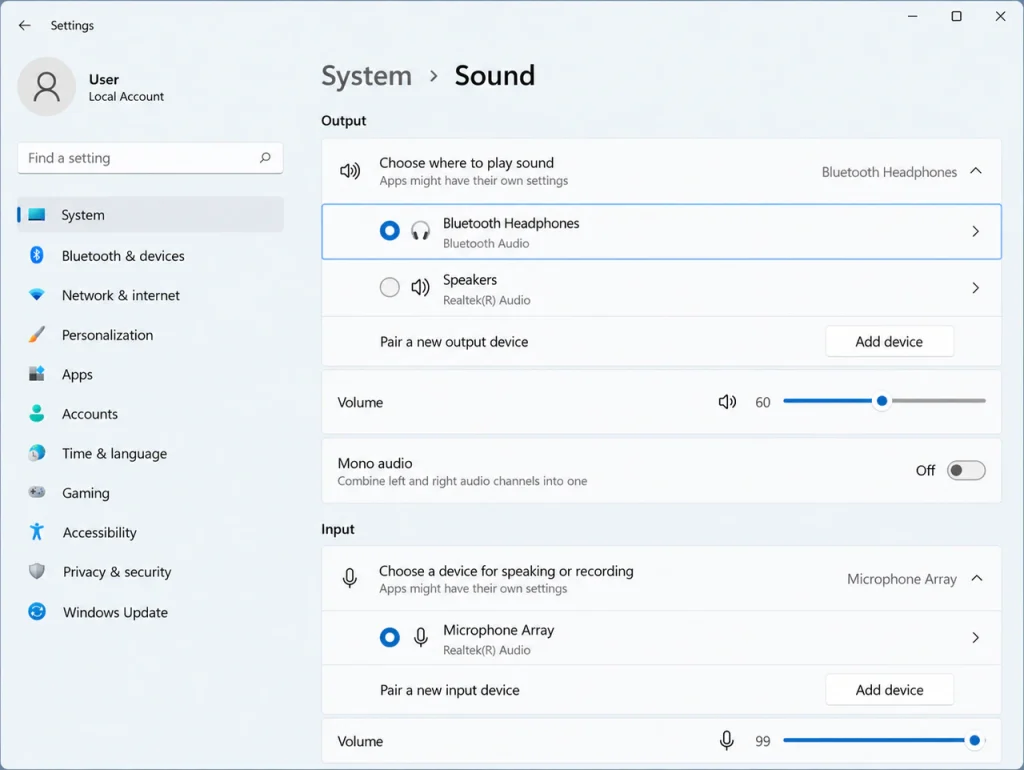
A “Connected” status does not guarantee that Windows is sending sound to the accessory. Headphones may be paired correctly while the laptop speakers remain the selected output.
- Open Settings > System > Sound.
- Under Output, select your Bluetooth headphones or speaker.
- Check the Windows volume, the accessory’s own volume, and the playback app’s mute control.
- If only one app is silent, check that app’s audio settings and the Windows Volume mixer. Select the intended output there too.
- For calls, choose the correct speaker and microphone inside the calling app. Test ordinary music playback separately to distinguish a call-app issue from a general connection fault.
If the accessory does not appear as an output device, return to fix 3 and pair it again.
If Windows 11 Bluetooth still fails, compare two simple tests: try the accessory on another compatible device, and try another known-working Bluetooth accessory on this PC. One failing accessory points toward its setup or hardware; several failing accessories point toward the PC. Give the manufacturer your PC model, adapter name, driver version, and any Device Manager error so support can investigate the right component.