You can disable startup apps on Windows 11 from Settings > Apps > Startup or Task Manager. Turning off apps you do not need immediately after signing in can reduce background activity and make the desktop less cluttered. You can still open those apps manually.
Start with familiar extras, such as a game launcher or music app you rarely use. Leave security tools, backup software, accessibility utilities, and required work applications alone unless you understand their role. The goal is a useful startup list, not an empty one.
These controls mainly affect apps that launch when you sign in. They do not uninstall programs, erase your files, or automatically stop every service an application installs. A slow manufacturer-logo screen or a long delay before Windows begins loading may have a different cause.
| Where to look | Best use |
|---|---|
| Settings > Apps > Startup | Quickly switch a known app on or off |
| Task Manager > Startup apps | Review status and reported startup impact |
| The application’s own settings | Control its launch preference directly |
| Startup folder | Check shortcuts that launch at sign-in |
1. Disable startup apps in Settings
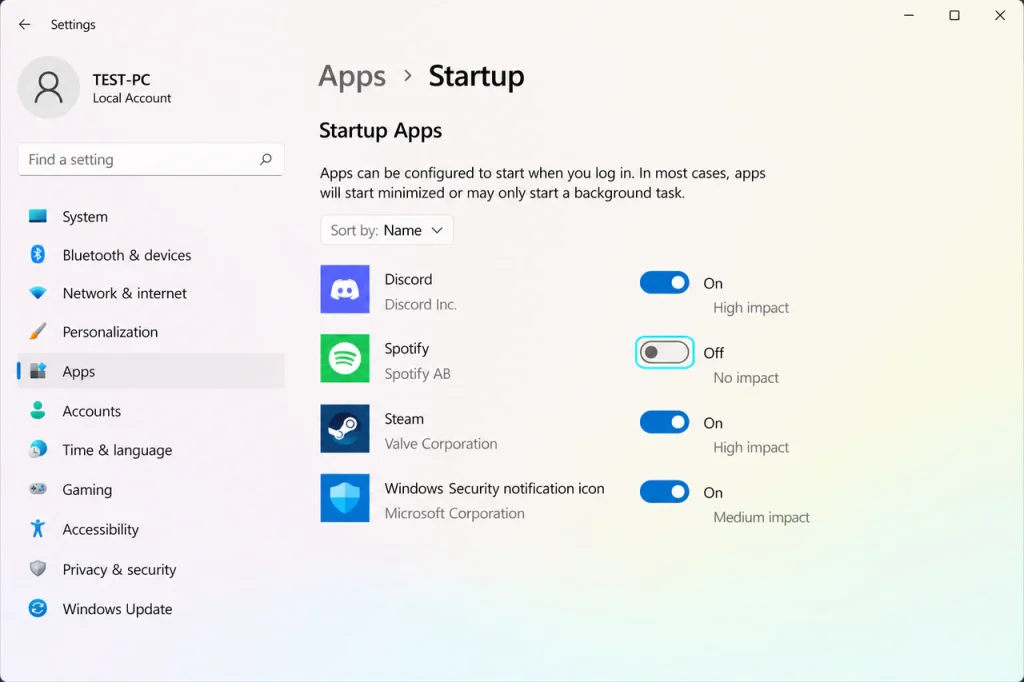
The Settings page is the simplest place to begin. It lists registered startup apps with individual switches, so you can change one entry without affecting the rest.
- Press Windows + I to open Settings.
- Select Apps > Startup.
- Find an app you recognize and do not need at every sign-in.
- Set its switch to Off.
- Repeat for other optional apps, keeping a note of what you changed.
You can also search Windows for Startup apps. Sort the list by name, status, or startup impact if those options are available in your version.
Switching an entry off does not necessarily close an instance that is already running. Exit the app normally if you want to close it now, then test the startup change at your next sign-in.
A missing entry does not mean the program has no automatic-launch behavior. It might use its own preference or a shortcut instead. Check the later methods before assuming the switch has failed.
2. Use Task Manager to check startup impact
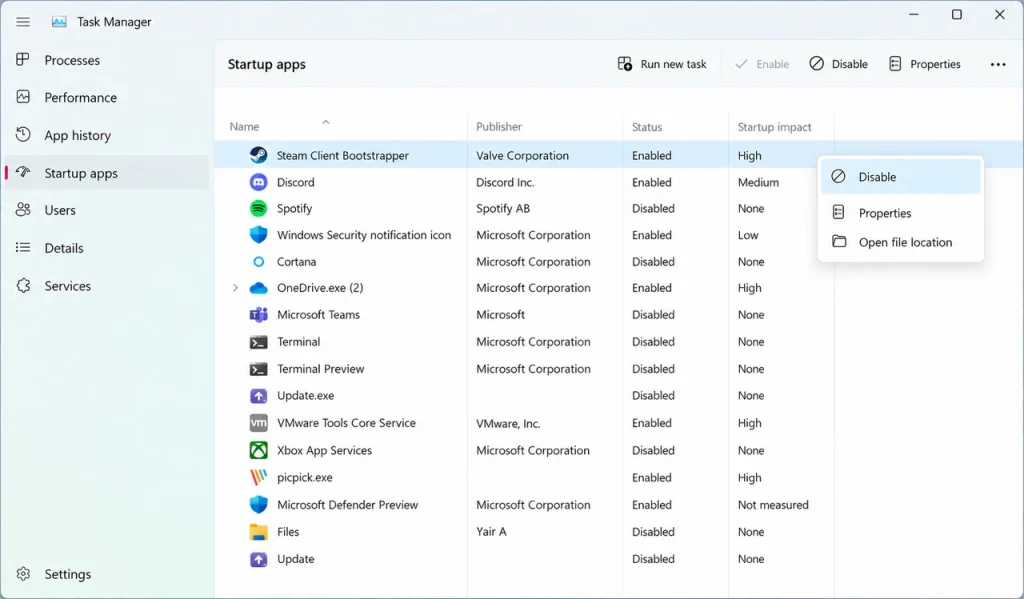
Task Manager offers a more detailed view when you want to decide which optional programs deserve attention first. Its startup-impact column is a guide to recorded resource use, rather than a prediction of how many seconds you will save.
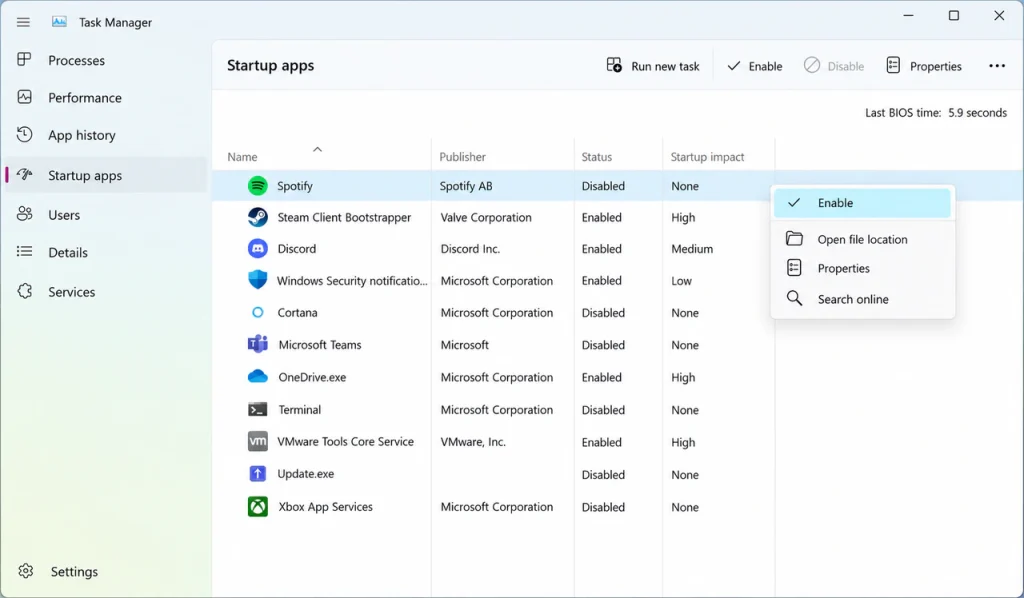
- Press Ctrl + Shift + Esc.
- Select Startup apps in the left navigation. Expand the navigation menu if only icons are visible.
- Review the Status and Startup impact columns.
- Right-click a known optional app with an Enabled status and choose Disable.
- Confirm that its status changes to Disabled.
High impact is a reason to investigate an app you do not need immediately. It is not a reason to disable an essential utility. Likewise, Not measured means there is no usable impact measurement; it does not prove that the entry is harmless or expensive.
Settings and Task Manager generally manage the same registered startup applications. You do not need to disable the same entry twice. Use whichever view makes the app easiest to identify.
If a name is unclear, inspect its publisher and file location before changing it. Do not delete the executable or disable an unfamiliar item merely because its name looks technical. On a managed work PC, an administrator may control the setting.
3. Turn off auto-start inside the app
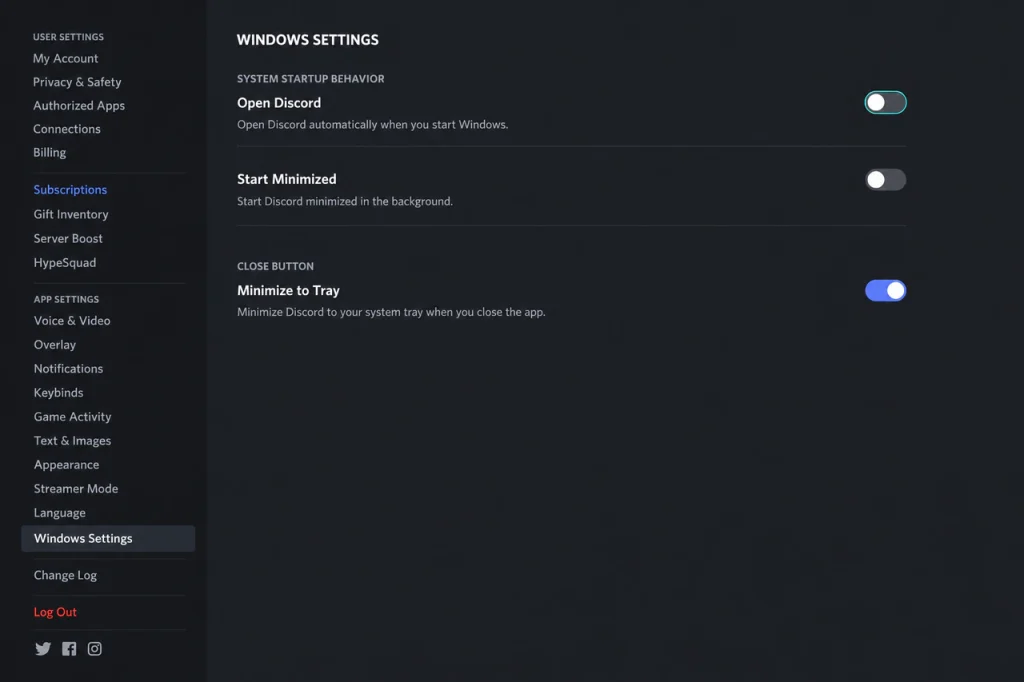
Some applications provide their own launch switch. This is useful when the app is missing from the Windows list or you want to make its intended behavior explicit.
For example, in Discord, open User Settings, select Windows Settings, and turn Open Discord off. The layout may change between releases, but the control concerns launching Discord when Windows starts.
In Steam, open Steam > Settings > Interface and turn off or uncheck Run Steam when my computer starts. The control’s appearance can differ between client versions.
For other apps, look for a clearly labeled preference such as Launch at startup, Start with Windows, or Open at login. A setting called Start minimized usually controls window visibility; it may still allow the program to launch and run in the background.
After you disable startup apps through their own preferences, close them normally and test another sign-in. If the app returns only after you open a related file, browser link, or another program, that is a separate launch trigger rather than proof that Windows ignored the startup setting.
4. Check the Startup folder for shortcuts
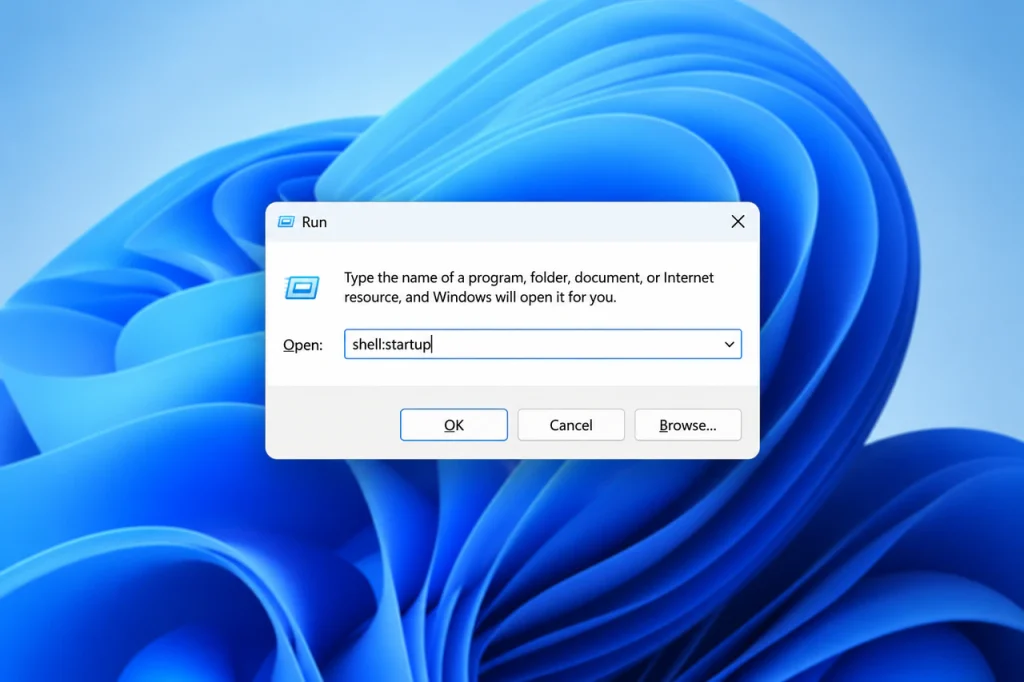
The Startup folder can contain shortcuts that launch at sign-in. It is worth checking when the app is absent from Settings and Task Manager.
- Press Windows + R.
- Enter
shell:startupand press Enter to open your account’s Startup folder. - Identify a shortcut belonging to the optional app.
- Move that shortcut to a separate holding folder outside Startup, so you can restore it if necessary.
Check that the item is a shortcut before moving it. Leave unknown scripts, documents, or other files alone until you understand why they are there. Moving a known shortcut out of Startup preserves a convenient way to undo the change.
The command shell:common startup opens the shared Startup folder. Changes there can affect other users and may require administrator permission. Use it only when you are responsible for the PC and know which entry needs changing.
If both folders are empty, that is normal. Many apps register their launch behavior elsewhere. Avoid deleting registry entries or disabling scheduled tasks at random; those can also support updates, maintenance, or managed software.
5. Re-enable an app and check the next sign-in
Save your work, restart Windows, and sign in again after making a small set of changes. Check whether the selected apps stay closed and whether the tools you need still work. Do not assume a cleaner desktop means every source of startup delay has been fixed.
To reverse a change, return to Settings > Apps > Startup and turn the app On. Alternatively, select its Disabled entry in Task Manager > Startup apps and choose Enable. Restore a moved shortcut to its original Startup folder, or turn the app’s own launch preference back on.
If the app is absent from Task Manager after using its own preference, reverse the setting inside the app first. An app can remove its startup registration when you turn that preference off.
When a program keeps returning, record its exact name and when it appears. Compare a clean sign-in with a restart after leaving the app open. That distinction helps separate an automatic startup entry from session restoration or a launch triggered by another application.
Change one more item only after checking the result of the previous change. If disabling optional apps makes little difference, investigate storage pressure, updates, resource usage, or another bottleneck. Our guide to a slow computer covers those broader checks.