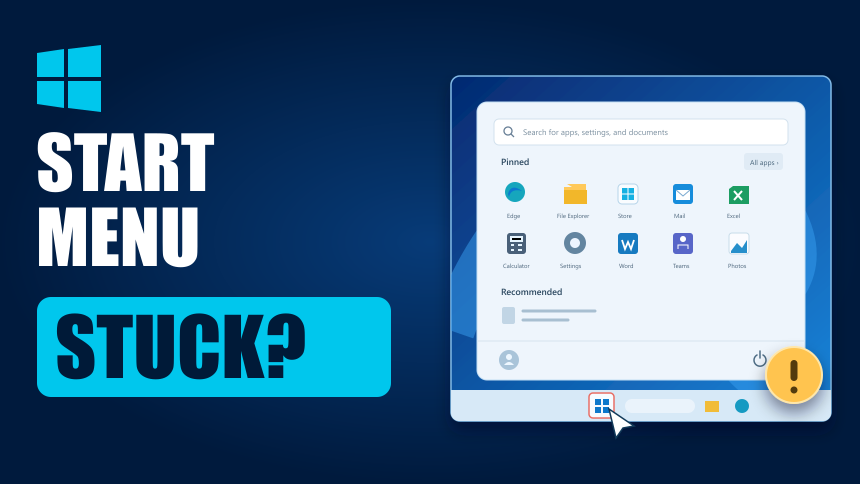
Is your Start menu not working on Windows 11? If clicking Start does nothing, the panel freezes, or it closes immediately, begin with the desktop and Start processes before trying deeper repairs. You can reach the tools in this guide using keyboard shortcuts even when the menu will not open.
Try both the Windows key and a click on the Start button. If one works, note that difference. If Start opens but searches return no results, you may have a search-specific problem rather than a complete Start failure. Record when it began and whether it followed an update or a customization-tool change.
Save open work first. If the whole PC is unresponsive, rather than just Start, troubleshoot that broader freeze. If you can reach the security screen with Ctrl + Alt + Delete, you can use its power button to restart Windows after saving your work.
| Symptom | Useful first check |
|---|---|
| Start and the taskbar both freeze | Restart Windows Explorer. |
| Desktop works but Start will not open | Restart the Start menu process, then sign out if necessary. |
| Problem began after installing a shell utility | Update or remove that recent customization. |
| Only one account is affected | Compare with another account before repairing the whole installation. |
| Several Windows features fail | Check updates and system-file integrity. |
1. Start menu not working? Restart Windows Explorer
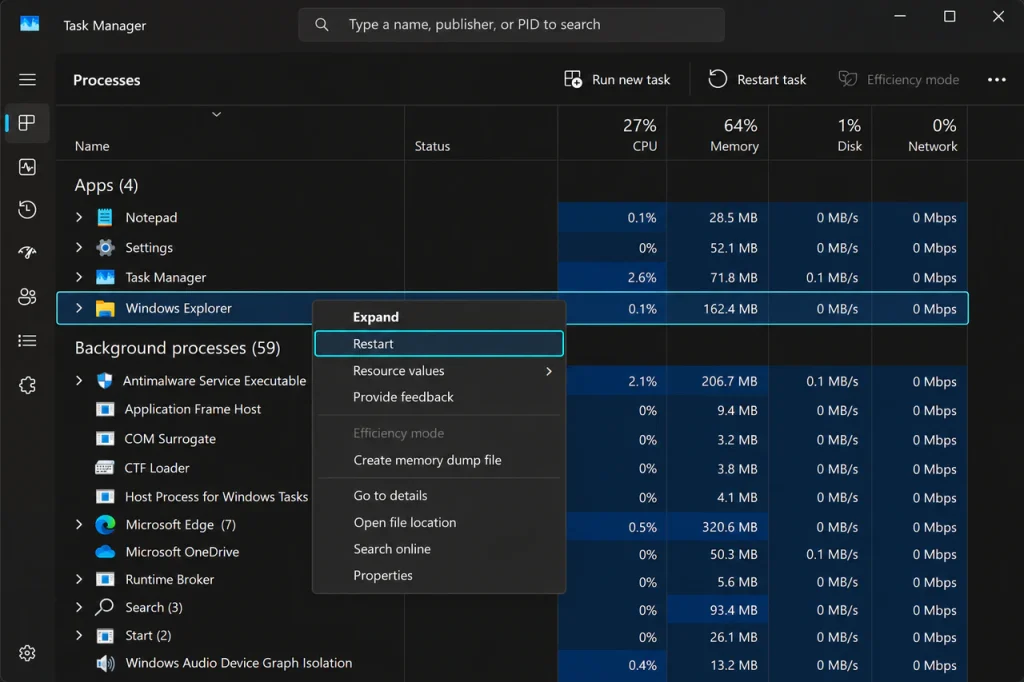
Windows Explorer manages much of the desktop shell. Restarting it can refresh a stuck taskbar without signing you out, although it is not a guaranteed fix for the separate Start component.
- Press Ctrl + Shift + Esc to open Task Manager. If that shortcut fails, press Ctrl + Alt + Delete and choose Task Manager.
- Open Processes and find Windows Explorer. Use the Task Manager search box if your version has one.
- Right-click Windows Explorer and select Restart, or select its row and choose Restart task.
- Wait for the taskbar and desktop to reappear, then test Start again.
The desktop may briefly disappear or flicker. File Explorer windows can also be affected, so finish file transfers before restarting the process. Leave unrelated processes alone.
If Windows Explorer is absent and the desktop shell has not returned, use Run new task in Task Manager, enter explorer.exe, and confirm. This launches Explorer; it does not reinstall the Start menu.
2. Restart the Start menu process
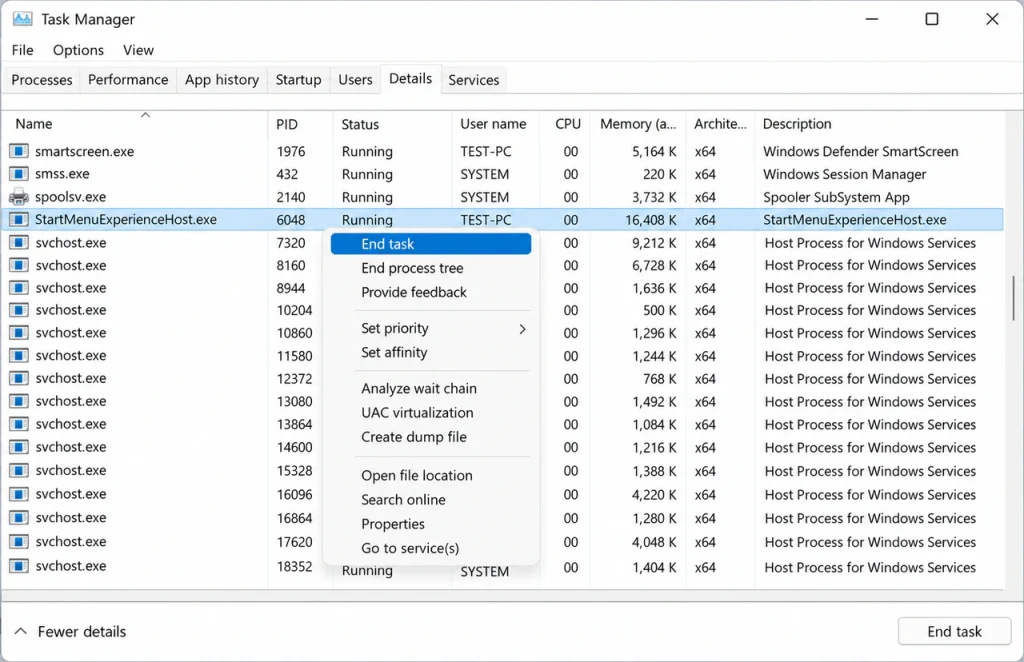
If Explorer works but the Start menu is still frozen, try restarting the component that displays it for your account. Its executable is StartMenuExperienceHost.exe.
- In Task Manager, open Details.
- Find StartMenuExperienceHost.exe. If multiple accounts are signed in, identify the entry belonging to your current account.
- Right-click that specific entry and select End task. Confirm if asked.
- Wait briefly, then press the Windows key to test Start.
Windows normally relaunches this component. If it does not return or keeps failing, stop repeating the termination. Save your work, press Ctrl + Alt + Delete, choose Sign out, and sign in again. A full restart is another way to reload the session.
If the process is missing, that alone does not prove its installation files are gone. It may be failing to launch. Recurring crashes need further investigation rather than deleting the executable or downloading a replacement from another site.
On an organization-managed computer, report the symptom and recent changes to your administrator. Start layout policies and shell configuration can affect behavior, and changing local policies may not address the managed setting.
3. Install Windows updates and check recent changes
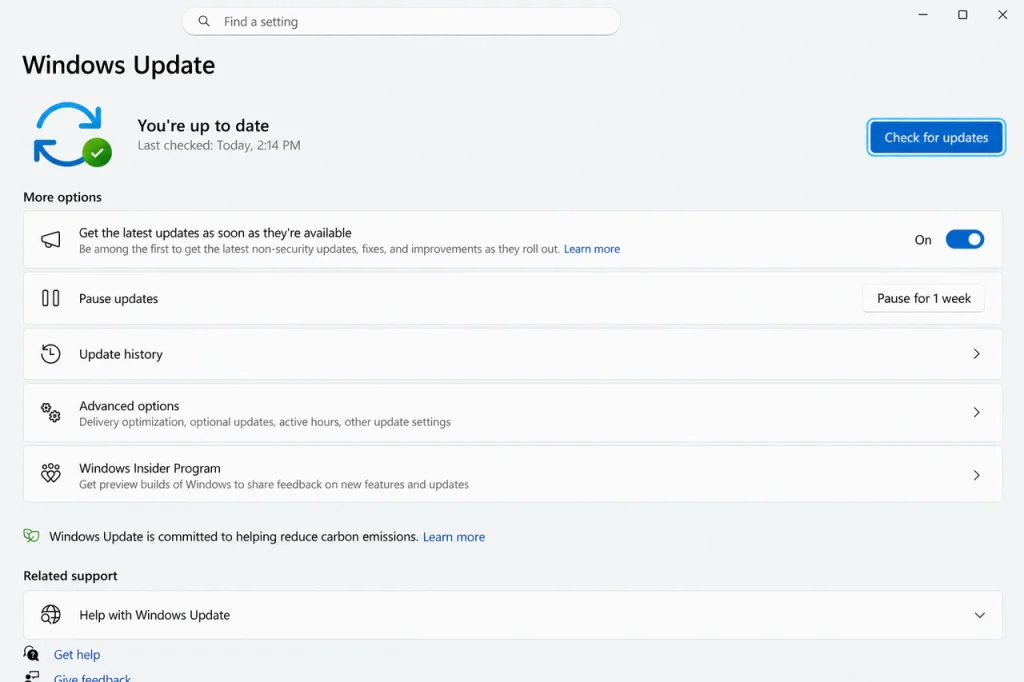
A Start menu not working after an update does not automatically mean the update must be removed. First record the Windows build and check for a corrective update. Also consider shell customizers that may need a compatible release.
- Press Windows + I to open Settings.
- If Settings does not open, use Task Manager’s Run new task and enter
ms-settings:windowsupdate. - Open Windows Update and select Check for updates.
- Install applicable updates and restart when required.
- Test Start before making another change.
To record the version without Start search, press Windows + R, enter winver, and note the version and OS build. If the issue began immediately after an update, keep its KB number from Update history with your troubleshooting notes.
If you recently installed a taskbar replacement, Start-menu replacement, theme patcher, or other shell utility, check its compatibility with your current Windows build. Update it or use its supported uninstaller. Settings is available through Windows + I > Apps > Installed apps.
Make one change at a time. Avoid applying old registry tweaks intended for a different Windows release, and do not disable security software as a general-purpose Start repair.
4. Repair Windows system files
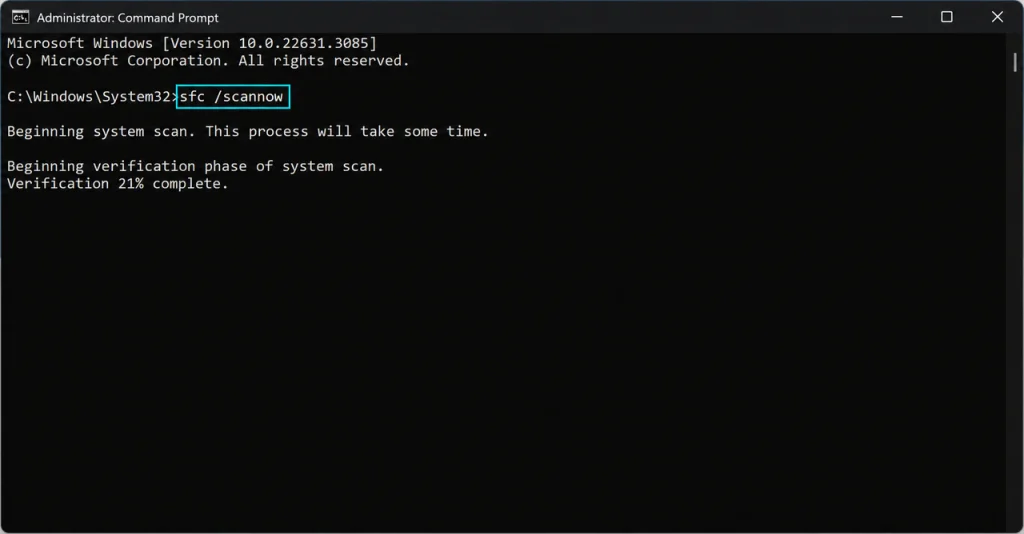
If Start remains unreliable and other Windows features also misbehave, check the servicing image and protected system files. These tools can repair Windows components, but they do not correct every account setting or third-party shell modification.
- Open Task Manager with Ctrl + Shift + Esc.
- Select Run new task and enter
cmd. - Select the option to create the task with administrative privileges and confirm. Supply authorized administrator credentials if requested.
- In the administrator Command Prompt, run the DISM command below.
DISM.exe /Online /Cleanup-Image /RestoreHealthLet DISM complete successfully, keeping an internet connection available for repair content. Then run:
sfc /scannowWait for verification to finish and read the final message. Restart if repairs were made and test Start again. If either tool fails, keep its exact error instead of assuming the repair completed. Our SFC scannow guide explains the results and follow-up checks.
Do not run a command that re-registers every installed app simply because it appears in another guide. Start package registration is a targeted diagnostic task, and the account used to run a command matters. If basic repairs fail, collect evidence before changing application registrations or system-folder permissions.
5. Test another account before repairing Windows
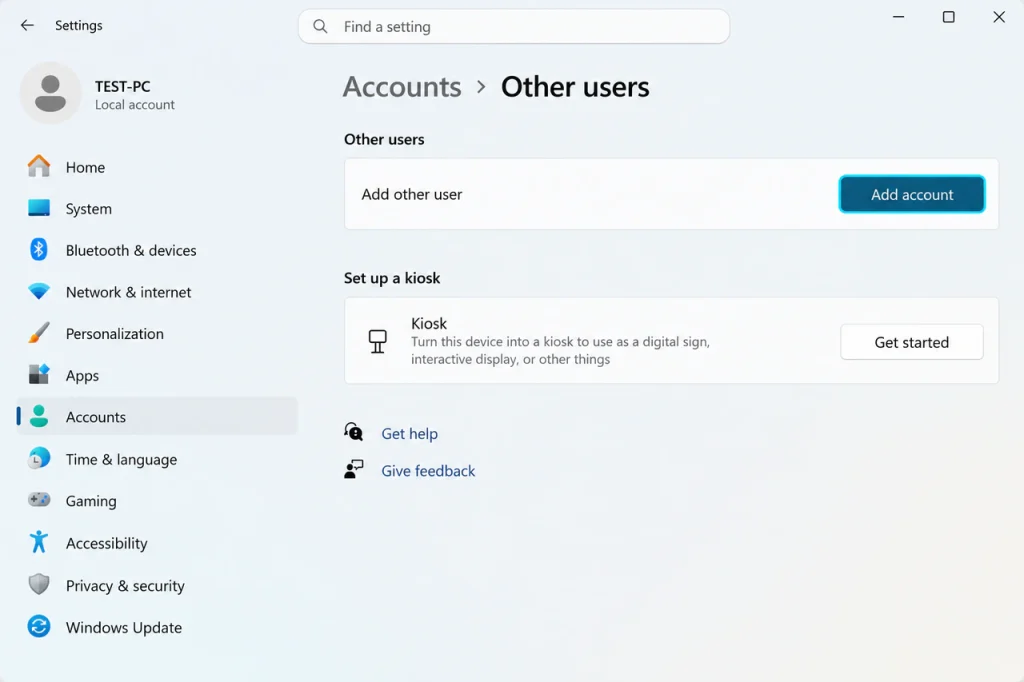
Testing another account can help distinguish a problem affecting one user from a wider installation issue. If an existing second account is available and you are authorized to use it, sign in there and test Start first.
Otherwise, an administrator can create a separate test account:
- Press Windows + I and go to Accounts > Other users. Alternatively, use Task Manager’s Run new task with
ms-settings:otherusers. - Select Add account and follow the setup prompts. If offered, the local-account route uses I don’t have this person’s sign-in information, followed by Add a user without a Microsoft account.
- Use a standard account for the test; administrator rights are not required merely to open Start.
- Save your work, sign out through Ctrl + Alt + Delete, and sign in to the test account.
- Allow the initial account setup to finish, then test the Start button and Windows key.
If Start works there, investigate the original account’s configuration and recent customizations. Keep the original account and files intact; a successful comparison is not a reason to delete or rename its profile folder. If Start fails in both accounts, the problem is more likely to require an installation-wide check.
For persistent system-wide failures, back up your files and consider Settings > System > Recovery > Fix problems using Windows Update > Reinstall now, where available. This reinstalls the current Windows version while preserving apps, files, and settings. It needs power and internet access and can be unavailable on managed devices or older builds.
Reset this PC is a different recovery option and can remove applications. Before escalating, keep the Windows build, recent update or utility changes, repair results, and whether another account works. For repeated Start crashes, a technician can check the Application log for StartMenuExperienceHost.exe errors rather than relying on repeated resets.