To fix blue screen errors in Windows 11, start by recording the stop code and checking what changed before the crashes began. A recently installed driver, connected device, or software change can provide a useful starting point.
A sudden crash can feel alarming, especially when your computer restarts before you can read the message. However, one crash does not automatically mean your PC needs replacing. Work through the checks below individually, testing whether the problem returns after each change.
What causes blue screen errors?
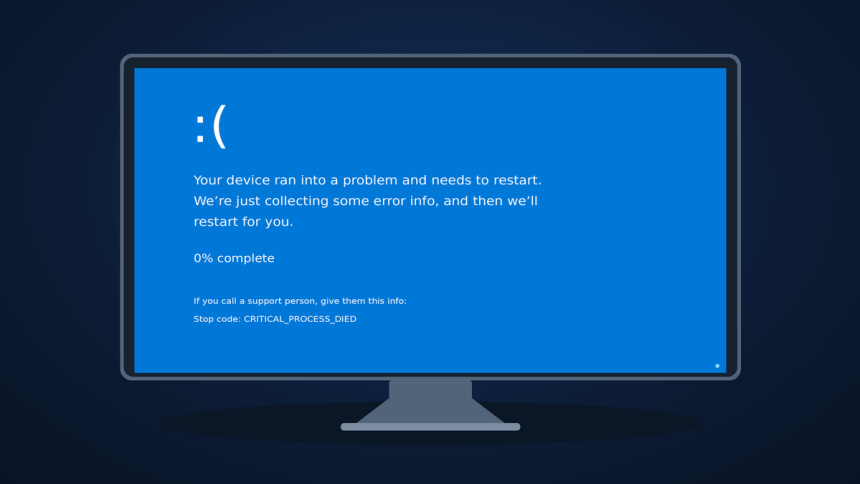
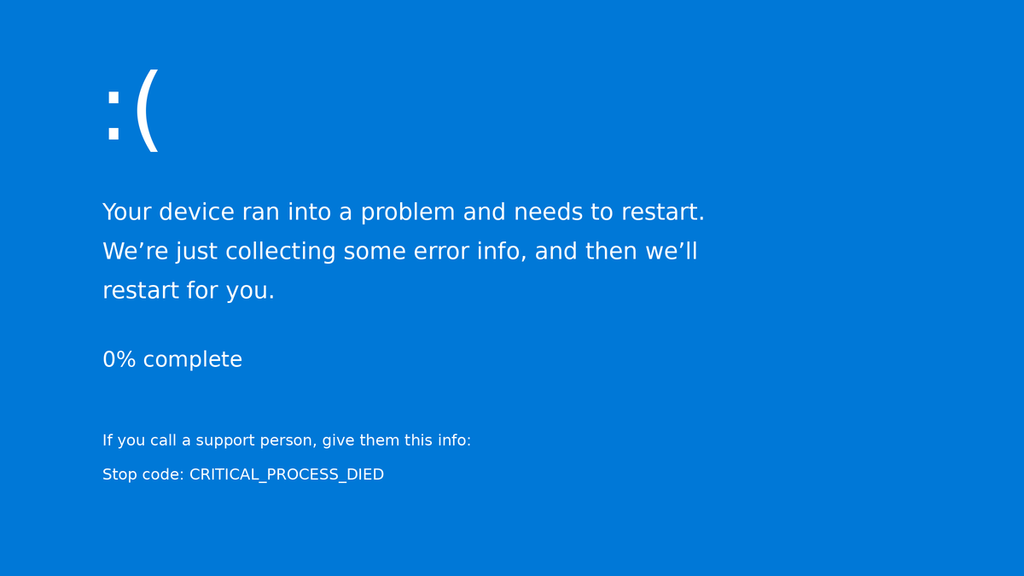
Windows displays a stop error when a serious problem forces it to shut down or restart. Hardware, drivers, and software can all be involved. Depending on your Windows 11 version, the stop-error screen may appear blue or black.
Before troubleshooting, back up important files if you can access Windows. Then note when the crashes happen: during startup, while gaming, after waking from sleep, or when using a particular device.
1. Record the stop code before you fix blue screen errors
Photograph the error screen if possible. Capture the stop code and any filename shown beside it.
Once you have the code, use the matching guide: Windows error 0xc000021a or Video TDR Failure. If you cannot identify the cause, learn how to read Windows crash dump files before choosing a repair.
Microsoft lists examples such as MEMORY_MANAGEMENT and PAGE_FAULT_IN_NONPAGED_AREA. These details help narrow the investigation, but a stop code alone does not establish which component is faulty.
Keep a short troubleshooting record. Include the date, what you were doing, and any recent changes. This becomes particularly useful if the crashes are intermittent.
2. Disconnect recently added hardware
If the problem began after connecting new hardware, shut down the computer and disconnect that device before restarting. Microsoft recommends removing recently added hardware as an early troubleshooting step.
Begin with external accessories you can safely disconnect. If internal components were recently installed and you are unfamiliar with working inside a PC, ask the installer to check them.
Reconnect devices individually after testing. Changing several things at once makes the cause harder to identify.
3. Check drivers to fix blue screen errors
If crashes started immediately after a driver update, consider rolling back that specific driver:
- Right-click Start and open Device Manager.
- Find the affected device.
- Right-click it and select Properties.
- Open the Driver tab.
- Select Roll Back Driver, if available, and follow the prompts.
Microsoft documents driver rollback through Device Manager. If you need a replacement driver, obtain the compatible version from the device manufacturer.
Focus on a device connected to the timing of the problem. Avoid changing every driver simply because your computer crashed.
4. Use Safe Mode if normal startup is unreliable
Safe Mode provides a limited Windows environment for troubleshooting.
If you can reach the desktop:
- Open Settings → System → Recovery.
- Under Advanced startup, select Restart now.
- Choose Troubleshoot → Advanced options → Startup Settings → Restart.
- Press 4 or F4 to start Safe Mode.
You may need your BitLocker recovery key when using recovery options on an encrypted device.
If the computer remains stable in Safe Mode, record that observation. It is a useful diagnostic clue, rather than proof that one particular application caused the crashes.
5. Repair damaged Windows system files
If you can run Windows normally, use its built-in repair tools to check for system-file corruption. Our Windows system-file repair guide explains DISM and SFC results in more detail.
Search for Command Prompt, right-click it, and choose Run as administrator. Run this command first:
DISM.exe /Online /Cleanup-image /Restorehealth
After it completes successfully, run:
sfc /scannow
Microsoft recommends running DISM before System File Checker. Allow verification to finish before closing the window. These tools repair Windows components and protected system files; they do not repair defective hardware.
These instructions apply inside a running Windows installation. Recovery-environment repairs require different commands.
6. Check updates and available storage
Open Settings → Windows Update → Check for updates and install available updates.
Also check the free space on your Windows drive under File Explorer → This PC. Microsoft includes both Windows updates and sufficient free storage in its stop-error troubleshooting guidance.
Review files before deleting them. Keep your crash notes and test the computer again after completing these checks.
What to do if Windows keeps crashing
If Windows cannot start, Startup Repair is available through Troubleshoot → Advanced options → Startup Repair in the Windows Recovery Environment. It is designed to address problems preventing Windows from starting.
For persistent crashes, seek help using your stop codes, screenshots, and troubleshooting record. Back up accessible files before considering recovery procedures that could remove applications or data.