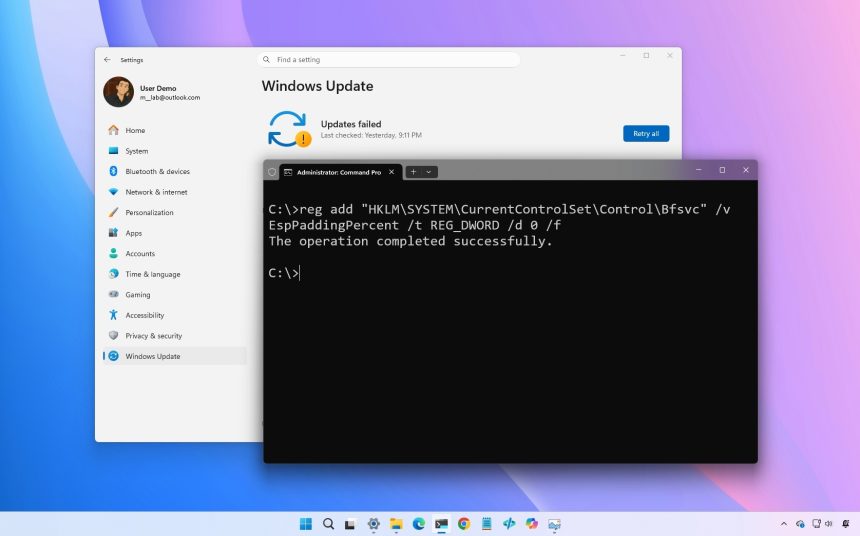
Windows Update error 0x80070005 means access was denied while Windows tried to install an update. The update process may be unable to access required files, folders, or registry entries.
Microsoft identifies several possible causes, including incorrect permissions, security software blocking update files, and restrictions applied by an organization. The code identifies an access problem, but it does not tell you which resource is blocked.
Work through the following steps in order. After each fix, retry the update and check whether the same error returns.
1. Restart Windows and check administrator access
Save your work and restart the computer. Then open Settings > Windows Update and select Check for updates.
Make sure you have access to an administrator account, since some updates require administrator permissions. Keep the computer connected to power and a stable internet connection.
On a work or school device, contact IT if update settings are managed by your organization. Changing local settings may not resolve an organization-wide restriction.
Before proceeding with repairs, back up important files and note the failed update’s KB number, if one is displayed.
2. Run the Windows Update troubleshooter
Screenshot: AddictiveTips. The interface may differ slightly between Windows versions.
In Windows 11:
- Open Settings > System > Troubleshoot.
- Select Other troubleshooters.
- Find Windows Update and select Run.
- Follow the instructions, including any steps opened in Get Help.
- Restart if requested, then retry the update.
Run the troubleshooter as an initial step for update installation problems.
3. Repair system files causing error 0x80070005
Windows includes two repair tools: DISM, which repairs the Windows image, and System File Checker, which checks protected system files.
Search for Command Prompt, right-click it, and select Run as administrator. Run this command first:
DISM.exe /Online /Cleanup-Image /RestoreHealth
Wait for it to finish. Then run:
sfc /scannow
Keep the window open until verification completes. Restart Windows afterward and test Windows Update again. Microsoft specifies running DISM before System File Checker.
If either tool reports an error, record the exact message. A failed repair needs investigation rather than repeated runs of the same command.
4. Reset Windows Update components
If Windows Update error 0x80070005 continues, resetting update components can rebuild their working folders.
Open Command Prompt as administrator and run these commands individually:
net stop wuauserv
net stop bits
net stop cryptSvc
Next, rename the update folders:
ren “%windir%\SoftwareDistribution” SoftwareDistribution.old
ren “%windir%\System32\catroot2” catroot2.old
Restart the services:
net start cryptSvc
net start bits
net start wuauserv
Restart your PC and check for updates again. Test whether the reset resolves error 0x80070005 before making further changes.
If a service cannot stop, a rename returns Access denied, or an .old folder already exists, stop and investigate that message before continuing. Do not force-delete protected folders.
5. Check whether security software is blocking updates
Third-party security software can lock files that Windows Update needs. Check its notifications, quarantine history, and available product updates for evidence of a block.
If the security vendor confirms a compatibility problem, follow its instructions. Any temporary protection change should be limited to the troubleshooting test, with protection restored immediately afterward.
Avoid permanently disabling antivirus or firewall protection to make an update install.
6. Investigate persistent access-denied errors
If the error survives these steps, the underlying permissions may need closer inspection.
Changes to component-store permissions and TrustedInstaller ownership require a targeted diagnosis, especially on a managed computer. Contact support rather than applying broad permission changes from an unrelated fix.
Have these details ready:
- The failed update’s KB number.
- Your Windows version and build.
- The complete error message.
- Results from the troubleshooter, DISM, and SFC.
Confirm Windows Update works again
Return to Settings > Windows Update and retry the installation. Complete any requested restart, then review Update history to confirm the update installed.
Keep a note of the successful fix. If error 0x80070005 returns during a later update, that record can help identify a recurring cause.