Windows Defender Quick Scan not working can mean several things: the scan button does nothing, Windows Security will not open, or a scan starts but never appears to finish. Before changing security settings, identify which symptom you are experiencing.
- 1. Restart Windows and try Quick Scan again
- 2. Check which antivirus is protecting your computer
- 3. Update Defender before retrying Quick Scan
- 4. Try PowerShell if the Quick Scan button does nothing
- 5. Repair Windows system files
- 6. Consider an offline scan if you suspect malware
- Confirm that scanning works again
The antivirus built into Windows is now called Microsoft Defender Antivirus, although many users still know it as Windows Defender. Its scan controls are available through the Windows Security app.
Start with the checks below, testing Quick Scan after each relevant step.
1. Restart Windows and try Quick Scan again
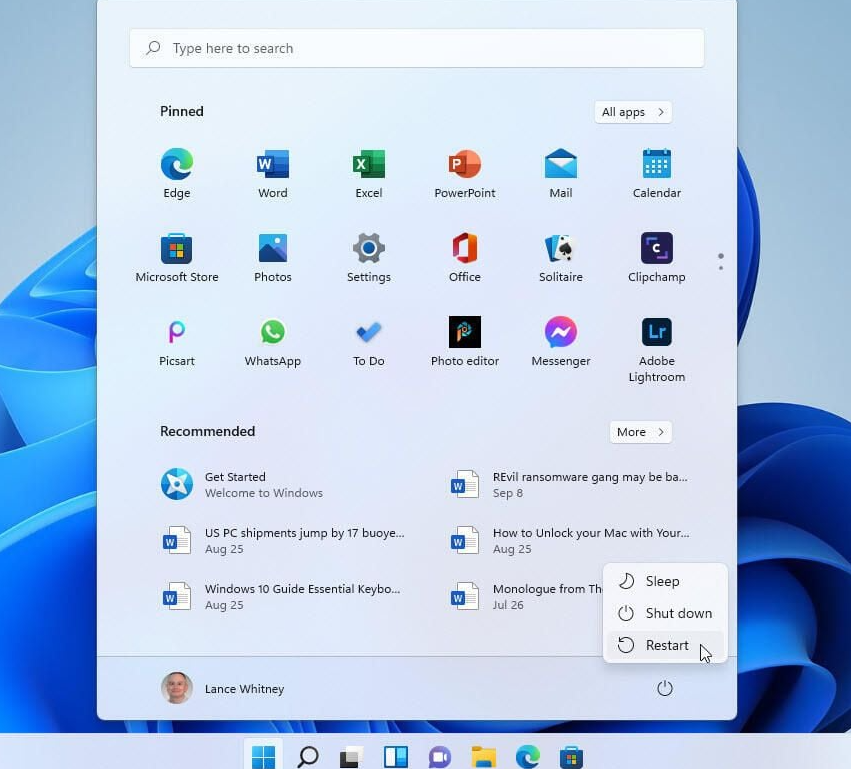
Save your work, then choose Start → Power → Restart.
After signing in, search for Windows Security in Start. Open Virus & threat protection → Quick scan, the route documented by Microsoft.
Official Microsoft screenshot. Open Virus & threat protection to access scan controls.
Watch what happens rather than repeatedly pressing the button. Does the application close? Does an error appear? Does the scan begin?
Record the exact message if one appears. That information is more useful than assuming every failed scan has the same cause.
2. Check which antivirus is protecting your computer
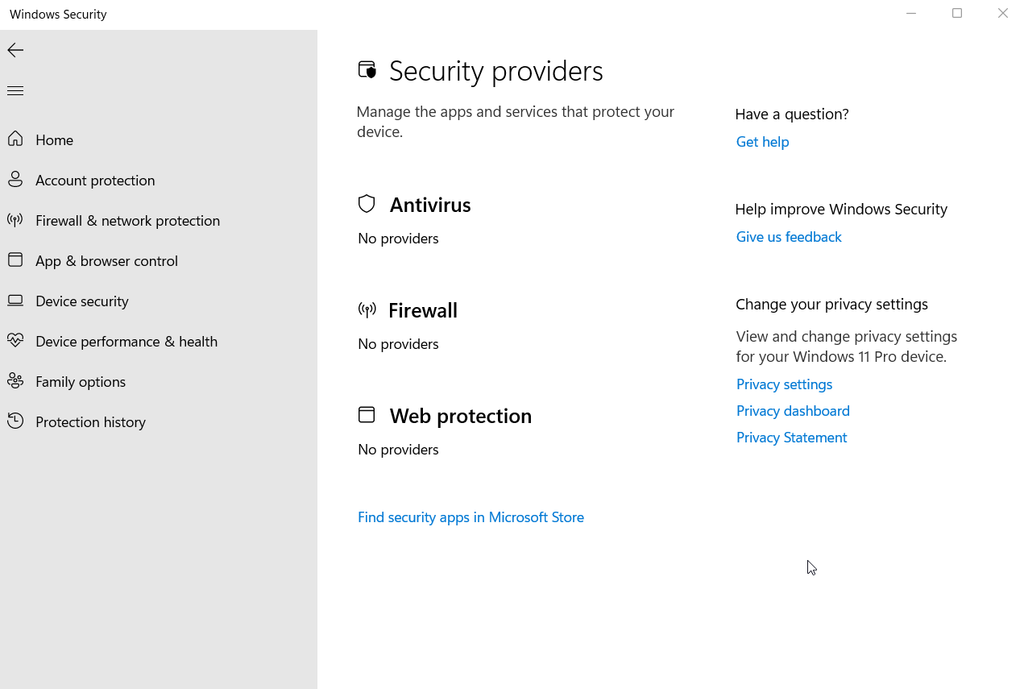
If another antivirus product is installed, Defender may not be your primary scanner.
Microsoft explains that Defender’s operating mode changes depending on the other security software and the device’s configuration. On ordinary Windows PCs, a registered third-party antivirus can automatically place Defender in a disabled or passive state.
Check the provider information displayed in Windows Security. If another product manages antivirus protection, open that application and run its scan.
Do not uninstall a working antivirus simply because Defender’s controls look different. On a work or school computer, ask IT before changing the protection provider.
3. Update Defender before retrying Quick Scan
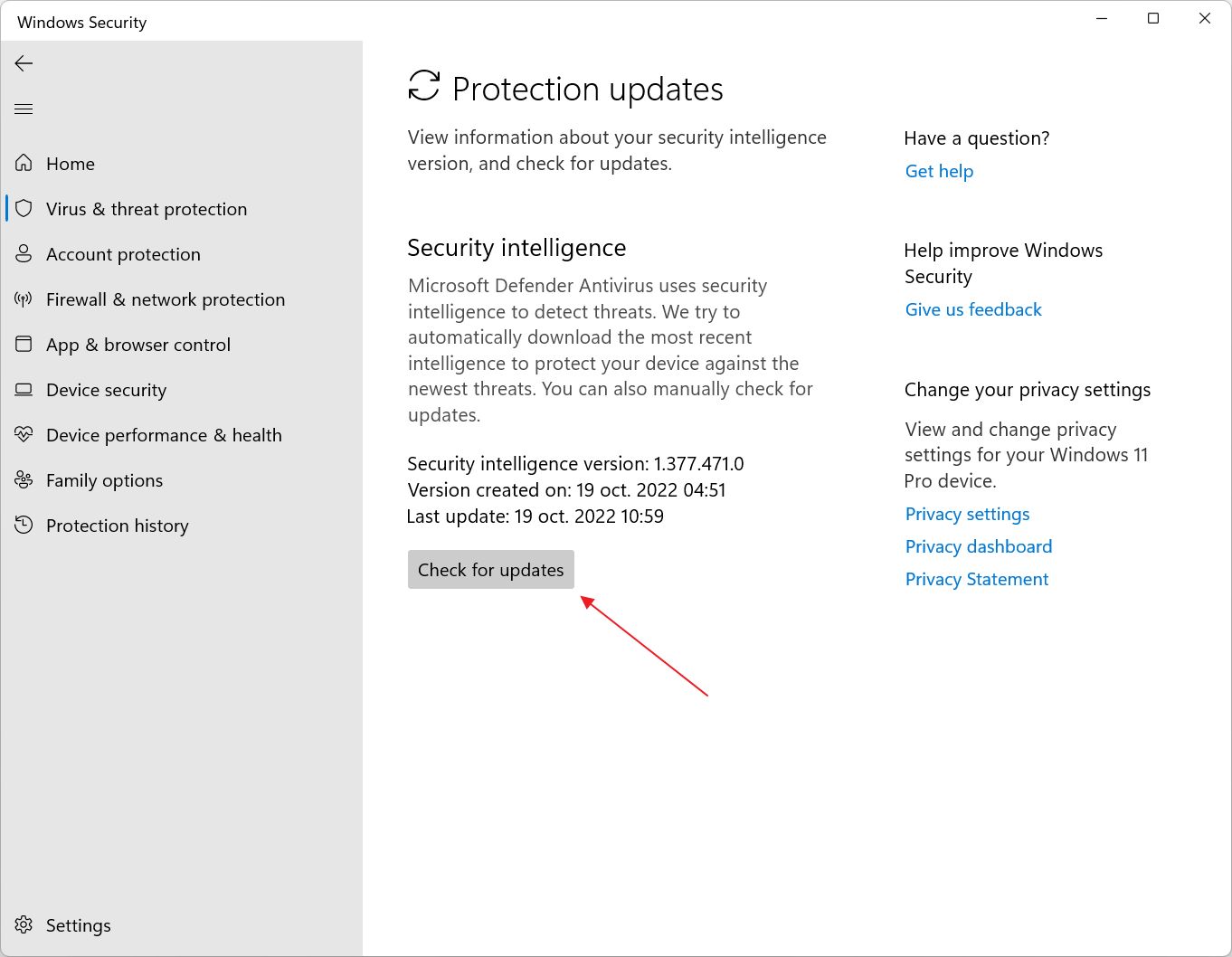
Open Windows Security → Virus & threat protection. Under Virus & threat protection updates, select Protection updates → Check for updates.
Microsoft states that scans use security intelligence to recognise threats, and this page lets you check for updates manually.
Official Microsoft screenshot showing the page used for scans and protection updates.
Allow any available update to finish, then return to Quick Scan.
If updating also fails, keep its error message. An update failure and a scan failure together provide a clearer troubleshooting trail than either symptom alone.
4. Try PowerShell if the Quick Scan button does nothing
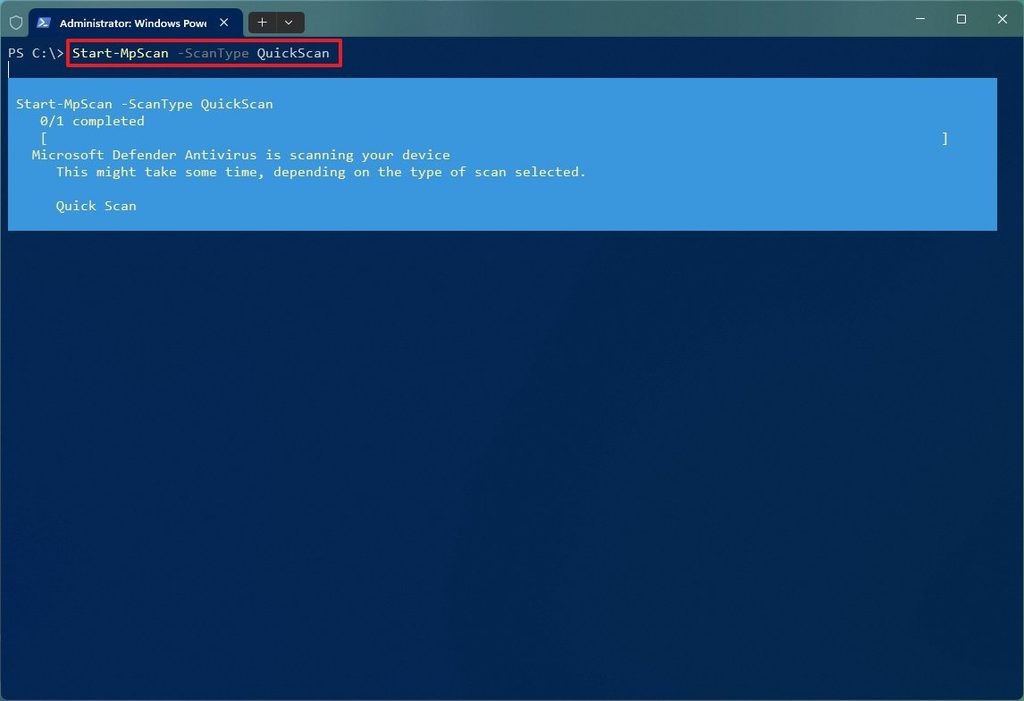
When Microsoft Defender is your active antivirus, you can try starting a scan without using the Windows Security button.
Search for Windows PowerShell, right-click it, and select Run as administrator. Run:
Update-MpSignature
If the update succeeds, run:
Start-MpScan -ScanType QuickScan
Microsoft documents these commands for updating Defender’s security intelligence and starting an antivirus scan.
Allow the command to finish. If it returns an error, copy that message before closing the window.
A command-line scan that completes while the button remains unresponsive suggests the interface needs further investigation. It does not establish that every part of Windows Security is functioning correctly.
5. Repair Windows system files
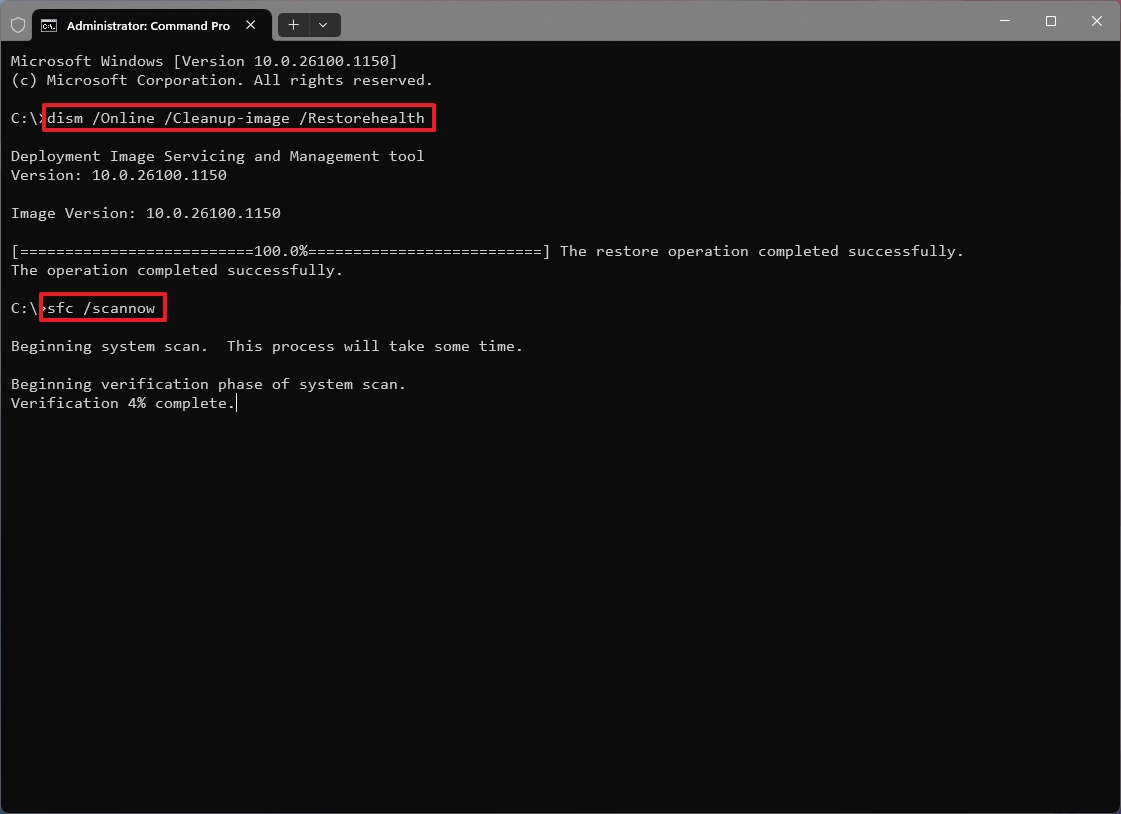
If Windows Security repeatedly crashes, or other Windows components also behave incorrectly, check for damaged system files.
Open Command Prompt as administrator and run:
DISM.exe /Online /Cleanup-Image /RestoreHealth
After DISM completes successfully, run:
sfc /scannow
Microsoft recommends this order when repairing Windows components and protected system files. Wait for verification to finish, then restart your computer.
Official Microsoft example of an SFC scan. The window appearance may differ on your PC.
Try Quick Scan again after restarting. These commands address system-file problems; they are not a guaranteed fix for every antivirus issue.
6. Consider an offline scan if you suspect malware
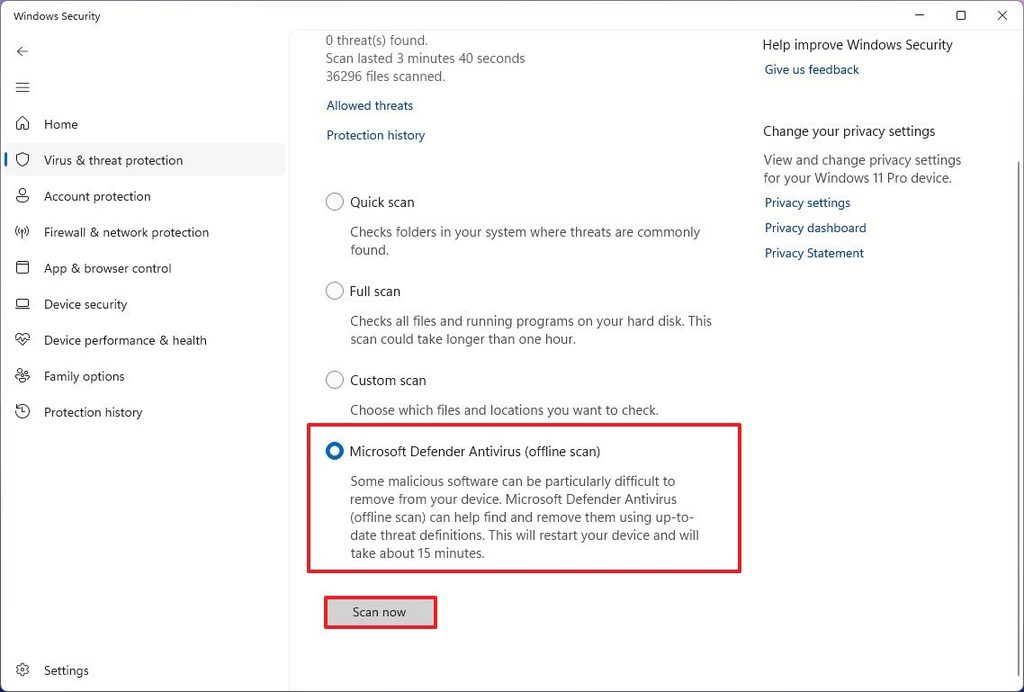
If you have reason to suspect an infection and the option is available, open Virus & threat protection → Scan options.
Select Microsoft Defender Antivirus (offline scan) and follow the prompts. Save your work first: the computer restarts and scans outside the normal Windows session. Results are available afterward under Protection history.
An offline scan is a malware-checking option, not a replacement for diagnosing a broken Quick Scan control.
Confirm that scanning works again
Return to Virus & threat protection and check the last scan information. Microsoft’s Current threats section reports when a scan ran, its duration, and the number of files scanned.
If the problem remains, contact Microsoft Support or your organisation’s IT team with the scan error, update result, and PowerShell output.
Avoid turning off protection or adding broad exclusions to make the warning disappear. The goal is to restore a working scanner and verify that it completes.