Windows Update error 0x80070020 usually means an update cannot access a file because another process is using it. Background software, including some third-party security tools, can interfere with the installation and cause it to fail.
Start by restarting your computer and running the Windows Update troubleshooter. If the error returns, investigate background software before trying more involved repairs. The code points to a file-access conflict, but it does not identify the application responsible.
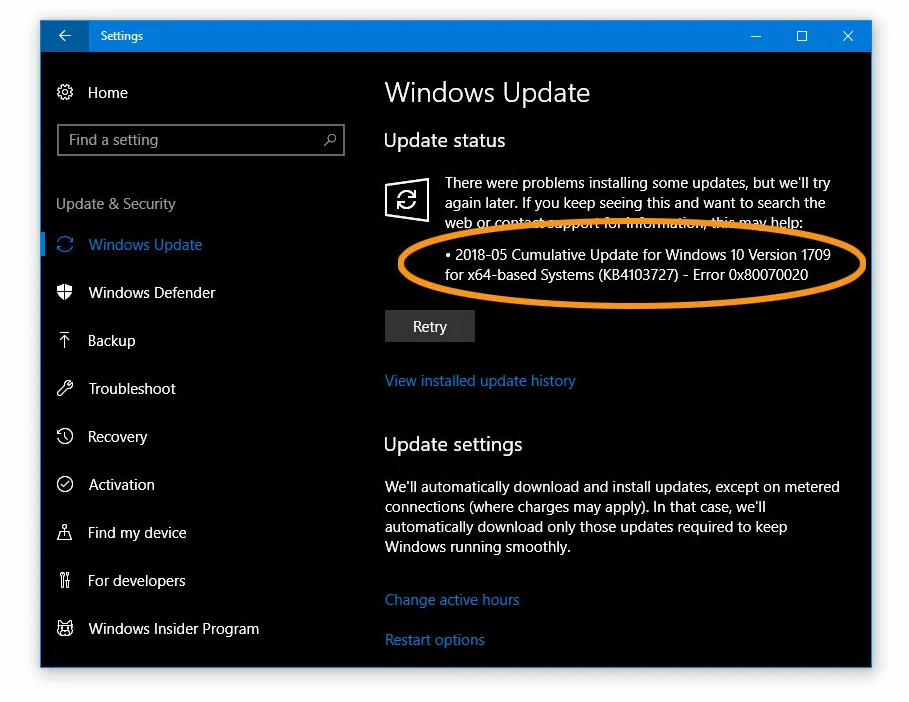
1. Restart Windows and retry the update
A restart can release files held by running applications and finish pending update operations.
- Save your work and close open applications.
- Select Start > Power > Restart.
- After signing in, leave unnecessary applications closed.
- Open Windows Update and check for updates again.
In Windows 11, go to Settings > Windows Update. In Windows 10, open Settings > Update & Security > Windows Update.
Use Restart for this check rather than shutting down and immediately turning the computer back on. Allow any installation already in progress to finish before starting another attempt.
If the update fails again, record its KB number, the error code, and whether the failure happens during downloading or installation. These details help you track whether later checks change the result.
2. Run the troubleshooter for Windows Update error 0x80070020
The Windows Update troubleshooter checks common update problems and may apply repairs automatically.
On Windows 11, open the Get Help app and search for Windows Update troubleshooter. Follow the diagnostic prompts.
You can also check this Settings route where available:
- Open Settings > System > Troubleshoot.
- Select Other troubleshooters.
- Find Windows Update and select Run.
- Follow the instructions and restart if requested.
- Return to Windows Update and retry.
On Windows 10, look under Settings > Update & Security > Troubleshoot > Additional troubleshooters, then select Windows Update.
Read the result before continuing. A message saying the troubleshooter completed does not necessarily mean the update installed successfully. Confirm the installation separately in Windows Update.
3. Check background applications and security software
Because Windows Update error 0x80070020 involves a file-access conflict, pay attention to software that monitors, scans, or modifies files.
Close optional applications through their normal menus before retrying. Examples include backup utilities, synchronization applications, and other installers. This is a controlled test, not proof that one of those programs caused the failure.
If you use third-party antivirus software:
- Check whether the security application has an update available.
- Install its updates and restart when required.
- Review its notifications for an action involving the failed Windows update.
- Contact the security-software provider if the same conflict continues.
Do not disable every security feature or end unfamiliar system processes. Some security components continue running after their application window closes, so closing the interface does not establish whether they are involved.
On a work or school computer, ask IT to investigate security software and update policies.
4. Use a clean boot to test for software conflicts
A clean boot temporarily reduces the background services and startup applications that load with Windows. It can help determine whether third-party software contributes to the update failure.
Record your original settings first. Some functions may be unavailable during testing. On a managed computer, have IT perform this check.
- Press Windows + R, enter msconfig, and press Enter.
- Open Services.
- Check Hide all Microsoft services before changing the list.
- Select Disable all, then Apply.
- Open Startup > Open Task Manager.
- Record the enabled startup items, then disable them for the test.
- Close Task Manager, select OK, and restart.
- Retry the update.
If the remaining services include required security, encryption, or access software, get support before disabling them. Do not change the Boot tab or advanced boot options.
After testing, restore the services and startup items to their recorded settings and restart. Leave anything that was already disabled unchanged.
If the update works during a clean boot, investigate the disabled software. Restore items in groups to narrow the conflict rather than leaving everything off.
5. Repair system files if the earlier checks fail
System-file repair is a secondary check. It can address damaged Windows components, but it does not directly identify which process locked an update file.
Open Command Prompt as administrator, then run:
DISM.exe /Online /Cleanup-Image /RestoreHealth
Wait for the operation to finish. If it completes successfully, run:
sfc /scannow
Let verification finish, then restart and try Windows Update again.
If either command reports an error, save the message. Do not assume the repair succeeded or repeatedly run the commands without checking their results.
6. Investigate a persistent update failure
If Windows Update error 0x80070020 continues, further troubleshooting should identify the locked file instead of repeating general fixes.
The servicing log is located at:
C:\Windows\Logs\CBS\CBS.log
A support technician can compare entries around the failure time with a Process Monitor capture to investigate the file-access conflict. The log is technical, so an error entry should be interpreted in context before changing anything.
Prepare these details when requesting help:
- The failed update’s KB number
- Your Windows version
- The complete error message
- Whether a clean boot changed the result
- Any recent security-software or backup-software changes
Avoid deleting system files or changing file permissions based only on a filename in the log. The useful next step is to identify the software holding the file, then update, repair, or reconfigure that software appropriately.