When Windows 11 Wi-Fi stops working, first check what has failed: the wireless connection, internet access, or the Wi-Fi adapter itself. A missing Wi-Fi button needs different troubleshooting from a PC that connects to the router but shows No internet.
Save your work and restart the PC once. Then try another device on the same Wi-Fi network. If you test with a phone, make sure it is using Wi-Fi rather than silently falling back to mobile data. That comparison helps you decide whether to focus on Windows or the router and internet service.
| What you see | Start here |
|---|---|
| Wi-Fi is off or no network is selected | Check Wi-Fi and Airplane mode |
| Your network appears, but connection fails | Check the password, then forget and reconnect |
| Connected to Wi-Fi, but no internet | Compare another device and run network diagnostics |
| The Wi-Fi option is missing | Check the wireless adapter and its driver |
| Every device on the network is offline | Check the router, modem, and internet provider first |
Work through the matching checks below. Test the connection after each change so you can tell which action helped.
1. Check Windows 11 Wi-Fi and Airplane mode
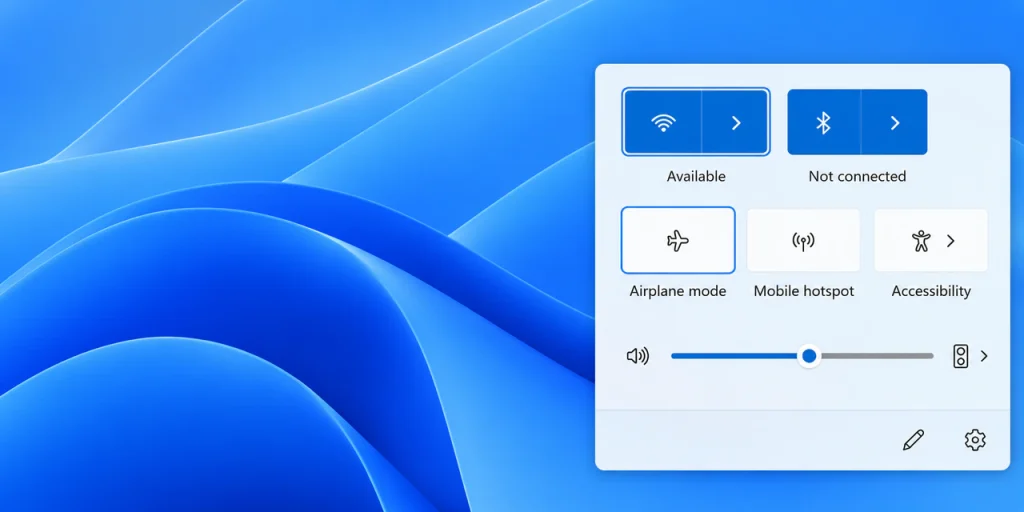
Press Windows + A to open Quick Settings, or select the network, sound, or battery area on the taskbar.
- Make sure Wi-Fi is turned on.
- Make sure Airplane mode is off.
- Select the arrow or Manage Wi-Fi connections control beside Wi-Fi.
- Select your own network and choose Connect. Enter its current password if requested.
If the signal is weak, move closer to the router. If your router presents separate 2.4 GHz and 5 GHz network names, try the other supported network.
If other devices also cannot get online, check the router’s service indicators. Restart the router or modem according to its manufacturer’s instructions; this temporarily disconnects everyone using it. A restart means cycling the power, not pressing a factory-reset button. For separate modem and router devices, let the modem reconnect before powering the router back on. ASUS explains how to compare wireless clients and check router connectivity.
If the Wi-Fi control is absent altogether, go to the adapter check in step 4. Re-entering a password cannot fix an adapter that Windows is not detecting.
2. Run the Network and Internet troubleshooter
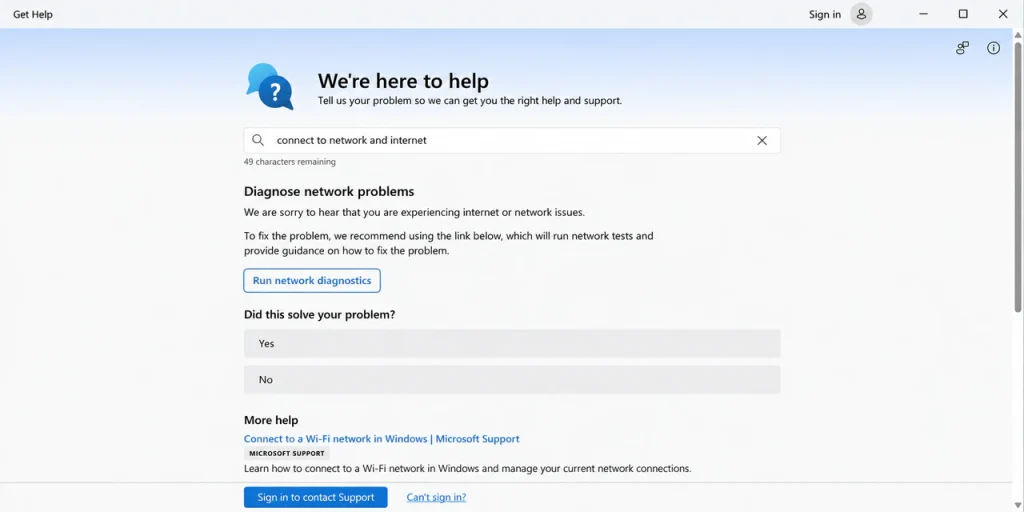
Windows 11 uses the Get Help app for network diagnostics. It can check the connection and suggest targeted actions instead of making you change several settings at once.
- Open Start, search for Get Help, and open it.
- Enter connect to network and internet in its search field.
- Select Run network diagnostics.
- Follow the prompts, read the result, and apply the action that matches the reported problem.
The wording and screens can vary with the app version. If Get Help will not load while you are offline, continue with the manual checks below.
If Windows 11 Wi-Fi connects but internet access still fails, try more than one website or app. A single unavailable site does not establish that the whole connection is broken. On a hotel or public network, check whether Windows reports Action needed and whether the network requires a browser sign-in.
For a work or school PC, keep any diagnostic message for IT. Avoid changing assigned DNS, proxy, VPN, or security settings without knowing how that network is configured.
3. Forget the saved network and reconnect
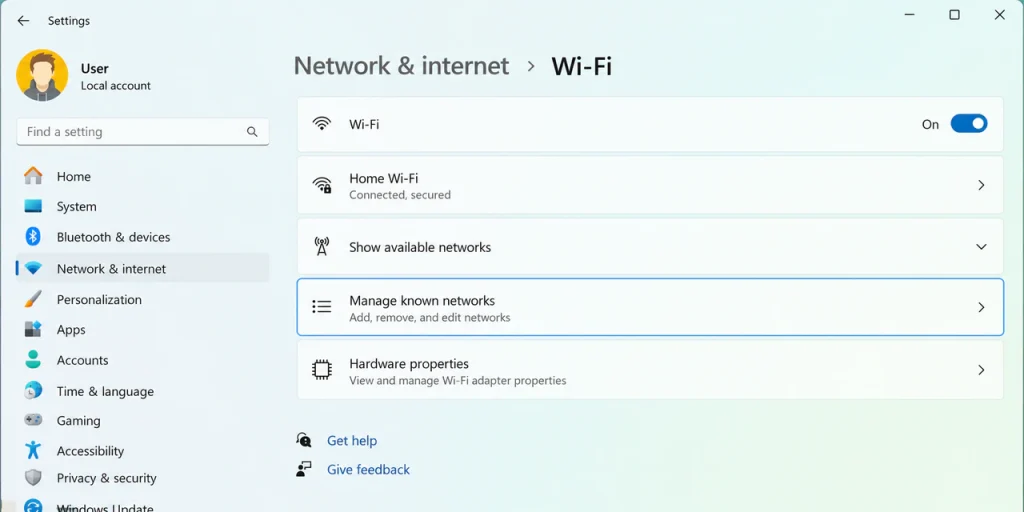
A saved network profile can become unsuitable after the router’s password or security settings change. Forgetting it lets Windows create a fresh connection profile.
Have the current Wi-Fi password available first. If your organization manages the network or uses certificates, ask IT before removing its saved profile.
- Open Settings > Network & internet > Wi-Fi.
- Select Manage known networks.
- Find the intended network and select Forget.
- Open the available-network list again, select the network, and choose Connect.
- Enter the current password and check whether you can browse.
This removes the saved Windows connection profile; it does not reset the router or change its password.
If the connection still fails, note the exact message. A rejected password, an unavailable network, and a connected network without internet point to different problems. Avoid repeatedly resetting every saved network when only one is affected.
4. Check the wireless adapter and its driver
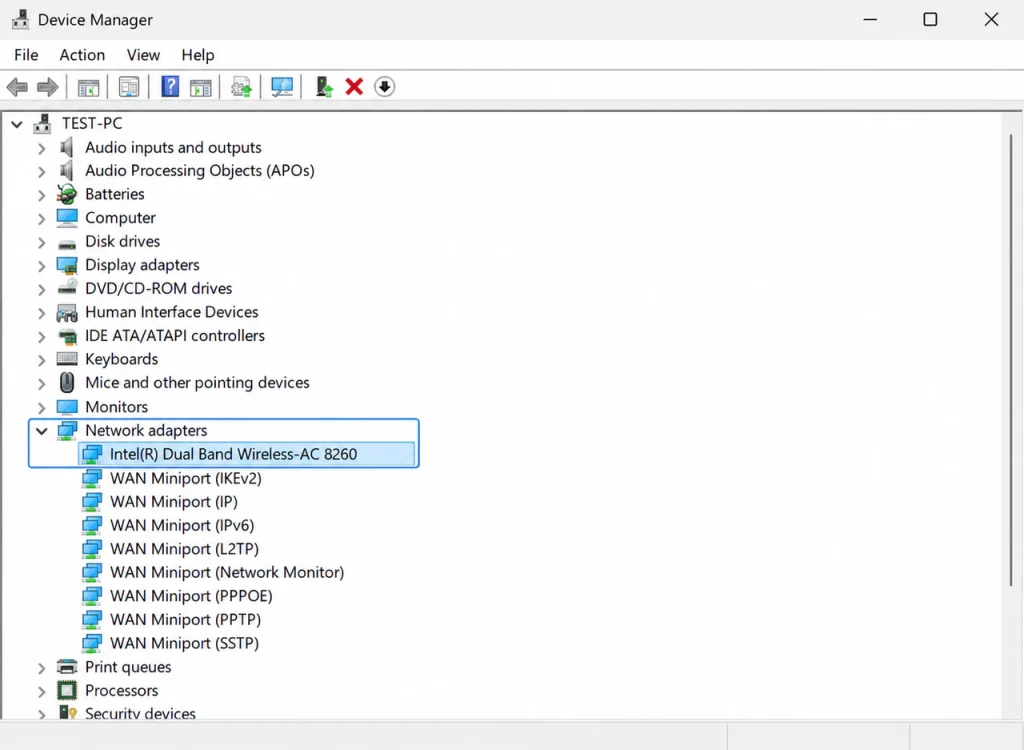
If the Windows 11 Wi-Fi option is missing or the problem began after an update, inspect the wireless adapter before resetting the entire network configuration.
- Right-click Start and select Device Manager.
- Expand Network adapters and find the wireless adapter. Names can include Wi-Fi, Wireless, or a model number; do not select the Ethernet adapter by mistake.
- If its context menu offers Enable device, select it.
- Open Properties. Record any error under Device status, then check the Driver tab for its version and date.
Intel’s adapter-identification guide shows how to locate a wireless adapter and inspect its driver. The model in the image is an example, not a driver recommendation for every PC.
Download the appropriate wireless driver from your PC manufacturer’s support page for the exact model. If this PC is offline, use another device to download the installer and transfer it by USB. If a recent driver change caused the problem, Roll Back Driver may be available in Properties.
Only consider Uninstall device after you have a backup driver installer ready. Restart afterward so Windows can attempt to reinstall the adapter; if it does not, use the saved installer. Do not assume Windows will always recover the driver without internet access.
If no wireless adapter appears, or an error persists after the correct driver is installed, use the PC manufacturer’s diagnostics or support.
5. Use network reset as a last resort
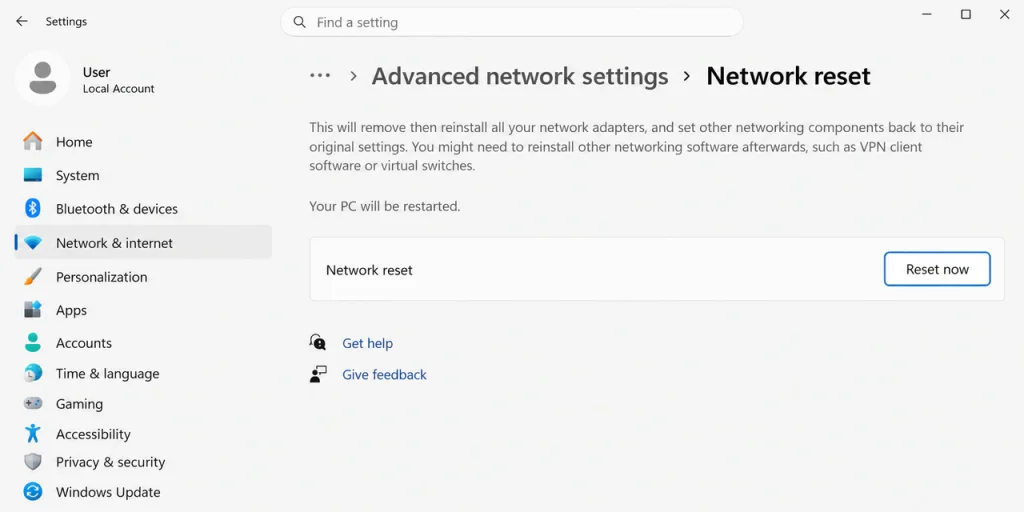
If the earlier checks have not restored Windows 11 Wi-Fi, Network reset can rebuild the network-adapter configuration. It is more disruptive than forgetting one saved network.
Save your work and have your Wi-Fi password and driver installer available. You may need to reinstall or reconfigure VPN software, virtual switches, and custom network settings. On a managed PC, consult IT first.
- Open Settings > Network & internet.
- Select Advanced network settings > Network reset.
- Read the warning, select Reset now, and confirm if you want to proceed.
- Follow the restart prompt. After restarting, reconnect to Wi-Fi and test internet access.
Use network reset as a last troubleshooting step because it removes adapters and their settings before reinstalling them with defaults.
If the problem remains, use the comparison you made at the start: several devices failing on the same network points toward the router or provider; one PC failing on several otherwise working networks points toward that PC. Record the adapter model, error message, and when the problem started before contacting support. Leave firewall and antivirus protection enabled while you investigate.