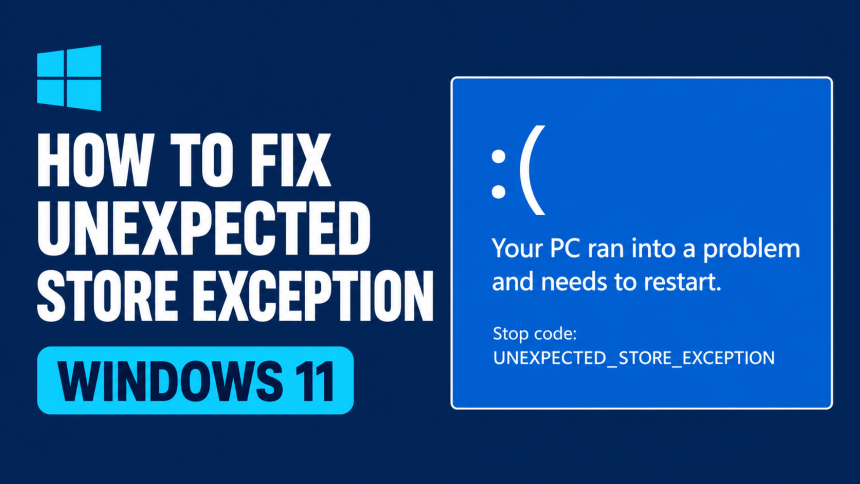
The Unexpected Store Exception error is a Windows 11 blue screen (BSOD) that causes your computer to crash or restart unexpectedly. It appears with the stop code UNEXPECTED_STORE_EXCEPTION (0x00000154).
This error occurs when the Windows kernel memory store encounters an unexpected exception. Possible causes include SSD problems, faulty storage drivers, corrupted system files, and defective RAM.
Follow these steps to fix the Unexpected Store Exception error and improve Windows 11 stability.
1: Check Your SSD for Errors
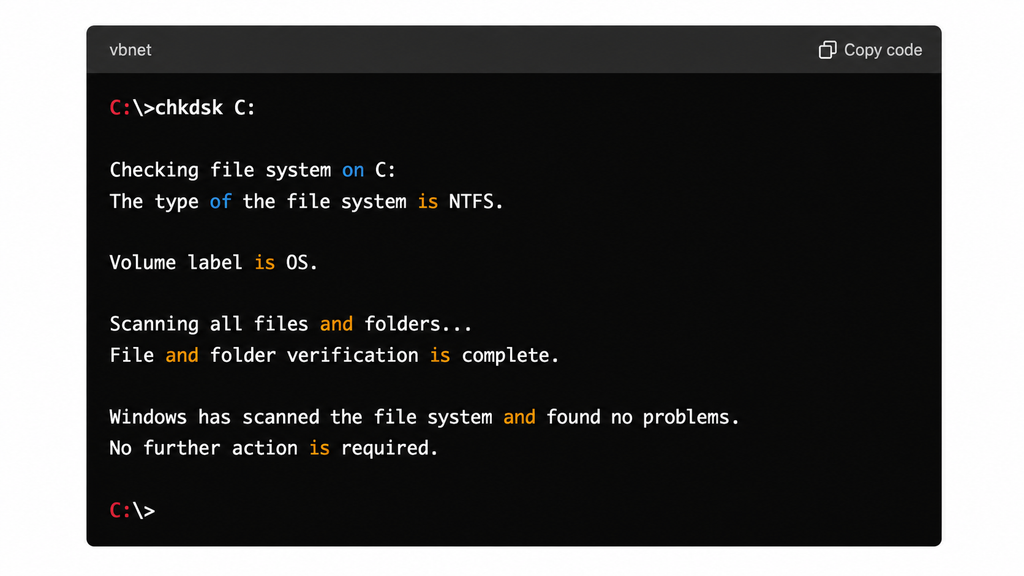
Storage problems can contribute to Unexpected Store Exception crashes. Start by checking your drive for file-system errors.
- Open Command Prompt as administrator.
- Enter the following command:
chkdsk C: /scan
- Wait for the scan to finish.
- Review any reported errors.
If problems are detected, follow Windows’ recommended repair instructions.
Also check your SSD’s health using the manufacturer’s diagnostic software. Back up important data immediately if the drive reports warnings or signs of failure.
2: Update Storage Drivers
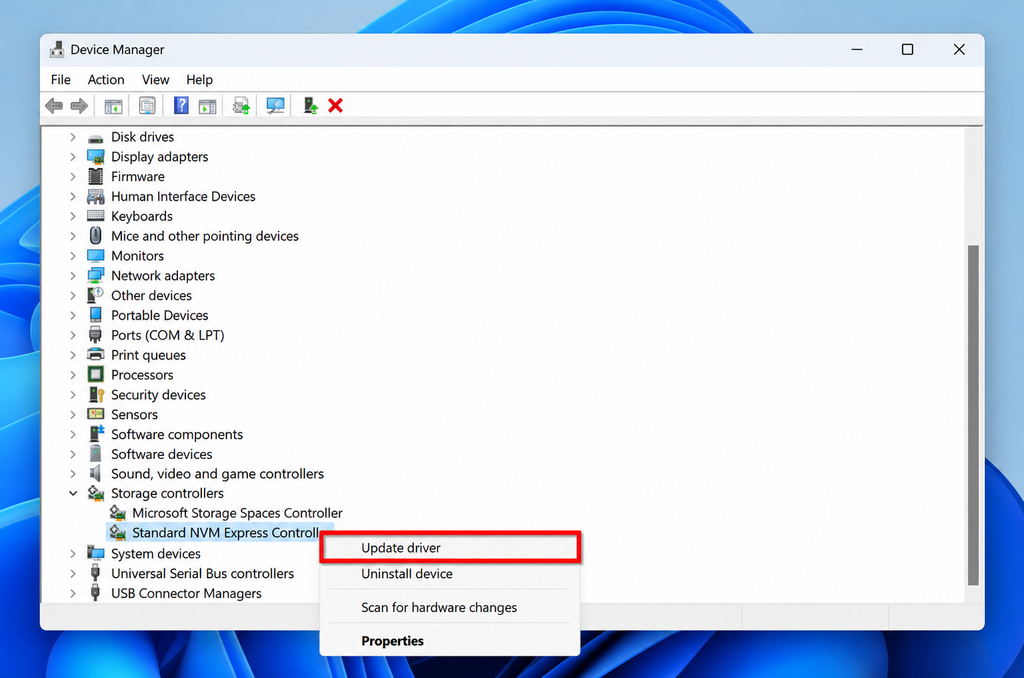
Outdated or incompatible storage drivers may trigger the UNEXPECTED_STORE_EXCEPTION error.
- Right-click Start and open Device Manager.
- Expand Storage controllers and Disk drives.
- Right-click the relevant device and select Update driver.
- Choose Search automatically for drivers.
- Restart your computer.
You can also download compatible storage controller drivers from your laptop or motherboard manufacturer’s official support website.
3: Repair Corrupted Windows Files
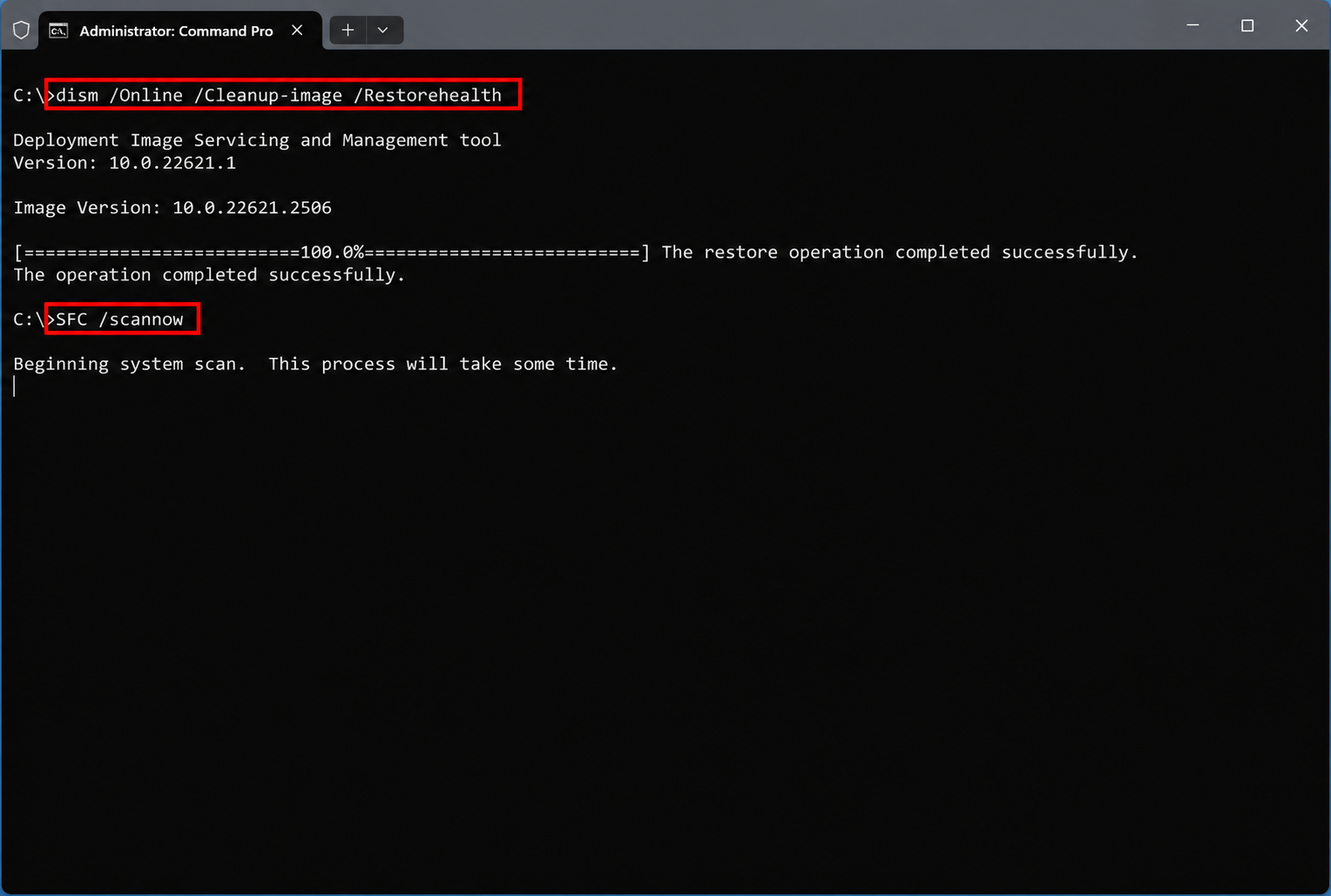
Damaged Windows components can cause system instability and blue screen errors.
- Open Command Prompt as administrator.
- Run:
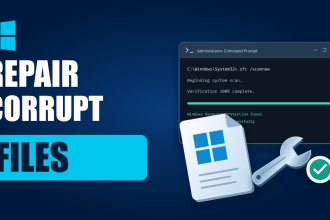
DISM /Online /Cleanup-Image /RestoreHealth
- Once DISM finishes, enter:
sfc /scannow
- Wait for the scan to complete.
- Restart your PC.
DISM repairs the Windows component store, while System File Checker repairs missing or corrupted protected system files.
4: Test Your RAM
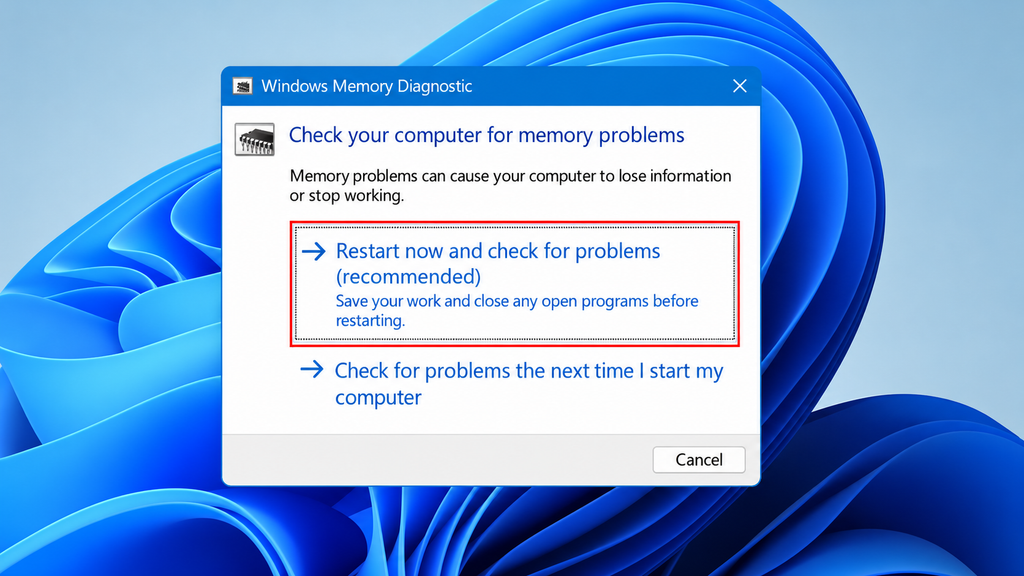
Faulty memory can cause unexpected Windows crashes, including the Unexpected Store Exception blue screen.
- Press Windows + R.
- Type mdsched.exe and press Enter.
- Select Restart now and check for problems.
- Wait for Windows Memory Diagnostic to finish.
- Review the results after restarting.
If memory errors are detected, further RAM testing or replacement may be necessary.
5: Install Windows Updates
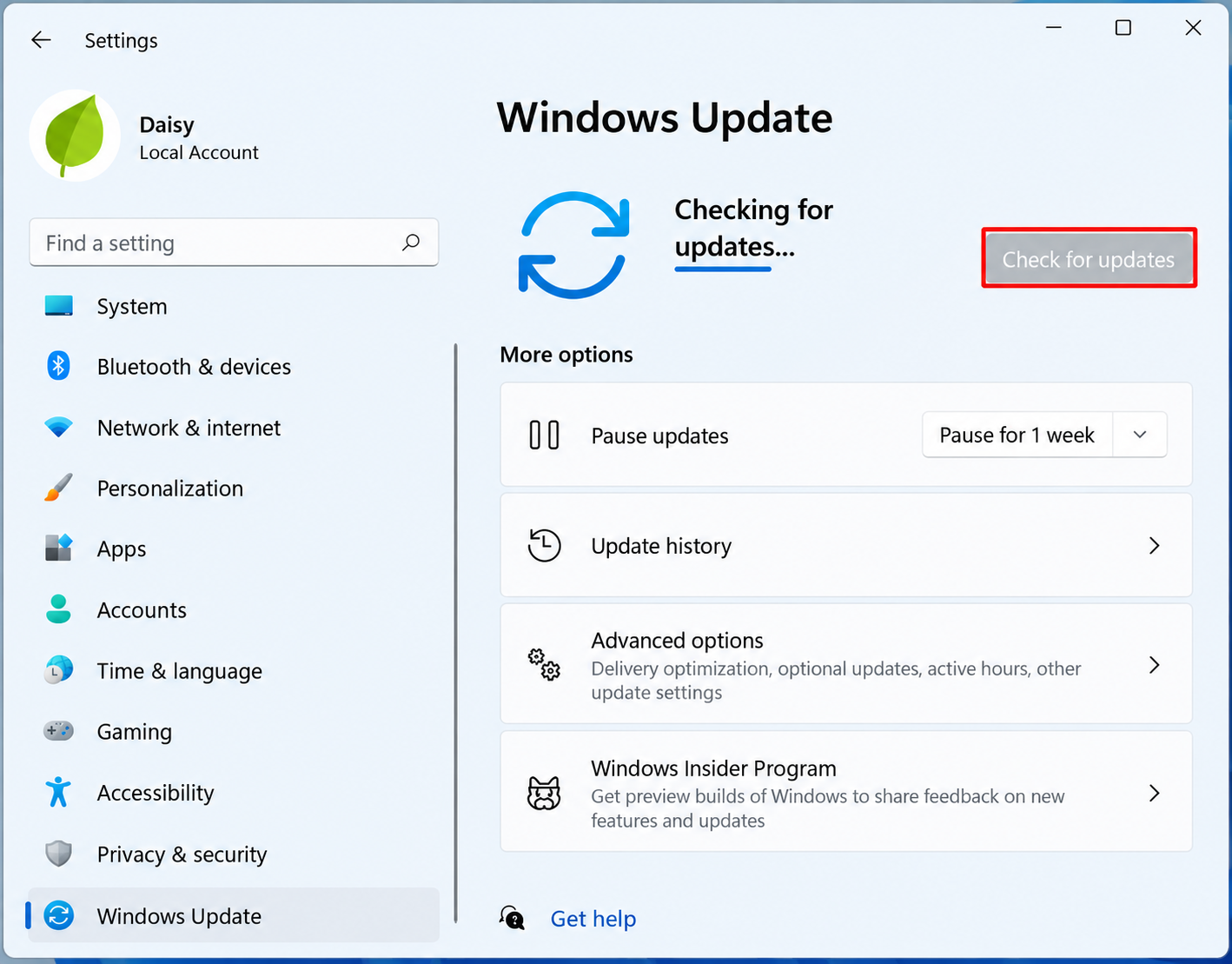
Windows updates can resolve system bugs and hardware compatibility issues.
- Open Settings → Windows Update.
- Click Check for updates.
- Install available updates.
- Restart your computer.
If the crashes started immediately after a recent update, check Windows Update → Update history and consider uninstalling the problematic update.
6: Check Event Viewer for Hardware Errors
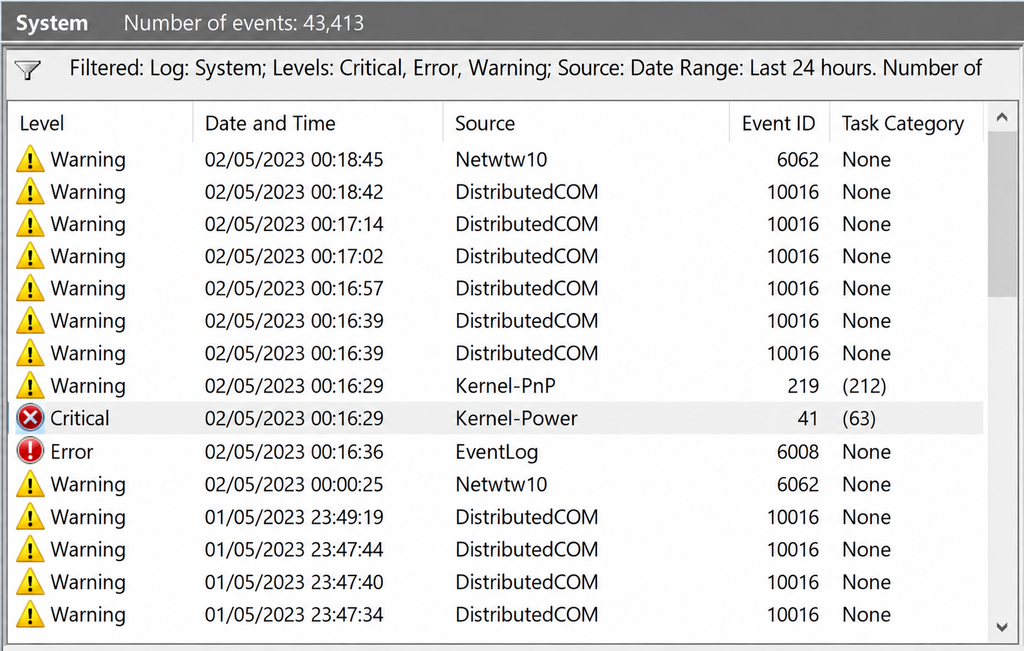
Event Viewer can help identify the driver or device associated with the blue screen.
- Press Windows + R.
- Type eventvwr.msc and press Enter.
- Navigate to Windows Logs → System.
- Look for errors recorded around the time of the crash.
- Check for disk, storage controller, or driver-related messages.
An error recorded at the same time doesn’t always identify the cause, but repeated storage or driver errors can help narrow down the problem.
If the Unexpected Store Exception error continues, review crash dump files in C:\Windows\Minidump or perform additional SSD and RAM diagnostics before considering a Windows reinstall.